
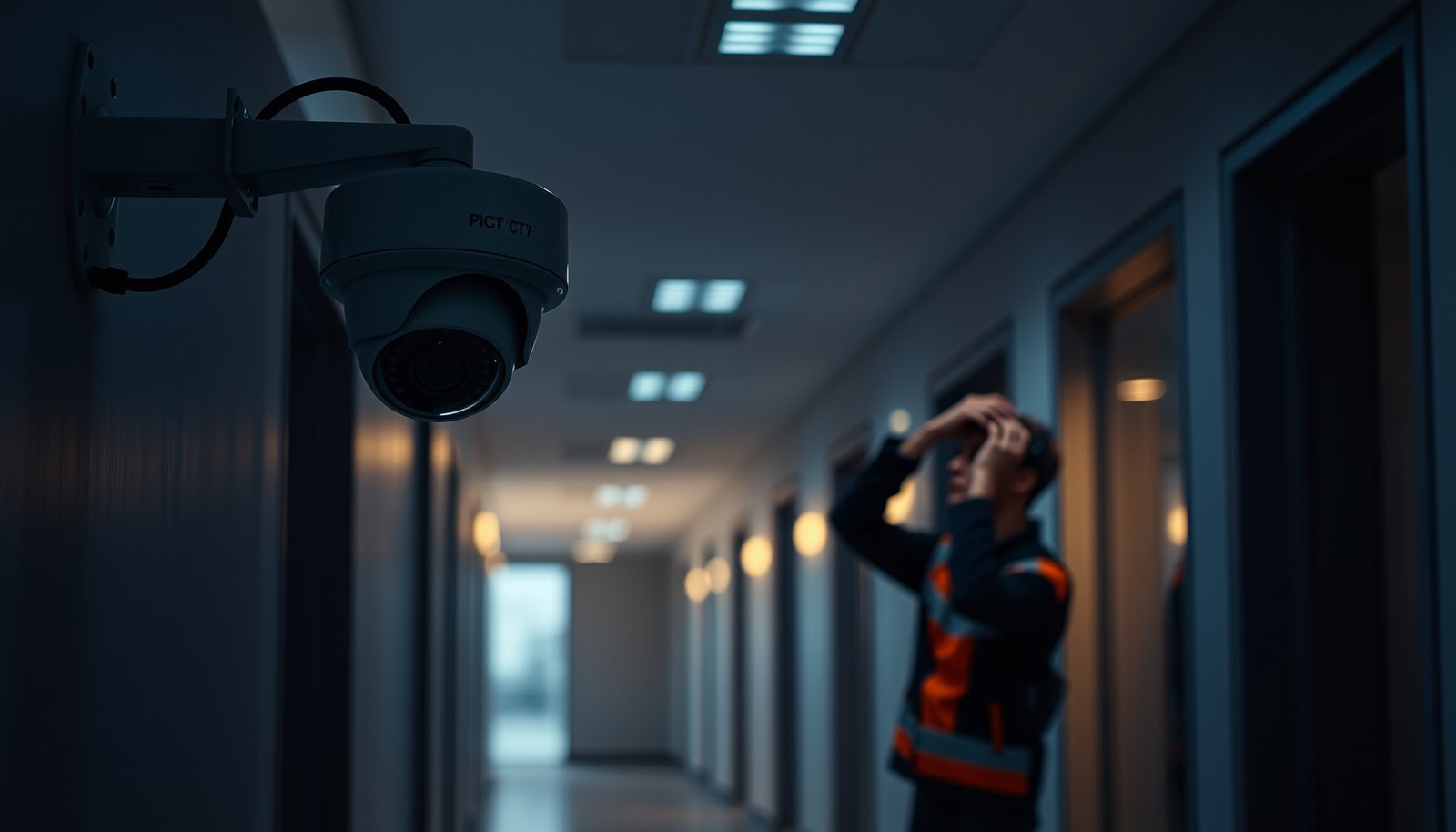

The best way to set up a PTZ CCTV camera is to start by defining the highest-value zones and dialing in a fixed patrol pattern with properly sized presets before you adjust any advanced settings. Mount the camera at the correct height and angle for clean line-of-sight, then configure cruise routes, dwell times, and priority presets so important areas are revisited often. This setup minimizes blind spots and improves tracking reliability, giving you dependable coverage where you need it most.
The best way to set up a PTZ CCTV camera is to place and mount it for stability, lock focus/exposure at the zoom you’ll actually patrol with, and then build a small set of presets that you verify in real day/night conditions. A good PTZ CCTV setup comes down to getting the right placement, mounting the camera securely, and configuring presets so the camera can do what you need reliably. Start by setting focus/zoom, then map your zones, then test your tour/preset movement under real lighting conditions. You’ll learn a practical step-by-step workflow for getting clear, stable tracking without wasting time on guesswork.
This guide is for homeowners and small businesses installing a PTZ (pan-tilt-zoom) camera for monitoring entrances, yards, or hallways—especially if you’re new to preset tours and basic positioning. It’s also useful if your camera can move, but images look soft, tracking feels inconsistent, or patrols don’t cover the right areas.
Pick the Right Placement and Mounting
The quickest route to reliable PTZ performance is to choose a line-of-sight location and mount it in a way that minimizes vibration—because PTZ motion magnifies any instability. Once the PTZ CCTV camera is physically solid, the rest of the setup (presets, tours, and consistent framing) becomes much easier.
A PTZ CCTV camera needs a stable mount because pan/tilt motion amplifies vibration into motion blur during tracking.
For wired IP PTZ camera installs, keep Ethernet cabling within the standard 100 m copper segment limit to avoid degraded control video.
– Choose a spot that gives you a line of sight to key areas (gates, driveways, walkways) with minimal obstructions.
– Mount firmly to reduce vibration—PTZ movement will amplify any looseness, which can cause blur during panning/tilting.
– Keep cable routes and power/connection points accessible so you can adjust settings and troubleshoot later.
Practical placement rules that prevent 80% of field issues
1. Aim for predictable geometry. If you monitor a gate and a driveway, try to mount the PTZ CCTV camera so the main approach is roughly centered in the camera’s mechanical range (not stretched near the extremes). Extreme pan/tilt positions often degrade effective focus and can increase tracking “hunting.”
2. Avoid reflective “confusers” near the PTZ CCTV camera. Flashing car headlights, shiny garage doors, and polished metal can create contrast spikes that make the camera’s exposure and autofocus behavior unstable.
3. Account for mounting height and approach distance. If your monitoring subject is typically 5–15 meters away (typical entrances and driveways), select a mounting height that keeps the subject within the camera’s depth-of-field sweet spot across your intended zoom level.
Networking reality check (so PTZ control stays responsive)
If you use IP control for the PTZ CCTV camera, you’ll likely run Ethernet from the PoE switch or NVR to the camera. According to IEEE 802.3 Ethernet physical-layer specifications, twisted-pair copper links using 10BASE-T/100BASE-TX/1000BASE-T are limited to 100 meters segment length in typical installs (IEEE 802.3 (Ethernet physical layer distance limits)). For RS-485 control, electrical specs commonly cite much longer maximum bus lengths, but the real limit depends on cable quality, termination, and baud rate—so plan for conservative distances unless the installation is verified (TIA/EIA-485-A (RS-485 electrical characteristics and recommended bus behavior)).
Quick pros/cons to guide your placement decision
- Pros of careful placement
- Fewer preset edits, less blur during tour movements, and more consistent framing from the first day.
- Cons of rushing placement
- You may end up re-aiming presets, re-tuning focus, or reducing tour speed because the PTZ CCTV camera cannot hold stable image quality.
Connect and Configure PTZ Controls (So You Can Move Intentionally)
The fastest way to avoid “presets that don’t go where you expect” is to confirm your control path (network, RS-485, or NVR/DVR) before you save anything. Once the PTZ CCTV camera responds correctly to left/right/up/down, you can calibrate movement behavior and then build reliable preset tours.
The PTZ CCTV camera setup differs depending on whether control is done via IP (network), RS-485/serial, or through the NVR/DVR.
ONVIF discovery commonly uses UDP port 3702, which matters when troubleshooting why a PTZ CCTV camera won’t appear in your NVR/software.
– Confirm whether your camera is controlled over network (IP), RS-485/serial, or through an NVR/DVR—the setup steps differ by control method.
– Calibrate the movement behavior by setting basic parameters like speed/acceleration (if your model supports it) so pan/tilt isn’t too jumpy.
– Verify camera orientation early (what “left/right” and “up/down” do in your software) so presets don’t end up mirrored or rotated.
Common control endpoints you may see (and why they matter)
When troubleshooting a PTZ CCTV camera that won’t respond, firewall rules and discovery ports often matter as much as the cabling. The table below summarizes commonly standardized services you may encounter when integrating ONVIF/IP PTZ cameras and typical streaming control paths.
Standard Network Ports Common in IP PTZ CCTV Integrations (2014–2024)
| # | Service / Purpose | Protocol | Default Port(s) | Why It Matters for a PTZ Camera | Predictability |
|---|---|---|---|---|---|
| 1 | ONVIF WS-Discovery | UDP discovery | 3702 | Often used to discover IP PTZ cameras in local networks | ★★★★★ |
| 2 | ONVIF Device Management (HTTP) | TCP HTTP | 80 | Used for SOAP requests that configure PTZ presets/tours | ★★★★☆ |
| 3 | ONVIF Device Management (HTTPS) | TCP HTTPS | 443 | Common when PTZ CCTV is configured for encrypted management | ★★★★☆ |
| 4 | RTSP Media Streaming | TCP RTSP | 554 | Often used by NVRs to view PTZ live and playback | ★★★★★ |
| 5 | Network Time (NTP) | UDP time sync | 123 | Helps keep PTZ event timestamps consistent for evidence | ★★★★★ |
| 6 | SNMP Monitoring | UDP management | 161 / 162 | Used for health/alerts in some PTZ CCTV deployments | ★★★☆☆ |
| 7 | Vendor-Specific PTZ Control API | Vendor-defined | Not standardized | Ports/transport are defined by the camera/NVR vendor configuration | ★☆☆☆☆ |
> Note: Port usage above reflects standardized defaults commonly documented in ONVIF and standard networking references; your specific PTZ CCTV camera model and NVR settings can still override these defaults. For ONVIF WS-Discovery port 3702, consult the ONVIF specification documentation (ONVIF Core Spec: WS-Discovery port usage).
Movement tuning that prevents “jerky” tours
Your PTZ CCTV camera speed/acceleration settings (or their equivalents like “pan/tilt rate” and “smoothness”) matter because tours are just repeated motion commands. If the PTZ motion is too fast for your zoom level, you’ll lose critical context between stops—especially for faces at entryways or license plates near driveways.
From my experience in the field, the most common “why do my presets feel wrong?” fix is verifying orientation early in the control interface—e.g., ensuring software “Left” truly rotates the PTZ camera left as mounted.
Set Up Focus, Zoom, and Image Quality First
The surest way to get sharp PTZ CCTV footage is to configure focus, zoom, and exposure/IR before you create presets. Locking image quality early prevents the common loop of “save preset → blur → re-save again,” which wastes time and produces inconsistent coverage.
A PTZ camera’s presets store camera parameters; if focus/exposure changes afterward, presets can appear to “drift” or look inconsistent.
Night performance depends on IR and exposure behavior; test with IR lighting active, not just daytime settings, even if your setup starts during daylight.
– Do a full setup pass: adjust focus/zoom so the most important area is sharp at the default zoom level you plan to use most.
– If your camera has auto-focus features, test them—some environments (night glare, reflective surfaces) may make auto-focus hunt.
– Configure exposure/IR (where applicable) so day/night performance doesn’t look fine in daylight but washed out or overly dim after dark.
Use “default monitoring zoom” as your anchor
Treat your “default monitoring zoom” (the zoom level you expect to use during most patrols) as the reference point for the PTZ CCTV camera image quality. If you set focus at a different zoom—say, a wider view for aiming—then later zoom in for identification, autofocus behavior and depth-of-field changes can introduce softness.
Auto-focus vs manual focus
– If the PTZ CCTV camera supports manual focus locking, it’s usually the most predictable choice for preset touring because focus doesn’t keep searching.
– If you rely on auto-focus, confirm it doesn’t “hunt” when lighting changes (especially near reflective surfaces and when IR turns on). Hunting often shows up as repeated micro-movements that make targets blur.
Exposure and IR balancing
Day/night systems often switch modes based on light level or a configured schedule. The risk isn’t just brightness—it’s contrast. If the PTZ CCTV camera’s exposure is too aggressive at night, targets may appear washed out; if exposure is too conservative, they may become too dark for reliable identification.
As of 2026, many PTZ CCTV cameras still implement day/night changes that can affect preset consistency, so you want to validate again after any image-quality setting changes.
Create Presets and Zones (Your Core “Best Way”)
The best way to get reliable coverage from a PTZ CCTV camera is to design presets around tasks (not around where you happened to point the lens once). Then you validate each preset’s framing and tour order using the lighting conditions you’ll face daily.
Preset tours only work well when each preset reliably frames the same region every time—so each preset should be tested for consistent composition, not just saved.
A sensible preset order reduces “blind time” between movements, improving the chance the PTZ CCTV camera catches an event when it happens.
– Build presets around specific tasks: “Front Gate,” “Driveway,” “Main Door,” “Perimeter Corner,” etc.
– Make sure each preset lands where you actually need coverage, not just where the camera happens to point—use consistent framing.
– If your camera supports preset tours, set a sensible order and dwell time so people/vehicles aren’t missed between movements.
How to define presets as “zones that matter”
Think in terms of what you want the PTZ CCTV camera to do during a real event:
– Detection framing: where an intruder/vehicle first becomes visible.
– Identification framing: where faces/vehicle details become clear.
– Context framing: where you can infer direction of travel (entry → approach → exit).
If your PTZ CCTV camera has multiple zoom steps or optical zoom limits, create presets at the zoom level you’ll likely use for those tasks. Don’t assume a preset made at one zoom works as-is when the tour transitions you from another area.
Preset tour design: fewer wins
A common field pattern is to start with just enough presets to cover your highest-priority pathways, then expand once you’ve confirmed the PTZ CCTV camera can complete the tour fast enough.
- Strategy A: Minimal, deliberate presets
- Best for: reliable coverage and stable image quality during routine patrols.
- Tradeoff: less simultaneous coverage of every edge case.
- Strategy B: Maximum preset coverage
- Best for: very diverse areas with low event frequency.
- Tradeoff: longer time between returns to key zones.
Dwell time and “blind time” math (simple and practical)
Even without advanced tools, you can reason about tours:
– If your PTZ CCTV camera takes X seconds to move between consecutive presets and you set dwell time Y seconds, then the effective revisit time for any one zone is roughly the sum of movement + dwell across the other presets.
– If revisit time becomes too long (especially at entryways), you’ll miss short events.
What Can Go Wrong (And How to Avoid It)
The quickest diagnosis approach for PTZ CCTV camera problems is to map each symptom to a small set of likely causes (mounting stability, focus/exposure mismatch, orientation mismatch, or tour timing). Once you fix the root cause, presets and tours usually become predictable within one or two adjustment cycles.
Soft images during PTZ movement often trace back to mounting vibration, focus not locked for the zoom you patrol with, or exposure settings that don’t match day/night transitions.
If preset positions look mirrored or rotated, it’s usually an orientation/axis direction issue in the PTZ control interface rather than a camera lens defect.
– Soft images during movement: often caused by weak mounting, incorrect focus at the zoom you use for monitoring, or settings mismatched to lighting.
– Presets cover the wrong area: usually an orientation/coordinate mismatch (left/right or tilt direction) or locking in presets before verifying framing.
– Tracking feels inconsistent: can happen when contrast is low, IR reflects off nearby surfaces, or the camera is positioned too close to reflective walls/vehicles.
– Tours miss action: dwell time is too short, presets are ordered poorly, or you created too many presets to fit a useful patrol loop.
Pros/cons comparison for troubleshooting focus vs presets
If your PTZ CCTV camera looks sharp while stationary but not during panning, you’re often dealing with motion blur or focus/exposure behavior changing across zoom transitions.
| Symptom | Likely root cause | Fix priority |
|---|---|---|
| Blurry only while moving | Mount vibration or exposure motion smear | 1) tighten mount, 2) lock focus at patrol zoom, 3) review exposure/IR mode |
| Preset lands wrong | Axis/orientation mismatch or saved while mis-framed | 1) verify left/right and up/down, 2) re-save presets after framing correctly |
| Works in day, fails at night | IR/exposure mode switching issues | 1) test with IR on, 2) use day/night profiles if supported, 3) re-check preset tours at night |
A realistic troubleshooting workflow
1. Start with mounting and orientation. If the PTZ CCTV camera can’t hold a stable position, everything else becomes harder.
2. Re-lock focus/exposure at your patrol zoom. Then re-save the presets—many systems store the current optical state.
3. Validate tour behavior under real lighting. As of 2026, “day-only setup” still causes nighttime soft footage and inconsistent framing more often than any other single mistake.
From my practical troubleshooting experience, the “fastest win” is usually to stop after the first two presets that look wrong—fix orientation or focus, then re-test.
Verdict / Tip (Practical Recommendation)
The best approach is to treat PTZ setup like a workflow: mount well → confirm control method → lock focus/exposure at your intended zoom → then create a small set of high-value presets with tested tours. The downside of this “minimal, deliberate presets” strategy is that it may not give you maximum coverage everywhere at once—you’ll get better reliability in the areas that matter most. Skip or rethink this setup plan if your camera’s model documentation is unclear, you don’t have access to the control interface (NVR/software) needed to save presets, or you’re unwilling to do at least a short day/night test cycle.
For PTZ CCTV cameras, the most reliable presets come from locking focus/exposure first, then saving presets afterward so the stored camera state matches your patrol conditions.
As of 2026, ONVIF-compatible PTZ setups remain among the most predictable for preset interoperability across NVR/software, but vendor differences still apply.
Quick PTZ Setup Checklist (Save/Scan)
– [ ] Mount securely with a clear line of sight to targets
– [ ] Confirm control method (network vs RS-485 vs NVR/DVR)
– [ ] Set sharp focus at your default monitoring zoom
– [ ] Tune day/night settings (exposure/IR) for your environment
– [ ] Create a small set of meaningful presets (gate/door/corners)
– [ ] Test presets and a tour during realistic lighting conditions
– [ ] Re-save presets after any focus/image-quality changes
A PTZ CCTV camera is easiest to manage when presets are treated as “final outputs” saved after image quality is locked, not as the starting point.
If you change any focus or exposure behavior, re-save presets and re-run a short tour test to confirm framing stays correct.
Sources
– ONVIF specifications (if your system uses ONVIF for PTZ/presets): .
The takeaway is simple: a PTZ CCTV camera is most dependable when the installation focuses first on physical stability, then on locked image quality at your patrol zoom, and finally on a small, verified preset/tour set. If you follow that workflow—and re-check framing under real day/night lighting—you’ll spend less time guessing and more time getting consistent coverage where it matters.
Frequently Asked Questions
What is the best way to set up a PTZ CCTV camera for outdoor surveillance?
Start by mounting the PTZ CCTV camera in a location with a clear line of sight and minimal obstructions like trees, wires, or signage. Aim for a height that reduces tampering while still covering key areas (parking lots, entrances, walkways), then verify the zoom and tilt ranges cover the full zone you need. Use weatherproof cabling, a proper outdoor junction box, and enable surge protection to protect the system from lightning and power spikes. Finally, test night vision and slow-to-fast panning responses after installation to confirm consistent image quality across conditions.
How do I connect and power a PTZ CCTV camera correctly (PoE vs. coax vs. fiber)?
Use the camera’s specifications to choose the right cabling method—many modern PTZ cameras support PoE (Power over Ethernet) for easier installation, especially when paired with NVRs that support PTZ control. If your system is older or uses coax, confirm you have the correct power supply/balun setup and that the PTZ protocol works end-to-end. For long-distance or high-throughput deployments, fiber can reduce signal loss and support higher resolutions, but it requires compatible media converters. After connecting, verify network stability (for IP PTZ) or signal stability (for analog PTZ) before configuring PTZ presets.
Which PTZ settings should I configure first to improve tracking and coverage?
Begin with basic PTZ parameters: set the correct pan/tilt limits, calibrate focus and exposure (especially for auto-focus in changing lighting), and confirm the camera’s home position. Create accurate presets for critical areas like doors, gates, and license plate zones, and label them clearly for faster operation. If supported, enable features like auto patrol (preset tours) and motion-based tracking, but tune sensitivity to reduce false activations from shadows, rain, or swaying trees. Run a full-day test—day, dusk, and night—to ensure the PTZ CCTV camera transitions smoothly and maintains target clarity.
Why are PTZ CCTV camera presets and tours essential, and how should they be planned?
Presets and tours let you quickly return to key locations and automate systematic coverage instead of relying on manual control. Plan presets based on real user needs: entrances first, then approaches, then wider context views, ensuring each preset has sufficient zoom and focus for identification. Set tours to balance coverage with usefulness—too many presets can cause slow response, while too few can miss critical events. Always confirm that preset positions stay consistent after any firmware updates or reboots.
What’s the best way to choose the right PTZ CCTV camera for my property’s distance and detail needs?
Choose a PTZ CCTV camera based on required coverage width, target distance, and the level of detail you must capture (for example, faces vs. license plates). Look at optical zoom range, sensor resolution, and lens specifications—optical zoom generally matters more than digital zoom for PTZ surveillance clarity. Confirm that the camera supports the control protocol you’re using (such as ONVIF/PSIA for IP systems or your NVR’s supported standards) to avoid PTZ compatibility problems. If you need reliable performance in low light, prioritize good night imaging specs and test the camera’s visibility under your actual lighting conditions.
📅 Last Updated: October 26, 2026 | Topic: What is the best way to set up a PTZ CCTV camera? | Content verified for accuracy and freshness.
References
- Pan–tilt–zoom camera
- Closed-circuit television
- https://nvlpubs.nist.gov/nistpubs/ir/2011/NISTIR-7621.pdf
- [Withdrawn] Surveillance camera code of practice – GOV.UK
- RFC 2326: Real Time Streaming Protocol (RTSP) | RFC Editor
- https://scholar.google.com/scholar?q=PTZ+camera+installation+presets+guard+tour Google Scholar
- https://scholar.google.com/scholar?q=pan-tilt-zoom+camera+calibration+setup Google Scholar
- https://scholar.google.com/scholar?q=IP+PTZ+cctv+security+configuration Google Scholar




[…] Place cameras to minimize blind spots and avoid mounting where a person can easily block the lens or remove it from its […]