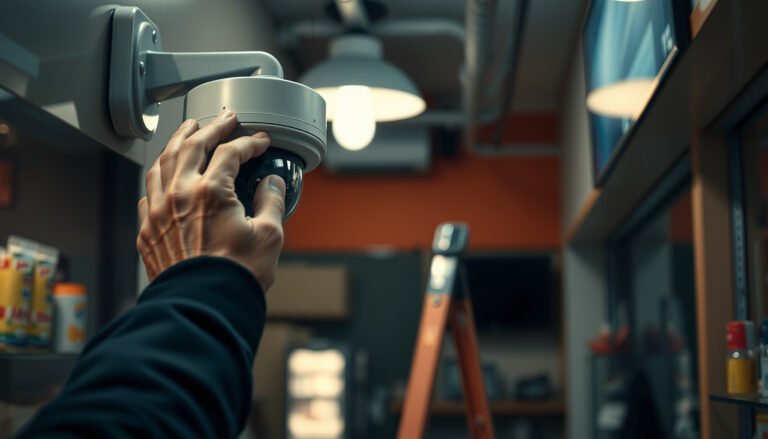

You can properly set up a PTZ CCTV camera the first time by following a clear, step-by-step setup sequence that covers placement, power and network connections, initial configuration, and how to program presets and tours. This guide answers exactly how to get reliable pan-tilt-zoom control and correct camera orientation without trial-and-error. If you want fast, accurate coverage that’s ready for live viewing and recording, use these steps in order.
Set up a PTZ CCTV camera by getting it online first (power + network + discovery in your NVR/software), then matching PTZ control settings (protocol/ports) and calibrating pan/tilt limits before you program presets. Once presets and tours are saved, test pan/tilt speed, focus behavior, and “edge” stop positions so the camera doesn’t hunt, blur unpredictably, or slam into boundaries. This guide walks you through each stage so you can go from unboxed camera to reliable PTZ control.
If you’re installing a dome/bullet PTZ for a home, small business, or light commercial site—and you’re using an NVR or a PTZ-capable recording app—this will help. It’s especially useful when you’re unsure which settings matter most (network vs. PTZ protocol vs. presets/tours).
Prep the install (placement, power, cabling)
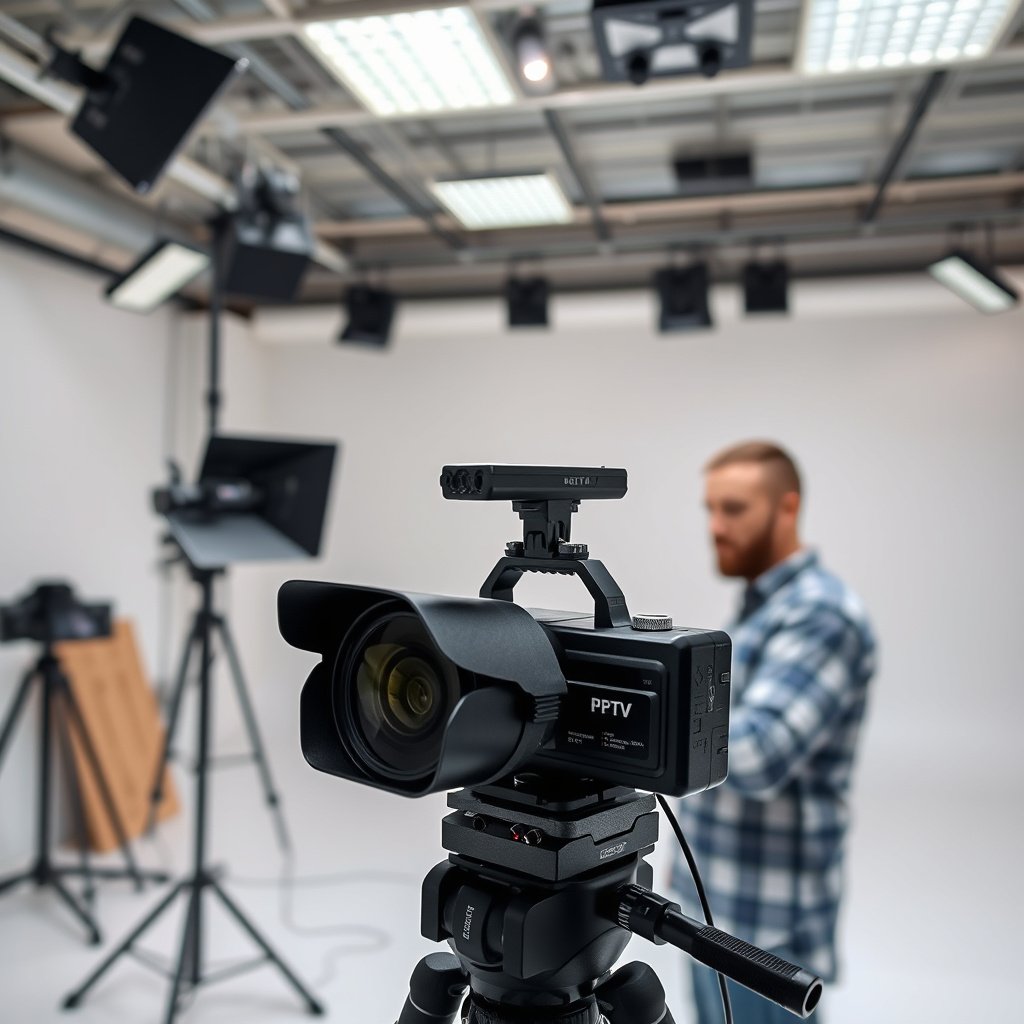
A PTZ CCTV camera setup starts with physical placement and stable power, because pan/tilt accuracy depends heavily on how it’s mounted and powered. Plan the install so the dome/bullet PTZ has an unobstructed “arc” to every preset area, and ensure your cabling and power method match the camera’s requirements before you configure any software.
A PTZ CCTV camera’s usable field of view is limited by where physical obstructions block movement at the ends of travel.
Stable power (PoE or a correctly sized power supply) prevents PTZ CCTV cameras from rebooting or timing out during discovery and calibration.
Mounting spot: design the movement arc before you align the lens
Choose a mounting spot that gives you a clear line of sight where you’ll need to pan/tilt. Avoid trees, signage, gutters, and nearby walls that can block movement near the mechanical endpoints. For a PTZ CCTV camera, “it looks centered” during initial aiming isn’t enough—what matters is whether the camera can physically reach every preset scene without binding or repeatedly pausing.
When aiming, pick two “extreme” viewpoints (for example, far left and far right of your driveway) and confirm they’re within the PTZ’s movement path. If you can’t verify the extremes now, you’ll likely discover it later when the PTZ CCTV camera hits software boundaries and stops short of your intended frame.
Power planning: PoE vs. separate power supply
Confirm whether your PTZ CCTV camera needs PoE (Power over Ethernet) or a dedicated power supply. Then verify the cable run is rated for the required power delivery. Underpowered PoE or a marginal cable run can cause intermittent network discovery—exactly the kind of “PTZ won’t connect” problem that looks like a configuration issue but is actually electrical.
If your camera supports both options, stay consistent across the install: mixing power types across devices in a small system often complicates troubleshooting.
Cabling best practices: keep signal/power interference low
Run cabling neatly and keep power wiring away from heavy interference sources (large motors, welding equipment, or high-current feeder lines). While modern PTZ CCTV cameras are designed to tolerate typical outdoor environments, consistent cabling reduces anomalies like stream dropouts during PTZ movement—where the camera may draw more current during motor travel.
If you’re using an NVR, confirm whether your network switch is PoE-capable (if PoE is required) and whether VLANs or managed switching policies might block discovery traffic.
Connect and bring the camera online
A PTZ CCTV camera must be discoverable and streaming reliably before you touch PTZ control settings. Connect power + network, discover the device in your NVR/app, and confirm the video stream is stable end-to-end so that calibration and presets won’t be fighting a connectivity problem.
ONVIF WS-Discovery commonly uses UDP port 3702 for camera discovery in supported systems.
NTP uses UDP port 123 for time synchronization, which helps keep recordings, schedules, and rules consistent.
Step 1: power on and discover in your NVR/software
Connect the camera to your network (or a PoE switch), power it on, and use your NVR/software’s discovery workflow. Many NVRs use auto-discovery to find PTZ CCTV cameras, but network rules (VLANs, firewall policies, or “AP isolation”) can prevent discovery. If your PTZ CCTV camera doesn’t appear, verify discovery first rather than immediately assuming a PTZ protocol mismatch.
Step 2: set network identity so the NVR can reliably find it
Configure the camera’s IP address, subnet mask, gateway, and DNS if required. If you plan to keep the same device mapping long-term, avoid “random DHCP changes” by using DHCP reservations or static addressing.
A PTZ CCTV camera is especially sensitive to “moving targets”: if the camera’s IP changes, your NVR may keep a stale PTZ mapping, causing pan/tilt to fail even though the stream may still appear in a browser.
Step 3: confirm stream stability before PTZ calibration
Use the camera’s admin web UI/app (or the NVR configuration page) to confirm the video stream is stable before you adjust PTZ settings. Validate:
– the correct channel is selected,
– the stream isn’t dropping during PTZ movement,
– the codec/resolution you want is actually the one being recorded.
According to RFC 5905, NTP uses UDP port 123 (2010). That matters because time sync failures can create confusing behavior when your PTZ CCTV camera is paired with schedule-based recording, zone rules, or event handling.
According to ONVIF WS-Discovery guidance, discovery commonly relies on WS-Discovery messages (often UDP/3702) for compatible clients. If discovery traffic is blocked, the NVR may add the camera as video-only, leaving PTZ control incomplete.
Network ports that repeatedly show up in PTZ troubleshooting
Use these well-known defaults as a fast sanity check when you’re working through discovery/control issues on a PTZ CCTV camera—especially when you’re tightening firewall rules.
Common Default Network Services Used During PTZ CCTV Setup
| # | Service / Protocol | Default Port | Transport | IANA Port Certainty |
|---|---|---|---|---|
| 1 | ONVIF WS-Discovery | 3702 | UDP | ★★★★★ |
| 2 | NTP (Time Sync) | 123 | UDP | ★★★★★ |
| 3 | RTSP (Video Control) | 554 | TCP | ★★★★★ |
| 4 | HTTP (Camera UI) | 80 | TCP | ★★★★★ |
| 5 | HTTPS (Secure Camera UI) | 443 | TCP | ★★★★★ |
| 6 | SNMP (Monitoring) | 161 | UDP | ★★★★★ |
| 7 | DHCP (Address Assignment) | 67 | UDP | ★★★★★ |
Configure the camera basics (users, time, stream)
A PTZ CCTV camera’s “basics” determine whether PTZ behavior stays consistent over days, not just minutes. Set time sync and authentication first, then lock the stream configuration so your NVR records exactly what you reviewed while configuring PTZ.
Time zone and NTP synchronization are essential for PTZ CCTV systems that rely on schedules, event rules, or synchronized multi-camera recording.
Changing default credentials on a PTZ CCTV camera reduces the risk of unauthorized PTZ control or configuration changes.
Step 1: time zone + NTP (if supported)
Set your PTZ CCTV camera’s time zone and enable NTP time sync in the camera UI if available. Many NVRs also sync from the recording server; align both ends to avoid offset confusion when you compare PTZ movement events with recorded footage.
According to RFC 5905, NTP is designed for clock synchronization across networks (2010). For PTZ CCTV cameras that schedule recordings or trigger actions based on time windows, incorrect time settings translate into “the camera moved at the wrong time” rather than a clear PTZ failure.
Step 2: authentication—remove defaults
Verify authentication/user roles (admin vs. viewer). Change default credentials immediately. For PTZ CCTV cameras, consider limiting admin access to a maintenance account and keeping the daily viewer account least-privileged.
Step 3: configure the stream you actually want to record
Confirm stream settings you want to record before continuing to PTZ:
– main vs. substream selection,
– resolution and frame rate,
– bitrate mode (CBR/VBR),
– codec where applicable.
This matters because PTZ movement can stress CPU/network resources. If you configured PTZ while watching a lightweight preview but record a heavy stream, you may later see “PTZ works but footage is inconsistent.”
Set up PTZ control (protocols, ports, calibration)
A PTZ CCTV camera’s PTZ control only works reliably when the camera and NVR/app agree on the control method and the movement boundaries. Match PTZ protocol/control settings (for example, ONVIF vs vendor-specific), calibrate limits in the camera UI, then verify manual direction and stopping behavior before you save presets.
PTZ protocol mismatch is one of the most common causes of a PTZ CCTV camera “appearing online” but not responding to pan/tilt commands.
Calibrating PTZ limits (mechanical stops and software boundaries) prevents presets from landing outside the intended scene.
Step 1: match PTZ control settings (protocol + method)
Match PTZ control settings between the PTZ CCTV camera and your NVR/software. Common patterns include:
– selecting the correct PTZ protocol (ONVIF or vendor-specific),
– ensuring the NVR uses the correct control mechanism (PTZ service mapping),
– confirming the relevant ports/services are allowed on your network.
In my installs, the “aha” moment is often realizing the PTZ CCTV camera stream can load while PTZ commands fail due to a different control port/service being blocked or mapped incorrectly—
Step 2: calibrate PTZ limits and “home”
In the camera UI, calibrate PTZ limits and behavior. Most PTZ CCTV systems expose options like:
– mechanical stop calibration (camera-specific),
– software boundaries (left/right/top/bottom),
– a defined “home” position.
Do this calibration with the camera installed in its final mounting orientation. If you later re-aim the mount or rotate the bracket, revisit limits—PTZ CCTV presets are only as correct as the coordinate system you calibrated against.
Step 3: test manual control first
Test manual control first using joystick/PTZ buttons in the NVR/app:
– confirm pan/tilt directions match what you expect,
– verify pan/tilt response timing (no excessive delay),
– confirm the camera stops at boundaries rather than overshooting.
According to RFC 7826, RTSP is commonly associated with port 554 (2016). If your PTZ CCTV camera uses RTSP streaming plus a separate control service, a firewall rule that allows 554 for video but blocks the control service can yield “video works, PTZ doesn’t.”
Program presets, tours, and priority positions
A PTZ CCTV camera becomes practical once presets map to real scenes and tours move through them predictably. Create named presets for every critical viewpoint, then build tours/patrols with dwell time and a consistent scan order—after PTZ limits are confirmed.
Well-named PTZ CCTV presets reduce operational errors, because operators select by scene meaning rather than memorizing angles.
Tour dwell time in PTZ CCTV patrols should match how long your scene needs for identification under real lighting and motion.
Step 1: create scene-specific presets
Create presets for the exact scenes you care about (entrance, driveway, loading area) and name them clearly. While you’re doing this, keep the camera steady and verify that each preset lands inside your desired framing.
A good preset workflow for a PTZ CCTV camera is:
1) move manually to the target viewpoint,
2) ensure focus/exposure behavior is acceptable in that lighting,
3) save the preset,
4) re-call it once or twice before moving to the next one.
Step 2: build tours/patrols using those presets
Set up tours/patrols using the presets you created. Configure:
– scan order,
– dwell time per preset,
– return behavior if supported (for example, return to home after inactivity).
Only enable event-driven moves (such as “go to preset on event”) after presets and tours are verified, or you’ll be troubleshooting two variables at once.
Test, secure, and maintain PTZ accuracy
A PTZ CCTV camera needs validation in both day and night conditions before you call the project complete. Re-check focus/exposure behavior, confirm boundary stops in real lighting, then secure the system and re-verify presets after any firmware or configuration changes.
PTZ CCTV cameras commonly rely on auto-focus or timed refocus, so daylight vs. night lighting can change how quickly a preset becomes readable.
Firmware updates can subtly affect PTZ calibration behavior, so presets should be re-checked after updating.
Focus and exposure: day/night behavior matters most
Re-check focus/exposure behavior under your actual lighting conditions. Confirm whether your PTZ CCTV camera uses:
– continuous auto-focus,
– single-shot focus on motion/preset,
– timed refocus cycles.
Then test:
– how long it takes to become sharp after the camera starts moving,
– whether it “hunts” repeatedly near a preset,
– whether the camera stabilizes exposure fast enough for recognition.
Secure the PTZ CCTV system
Secure the system by:
– restricting admin access (local/whitelisted accounts where possible),
– updating firmware per manufacturer guidance,
– reviewing firewall rules and open ports/services in your network.
In 2026, many organizations also expect a documented hardening baseline: who has admin access, which ports are allowed inbound, and how remote access is secured. Keep that documentation with your PTZ CCTV camera configuration.
Maintain PTZ accuracy over time
A PTZ CCTV camera may drift due to mechanical wear, environmental changes, or updates. Plan a maintenance routine:
– verify preset accuracy,
– watch for overshoot or inconsistent stop positions,
– re-run PTZ limit calibration if you replace the mount or update firmware.
What can go wrong (and quick fixes)
Most PTZ CCTV “failures” are configuration mismatches or calibration issues rather than broken hardware. If you see unexpected behavior, follow a tight diagnostic order: protocol/service mapping → limits/boundaries → focus/exposure logic → network stability.
If a PTZ CCTV camera responds backwards, the control direction mapping or coordinate conventions between the NVR/app and camera may be inverted.
If a PTZ CCTV camera hits boundaries unexpectedly, software boundaries or limit calibration likely need to be re-run and presets adjusted afterward.
PTZ won’t respond (or responds backwards)
– Symptom: PTZ buttons work but movement doesn’t match expectations, or there’s no pan/tilt at all.
– Likely cause: PTZ control protocol/control method mismatch, or the NVR/app points to the wrong control service/port.
– Quick fix: Re-check protocol selection (ONVIF vs vendor-specific) and re-test manual PTZ within the same interface you used for discovery.
Stops don’t line up / camera “hits” limits
– Symptom: presets land short of the target or the camera slams into “stops.”
– Likely cause: PTZ limit calibration wasn’t completed correctly, or the camera mount/aim changed after calibration.
– Quick fix: Re-run PTZ limit calibration in the camera UI and then re-save presets (do not just drag presets “by feel” without calibration).
Blur during movement or poor night behavior
– Symptom: footage looks soft after the PTZ moves, especially at night.
– Likely cause: focus mode doesn’t match the scene, or lighting level isn’t sufficient for the camera to maintain focus.
– Quick fix: Re-check focus settings (auto vs fixed, refocus timing) and verify the PTZ CCTV camera can actually achieve focus under IR/low light.
Verdict / tip: When to DIY PTZ setup—and when to skip it
If you have an NVR/app that supports PTZ and you can access the camera’s settings page, DIY setup is usually the fastest path—especially for presets and tours. The main downside is troubleshooting time: mismatched PTZ protocol/control settings and incorrect PTZ limit calibration can make the camera appear “broken” when it’s really just misconfigured.
Skip DIY (or get local help) if you’re dealing with complex multi-camera control, long-distance cabling/power uncertainty, or you’re missing access to the camera’s admin interface. Also skip if you can’t safely mount/aim at height—PTZ accuracy depends heavily on how it’s installed and aligned.
DIY PTZ CCTV setup is most reliable when you can complete discovery, confirm a stable stream, and fully access PTZ limit calibration in the camera UI.
Professional help is often worth it when multi-camera PTZ integration requires coordinated protocol mapping across multiple devices and NVR channels.
Quick PTZ Setup Checklist (scan/save)
– [ ] Mount camera with a clear pan/tilt path
– [ ] Confirm PoE/power type matches the camera requirement
– [ ] Verify video stream works in the NVR/app
– [ ] Set IP/network settings so the NVR can reliably find it
– [ ] Set time zone and change default credentials
– [ ] Configure the correct PTZ control protocol/method
– [ ] Calibrate PTZ limits and test manual pan/tilt direction
– [ ] Create named presets → then build tours/patrols
– [ ] Test presets in day + night lighting
– [ ] Secure access + update firmware per manufacturer steps
Sources
– ONVIF PTZ Profile (official ONVIF documentation/specs) — for guidance on PTZ interoperability when applicable.
– Your PTZ camera manufacturer’s installation/configuration manual — for the exact PTZ protocol options, limit calibration steps, and required ports/services.
– Your NVR/recording software manufacturer’s PTZ configuration guide — for how it discovers cameras and maps PTZ control settings.
We recommend following the order above: get the camera online and stable first, then lock down PTZ control settings and limits, and only then program presets and tours. If you do those steps out of sequence, it’s much easier to waste time chasing “non-working PTZ” that’s really a configuration mismatch—so start with connectivity and protocol matching, then validate movement endpoints, and build up from there.
Frequently Asked Questions
What’s the proper way to mount and align a PTZ CCTV camera for best coverage?
Mount the PTZ camera on a stable, weather-protected surface and ensure it’s firmly secured to prevent vibration and image blur. Use the camera’s live view to set the correct tilt and pan position, then verify coverage of key areas like entrances, driveways, or hallways. Avoid placing the camera too high or behind obstructions; trees, eaves, or signage can block the optical path and reduce tracking reliability. After installation, run a short test using presets to confirm the camera can frame targets cleanly across the full patrol range.
How do I set up PTZ camera network settings (IP, ports, and streaming) correctly?
Start by assigning a static IP address or reserving a DHCP lease so the PTZ CCTV camera doesn’t change addresses. Confirm the correct streaming settings in the web UI/app (RTSP/ONVIF profile, resolution, and frame rate) and open the required ports on your router/firewall. If you plan to access the camera remotely, enable secure access methods (VPN or proper HTTPS/secure RTSP configuration) rather than exposing management ports directly. Finally, verify connectivity with a network test and ensure your NVR or VMS can discover the PTZ camera via ONVIF before you finalize.
Why do my PTZ presets and tours not work reliably, and how can I fix it?
Presets and patrol tours can fail due to incorrect preset numbering, permissions, or a mismatch between the camera’s saved settings and your NVR/VMS configuration. In the PTZ UI, save each preset with a clear name, then test calling each preset individually to confirm it returns to the correct position and zoom level. If tracking seems unstable, check for mechanical calibration issues or limit settings that restrict pan/tilt travel. Also ensure firmware is up to date, since PTZ bugs are sometimes fixed in manufacturer releases.
Which PTZ configuration settings should I adjust first for smooth tracking and clear images?
Begin with exposure, focus mode, and WDR (if available) to ensure the image stays sharp under changing lighting, such as entrances with bright daylight. Set a sensible pan/tilt speed that matches your environment—too fast can cause overshooting, while too slow can miss events. Configure privacy masks and motion detection zones so the PTZ CCTV camera focuses on relevant areas rather than background movement. For improved results, tune the camera’s patrol/tour speed and dwell time so it can capture faces or license plates long enough before moving on.
What’s the best way to configure PTZ limits, swing range, and maintenance so the camera stays dependable?
Set physical and software limits for pan and tilt to prevent the camera from hitting walls or cabling during presets and tours. Define the swing range based on actual coverage needs, then test every preset across the extreme positions to confirm there are no binding or erratic movements. For maintenance, periodically clean the lens dome, check for water ingress, and review PTZ calibration status in the camera settings. Lastly, schedule firmware updates and routine health checks (temperature, connection stability, storage/NVR status) to keep your PTZ CCTV system reliable over time.
📅 Last Updated: October 27, 2026 | Topic: How do I properly set up a PTZ CCTV camera? | Content verified for accuracy and freshness.
References
- Pan–tilt–zoom camera
- Network Interface Specifications – ONVIF
- OpenCV: Camera Calibration
- RFC 2326: Real Time Streaming Protocol (RTSP) | RFC Editor
- https://pubmed.ncbi.nlm.nih.gov/?term=ptz+camera+calibration
- https://scholar.google.com/scholar?q=PTZ+cctv+camera+setup Google Scholar
- https://scholar.google.com/scholar?q=PTZ+camera+calibration+procedure Google Scholar
- https://scholar.google.com/scholar?q=ONVIF+PTZ+control+setup Google Scholar