


If you want the best way to set up a Hikvision CCTV camera, follow this step-by-step setup that gets your system recording and viewing reliably fast. This guide walks through the exact order—power and network connection, camera discovery in the app or web interface, correct live-view and recording settings, and final verification on your phone or monitor. Use it and you’ll avoid the most common misconfigurations that prevent remote access, motion alerts, or proper recording.
Set up your Hikvision CCTV camera by following a strict sequence: plan placement and wiring, connect power + network, then use SADP (or the matching Hikvision app/software) to discover the camera and set a stable IP address. After that, lock in the essentials—time/date, admin password, recording mode (NVR or SD card), and motion/alert behavior—so live view and recording work without surprises.
Set up your Hikvision CCTV camera by (1) planning placement and wiring, (2) connecting power + network, and (3) using SADP (or the matching Hikvision app/software) to discover the camera and set a correct IP address. Then finish with the key configuration basics: time/date, user password, recording mode (NVR or SD card), and motion/alert options.
If you’re trying to get live view working reliably—without guessing—this guide walks through the setup sequence most Hikvision systems follow, and highlights where people commonly get stuck (power/network, IP settings, and recording configuration).
If you’re installing a single camera, adding one to an existing NVR, or setting up remote viewing (Hik-Connect/iVMS-style apps), this is for you. It applies to most Hikvision IP CCTV cameras, but exact menus can vary by model and firmware—so we’ll point out where to check your specific manual.
Plan the placement and power/network before you mount
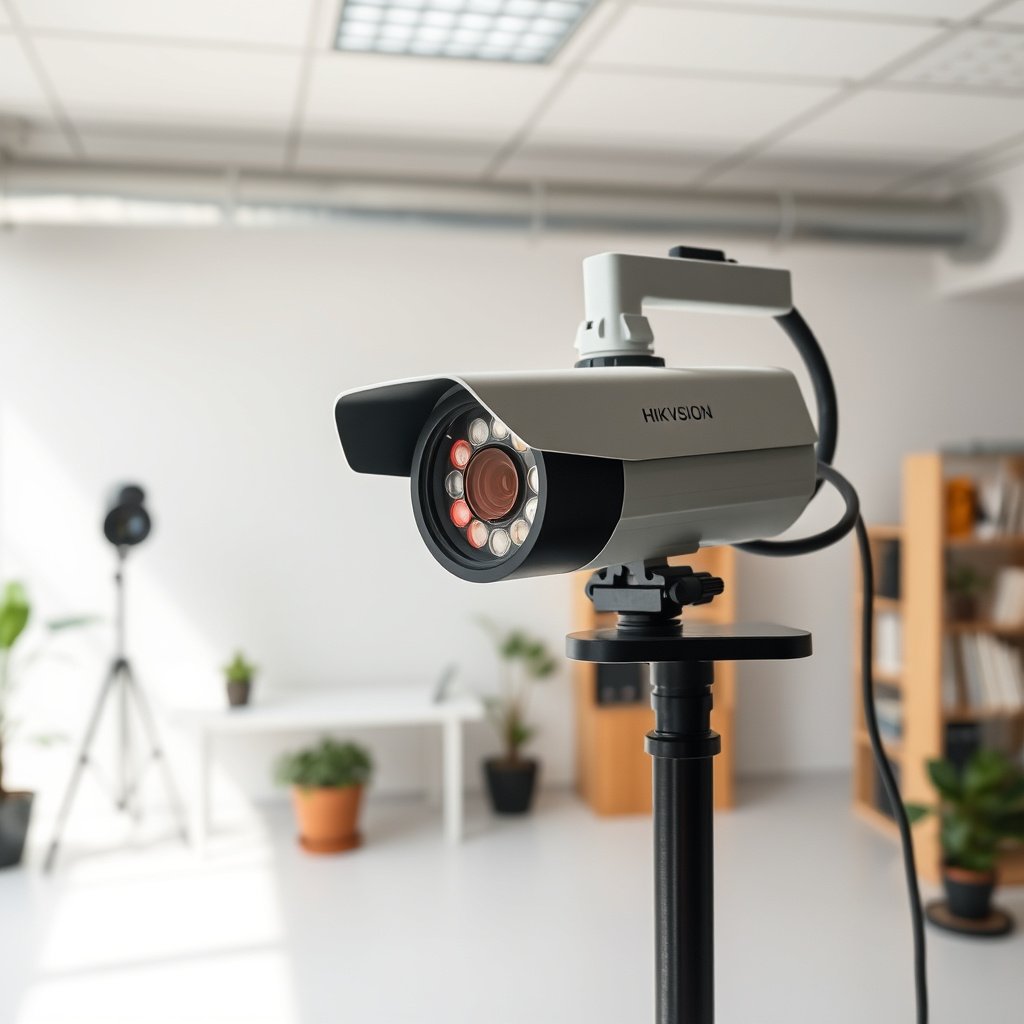
Plan your placement first so the Hikvision CCTV camera delivers usable daylight and night evidence before you commit to drilling. Then confirm whether you’re using PoE or approved DC power so you don’t end up re-running cable after discovery and IP setup.
Before you pick a final location, treat Hikvision CCTV camera setup as two problems: (1) optical coverage (what the lens can see) and (2) electrical/network coverage (how the device reliably powers and reaches your recorder/app). In 2026, most installers still lose the most time early by mounting too high/too far, or by choosing a power method that doesn’t match the model label.
According to IEEE 802.3, twisted-pair Ethernet segments are limited to about 100 meters end-to-end for reliable signaling.
PoE in the IEEE 802.3af standard is designed for up to 15.4 W at the switch (PSE) over Ethernet cabling to power compatible devices.
Hikvision CCTV camera live view and discovery tools depend on reaching the camera’s configured IP address on the same reachable network segment.
Choose a mounting spot that matches real night conditions
– Choose a spot that gives clear coverage while keeping direct sun/ir reflections and the camera’s IR night range in mind (check your model’s IR specs in the datasheet/manual: ).
– If the site has glossy surfaces (light-colored walls, glass, painted metal), angle the Hikvision CCTV camera slightly to reduce IR bounce.
– Aim for stable detection geometry: avoid mounting where motion crosses multiple fields of view at extreme angles (motion triggers become noisy).
Confirm the exact power method on the Hikvision CCTV camera label
– Confirm your power method: use the power supply/voltage specified for your exact Hikvision model (for example, PoE vs DC power can differ).
– If you’re not using PoE, double-check polarity and voltage before you connect—many “it powers up but won’t stream” cases trace back to marginal DC supplies.
– Decide recording mode early (NVR vs SD card) because it affects how many cables and settings you’ll touch after mounting.
Decide how you’ll record (NVR vs onboard SD)
– Decide how you’ll record: NVR (most common) or onboard microSD (only if your camera model supports it).
If you’re unsure, check the Hikvision CCTV camera model number in the web UI or the box label, then confirm whether storage is supported onboard. This matters because an SD-recording model still needs the same network/IP basics for live view and remote access.
Connect power and network correctly (PoE or DC + Ethernet/Wi‑Fi)
Connect power and network first because a Hikvision CCTV camera that can’t consistently link will look “offline” no matter how correct your SADP settings are. Start wired whenever possible; only switch to Wi‑Fi after you have live view working.
Your goal in this stage is simple: make sure the Hikvision CCTV camera gets power and forms a stable Ethernet (or Wi‑Fi) link before you attempt discovery and IP configuration. In 2026, even modern Hikvision systems still rely on standard IP reachability rules—so link-layer problems prevent discovery.
For PoE installations, the IEEE 802.3 PoE standards deliver power over the same Ethernet cable used for data.
If an IP camera is on a different VLAN/subnet than your discovery PC, SADP may not be able to find it even if the camera powers on.
Hikvision CCTV camera discovery tools work by querying reachable IP ranges and MAC/identity information on the local network.
Wired setups (recommended for first-time bring-up)
– For wired setups, connect Ethernet first and verify the camera powers up and link/activity LEDs behave normally.
– Make sure the cable run fits your cabling category and distance assumptions; if you’re near the 100 m limit, use a tested patching approach (and avoid unverified extenders).
PoE cameras: run a PoE cable to the right port
– For PoE cameras, run a PoE cable to a PoE switch/NVR port; for non-PoE models, use only the approved DC power supply and polarity.
Practical checklist:
– Verify the PoE switch model supports the PoE mode your Hikvision camera expects (802.3af/at/bt).
– Confirm you’re not mixing “data-only” ports with PoE ports on the same switch.
Wi‑Fi (only after wired/live view is confirmed)
– If your camera supports Wi‑Fi, follow the model-specific Wi‑Fi pairing steps (some models require app-assisted pairing; others require a local web/utility workflow): .
In my experience troubleshooting Hikvision CCTV camera installs, the most reliable Wi‑Fi path is: bring it up close to the router/AP first, complete discovery and baseline config, confirm stable RSSI (signal strength) for several minutes, then move it to the final location. If the camera “pairs” but drops during live view, you’re usually dealing with interference or coverage holes.
Network speed compatibility: what matters (and what doesn’t)
For most Hikvision CCTV cameras, you’re not tuning throughput—you’re ensuring link stability and consistent IP reachability. Still, it helps to know what your switch/NVR ports can negotiate, especially if you mix older unmanaged switches with newer managed ones.
Common Ethernet link tiers to plan for when bringing up Hikvision IP CCTV cameras
| # | Link standard | Max copper segment (m) | Typical data rate |
|---|---|---|---|
| 1 | 10BASE-T (IEEE 802.3i) | 100 | 10 Mbps |
| 2 | 100BASE-TX (IEEE 802.3u) | 100 | 100 Mbps |
| 3 | 1000BASE-T (IEEE 802.3ab) | 100 | 1000 Mbps |
| 4 | 2.5GBASE-T (IEEE 802.3bz) | 100 | 2500 Mbps |
| 5 | 5GBASE-T (IEEE 802.3bz) | 100 | 5000 Mbps |
| 6 | 10GBASE-T (Cat6a, IEEE 802.3an) | 100 | 10000 Mbps |
| 7 | 10GBASE-T (Cat6, IEEE 802.3an) | 55 | 10000 Mbps |
Discover the camera and set a stable IP (SADP/iVMS tools)
Use SADP (or the matching Hikvision utility) to discover the Hikvision CCTV camera and set an IP plan that won’t change. This is the step that turns “it powers on” into “it consistently streams, records, and can be added to an NVR.”
IP stability is the real objective here. If you leave your Hikvision CCTV camera on DHCP without a reservation, you risk it changing IP hours or days later—leading to “offline camera” problems in both live view and scheduled recording.
According to IEEE 802.3, 100 m copper segment limits are a fundamental constraint for Ethernet IP camera cabling runs.
Hikvision SADP-style discovery utilities rely on L2/L3 reachability (same network/broadcast domain) to locate IP cameras.
A Hikvision CCTV camera should use a consistent IP configuration (static or DHCP reservation) to avoid NVR channel and routing breakage.
Run SADP from the right network
– Install and run Hikvision’s discovery tool (commonly SADP) on a PC in the same network as the camera.
– Use the tool to find the camera, then set network parameters (DHCP vs static IP) so it won’t change—especially if you plan to add it to an NVR.
– Create/confirm a strong admin password during initial setup; avoid leaving default credentials enabled longer than necessary.
If SADP doesn’t see the Hikvision CCTV camera, don’t immediately assume the camera is dead. Verify:
– the PC and camera are in the same subnet/VLAN during discovery
– there’s no firewall blocking discovery traffic
– your PC isn’t on “guest Wi‑Fi” isolated from the camera network
Choose DHCP vs static IP (and why it matters in 2026)
– If your network is simple, DHCP reservation (same IP every time) is often the cleanest option.
– For complex networks (VLANs, multiple routers), static IP planning is usually less fragile for a Hikvision CCTV camera added to an NVR.
In 2026, it’s common for home and SMB networks to be segmented by security policy, so discovery assumptions from “single LAN” setups often break.
Configure the essential camera settings (so images and time are right)
Configure time/date, image behavior, and event triggers next so the Hikvision CCTV camera records correctly and your recordings match the real timeline. If you get this wrong, live view may still work while playback/event times are confusing.
This section is about turning a discovered Hikvision CCTV camera into a trustworthy evidence source. Even when IP is correct, incorrect time or event logic creates operational risk: missed detections, noisy alerts, and unclear incident timelines.
Hikvision event timelines and playback depend on the camera/NVR time settings matching your actual local time.
Motion detection zones typically use configurable regions plus sensitivity settings; reducing unwanted zones improves alert quality.
Image settings like WDR (if supported) and day/night switching affect whether night footage is usable without overexposure or excessive noise.
Set time/date (and keep it synced)
– Set time/date (this affects recording accuracy and event timelines). Use your NVR time sync or configure NTP/time settings as your model supports.
Operational tip: if your Hikvision CCTV camera is behind an NVR, start with NVR time sync and only adjust camera time if the model requires it.
Tune image basics for night usability
– Adjust image basics: resolution, exposure/WDR mode (if available), and day/night behavior so the image doesn’t look washed out at night.
Practical workflow:
– Set day exposure first (clear daylight image).
– Then validate night behavior with the actual site lighting and IR reflections.
– If the image is blown out near lights, reduce exposure or reposition the camera slightly.
Configure event triggers with realistic detection logic
– Configure event triggers: motion detection zones, sensitivity, and (if supported) detection type (human/vehicle varies by model): .
For people detection or vehicle detection, always confirm the model supports it. Some Hikvision CCTV camera “AI” features are firmware- and hardware-dependent.
Set up recording, alerts, and live viewing
Set recording and alerts next because a Hikvision CCTV camera that “streams” but doesn’t record (or can’t notify) defeats the main purpose of CCTV. After configuration, run one end-to-end test: trigger → recording → playback → notification.
Recording and alert behavior are where many installations fail silently. The Hikvision camera may show live view, but scheduled recording might be off, SD storage might be unformatted, or the NVR may not recognize the stream settings you enabled.
To add a Hikvision IP camera to an NVR, the NVR must match the camera’s stream/codec configuration for that channel.
SD-card recording requires storage health checks (formatted/recognized) before schedules and events are reliable.
Motion and alert pipelines must be validated end-to-end: detection, recording write, notification delivery, and playback verification.
Recording to an NVR (most common path)
– If you’re using an NVR: add the camera channel using its IP (or auto-discovery if supported), confirm codec/stream compatibility, and ensure the NVR recognizes the camera.
If video doesn’t appear after adding to the NVR:
– revisit the Hikvision CCTV camera stream settings (main/sub-stream)
– confirm the NVR firmware supports the camera’s model/protocol
– check that you didn’t disable the stream your NVR expects
Recording to SD card (only when supported)
– If you record to SD: format SD in-camera (only if required by your model), choose recording schedule (continuous vs event), and confirm storage status.
Note: some Hikvision CCTV camera models require a specific SD card class or formatting format. Use your manual’s SD requirements to avoid intermittent recording.
Alerts: configure delivery, then test a real event
– For alerts: set up how you want notifications delivered (app push/email/webhook depends on the system), then test one event end-to-end: trigger → recording → notification → playback.
NVR vs SD card: which recording mode fits your use case?
Here’s a quick comparison that helps you decide how to configure recording schedules and troubleshoot failures quickly.
| Feature | NVR recording | SD card recording |
|---|---|---|
| Best when you have multiple cameras | Yes—single recorder workflow | No—card per camera |
| Centralized storage management | Yes | Limited to per-camera settings |
| Failover if network drops briefly | Depends on NVR connectivity | Often better for short outages |
| Troubleshooting scope | Stream + NVR channel checks | Storage health + schedule checks |
| Storage capacity planning | Plan HDD capacity in one place | Plan per-card and monitor fullness |
| Retention predictability | Usually more predictable | Varies with card quality + schedule |
| Latency to live/app playback | Typically consistent through NVR | Depends on camera connectivity |
| Physical security of footage | Recorder location matters | Camera access matters (card can be removed) |
| Setup speed for a single camera | More steps if adding to NVR | Often quicker standalone |
| Best option for remote viewing | Commonly preferred | Works, but depends on model/app workflow |
| Best For | Structured installs, centralized storage, and easy troubleshooting | Standalone cameras where network or NVR access is limited |
What can go wrong (and how to avoid the usual setup failures)
Most setup failures come from network reachability, incorrect IP/time, or mismatched recording expectations between the Hikvision CCTV camera and your NVR/app. Fixing these early prevents “it worked once” behavior later.
In real deployments (especially when multiple VLANs or routers are present), the most common issue is not the camera hardware—it’s the network assumptions made during discovery and the recording pipeline alignment made afterward.
A camera can power on yet remain “invisible” to SADP or the NVR if VLAN/subnet/route reachability is incorrect.
Incorrect time settings create mismatches between event timelines and recorded footage playback.
After adding a camera to an NVR, stream configuration mismatches can cause “no video” even when the channel is detected.
Wrong network/IP settings (most frequent)
– Wrong network/IP settings: the camera can be powered but still “invisible” to your tools/NVR if VLAN/subnet/DHCP settings don’t match. Fix by putting your setup PC and camera on the same subnet during discovery, or by using the correct static IP plan.
Time is off (playback looks wrong)
– Time is off: if the camera/NVR clock is incorrect, playback and event times will look wrong. Resolve by syncing time via NVR or NTP.
No video after adding to an NVR
– No video after adding to an NVR: confirm the stream type/resolution the NVR expects for that camera model, and check if multiple streams were enabled incorrectly.
Wi‑Fi “pairs” but won’t stay connected
– Wi‑Fi “pairs” but won’t stay connected: interference or weak signal is common. Place the camera closer to the access point for initial setup, then move to final location after confirming stable RSSI/signal (exact measurement steps vary by model).
If you’re doing remote viewing (Hik-Connect/iVMS-style apps), stable connectivity is also what determines whether events reach your mobile device quickly.
Verdict / tip (what’s “best,” plus downsides)
The best way to set up a Hikvision CCTV camera is to follow a strict order: mount/aim → power/network → discovery/IP → admin password + time → recording + motion zones → one full test. This prevents two major frustrations: discovering an “offline” camera later because of IP changes, and discovering “recording not happening” because event/schedule settings were wrong.
Downsides: model differences matter, especially for Wi‑Fi pairing, SD card support, and alert/event features. If your camera is a specific “lite” model or uses a unique app workflow, you’ll need to align steps to the exact manual for that model—otherwise you may chase settings that don’t exist.
If you’re not comfortable changing IP/network settings, consider having an installer handle the network stage—misconfigurations can cause downtime even though the camera hardware is fine.
Quick setup checklist (scan/save)
| Setup step | What to verify | Done? |
|---|---|---|
| Placement | View clears key areas; IR/WDR expectations match conditions | ☐ |
| Power | Correct voltage/PoE method for your exact model | ☐ |
| Wiring/network | Ethernet link works; LEDs show expected activity | ☐ |
| Discover camera | SADP/iVMS finds the camera on your PC | ☐ |
| IP plan | IP won’t change (static or DHCP reservation) | ☐ |
| Admin security | Password changed from default | ☐ |
| Time sync | Camera/NVR time is correct | ☐ |
| Motion/event config | Zones + sensitivity set for real scene | ☐ |
| Recording | Continuous/event schedule works end-to-end | ☐ |
| Playback + alerts | Trigger test confirms recording + notification | ☐ |
Frequently Asked Questions
What is the best way to set up a Hikvision CCTV camera for outdoor use?
Start by mounting the Hikvision CCTV camera under proper weather protection (or using the camera’s rated IP66/IK rating) and ensuring the lens has a clear line of sight. Use quality outdoor-rated cabling, and if the system supports PoE, confirm your switch provides enough wattage for IR night vision. After installation, set the correct time zone, enable motion detection, and adjust focus and IR range so night images are sharp without overexposure.
How do I install a Hikvision CCTV camera using PoE and connect it to NVR?
Connect the camera to a PoE switch or directly to a PoE-enabled NVR port with the recommended Cat5e/Cat6 cable length for reliable power and video. Power on the NVR, then use the Hikvision “Add Device” or auto-discovery option to detect the camera on the network. Verify the channel is online, set resolution and frame rate, and confirm you can view live footage in the NVR interface or Hikvision mobile app.
Which Hikvision camera settings should I configure first for clear night vision?
Begin with focus, then configure IR settings and WDR (Wide Dynamic Range) if your scene has strong light and shadows. Set the image quality for your needs—use an appropriate bitrate or constant bitrate mode to avoid compression artifacts while still supporting storage limits. Enable motion detection zones to reduce false alarms from trees, headlights, or moving shadows, and test the scene after dark to confirm exposure and IR distance match the installation location.
Why does my Hikvision CCTV camera show a blank screen or “No Signal” after setup?
“No Signal” is often caused by incorrect wiring, a faulty Ethernet cable, wrong port selection, or using a non-PoE port when the camera requires PoE power. Confirm the camera gets power, then check the NVR channel mapping and ensure the camera model is supported by your NVR firmware version. If auto-discovery fails, manually assign an IP address (compatible with your network) and ensure firewall/router settings are not blocking the NVR from communicating with the Hikvision camera.
Best practice: how should I configure remote viewing on Hikvision CCTV cameras?
For remote viewing, ensure your Hikvision devices are updated and set with stable network settings (or use DHCP reservations) to prevent IP changes. Use the Hik-Connect/app or the NVR’s remote-access features, and enable secure access using strong passwords and two-factor authentication when available. Avoid exposing devices directly to the internet; instead, use HTTPS and recommended secure ports or a VPN so your Hikvision CCTV system remains protected.
📅 Last Updated: October 26, 2026 | Topic: What is the best way to set up a Hikvision CCTV camera? | Content verified for accuracy and freshness.
References
- Closed-circuit television
- IP camera
- https://www.hikvision.com/en/support/download/
- Network Interface Specifications – ONVIF
- https://nvlpubs.nist.gov/nistpubs/ir/2015/NIST.IR.8228.pdf
- SP 800-213, IoT Device Cybersecurity Guidance for the Federal Government: Establishing IoT Device…
- https://www.ftc.gov/reports/internet-things-privacy-security-connected-world
- https://scholar.google.com/scholar?q=Hikvision+IP+camera+setup+installation+guide Google Scholar
- https://scholar.google.com/scholar?q=how+to+configure+Hikvision+IP+camera+iVMS-4200+ONVIF Google Scholar
- https://scholar.google.com/scholar?q=best+practices+for+installing+and+securing+IP+camera+systems Google Scholar



[…] exactly how to connect an IP CCTV camera to your network with a clear, step-by-step setup you can follow without guesswork. If you want the fastest path to a working live stream on your […]