


Learn exactly how to connect an IP CCTV camera to your network with a clear, step-by-step setup you can follow without guesswork. If you want the fastest path to a working live stream on your LAN, the winner is using an Ethernet connection to assign the camera an IP address, then configuring the network settings and adding it to your NVR or viewing app. This guide walks you through each required step in order—from physical connection to verification—so you get online reliably the first time.
To connect an IP CCTV camera to a network, assign it a valid network setup (IP/DHCP), physically connect it via Ethernet (or Wi‑Fi if supported), then confirm you can view it through the camera’s web interface or NVR/app. Most setups follow the same flow: connect → configure IP settings → discover the camera → test live video.
This guide is for home users and small offices installing a first IP CCTV camera, especially if you’re unsure whether to use DHCP or a static IP and how to get the camera showing up on the same network as your recorder or computer.
Check your camera and network basics
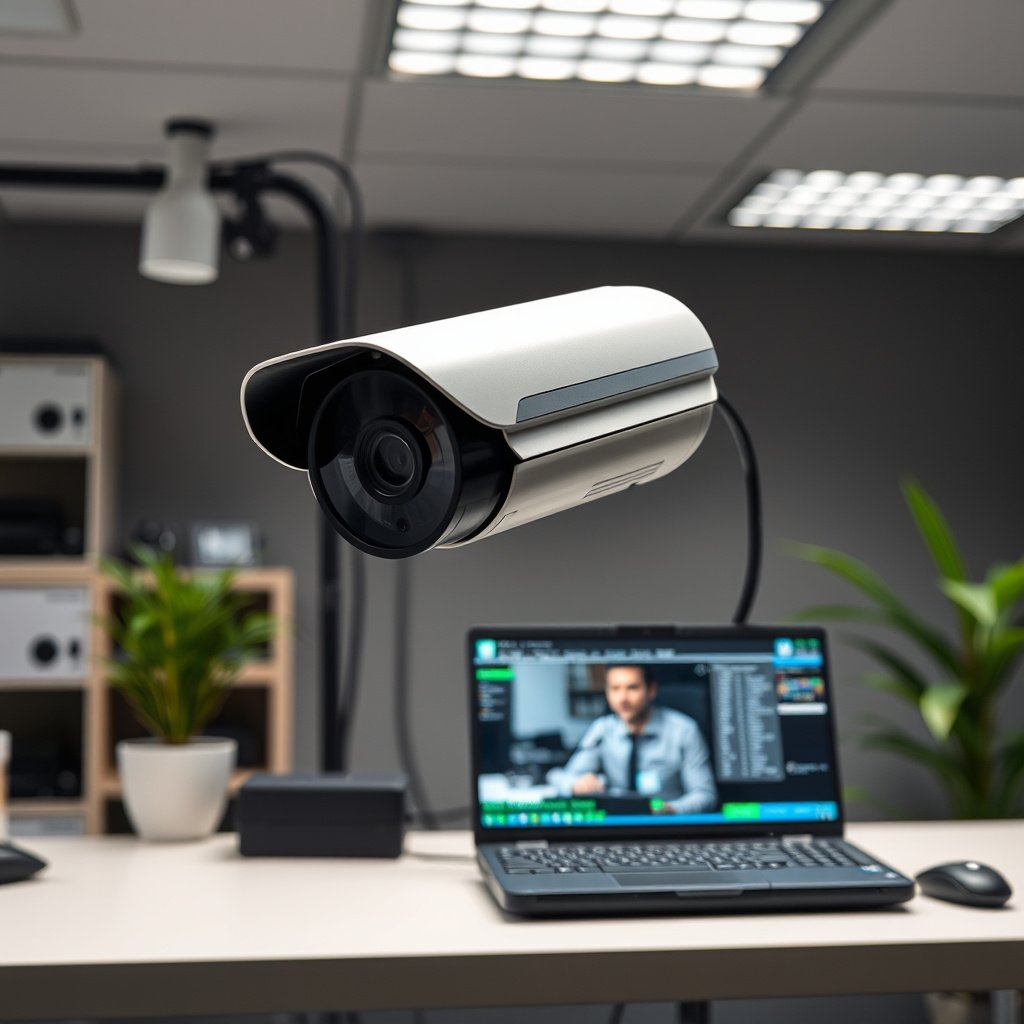
You get the fastest success when you confirm your camera’s supported connection method and your network’s IP addressing approach before you plug anything in. Once those two basics match, the IP CCTV camera usually becomes discoverable quickly on the LAN and you can move straight to live-view testing.
Most IP CCTV cameras provide both a network connection path (Ethernet or Wi‑Fi, depending on the model) and a documented default-management interface (web UI and/or app login).
DHCP determines whether your IP CCTV camera automatically receives an address, which directly affects discovery in the first 5–10 minutes of setup.
If your IP CCTV camera and viewer/NVR are on different subnets or VLANs, discovery tools can fail even though the IP CCTV camera is powered on.
– Verify the camera supports the connection method you plan to use (Ethernet vs. Wi‑Fi) and note its default settings (often on a label or in the manual).
– Identify your network type: router-managed LAN vs. a dedicated surveillance network, and whether DHCP is enabled.
– Decide where you want to manage it from (camera web browser, mobile app, or an NVR system).
Practical pre-checks I’d do first (so the IP CCTV camera shows up on the “right” network):
Make sure you know whether your recorder (NVR) is plugged into the same switch/router as your computer or phone. If you’re using a managed switch or segmentation (VLANs), confirm the IP CCTV camera is on the same VLAN/subnet—or that routing rules exist for your viewer device to reach it.
A note on default IP ranges (why you should care):
According to RFC 1918, private IPv4 networks commonly used on home/office LANs are 10.0.0.0/8, 172.16.0.0/12, and 192.168.0.0/16 (RFC 1918 (1996)). Your IP CCTV camera’s reachable address must be in (or routed to) the same addressing domain as the device you’ll use to view live video.
Physically connect the camera (Ethernet or Wi‑Fi)
You’ll usually succeed faster with Ethernet on the first install because it removes Wi‑Fi credential complexity from the equation. After the IP CCTV camera has link and booted correctly, the next step is getting the IP settings consistent with your LAN.
On Ethernet setups, the IP CCTV camera receives connectivity via the physical link to your router/switch, so discovery depends on IP configuration rather than wireless association.
On Wi‑Fi setups, your IP CCTV camera must complete the model-specific pairing process before it can participate in LAN discovery.
Waiting for the IP CCTV camera to fully boot matters because many devices only start advertising/discovery after initialization completes.
– For Ethernet: plug the camera into your router/switch using a network cable, ideally in the same LAN as your viewing device.
– For Wi‑Fi: connect the camera to your wireless network using its app/web setup method (details depend on the model).
– Wait for the camera to finish booting and check for link/activity indicators (LEDs) if your model has them.
Ethernet wiring sanity checks (small but important):
– Use the same physical network path as your viewing device (laptop/desktop/NVR). If your laptop is on a guest Wi‑Fi network, it may not be able to reach the IP CCTV camera on the main LAN.
– If your switch supports managed features, confirm ports/VLAN tagging aren’t blocking traffic to the IP CCTV camera.
Wi‑Fi setup sanity checks (common first-install friction):
– Many IP CCTV cameras won’t start discovery on the LAN until they’ve successfully associated to Wi‑Fi and obtained an IP address.
– If your router uses separate SSIDs for 2.4 GHz vs 5 GHz, verify what the IP CCTV camera supports. Many cameras support 2.4 GHz reliably; others may require 5 GHz support explicitly.
Set IP settings: DHCP or static IP
For a first install, DHCP is the quickest path to “works now,” because it lets your router assign a reachable address automatically. Use a static IP for the IP CCTV camera only when you need stable addressing for an NVR, firewall rules, or custom routing.
DHCP commonly uses UDP ports 67 (server) and 68 (client), so filtering those ports can prevent an IP CCTV camera from obtaining an address.
According to RFC 2131, DHCP lease assignment is the mechanism that lets network devices automatically configure an IP address without manual settings.
If you pick a static IP for an IP CCTV camera, you must match the LAN subnet/gateway correctly or the camera may be reachable only from itself.
– If you use DHCP: confirm your router assigns an IP address to the camera; then note the camera’s IP from the discovery tool/app.
– If you use a static IP: choose an unused IP in your LAN’s range (e.g., by matching your router’s subnet) and set gateway/DNS to match your network.
– Avoid IP conflicts by ensuring the chosen address isn’t already used by another device (PCs, NVR, access points).
DHCP vs static IP: which choice reduces mistakes?
For an IP CCTV camera, the “right” approach depends on whether you prioritize simplicity or deterministic addressing.
| Option | Pros (best when…) | Cons (watch out for…) |
|---|---|---|
| DHCP | You want the IP CCTV camera online quickly; you don’t need fixed addressing right away. | Address may change after lease renewal/reboots, which can confuse NVR/manual bookmarks. |
| Static IP | You want stable addressing for an NVR, firewall allow-lists, or custom network rules. | Mistakes cause IP conflicts; the IP CCTV camera may “disappear” if you duplicate an address. |
Well-known Network Ports Commonly Used During IP CCTV Camera Setup
| # | Service (standard) | Setup purpose | Default port | Verification priority |
|---|---|---|---|---|
| 1 | DHCP (RFC 2131) | Get LAN IP address | UDP 67/68 | ★★★★★ |
| 2 | DNS (RFC 1034) | Name resolution (if used) | UDP/TCP 53 | ★★★★☆ |
| 3 | mDNS (RFC 6762) | Local discovery (if used) | UDP 5353 | ★★★☆☆ |
| 4 | NTP (RFC 5905) | Clock sync (logs/streams) | UDP 123 | ★★☆☆☆ |
| 5 | HTTP (RFC 9110) | Web configuration access | TCP 80 | ★★★★★ |
| 6 | HTTPS (RFC 2818) | Encrypted web access | TCP 443 | ★★★★☆ |
| 7 | RTSP (RFC 2326) | Live stream transport (common) | TCP 554 | ★★★★★ |
Discover the camera and verify access
You’ll confirm the IP CCTV camera is on your network when a discovery tool finds it and your browser/app loads the live view successfully. After that, verify you’re using the correct credentials and the expected streaming profile/port.
If an IP CCTV camera is reachable by IP but not “discovered,” the issue is often discovery protocol behavior (broadcast/multicast) rather than basic routing.
Web access typically validates connectivity quickly: if you can load the camera management login page, the network path is working.
RTSP streaming success depends on the camera’s stream configuration and the viewer’s ability to negotiate the selected stream/codec.
– Use the camera discovery tool/software supplied by the manufacturer (or the NVR’s discovery feature) to find the camera’s IP on the network.
– Open a browser to the camera’s IP (or use the app) and log in with the admin credentials from the camera documentation.
– Confirm live view loads, then check basic streaming settings (resolution/codec) if your setup requires it.
How to verify quickly (minimal steps, maximum signal):
1. Find the IP address assigned to the IP CCTV camera (via router DHCP client list or manufacturer discovery).
2. In a browser on the same LAN, open `http://
3. If the login page does not appear but the discovery tool sees the camera, check whether the camera is configured for HTTPS-only and whether you should try `https://
4. Once logged in, confirm live view. If live view is blank or times out, focus on credentials and streaming profile, not just network reachability.
As of 2026, many IP CCTV camera ecosystems support common transport conventions (HTTP/HTTPS for configuration, RTSP for video), but individual models still vary in ports, stream endpoints, and codec defaults—so the IP CCTV camera’s own settings remain the source of truth.
A note on NAT, remote access, and “works locally” validation:
Before you change anything for remote viewing, confirm local access first. Local success makes debugging predictable.
Configure security and remote access (optional)
You should treat the IP CCTV camera as an internet-exposed device even if you never intend to open it externally. Change default credentials immediately, then use safer remote-access methods (VPN or manufacturer-supported secure access) instead of risky port forwarding.
Changing default credentials is the single most effective first security action on an IP CCTV camera during initial deployment.
NIST Cybersecurity Framework (CSF) emphasizes access control and continuous monitoring, which aligns with hardening camera accounts and auditing access attempts.
Prefer VPN- or service-based remote access because exposing camera web ports publicly increases the chance of brute-force attempts and account takeover.
– Change default credentials immediately and use a strong password; if available, enable account lockout or MFA features.
– If you plan to access remotely, prefer manufacturer-supported methods (e.g., secure remote access feature or VPN) rather than exposing ports directly.
– Confirm firewall/router settings only after you’ve verified local access works, so troubleshooting is easier.
Remote access that avoids common security mistakes:
– Avoid “open to the internet” rules for management interfaces (web UI). If your remote method requires it, use the narrowest scope and understand the risk trade-offs.
– If your router supports it, use a VPN into your home/office network and then access the IP CCTV camera via its local IP.
– If the manufacturer provides a secure relay/tunnel option, validate it first with local success, then enable remote access.
From an operational standpoint, remote access can break after firmware updates or certificate changes; plan for quick recovery by keeping notes of the IP CCTV camera IP, model-specific settings, and the remote access method you chose.
What can go wrong (common troubleshooting points)
Most “camera not working” cases are caused by IP addressing mismatch, subnet/VLAN separation, or incorrect streaming/credential settings. If you follow a structured diagnostic order—network reachability first, then login, then stream—you can isolate the cause without guesswork.
When an IP CCTV camera can’t be found, the fastest checks are DHCP status, correct subnet, and whether both devices share the same VLAN.
If live view fails, credentials and browser/app compatibility are frequent causes before you assume the network is down.
IP conflicts often present as intermittent discovery and timeouts, because two devices answer ARP for the same address.
– Camera can’t be found on the network: often caused by wrong IP range, DHCP disabled, or the camera being on a different VLAN/subnet.
– Live view fails in browser/app: can be due to incorrect credentials, browser compatibility, or blocked traffic by firewall rules.
– No remote access: port-forwarding mistakes, ISP blocking, or using unsupported remote methods—start with local access first.
– IP conflicts: two devices using the same static IP will cause intermittent discovery and connection failures.
A structured troubleshooting order (recommended):
1. Confirm physical link (Ethernet link LEDs; Wi‑Fi association status) for the IP CCTV camera.
2. Confirm the IP address the IP CCTV camera actually has (router DHCP client list or discovery output).
3. Confirm same subnet reachability (from your computer, try reaching the camera’s management page).
4. Confirm ports and stream path (web UI vs RTSP endpoint).
5. Then and only then, adjust firewall rules or remote-access settings.
Why subnet/VLAN mistakes are so common:
If your IP CCTV camera is on `192.168.1.x` but your NVR is on `192.168.10.x`, discovery might still “see” it intermittently (depending on multicast) while live video fails due to routing/firewall behavior.
Verdict / tip
For most first-time installs, we recommend using DHCP to reduce setup complexity, then switch to a static IP only if you need stable addressing for an NVR or custom routing. Skip detailed remote-access changes (port forwarding, exposing services) unless you understand your router/firewall settings—getting that wrong is a common source of security risk and connectivity problems.
If your environment is heavily segmented (multiple VLANs) or you’re unsure about routing, stabilize local access first and keep the IP CCTV camera within the same LAN/subnet as your viewer/NVR until everything works reliably.
Quick scan checklist (save this)
– [ ] Camera powered on and connected to the router/switch (Ethernet) or joined to Wi‑Fi (if supported)
– [ ] DHCP is enabled on the router (or you configured a static IP correctly)
– [ ] Camera discovered via manufacturer tool/NVR/app
– [ ] Logged in to the camera web interface and confirmed live view works
– [ ] Admin password changed from default
– [ ] Remote access done only after local access is confirmed (prefer secure methods/VPN)
Sources
– RFC 1918 (1996)
– RFC 2131 (1997)
– RFC 6762 (2013)
– RFC 2326 (1998)
– NIST Cybersecurity Framework (CSF) guidance (current as published by NIST)
After you get the IP CCTV camera showing live video locally, your “network confidence” is earned—remote access, hardening, and long-term stability become straightforward follow-up steps.
Frequently Asked Questions
How can I connect an IP CCTV camera to my home network?
Start by checking that your IP CCTV camera supports your network type (usually Ethernet or Wi‑Fi) and note the camera’s default IP settings or DHCP behavior. Connect the camera to your router using an Ethernet cable or via the camera’s Wi‑Fi setup method, then power it on. Access the camera’s web interface using the assigned IP address (from your router’s device list or the camera discovery tool), and set the network details to match your LAN (IP, subnet mask, gateway) or enable DHCP. Finally, test video in a browser or NVR/VMS app and confirm the camera can reach the internet only if you intend remote viewing.
What is the best way to assign an IP address to an IP CCTV camera?
The most common approach is to let the router’s DHCP assign an IP address, then reserve that IP in your router so it doesn’t change. Alternatively, you can set a static IP on the camera using the web interface if you have a managed network or multiple subnets. Make sure the camera IP is on the same subnet as your network (correct subnet mask and gateway) and avoid duplicate IPs. After assignment, verify connectivity by pinging the camera and loading the camera’s web page or RTSP stream.
Which ports and protocols do IP CCTV cameras use for streaming and remote viewing?
Most IP CCTV cameras stream video using RTSP and/or ONVIF-compatible services, while the web interface typically uses HTTP/HTTPS. Common port usage includes RTSP (often 554), HTTP (80), and HTTPS (443), but this varies by manufacturer and configuration. If you enable remote access, you may need port forwarding or (preferably) secure alternatives like a VPN; UPnP can also be used but may be less secure. Check your camera’s documentation for exact port settings and confirm firewall rules on your router and any network switches.
How do I connect an IP CCTV camera to an NVR on the same network?
Ensure the IP camera and NVR are on the same network segment or that routing is correctly configured between them. Add the camera through the NVR’s “Add/Discover” function so the NVR can detect the camera via ONVIF/RTSP, then assign the correct IP/credentials if discovery fails. If the camera uses DHCP, confirm it has a stable address (DHCP reservation) so the NVR connection doesn’t break after a reboot. Once added, verify the video feed, record schedule, and codec/stream settings (main stream vs sub stream) for reliable performance.
Why can’t my IP CCTV camera be found on my network, and how do I troubleshoot it?
Start by verifying power, physical connections, and that the camera is actually on the same VLAN/subnet as your device or NVR. Use your router’s client list or a camera discovery tool to confirm the camera’s assigned IP address, then try opening the camera web interface directly. If it’s not reachable, check firewall settings, network masks, and whether the camera is set to DHCP versus a static IP that conflicts with your network. Finally, test with a direct Ethernet connection to isolate whether the issue is with the router/switch or with the camera’s network configuration.
📅 Last Updated: October 27, 2026 | Topic: How can I connect an IP CCTV camera to a network? | Content verified for accuracy and freshness.
References
- IP camera
- Network Interface Specifications – ONVIF
- RFC 2131: Dynamic Host Configuration Protocol | RFC Editor
- RFC 2326: Real Time Streaming Protocol (RTSP) | RFC Editor
- OCF – UPnP Standards & Architecture
- RFC 3927: Dynamic Configuration of IPv4 Link-Local Addresses | RFC Editor
- https://scholar.google.com/scholar?q=how+to+connect+ip+cctv+camera+to+network Google Scholar
- https://scholar.google.com/scholar?q=onvif+ip+camera+network+discovery+dhcp Google Scholar
- https://scholar.google.com/scholar?q=rtsp+ip+camera+network+configuration+ports Google Scholar



