
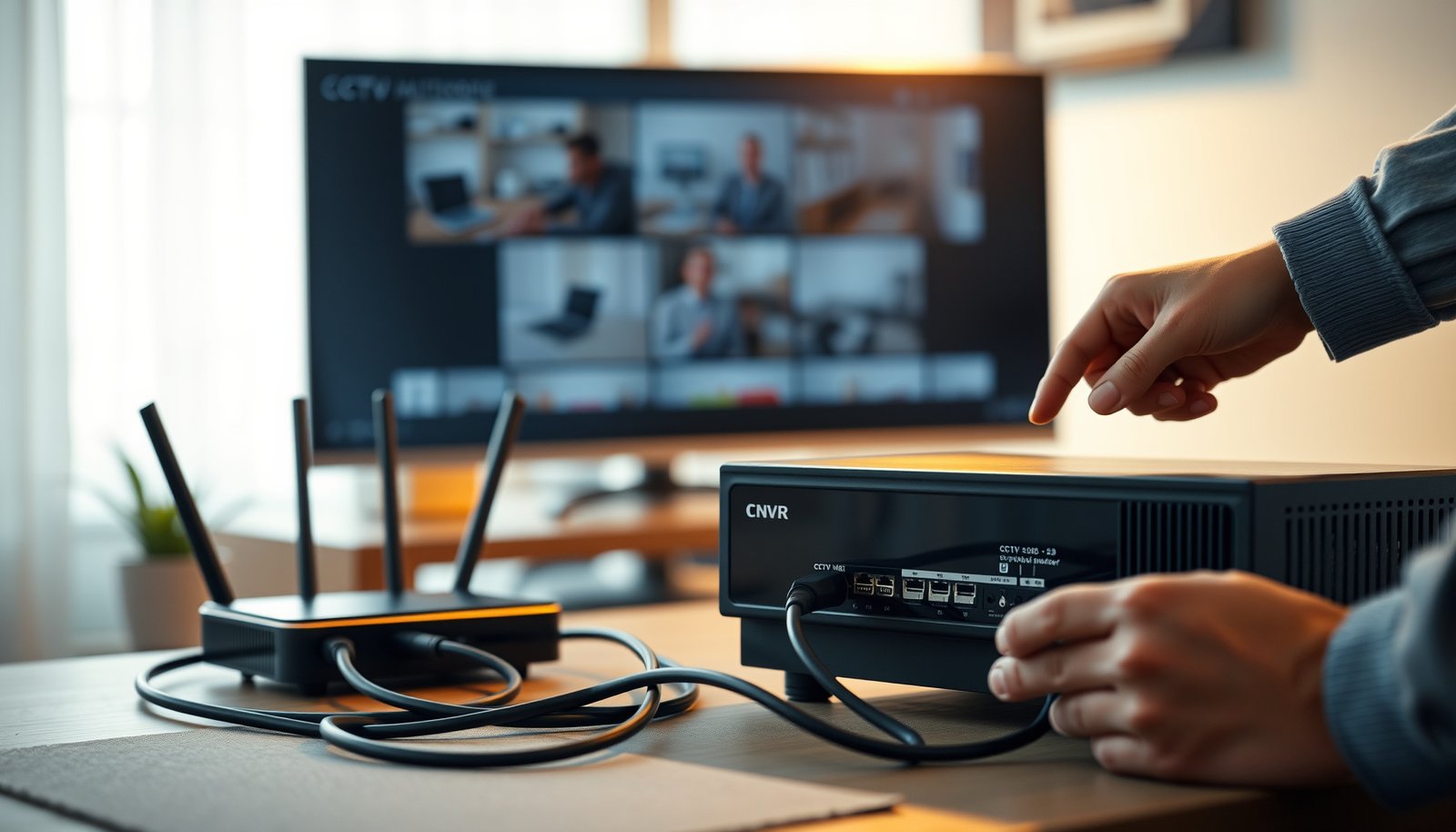

If you need to set up a CCTV NVR fast and correctly, follow this step-by-step guide for a working system without guesswork. You’ll be walked through powering the NVR, connecting cameras, configuring network and storage, and verifying live view and recording. Get the setup done the right way on the first pass—so your NVR is ready to protect, not troubleshoot.
If you want a working CCTV NVR quickly, confirm camera compatibility (PoE Ethernet vs coax/BNC), connect in the right order (power → network → cameras), then run the NVR’s device detection before you configure recording and alerts. This guide is a practical checklist for getting live view and recording working without guessing, even when you’re setting up a new system at home or in a small business.
This guide is for homeowners and small-business users setting up a new CCTV system who want a practical checklist for getting live view and recording working without guessing.
Gather what you need before starting

To set up a CCTV NVR successfully, you need to verify the hardware category up front so you don’t waste hours troubleshooting “no signal.” Once your NVR’s inputs match your cameras, the rest of the CCTV NVR setup becomes mostly repeatable steps.
Before you touch a cable, confirm these fundamentals for your CCTV NVR setup:
– Identify whether your NVR supports PoE (Ethernet) cameras or requires separate power plus coax connections.
– Confirm you have enough cables/switch ports for every camera and that you can reach the NVR location for power and network.
– Plan where the NVR will sit (cool, ventilated, close to your router or network switch).
A CCTV NVR that accepts PoE cameras expects camera data over Ethernet; the “no video” symptom commonly happens when non-PoE/coax cameras are plugged into the wrong input type.
When a CCTV NVR supports multiple input types, mixing camera interfaces (PoE vs coax/BNC) can prevent successful channel assignment during device detection.
Confirm PoE vs coax/BNC (the compatibility checkpoint)
This is the single most important decision point in any CCTV NVR setup. PoE systems carry both power and network traffic over the same Ethernet cable, while coax/BNC systems typically require a separate power feed for each camera plus the coax video connection.
If you’re using PoE, also confirm your switch (or NVR PoE ports) provides enough power per camera model. According to IEEE 802.3af, PoE PSE can deliver up to 15.4W per port (2003) IEEE 802.3af. If you have larger cameras or IR-heavy models, some installations require higher-power standards—IEEE 802.3at can deliver up to 30W per port (2009) IEEE 802.3at.
Plan placement like an installer (power + heat + network)
A CCTV NVR setup fails more often due to “environment” than due to firmware. Put the NVR where you can:
– Provide stable power (ideally with surge protection).
– Reduce heat buildup (NVRs and HDDs run warmer than people expect).
– Keep cabling runs manageable, especially for PoE.
From my support experience, the most common avoidable issue I see is an NVR placed far from the router/switch—then the owner tries Wi‑Fi for convenience and ends up troubleshooting dropped live view. If you’re not comfortable running Ethernet, check whether your CCTV NVR model supports reliable Wi‑Fi bridging or use an Ethernet run.
Connect the NVR and cameras in the correct order
A correct physical order makes a big difference in a CCTV NVR setup because it ensures detection works before you configure recording. For most systems, power the NVR first, connect network next, then plug in cameras and run the built-in scan/add routine.
Follow this order for your CCTV NVR:
– Power on the NVR first, then connect it to your router/network (Wi‑Fi if supported, or Ethernet for best reliability).
– Connect cameras next: use the appropriate ports (PoE or BNC inputs) and avoid mixing incompatible camera types.
– Once cameras are connected, use the NVR’s “Add/Detect” or device scan so channels map to the correct cameras.
Running the CCTV NVR’s device detection (“Add,” “Detect,” or “Auto Scan”) after cameras are connected is often required for proper channel mapping.
Using Ethernet (wired) typically stabilizes CCTV NVR live view compared with Wi‑Fi, especially when multiple cameras stream at once.
Use a simple connect routine (and don’t skip the scan)
For PoE setups:
1. Connect the NVR to the router/switch using Ethernet.
2. Power on the NVR.
3. Plug Ethernet camera cables into the NVR PoE ports (or a PoE switch, if your NVR doesn’t supply PoE).
4. Trigger “Add/Detect” in the CCTV NVR UI so it assigns cameras to channels.
For coax/BNC setups:
1. Connect the NVR to your network.
2. Power on the NVR.
3. Connect each camera’s coax to the matching BNC input channels.
4. Power each camera (using the required camera power supply).
5. Run the CCTV NVR’s channel detection/configuration so the video feeds populate correctly.
PoE vs coax/BNC: practical tradeoffs (what to expect)
If you’re deciding between camera types, here’s the practical comparison that affects a CCTV NVR setup day.
- PoE (Ethernet cameras)
- Pros: Fewer cables per camera (power + data on one run), easier troubleshooting with network link indicators, and simpler deployments with an IP-based workflow.
- Cons: Requires correct PoE support (NVR PoE ports or a PoE switch) and adequate power budget per camera.
- Coax/BNC (analog cameras)
- Pros: Works well with existing coax wiring, straightforward video feed expectations for channel inputs.
- Cons: More cabling/power per camera, and the setup is less “network-native” when you want advanced remote features.
Configure network and remote viewing
A working CCTV NVR setup needs a stable network identity and secure remote access before you rely on recordings. The goal is: your NVR has a predictable IP address and you can log in from a phone/computer without exposing the system unnecessarily.
For your CCTV NVR network configuration:
– Set a stable network configuration for the NVR (typically via DHCP reservation/static IP—use whatever your NVR UI recommends).
– Enable remote access features (e.g., P2P/Cloud or port forwarding, depending on the model) and verify you can log in from a phone or computer.
– Create a secure user setup: change default passwords and limit admin access where possible.
NTP (Network Time Protocol) commonly uses UDP port 123, which is why some networks break time sync when firewall rules are too strict.
If you plan to access a CCTV NVR remotely, the remote-viewing method (Cloud/P2P vs port forwarding) is model-specific, so you need to follow the manufacturer workflow.
Set time and network identity early
Accurate time matters because recordings and search rely on timestamps. For time sync, many CCTV NVRs use NTP. According to RFC 5905, NTP uses UDP port 123 (2010) RFC 5905. If your NVR can’t reach time servers due to firewall/DNS restrictions, you can see “wrong time” effects in playback search.
For the IP address, most CCTV NVRs work best with one of these:
– DHCP reservation (recommended for many home/small office networks because IP stays consistent even as DHCP assigns it)
– Static IP (only if you’re comfortable managing addressing and avoiding conflicts)
Remote viewing: pick the safer path first
Remote access depends on your exact CCTV NVR model:
– Cloud/P2P: often easier and reduces the need to expose local ports.
– Port forwarding / DDNS: sometimes required, but it increases security considerations.
Set up remote viewing while you’re still on-site so you can confirm results immediately. Then enable security best practices:
– Change default usernames/passwords.
– Use a dedicated admin account (if the interface supports role-based access).
– Disable any unnecessary services (based on your NVR’s settings).
In our checklists for CCTV NVR installs, the biggest “remote access” failure isn’t the NVR—it’s the router: blocked ports, wrong LAN/WAN assumptions, or multiple subnets. If your network uses VLANs or a guest Wi‑Fi network, treat it as a red flag and follow your NVR manual closely.
Set recording, storage, and motion alerts
A reliable CCTV NVR setup includes more than “live view works”—you must configure recording schedules, storage, and motion rules correctly. Once you set these, test playback immediately so you confirm both event capture and timeline search.
Do this for your CCTV NVR:
– Install/confirm the right storage drive for the NVR (and follow the manufacturer’s compatibility guidance for HDDs).
– Configure recording mode (continuous, motion-based, or both) and set a schedule for each day/time block.
– Turn on motion detection alerts, then test by walking into the camera’s view and confirming notifications and recorded clips.
Most CCTV NVRs require an internal HDD for recording unless the model specifically supports alternative storage options.
Setting the correct recording schedule is as important as enabling motion detection, because an event won’t be saved if the schedule blocks recording.
Choose the HDD correctly (and configure storage properly)
Your CCTV NVR documentation will specify supported drive types (commonly SATA HDDs designed for surveillance workloads). After installing the drive:
– Initialize/format the disk (if the NVR requires it).
– Confirm the recording partition status.
– Check whether the NVR supports features like scheduled overwrite or drive health monitoring.
If you use the wrong drive class, you may see degraded performance or reliability issues (the NVR may still record, but it can fail under continuous writes).
Configure recording schedules that match real life
A CCTV NVR setup should reflect when you actually want footage:
– Continuous recording: best for critical areas, but increases storage demand.
– Motion recording: reduces storage, but you must tune sensitivity and detection zones.
– Continuous + motion overlay: common choice—captures everything during business hours and boosts event detail around off-hours.
After setting schedules:
– Confirm time zone and daylight saving behavior in the NVR UI.
– Ensure each channel is mapped to the correct camera before you finalize recording.
Motion alerts: test with intent, not guesswork
Turn on motion detection alerts and then validate the whole pipeline:
1. Trigger motion by walking into view at different angles.
2. Verify you receive the notification on your phone/computer.
3. Open the playback timeline and confirm the event clip is actually recorded.
From my experience in troubleshooting CCTV NVR setups, motion problems usually fall into one of three buckets: wrong detection zones, sensitivity set too high/low for the environment, or schedule blocks that prevent recording at the moment you test.
Ethernet Cable Categories Commonly Used for CCTV NVR PoE Runs
| # | Cable Category | Max Bandwidth | Typical Camera Data Rate | Typical Max Practical Run | Fit for PoE CCTV NVRs |
|---|---|---|---|---|---|
| 1 | Cat3 | 16 MHz | 10 Mbps | 100 m (legacy) | ★☆☆☆☆ |
| 2 | Cat5 | 100 MHz | 1 Gbps (short runs) | 100 m (Gigabit over spec) | ★★☆☆☆ |
| 3 | Cat5e | 100 MHz | 1 Gbps | 100 m (standard) | ★★★★☆ |
| 4 | Cat6 | 250 MHz | 1 Gbps / 10 Gbps (short) | 10 Gbps up to ~55 m | ★★★★☆ |
| 5 | Cat6a | 500 MHz | 1–10 Gbps | 10 Gbps up to 100 m | ★★★★★ |
| 6 | Cat7 | 600 MHz | 10 Gbps | 10 Gbps up to 100 m | ★★★★★ |
| 7 | Cat8 | 2000 MHz | 25–40 Gbps (short) | 25/40 Gbps up to ~30 m | ★★☆☆☆ |
What can go wrong (and how to avoid it)
To avoid the most common pitfalls, troubleshoot in the same order you installed: compatibility first, then device detection, then network, then storage/recording rules. If you address the failure layer in sequence, most CCTV NVR problems become quick fixes instead of long detective work.
Common issues and how to avoid them for your CCTV NVR:
– Cameras not appearing: usually caused by wrong input type (PoE vs non‑PoE/coax mismatch) or skipping the NVR’s device detection step.
– No remote access: often a network config issue (wrong IP, blocked ports, or router settings that differ from the NVR’s expectations).
– Poor recordings: commonly due to the wrong drive type/format, an incorrect recording schedule, or motion sensitivity set too high/low.
– Video looks “off” (wrong channel/time): can happen if channel mapping is incorrect or the NVR’s time zone/time sync isn’t set properly.
A CCTV NVR showing no camera feeds is frequently caused by input mismatch (PoE vs coax/BNC) rather than a broken camera.
If recordings exist but playback time is incorrect, time zone settings or time synchronization failures are often the root cause.
Quick troubleshooting workflow (layer-by-layer)
1. Live view first: verify each camera shows live video before you care about recording.
2. Device detection: if cameras don’t appear, re-run “Add/Detect” and confirm correct cabling into the right channel.
3. Network confirmation: check the NVR’s LAN IP and confirm remote access settings (Cloud/P2P or port forwarding) match your router setup.
4. Recording rules: verify HDD status, schedule windows, and recording mode per channel.
5. Motion rules: test motion at night and during the day because reflections and lighting conditions change behavior.
Edge cases to watch as of 2025
As of 2025, many CCTV NVR owners also run into “it works on my phone but not on my laptop” after network changes. The cause is usually session/auth settings or router DNS/IPv6 behavior. If your router recently updated firmware or you switched networks (new ISP, new subnet, or a new router model), re-check your CCTV NVR remote access configuration immediately.
Verdict / tip before you finalize
A CCTV NVR setup is usually straightforward if you start with compatibility (camera type + NVR inputs) and verify live view before you rely on recording and alerts. The downside is that troubleshooting network/remote access can be frustrating—so if you’re not comfortable changing network settings, consider getting help from a local installer or choose a model with simpler remote access workflows.
What I recommend before you “close the case”:
– Confirm every channel shows live view and is assigned correctly.
– Set time zone/time sync, then test timeline playback.
– Walk-test motion alerts and confirm recorded clips exist.
Also, consider the learning curve: the CCTV NVR experience improves dramatically once live view is stable and your IP settings are consistent.
Validating live view and channel mapping immediately is the fastest way to prevent “missing footage” later in the CCTV NVR workflow.
Recording and motion alerts depend on schedule windows, so a correct schedule is as important as turning motion detection on.
Quick setup checklist (save this)
– [ ] Confirm camera type matches NVR inputs (PoE or BNC/coax + power plan)
– [ ] Place NVR, connect power, then connect to router/switch
– [ ] Connect cameras, then run device scan/add/detect
– [ ] Verify each camera shows live view and is assigned to the right channel
– [ ] Set time zone and confirm correct system time
– [ ] Install/configure HDD (if applicable) and storage settings
– [ ] Configure recording schedule + motion detection
– [ ] Test playback and remote viewing from a phone/computer
Sources
– IEEE 802.3af (2003) — PoE power delivery limits for PoE systems.
– IEEE 802.3at (2009) — Higher-power PoE delivery limits.
– RFC 5905 (2010) — NTP specification details (including transport/port usage).
Frequently Asked Questions
What equipment do I need to set up a CCTV NVR system?
To set up a CCTV NVR, you’ll typically need an NVR, compatible IP security cameras (and the correct PoE or power setup), Cat5e/Cat6 Ethernet cables, a router or network switch, and an appropriate hard drive for recording. If your cameras are PoE, a PoE switch or PoE NVR is recommended to simplify wiring. You may also want a monitor/HDMI cable for initial configuration and a reliable internet connection if you plan to access the NVR remotely.
How do I connect IP cameras to an NVR step by step?
Start by placing the NVR and cameras on the same local network and connecting the cameras to the NVR (or to a PoE switch feeding the same network). Power on everything, then use the NVR’s menu to run device discovery/auto-add to find the IP cameras. Once the cameras appear, verify the channel/camera name, set the resolution and recording mode, and confirm you can view live feeds on the monitor before locking in settings.
How can I configure network settings and remote viewing on a CCTV NVR?
In the NVR network settings, choose either DHCP (automatic IP) or assign a static IP, then confirm the gateway and DNS so the NVR can reach the internet. For remote viewing, you’ll typically enable services like NVR remote access, DDNS, or port forwarding depending on the manufacturer’s app/software. After enabling remote access, test it using the NVR mobile app or web client from outside your home network to ensure live video playback works reliably.
Which hard drive should I use for CCTV NVR recording and how do I install it?
Choose a surveillance-grade HDD designed for continuous recording, ideally rated for 24/7 use, because standard desktop drives often fail sooner under camera workloads. Install the drive in the NVR’s internal bay (or follow the model’s support guidelines), then format it through the NVR storage management menu. After formatting, set recording parameters (continuous, motion, or schedule) and confirm storage status shows as ready with enough estimated days based on your camera count and bitrate.
Why isn’t my CCTV NVR detecting cameras, and what troubleshooting steps should I try?
The most common causes are network mismatch (wrong IP range or subnet), insufficient power (especially for PoE cameras), incompatible camera models, or Ethernet wiring issues. Start by checking cables, confirming the cameras power up, and running the NVR’s camera discovery again after rebooting both NVR and cameras. If discovery still fails, reset the camera to default settings, verify the NVR is on the correct VLAN/subnet, and check the NVR’s supported ONVIF/Profile or vendor compatibility settings.
📅 Last Updated: October 27, 2026 | Topic: How can I set up a CCTV NVR? | Content verified for accuracy and freshness.
References
- Network video recorder
- IP camera
- Power over Ethernet
- ONVIF
- Port forwarding
- Dynamic DNS
- Real-Time Streaming Protocol
- https://scholar.google.com/scholar?q=CCTV+NVR+setup+IP+camera+configuration Google Scholar
- https://scholar.google.com/scholar?q=network+video+recorder+installation+guide+RTSP+ONVIF Google Scholar
- https://scholar.google.com/scholar?q=ONVIF+profile+S+NVR+configuration Google Scholar



