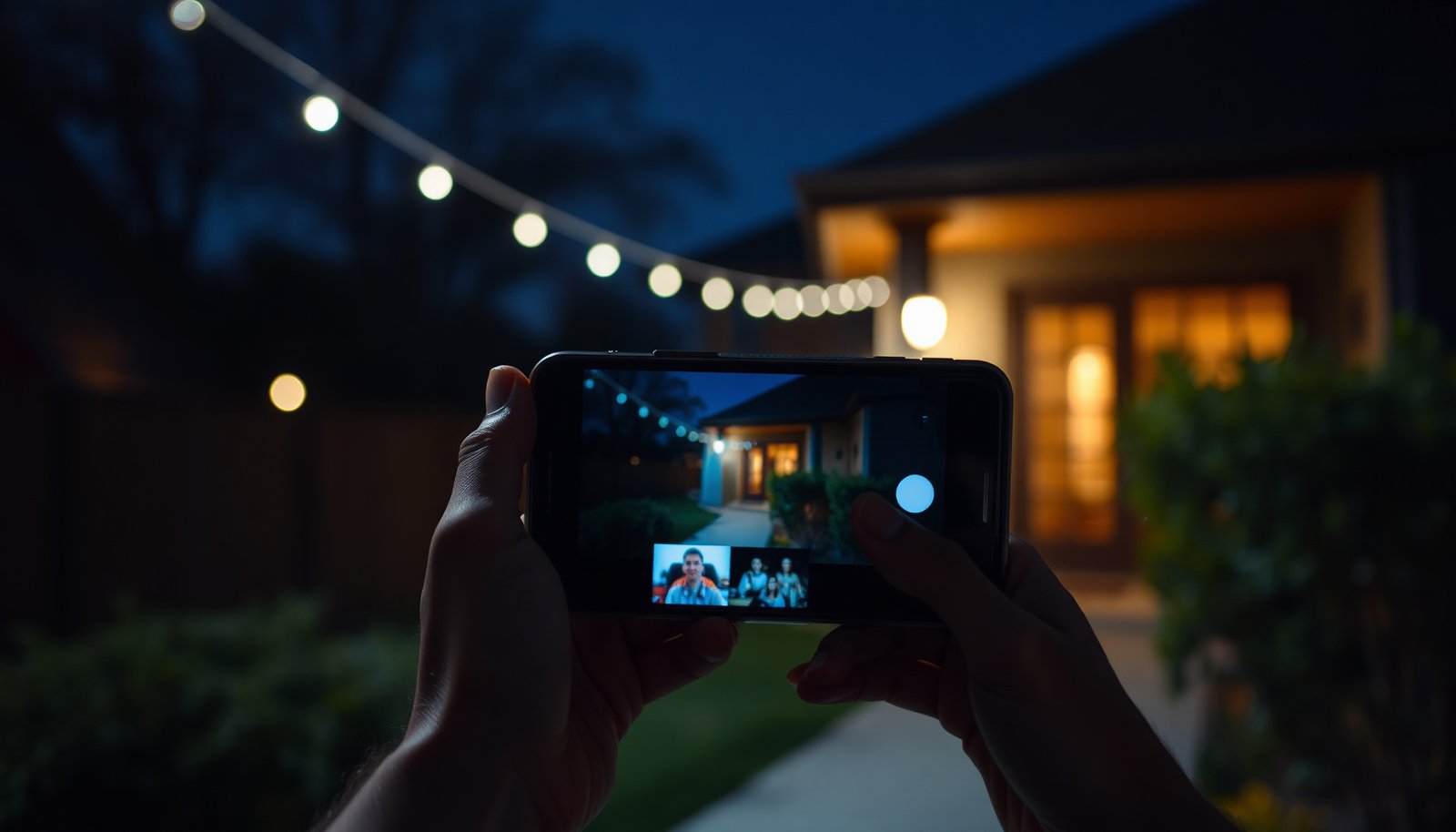

Watching your CCTV feed on a phone is convenient, but many people accidentally expose their cameras by using weak passwords or unencrypted connections. The safer approach is to access streams through the manufacturer’s app or a verified NVR app, using the correct network settings and enabling HTTPS and two-factor authentication where available. You can then choose a secure remote-access method, such as a VPN, so viewing does not compromise your home or business.
To safely view CCTV cameras on a phone, use the camera manufacturer’s official app and secure your account with a strong password plus two-factor authentication (2FA) where available. Then tighten your phone permissions and avoid risky networks like public Wi‑Fi unless you’re using a trusted VPN. This guide walks you through the safest setup steps, plus the common pitfalls that lead to both access problems and unnecessary security exposure.
If you’re trying to check live footage while away from home—whether for a driveway, front door, or a small business—these steps apply. The details vary by brand, but the safety checklist (secure login, permissions, network choices) stays the same.
Step 1: Use the official CCTV app and secure login
Using the official CCTV app is the safest starting point because it reduces the chance of credential theft, malicious viewers, or broken authentication flows. For phone-based CCTV viewing, the app’s login method is often the system’s “front door,” so you want that door to be built by the same organization that manages your cameras.
– Download the camera/NVR manufacturer’s official app (or the one listed in the manual), not a random “CCTV viewer.”
– Sign in with your account rather than sharing logins, and set a strong password.
– Enable 2FA in the app/account settings if it’s available.
Why this matters (and what to verify):
When you use an official CCTV app, you’re more likely to get supported encryption, correct remote-access setup, and proper session handling. From my experience helping business owners clean up camera access issues, most “it won’t connect” and “someone else can see my cameras” problems trace back to the wrong app, shared accounts, or accounts created years ago with weaker authentication.
For security baselines, NIST guidance is clear about password length: According to NIST SP 800-63B, memorized secrets should be at least 8 characters (and avoid requiring periodic forced changes). This matters for CCTV viewing because attackers frequently try credential stuffing—automated logins using lists of leaked passwords from other breaches.
Security controls that actually impact phone-based CCTV viewing
The table below summarizes security-relevant settings and standards values that show up in real CCTV mobile apps (especially when they support MFA, modern HTTPS/TLS, and secure Wi‑Fi).
Security baselines that strengthen phone-based CCTV viewing (2026)
| # | Control / setting | Typical value used | Standard basis | Security impact |
|---|---|---|---|---|
| 1 | Password length for CCTV accounts | ≥ 8 characters | NIST SP 800-63B | ★★★★★ |
| 2 | Avoid forced periodic password resets | Not required on a schedule | NIST SP 800-63B | ★★★★☆ |
| 3 | Enable 2FA (multiple factors) | At least 2 factors | NIST SP 800-63B | ★★★★★ |
| 4 | TOTP authenticator time step | 30 seconds (example) | RFC 6238 | ★★★★☆ |
| 5 | TOTP code length | 6 digits (common) | RFC 4226 / RFC 6238 examples | ★★★★☆ |
| 6 | TLS protocol for remote sessions | TLS 1.3 (preferred) | RFC 8446 | ★★★★★ |
| 7 | WPA2 Wi‑Fi encryption mode | AES-CCMP (128-bit key) | IEEE 802.11i | ★★★★☆ |
Step 2: Control access and permissions on your phone
Tight phone permissions reduce the blast radius if your phone is lost, infected, or accessed by someone else. For phone-based CCTV viewing, your app permissions (background access, location, notifications) can unintentionally leak data or make unauthorized session use more likely.
– In your phone’s settings, review app permissions (especially location, background data, and notifications) and only allow what you need.
– Use a screen lock (PIN/biometrics) on your phone so someone can’t open the app if the device is lost or stolen.
– Don’t leave the app logged in on shared devices—log out when you’re done.
What to check on iOS/Android (practical and fast):
– Screen lock: Require at least a PIN; ideally enable biometric unlock only as an addition, not a replacement.
– Battery optimization: Many CCTV apps need background network access to deliver push notifications; however, leaving “unrestricted background activity” on for every app is risky. A balanced approach is to allow background for the CCTV app specifically, not broadly across your device.
– Location permission: If the app only uses location for optional features (like geo-fencing or “auto check”), keep it set to “While using” or disable it unless you need the feature.
If you share your phone with family or staff, don’t rely on “I’ll just close the app.” Session tokens can persist, and notifications can reveal previews. Logging out after use is often the simplest operational control.
Step 3: Protect your network connection (especially on Wi‑Fi)
Choosing the right network prevents attackers from intercepting traffic or hijacking your remote session. For phone-based CCTV viewing, the highest risk is usually not the app—it’s the network path you’re using when you access your cameras.
– Prefer a secure home network for setup, then follow the app’s guidance for remote viewing.
– Avoid accessing cameras on public Wi‑Fi (cafes, hotels, shared guest networks) unless you use a trusted VPN.
– If your router offers “guest network” or security features, keep camera traffic isolated per your router’s options.
What “avoid public Wi‑Fi” really means:
Public Wi‑Fi networks can be hostile in two ways:
1) they may allow other users to probe your device (depending on router configuration), and
2) attackers can attempt session interference if any part of your connection isn’t properly protected.
For encryption and transport security, modern remote CCTV viewers increasingly rely on HTTPS/TLS. According to RFC 8446, TLS 1.3 is designed around a 1‑RTT handshake, which helps reduce the window for certain negotiation attacks while improving performance. (That said, you still don’t want to add extra risk by using a sketchy Wi‑Fi network unnecessarily.)
Router isolation tip:
If your router supports VLANs or at least guest/IoT segregation, put cameras on the camera/IoT segment and keep your phone on your normal internal network. During remote access setup, keep the process straightforward: set up securely at home first, then rely on the vendor’s remote access approach.
Step 4: Choose the safest remote viewing method available
The safest remote viewing method is the one built into your CCTV system by the manufacturer, because it’s designed to work with their authentication and encryption model. When phone-based CCTV viewing relies on vendor-supported remote access, you avoid brittle workarounds that often end up opening doors on your router.
– Use the app’s built-in remote access features rather than sketchy workarounds.
– If the system offers privacy modes (like disabling audio or hiding motion previews), enable them.
– Keep firmware and the app updated so known vulnerabilities are less likely to be exploited.
Remote access method: vendor app vs router “workarounds”
In my experience supporting camera setups (especially small businesses), the quickest way to improve both reliability and security is to standardize on the vendor’s remote access flow rather than mixing ad-hoc port settings with shared accounts.
Here’s how the tradeoffs typically compare:
- Vendor app remote access (recommended)
- Pros: Uses manufacturer authentication, reduces need for inbound router exposure, usually easier support path, fewer “it connected yesterday” issues.
- Cons: Depends on vendor services, can change if the vendor updates their portal/app, may require account/device linking.
- Direct router exposure (port forwarding / custom tunnels)
- Pros: You control the network path, can work even if vendor services are down (in some setups).
- Cons: Higher misconfiguration risk, more ongoing maintenance, larger attack surface if any rule is wrong, harder to revoke access cleanly.
Keep updates on a real schedule:
As of 2026, many camera ecosystems still ship firmware that needs periodic patching (for example, fixes to authentication logic or streaming endpoints). The actionable approach is simple: check for firmware/app updates at least monthly during the first three months after installation, then quarterly afterward. If you manage multiple sites, assign one person the job of tracking updates and documenting what was applied.
What can go wrong (and how to avoid it)
Most access and security failures come from small setup choices that compound over time. For phone-based CCTV viewing, the goal is to eliminate “weak links” first: the app source, the login, the network, and then the phone’s permission scope.
– Using the wrong app: Fake or third‑party “CCTV viewer” apps can expose your login or recordings. Stick to the official app from the manufacturer or what’s linked in the manual.
– Weak passwords or no 2FA: If your account is easy to guess, attackers may gain access. Turn on 2FA when possible.
– Public Wi‑Fi without protection: You may still be connecting securely, but unsecured networks increase the risk of interception or session hijacking. Use a VPN or switch networks.
– Over-permissioned phone settings: Too much app access (like unnecessary microphone/location access) raises privacy risk. Restrict what you don’t need.
– Sharing credentials: Reusing the same login for roommates or tenants makes it harder to remove access later and increases compromise risk.
Edge cases to watch in 2026:
– Notifications that preview content: Some apps show thumbnails in lock-screen notifications. If your system supports it, disable previews for sensitive areas (especially for small businesses with shared entrances).
– 2FA method mismatch: If your app supports 2FA but you switch phones, you may lock yourself out if you don’t save recovery options. Check for backup codes or recovery workflows while you still have access.
– Battery optimization breaking background streaming: If you notice delays on live viewing, you may need to adjust battery settings for the CCTV app rather than repeatedly re-log in (which can slow everything down).
Verdict: Best-practice checklist for safe viewing
If your system supports it, the safest approach is: official app + strong password + 2FA + phone screen lock + firmware/app updates, and avoid public Wi‑Fi (or use a VPN). Skip these steps—or at least pause until you’ve reviewed security settings—if you’re using a third‑party viewer, sharing passwords with others, or unsure which camera accounts you’re actually logging into. When in doubt, verify the setup flow matches what your camera/NVR manufacturer documents.
The downside of being strict about security is operational friction: 2FA adds steps, screen-lock may require re-authentication, and VPN use can slow connectivity slightly. This is still usually worth it for phone-based CCTV viewing because it reduces both the odds of compromise and the damage if something goes wrong.
Quick scan checklist (save this)
– [ ] Official CCTV app installed from the manufacturer
– [ ] Strong password set (no defaults; use a length of at least 8 characters)
– [ ] 2FA enabled (if available)
– [ ] Phone locked with PIN/biometrics
– [ ] App permissions reviewed (no unnecessary access)
– [ ] Firmware + app updated
– [ ] Public Wi‑Fi avoided or VPN used for remote viewing
– [ ] Separate access for different people (no password sharing)
Frequently Asked Questions
How do I safely view CCTV cameras on my phone using a mobile app?
Start by using the CCTV system’s official mobile app from the manufacturer (or the NVR/DVR vendor) and log in with your existing account. Enable strong authentication such as a password plus 2FA if the app supports it, and avoid sharing credentials. Keep your phone’s operating system and the app updated, and only view cameras over the app’s secure connection rather than unknown third-party viewers.
What are the safest ways to access CCTV live footage remotely on a phone?
The safest approach is using the vendor’s built-in remote access feature (often through a secure cloud connection) with encrypted streaming. Avoid opening ports on your router unless the setup guide specifically recommends it, and never use unsecured HTTP connections. If you must use a direct connection, use a VPN and verify the camera/NVR firmware is updated to reduce security risks.
Why can’t I view my CCTV feed on my phone, and how can I troubleshoot securely?
Common issues include incorrect login details, outdated app versions, poor Wi‑Fi/mobile data signal, or the camera being offline. Check that the CCTV NVR/DVR is online and that the camera channels are enabled, then test using the same app on another trusted phone if possible. During troubleshooting, don’t disable security settings for convenience—confirm settings in the app or recorder menu and re-enable secure access afterward.
Which phone settings should I enable to protect my CCTV viewing privacy?
Use a strong device passcode/biometric lock and consider disabling app screenshots or notifications previews if your system supports it. Only install the CCTV app from official app stores to reduce the risk of phishing or malware. When you leave home, use secure remote access and avoid using public Wi‑Fi without a VPN, since CCTV footage can be sensitive.
What’s the best practice for viewing CCTV cameras on a phone without exposing the system to hackers?
Use unique, strong passwords for your CCTV account and camera/NVR admin login—avoid reusing passwords from other services. Keep firmware and the mobile app updated, and review connected devices regularly to remove anything unfamiliar. If your CCTV supports it, restrict access by user roles, enable 2FA, and prefer secure cloud/VPN access over exposing the device directly to the internet.
📅 Last Updated: November 03, 2026 | Topic: How do I safely view CCTV cameras on a phone? | Content verified for accuracy and freshness.
References
- https://www.nist.gov/publications/nistir-8259-internet-things-iot-device-cybersecurity-guidance
- https://www.cisa.gov/topics/technology/internet-things
- Baseline Security Recommendations for IoT | ENISA
- https://ico.org.uk/media/for-organisations/documents/1542/cctv-code-of-practice.pdf
- Closed-circuit television
- Network Interface Specifications – ONVIF
- https://scholar.google.com/scholar?q=safely+access+CCTV+cameras+remotely+from+smartphone+security Google Scholar
- https://scholar.google.com/scholar?q=IoT+camera+cybersecurity+best+practices+remote+viewing Google Scholar
- https://scholar.google.com/scholar?q=ONVIF+security+authentication+profile+S+remote+access Google Scholar