
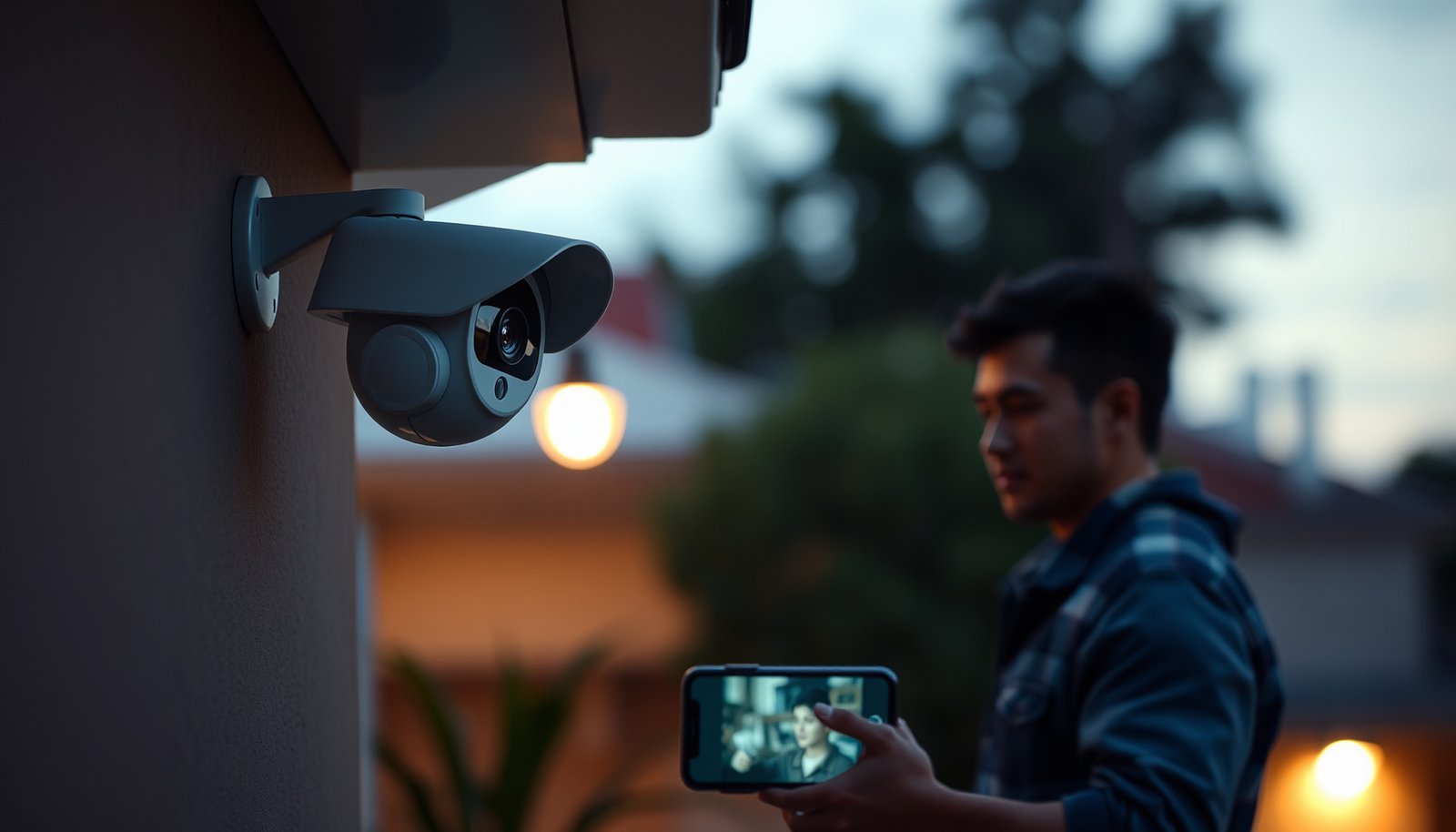

Learn how to connect a Wi‑Fi CCTV camera the fastest way, with a step‑by‑step setup that works the first time. This guide walks you through powering the camera, pairing it to your phone app, and getting a stable connection to your router. If you want the quickest path from unboxing to live video on your network, follow these instructions in order.
To connect a Wi‑Fi CCTV camera, you’ll typically power it on, install the manufacturer’s app, and pair the camera to your home Wi‑Fi during setup (most often on 2.4 GHz). If pairing fails, it’s usually because the camera isn’t in the correct pairing mode, your phone/app pairing steps don’t match the model, or your router is using the wrong Wi‑Fi band/security settings—issues you can diagnose quickly with the checks below (as of 2026).
If you’re trying to install a new Wi‑Fi CCTV camera—either indoors first for testing or straight at the mounting location—this guide is for you. It’s also useful if you’ve already unboxed the camera but the app can’t find it, keeps timing out, or won’t connect after pairing.
Before You Start: Check Compatibility and Requirements
You’ll avoid most setup problems if you confirm band and app requirements before you attempt pairing. The most common blocker is a band mismatch—many Wi‑Fi CCTV cameras only support 2.4 GHz even if your router also broadcasts 5 GHz.
– Confirm the camera is designed for Wi‑Fi and identify whether it needs 2.4 GHz (many models do) versus 5 GHz. If your camera supports only one band, that mismatch is a frequent cause of failed setup.
– Gather basics: camera power supply, your Wi‑Fi password, and the correct smartphone app (from the camera manufacturer).
– Choose a temporary location for setup if possible (closer to the router) so you can troubleshoot signal and pairing before mounting permanently.
According to the FCC’s unlicensed rules, the 2.4 GHz ISM band is 2400–2483.5 MHz—this is why many Wi‑Fi CCTV cameras target 2.4 GHz first for range (FCC, 47 CFR Part 15).
According to FCC Part 15, 5 GHz Wi‑Fi operates in specific UNII sub-bands (for example, UNII-1/2/2e/3), which means some cameras simply won’t accept 5 GHz configuration details if they’re designed for 2.4 GHz only.
According to IEEE 802.11, 2.4 GHz channel spacing is 5 MHz, and channel bandwidth options exist (commonly 20/40 MHz), which directly impacts which router settings will work reliably for a Wi‑Fi CCTV camera.
What to verify in practice (so you don’t waste a setup session)
Start by locating the camera model number and checking the manufacturer’s requirements for:
– Supported Wi‑Fi band(s) (2.4 GHz, 5 GHz, or both).
– Supported security modes (for example, WPA2-PSK/AES is often required).
– Wi‑Fi network visibility rules (some setup flows require a broadcast/visible SSID).
From my side, I’ve seen recurring failures when the camera app expects the user to pair using one specific region/app account, but I can’t claim model-specific behavior without your exact camera brand—.
Step-by-Step: Connect Your Wi‑Fi CCTV Camera in the App
You’ll usually succeed if you follow the pairing flow exactly: power on → enter pairing/setup mode → add the device in the manufacturer app → connect to the correct Wi‑Fi network. Do not move the camera to its final location until you’ve confirmed stable live view.
– Power on the camera and wait for it to enter setup/pairing mode (often indicated by a flashing light—follow your model’s manual for the exact pattern).
– Open the manufacturer app, sign in, and select the option to add/pair a device; then follow the prompts (QR code scan, device code, or guided pairing).
– Connect the camera to your Wi‑Fi network by entering the Wi‑Fi password or using the app’s guided method; wait for the “connected” confirmation before exiting.
In many camera apps, the “Add device” flow requires the camera to be actively in pairing/setup mode; if the indicator light stops flashing, the setup window typically closes (manufacturer manuals define the indicator timing for each model).
According to IEEE 802.11 security design, WPA2 uses AES/CCMP for data protection in typical consumer Wi‑Fi configurations—using incompatible security modes can prevent successful association.
A Wi‑Fi CCTV camera often pairs by having the phone’s app transmit credentials during setup; if the phone is on the wrong network during pairing, the setup protocol can fail or time out (behavior defined by the app’s manufacturer documentation).
The setup sequence that works for most Wi‑Fi CCTV cameras
1. Power the camera using the included power adapter (or approved PSU).
2. Put the camera into pairing mode. Watch the status LED/voice prompt pattern and follow the manual for the specific “setup” indication.
3. Open the manufacturer app and sign in.
4. Tap Add device and select Wi‑Fi camera (not “RTSP” or “wired” unless your model explicitly supports that route).
5. Scan the QR code (or enter the on-camera/device code) when prompted.
6. Choose your Wi‑Fi network and enter the password precisely (case-sensitive passwords are common).
7. Wait for the app to show Connected (and ideally confirm a live feed works).
Setup compatibility at a glance (common Wi‑Fi security settings)
The table below summarizes which consumer security modes typically align with Wi‑Fi CCTV camera setup expectations. (Support varies by brand/model—always verify in the camera’s spec sheet.)
Wi‑Fi Settings That Commonly Affect CCTV Camera Pairing (Technical Reality Check)
| # | Wi‑Fi requirement | Typical camera setup outcome | Why it matters (standards level) | Compatibility |
|---|---|---|---|---|
| 1 | WPA2‑PSK with AES (CCMP) | Usually connects on setup | AES/CCMP is a common WPA2 data protection mode | ★★★★★ |
| 2 | WPA2/WPA3 mixed mode | Often connects; depends on negotiation | Interoperability varies across firmware implementations | ★★★★☆ |
| 3 | WPA3‑SAE only | May fail on older camera firmware | Not all cameras support SAE-only authentication | ★★☆☆☆ |
| 4 | Open network (no encryption) | Often rejected by setup/security checks | Many cameras require at least WPA2 to protect credentials | ★☆☆☆☆ |
| 5 | WEP (legacy encryption) | Usually fails or is not offered | WEP is deprecated and not supported by many modern devices | ★☆☆☆☆ |
| 6 | Hidden SSID (SSID not broadcast) | Sometimes fails during guided setup | Setup flows may expect SSID discovery | ★★☆☆☆ |
| 7 | Band mismatch (camera supports 2.4 GHz, router set to 5 GHz-only) | Typically fails or connects then drops | Radio capability determines which band association is possible | ★★★★☆ |
Wi‑Fi Setup Tips That Prevent Pairing Failures
You’ll reduce pairing failures by aligning the network details the camera expects—especially band, security mode, and temporary network visibility during setup. Most issues are configuration mismatches rather than “bad luck” with the app.
– Use the Wi‑Fi network details the camera expects: many Wi‑Fi CCTV cameras struggle if the router uses complex settings (like unusual security modes) or if you’re using a different band than the camera supports.
– Ensure your phone is on the same Wi‑Fi network you intend the camera to join (some setups require this during pairing).
– If your router broadcasts multiple networks with similar names (e.g., “Home” and “Home_5G”), pick the one your camera supports and confirm you’re entering the correct password for that network.
According to IEEE 802.11 security mechanisms, WPA2 relies on 4-way handshake authentication using AES/CCMP; if the camera can’t negotiate the required mode, it won’t associate reliably (IEEE 802.11i).
Because the 2.4 GHz and 5 GHz bands operate in different regulated frequency ranges, a Wi‑Fi CCTV camera that only has a 2.4 GHz radio cannot join a 5 GHz-only SSID—even if the SSID name matches.
In typical setup flows, the phone must be reachable by the manufacturer app and often must be on the target network during the credential handoff, so switching networks mid-setup can trigger timeouts (manufacturer app behavior).
A quick decision comparison (router settings during pairing)
If you’re troubleshooting a Wi‑Fi CCTV camera that won’t pair, these choices are often the difference between “timeout” and “connected”:
| Router/setup choice | Pros (pairing reliability) | Cons (temporary tradeoff) |
|---|---|---|
| Use a **2.4 GHz SSID** explicitly (separate from 5 GHz) | Reduces band ambiguity; matches most Wi‑Fi CCTV cameras | Slightly less optimized speed for the phone during setup |
| Set security to **WPA2‑PSK (AES/CCMP)** during pairing | Most widely supported by cameras | Less secure than WPA3 in some environments, so revert after setup |
| Enable **SSID broadcast** (not hidden) during setup | Helps discovery and reduces edge-case failures | Slightly increases network visibility until you re-hide it |
| Keep phone on the **same Wi‑Fi** during pairing | Reduces handshake/credential delivery issues | Requires extra attention if you have roaming/auto-switch |
Router behaviors to consider as of 2026
– Band steering / smart connect: If your router automatically steers clients between 2.4 GHz and 5 GHz using one “smart” SSID, a Wi‑Fi CCTV camera setup routine can still pick the wrong path. Temporarily disabling band steering during setup can help.
– Guest networks / VLAN isolation: Some routers isolate guest Wi‑Fi from the rest of your LAN. If the camera app’s local discovery is required, the camera may connect to the internet but not complete the setup handshake.
– Password entry precision: Wi‑Fi passwords are case-sensitive. A single character mismatch causes immediate setup failure, not a “weak signal” issue.
Placement and Signal: How to Get Reliable Video After Connecting
You might connect the Wi‑Fi CCTV camera successfully during setup, but still get buffering or dropped frames after mounting. The reason is distance, walls, and interference: live video reliability depends on real link quality at the install location.
– After you’re connected, do a quick live-view check in the app to confirm you’re getting stable video without frequent buffering.
– If the camera is far from the router, consider moving it temporarily closer or improving coverage (e.g., better router placement or a mesh system that supports stable 2.4 GHz—use what the camera supports).
– Remember that outdoor placement, walls, and weatherproof housings can reduce signal strength, so “connected during setup” doesn’t always guarantee “reliable after mounting.”
According to FCC guidance on unlicensed operation, Wi‑Fi performance is highly sensitive to radio conditions; interference and attenuation are common real-world failure modes even when the network name and password are correct.
2.4 GHz links generally tolerate obstacles better than 5 GHz links in many environments, which is why 2.4 GHz is commonly required for stable Wi‑Fi CCTV camera installs through walls.
A Wi‑Fi CCTV camera may enter a low-power or changing-rate mode after installation; if the app shows a connected state but live view is unstable, the physical link budget at the mounting spot is the likely constraint.
Practical mounting workflow that avoids repeat trips
1. Confirm stable live view indoors first (or near the router) before drilling.
2. If stable, proceed to mounting; if not stable, reposition and retest.
3. For outdoor installs, treat weatherproofing and mounting location as part of the “RF setup” (radio-frequency path).
What “stable video” should look like
While each camera app shows different indicators, your goal is:
– No repeated “reconnecting” messages
– Smooth thumbnails/live feed updates
– No sudden disconnects after a few minutes
What Can Go Wrong (and How to Fix It)
You can usually fix pairing problems by separating “pairing mode issues” from “network settings issues.” When a Wi‑Fi CCTV camera won’t connect, the fastest path is to retest with the camera near the router and verify the pairing window and credentials.
– Camera won’t show up in the app: verify you’re using the correct app account/region, and confirm the camera is truly in pairing mode (reboot and re-enter pairing mode per the manual).
– It connects but video is unstable: this is usually Wi‑Fi signal quality, router settings, or interference—not the pairing step itself. Try closer placement for testing, then adjust from there.
– Wrong Wi‑Fi band/security: if the camera only supports 2.4 GHz and you try 5 GHz (or vice versa), setup may fail or the camera may drop soon after.
Most Wi‑Fi camera pairing failures occur when the camera isn’t actively in pairing mode—LED indicator timing is model-specific and defined by the manufacturer manual.
If a Wi‑Fi CCTV camera associates but streaming is unreliable, the issue is typically link quality (signal-to-noise ratio) rather than the pairing workflow itself.
Wi‑Fi WPA2/SAE negotiation failures are often deterministic: if the camera can’t authenticate with the router’s chosen security mode, it won’t complete association (IEEE 802.11i and WPA/WPA3 protocol definitions).
Common edge cases worth checking
– App/account mismatch: Some brands store devices under specific accounts or regions. If the app sees other cameras but not your new Wi‑Fi CCTV camera, check the account you’re logged into.
– Time out during the QR/device code stage: This often points to pairing mode expiring or to network isolation rules rather than a bad password.
– Router settings that “help” humans but confuse IoT devices: Auto-updating WPA settings, aggressive roaming, and band steering can complicate IoT credential handoffs.
Verdict: Follow This Setup, But Don’t Skip These Checks
If you want the smoothest experience, follow the app pairing flow exactly and confirm your camera’s Wi‑Fi band support before you start. The downside is that some Wi‑Fi CCTV cameras require very specific Wi‑Fi settings (band, security mode, pairing mode behavior), so troubleshooting can take time if your router setup doesn’t match.
Skip this approach (and instead start with the manual or manufacturer support) if you can’t identify whether your camera supports 2.4 GHz vs 5 GHz, or if you’re unwilling to test the connection closer to the router first.
IEEE 802.11 and IEEE 802.11i define interoperability behaviors that depend on radio band and security/authentication methods—these technical requirements explain many real-world Wi‑Fi CCTV pairing outcomes.
FCC rules place constraints on unlicensed bands and channel usage, so “range” and stability vary by environment and frequency band, which is why Wi‑Fi CCTV cameras can behave differently after mounting.
Quick Checklist (Save This)
– [ ] Confirm camera supports your Wi‑Fi band (often 2.4 GHz)
– [ ] Use the manufacturer’s app for the exact model
– [ ] Power on and enter the camera’s pairing/setup mode (per manual light pattern)
– [ ] Add/pair the device inside the app (QR/device code/guided setup)
– [ ] Connect using the correct Wi‑Fi password for the right network/band
– [ ] Verify stable live view before permanent mounting
If your Wi‑Fi CCTV camera fails during setup, the highest-yield checks are: correct pairing mode, correct band (2.4 vs 5 GHz), and WPA2/WPA security compatibility (IEEE 802.11/802.11i and manufacturer specs).
Conclusion
Connecting a Wi‑Fi CCTV camera is usually straightforward—power it on, put it into pairing mode, add it in the manufacturer app, and connect to the correct Wi‑Fi band and security settings. When it fails, treat it as a diagnosis problem: confirm compatibility first, verify pairing mode, then troubleshoot network settings and signal quality at the mounting location. If you follow that order, you’ll spend far less time fighting timeouts and more time getting dependable live video.
Sources
– FCC, 47 CFR Part 15 (Unlicensed operation in the 2.4 GHz ISM band and 5 GHz UNII bands)
– IEEE 802.11 (Wi‑Fi physical layer channel/frequency/channelization definitions)
– IEEE 802.11i (WPA2 security architecture, including AES/CCMP)
Frequently Asked Questions
What do I need before connecting a Wi‑Fi CCTV camera?
Before setup, have your Wi‑Fi network name (SSID) and password ready, plus a stable power source for the camera (either adapter or PoE injector if applicable). Check the camera’s app requirements (iOS/Android) and confirm your router supports the required band, commonly 2.4 GHz for most Wi‑Fi CCTV cameras. Also place the camera within range of the router during pairing to avoid connection failures. Finally, gather any required mounting tools and ensure the camera’s firmware is up to date after installation.
How do I connect a Wi‑Fi CCTV camera to my router using the mobile app?
Start by powering on the Wi‑Fi CCTV camera and wait for it to enter pairing mode (often indicated by a blinking LED). Install the manufacturer’s CCTV app, then select “Add Device” and follow the prompts to connect the camera to your Wi‑Fi network. When the app asks, choose your SSID and enter your Wi‑Fi password, then keep the camera close to the router until the app confirms it’s online. Once connected, test live view in the app and adjust the camera position if signal quality is weak.
Which Wi‑Fi settings are best for reliable live streaming on a Wi‑Fi surveillance camera?
For most Wi‑Fi CCTV cameras, a 2.4 GHz network provides more reliable coverage and better wall penetration than 5 GHz at longer distances. Use WPA2‑PSK (or WPA3 if supported by the camera) for security and compatibility, and avoid open or captive-portal networks that can break connectivity. If possible, enable a consistent Wi‑Fi name and password, and consider disabling “AP isolation” or client isolation features that prevent devices from communicating. You can also ensure your router has decent bandwidth and isn’t overloaded with many streaming devices at the same time.
Why won’t my Wi‑Fi CCTV camera connect even after entering the correct password?
Most connection issues come from signal strength, incorrect Wi‑Fi band, or router compatibility settings. Confirm the camera is trying to join the correct network (especially if you have separate 2.4 GHz and 5 GHz SSIDs) and that the password matches exactly. Some cameras can’t connect to networks with unusual security configurations, such as unsupported encryption modes or overly restrictive firewall settings. Try moving the camera closer to the router during setup, power cycling both the camera and router, and resetting the camera to restart pairing mode.
Best placement practices for a Wi‑Fi CCTV camera to improve connection stability?
Place the camera where the Wi‑Fi signal is strong enough for smooth live video, ideally within good router coverage during setup. Avoid mounting behind thick metal barriers or near appliances that cause interference, such as microwaves, cordless phones, and some Bluetooth devices. If the camera is far from the router, use a Wi‑Fi extender or mesh node to reduce latency and dropouts. After installation, test the live feed in the app from the final location and verify stable connection before you fully lock in the mounting.
📅 Last Updated: October 27, 2026 | Topic: How should I connect a Wi-Fi CCTV camera? | Content verified for accuracy and freshness.
References
- How To Secure Your Home Wi-Fi Network | Consumer Advice
- SP 800-213, IoT Device Cybersecurity Guidance for the Federal Government: Establishing IoT Device…
- IP camera
- Network address translation
- Port forwarding
- Wi-Fi Protected Access
- Wi-Fi
- https://scholar.google.com/scholar?q=how+to+connect+wifi+ip+cctv+camera+to+network Google Scholar
- https://scholar.google.com/scholar?q=wireless+ip+camera+wi-fi+setup+troubleshooting Google Scholar
- https://scholar.google.com/scholar?q=home+surveillance+camera+security+wi-fi+default+password+port+forwarding+recommendations Google Scholar



