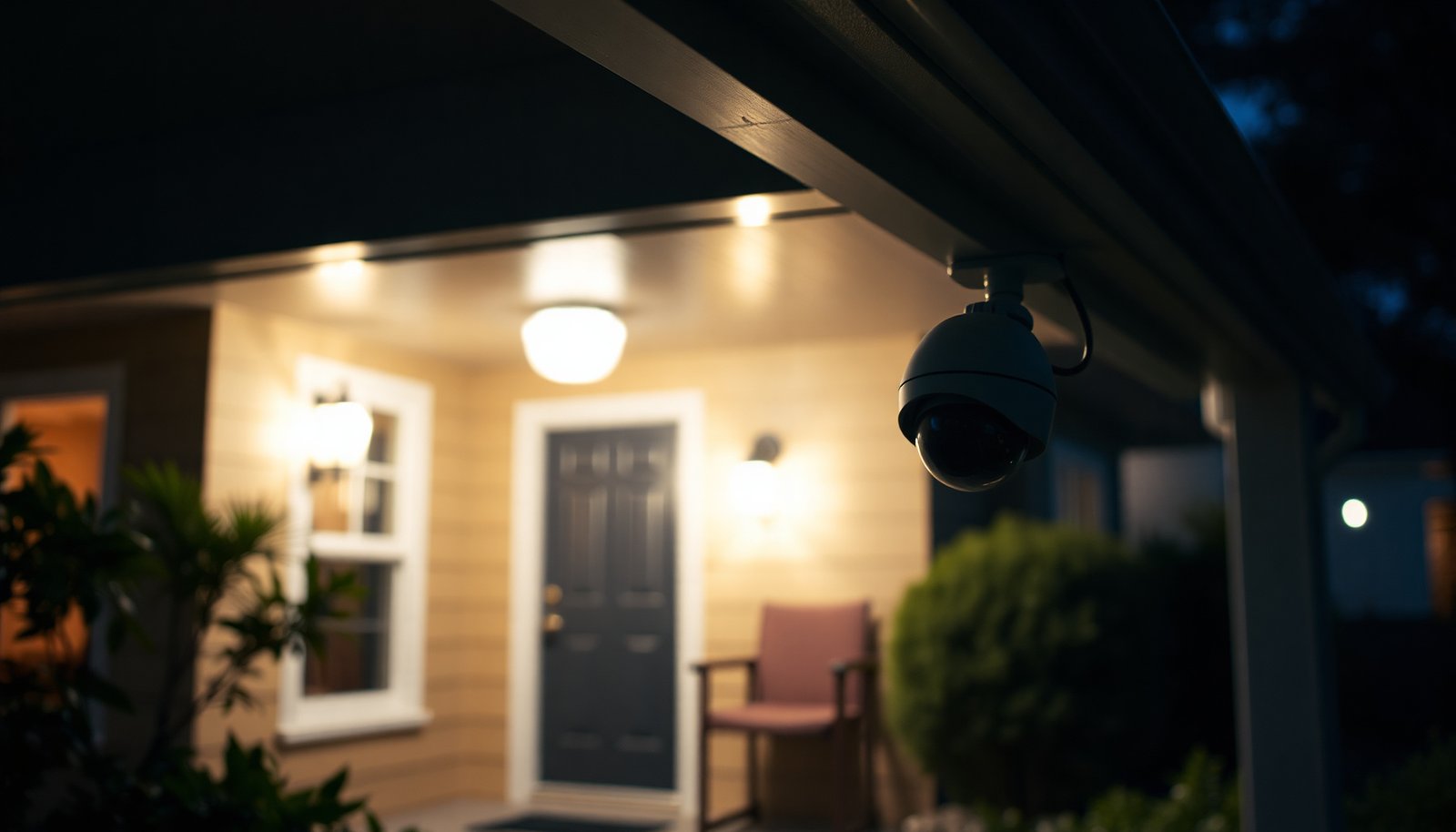

Trying to install an IP camera and waiting for the Wi‑Fi/internet setup can leave you stuck and unable to record. To avoid that, use a local-recording system: wired analog cameras to a DVR, or IP/PoE cameras feeding an on-site NVR with a hard drive or SD storage. With power, compatible cabling, and the right camera model, most installs take 1–2 hours to mount, wire, and verify.
Yes—you can install CCTV without internet by using a system that records locally (to an SD card in the camera, or to a local NVR/DVR on-site). You power the camera (or the NVR/DVR) and connect it directly using the correct cable type (coax/PoE), then configure recording and playback using the device’s local interface or monitor—so broadband isn’t required for footage to be captured.
This guide is for homeowners or small businesses who want local recording (SD card, NVR, or standalone DVR) and don’t have— or don’t want to rely on—an internet connection. It’s also useful if your current cameras are “Wi‑Fi-only” and you’re trying to switch to a more reliable offline method.
Choose the right CCTV camera option (no-internet types)

Choosing an “offline-first” CCTV model is the key step: if it can’t record without calling home, no wiring plan will fix it. For offline installs, the safest choice is local recording to SD or to an on-site NVR/DVR, with local playback on a monitor.
Pick an offline-friendly model
When you’re shopping, treat these as the two main offline paths:
– SD-card cameras: The camera stores video on an internal microSD card (you don’t need cloud storage for recording).
– Local NVR/DVR systems: The camera streams locally to an NVR (network video recorder) or DVR (digital video recorder), and the recorder saves footage to a local drive.
The biggest trap is Wi‑Fi cameras that rely on cloud features. Many will still show a “live view” only through an app, but they may also require cloud services for proper recording—especially if they’re designed around subscriptions or remote-access workflows.
Avoid “internet required” Wi‑Fi cameras unless local recording is explicit
Some Wi‑Fi cameras can be made to work offline during recording, but only if the manufacturer explicitly supports local recording and local playback without internet. If the product documentation says things like “requires internet for recording,” “cloud activation,” or “storage depends on our servers,” assume it’s not an offline CCTV solution.
Decide your viewing method upfront
Before you mount anything, decide how you’ll view footage:
– On a monitor: Connect the NVR/DVR to a TV/monitor using HDMI/VGA (depends on the unit).
– Locally on the camera: Some SD-card cameras provide a local playback interface through a local app workflow (often via the camera’s own Wi‑Fi during setup).
If you’re planning to rely on a phone from outside your property later, remember that “no internet for recording” is not the same as “no internet for remote viewing.” Many offline setups still require special local networking or occasional connectivity for offsite viewing.
Offline CCTV: SD card vs NVR/DVR (quick comparison)
Here’s a practical comparison of common offline architectures so you can choose confidently:
Plan power and camera placement before you buy or mount
If you plan power and placement first, your offline CCTV install becomes predictable instead of frustrating. For no-internet setups, your goal is simple: keep the camera and recorder powered and keep the signal path consistent using the wiring type that your system supports.
Choose a power route that matches your camera
Offline CCTV usually hinges on the power method:
– Outlet + adapter (DC power): Common for many SD-card cameras and some wired models.
– Wired power (proprietary/terminals): Used on certain systems; follow manufacturer wiring diagrams.
– PoE (Power over Ethernet): Delivers both data and power over Ethernet cabling, which often simplifies offline installs.
PoE is especially helpful when you want fewer cables per location. It also improves reliability because the recorder (NVR/DVR) becomes a central power point—especially if you later add a UPS.
Place the camera where it can actually capture useful evidence
Good placement matters more than internet speed. Consider:
– Coverage priority: front doors, driveway approaches, gate entries, loading areas.
– Avoid direct glare: camera placement facing early sunrise or late sunset glare can blow out faces and license plates.
– Height and angle: mount high enough to reduce tampering, but not so high that heads/vehicles fill too little of the frame.
Map cable runs before you buy
Offline recording still depends on physical signal paths:
– If you’re using an NVR/DVR, map where the recorder will live (near your monitor/router if you use one, and near power).
– Plan where the cable will terminate so installers avoid “almost fits” connector mismatches later.
Also confirm length constraints. For example, standard Ethernet over copper is typically limited to 100 meters (328 feet) per segment. According to IEEE 802.3, Ethernet link distance for copper-based 10/100/1000BASE-T is 100 m (2022).
Quick data reference: PoE power headroom for offline cameras
If you’re going PoE, the power class you choose determines what the camera can reliably run (especially IR LEDs and active analytics). The following table summarizes real PoE PD (Powered Device) power class limits:
PoE PD Power Classes (Max Power Delivered to the Camera)
| # | PoE PD Class | IEEE PoE family | Typical offline camera load | Reliability headroom ★ | Max PD Power (W) |
|---|---|---|---|---|---|
| 1 | Class 1 | 802.3af | Low-power fixed cameras, lighter IR duty | ★☆☆☆☆ | 3.84 |
| 2 | Class 2 | 802.3af | Moderate IR, basic analytics | ★☆☆☆☆ | 6.49 |
| 3 | Class 3 | 802.3af | Higher IR duty, tighter night scenes | ★☆☆☆☆ | 12.95 |
| 4 | Class 4 | 802.3at | Brighter IR and higher throughput | ★★☆☆☆ | 25.50 |
| 5 | Class 5 | 802.3bt | More IR power, heavier night processing | ★★★☆☆ | 34.20 |
| 6 | Class 6 | 802.3bt | High IR duty, analytics-ready cameras | ★★★★☆ | 51.00 |
| 7 | Class 7 | 802.3bt | Very high IR power and maximum headroom | ★★★★★ | 62.00 |
Note: In 2026 installs, I still recommend you match camera requirements to the NVR/PoE switch’s total budget—not just the class—so the system stays stable through night IR peaks and motion events.
Connect the camera locally (skip internet entirely)
You can connect CCTV locally by building a wiring and recording chain that never depends on broadband. In offline mode, the camera talks directly to the recorder (or writes to SD), and the recorder’s local interface handles playback.
For SD-card cameras: power first, then configure recording locally
Start by mounting and powering the camera, then configure it using the camera’s local app/UI workflow. Many SD-card cameras temporarily create a device Wi‑Fi network during setup; importantly, you’re not relying on your home internet for the recording function.
Key steps:
– Insert and format the microSD card (using the camera’s formatting tool when available).
– Enable the recording mode you want (motion-based and/or continuous).
– Confirm the camera stores footage on the SD card by using its local playback screen/menu.
For NVR/PoE setups: connect camera-to-NVR using the supported cable type
With NVR systems, you typically use:
– PoE Ethernet (common in modern installs), where each camera connects to a PoE switch or PoE ports on the NVR.
– Coax-based architectures (legacy DVR setups), where analog video uses coax and the recorder has compatible inputs.
If your system uses PoE, confirm your network gear is PoE-capable (a non-PoE switch won’t power the camera). Also, remember that your “offline” goal is local recording—not necessarily local “offline viewing” unless you have a monitor connected to the NVR.
If you’re using coax/legacy DVR inputs, confirm signal compatibility
Connector and signal matching prevents a lot of rework:
– Verify whether your installation uses BNC-style coax inputs (common on analog systems).
– Confirm whether your camera is analog (requires the DVR’s expected format) or IP (requires Ethernet to the NVR).
This is where documentation matters—if the camera feed format doesn’t match the recorder, it can look like an “internet problem” even though the root cause is physical signal mismatch.
Configure recording, storage, and local playback
You get true “no-internet CCTV” results by configuring storage and recording behavior on-device before you leave it running unattended. Once recording is correct locally, footage continues even if your broadband goes down.
Set the time/date first
Set the camera and recorder local time and timezone before you start recording. Without correct timestamps, searching footage later becomes painful—especially when you need to identify events by time window or correlate with other incident logs.
This also helps when you export clips for investigations, insurance reports, or internal security reviews.
Enable the recording mode that fits your risk and storage needs
Choose what triggers video:
– Continuous recording (best coverage; fastest storage consumption)
– Motion-based recording (saves space; relies on good motion zones)
– Both (if the device supports it: continuous at lower bitrate plus motion events at higher detail)
Define motion zones if your camera supports it, especially to avoid false triggers from street traffic, trees, or swaying curtains.
Verify storage behavior: overwrite vs stop
Storage management is where many “offline” systems fail silently:
– Some setups overwrite old footage when the SD card/drive is full.
– Others may stop recording until you free space or replace media.
Because SD cards and HDDs can fail over time, plan for maintenance. As part of an offline strategy, you want predictable behavior: either “overwrite oldest” for uninterrupted coverage, or “retain until full” if you have a routine export workflow.
What can go wrong (and how to avoid it)
Even offline CCTV can disappoint if the model or configuration quietly depends on cloud services, unstable power, or mismanaged storage. The good news is that most problems are avoidable with a short checklist before you rely on the system during an outage.
“It won’t record without internet” problem
Some cameras are marketed as “smart,” but their recording feature may be gated behind cloud authentication or cloud licensing. Before mounting:
– Check the manual/spec sheet for “local recording,” “SD recording,” or “standalone recording.”
– Verify whether recording continues when you power down internet equipment.
If the product is unclear, assume it may not be safe for strict offline-only use.
Storage surprises: cards/drives fill up or degrade
Offline recording depends on storage health. Common issues include:
– SD cards not rated for continuous video recording
– File system errors from improper removal
– Settings that default to short retention or stop-on-full behavior
Mitigation: use the storage type recommended by the manufacturer and confirm whether the camera/NVR supports scheduled retention or overwrite.
Connectivity confusion during setup
Even offline cameras often use a local Wi‑Fi workflow during configuration. That’s normal—but you should not assume your recording behavior depends on your home router afterward. The safest confirmation is simple: unplug or disable internet after setup and confirm recording/playback still works.
Power instability during outages
CCTV systems often fail during power events simply because they lose power. If your area has outages:
– Consider a UPS for the NVR/DVR and/or camera power supply.
– Ensure UPS runtime is appropriate for your typical outage duration (choose based on the recorder’s and cameras’ combined draw).
From my experience supporting offline camera planning, the most time-consuming troubleshooting usually comes down to clock settings and SD/drive overwrite behavior—so those are the first two things I recommend verifying when you’re setting up for the 2026 “no broadband” reality.
Verdict: do this if you want reliability—but know the tradeoffs
If you choose an SD-card camera or a local NVR/DVR, installing CCTV without internet is usually straightforward and far more dependable than Wi‑Fi/cloud dependent models. The tradeoffs are real: you’ll manage local storage (SD cards or recorder drives), and “remote viewing from your phone outside the home” may be limited or require special local networking—not just a normal app login.
Skip this approach if you absolutely need effortless offsite streaming with no on-site monitoring, or if your current camera is clearly designed to record only after cloud activation. In 2026, “offline CCTV” is best treated as a local recording and evidence capture solution first, not as a fully independent remote security platform.
Quick offline CCTV checklist (scan/save):
| Item | Yes/No | Notes |
|---|---|---|
| Camera/NVR supports recording without internet | ||
| You know whether it uses SD card or local drive | ||
| Power plan is in place (and matches camera type) | ||
| You set time/date and confirm recording mode | ||
| Storage behavior (overwrite vs stop) is configured | ||
| You tested playback on the local screen/app |
Frequently Asked Questions
What equipment do I need to install a CCTV camera system without internet?
To install CCTV without internet, you’ll need CCTV cameras, a DVR (Digital Video Recorder) that can record locally, and either a monitor or a TV for viewing live footage. For wired setups, you’ll also need coaxial/UTP cables and power supplies; for wireless setups, choose cameras that support local recording to an SD card or connect to an offline DVR. Make sure the system supports the resolution and recording time you want (e.g., 24/7 or motion-triggered), and plan for adequate storage with a compatible hard drive.
How can I run and power CCTV cameras when there’s no Wi‑Fi available?
The simplest no-internet approach is using PoC/Coax wired cameras to the DVR, so live video and power are handled through the cable (depending on your camera model). If you use standard IP/analog cameras, run the appropriate cable type to each camera location and power them using a DC/AC power supply or a PoE injector/switch for PoE models. Always test power and signal before sealing cables, and use proper connectors and weatherproofing for outdoor CCTV installation.
How do I record footage locally with a CCTV DVR without internet?
With an offline DVR, connect the cameras directly to the recorder and add a hard drive sized for your recording needs, then configure recording mode (continuous or motion detection). Set the date/time in the DVR menu and choose resolution/frame rate to balance clarity and storage usage. For backup, you can export clips from the DVR to a USB drive, since the system will not rely on cloud storage or internet-based apps.
Which CCTV system works best without internet for home security—DVR or NVR with local recording?
For most people wanting an easy, reliable no-internet setup, an analog CCTV system with a DVR is often the best choice because it requires fewer dependencies and works well with wired connections. If you prefer higher resolution IP cameras, you can still use an NVR without internet as long as it supports local recording to its internal drive or connected storage. The “best” option depends on your camera resolution goals, cable runs, and whether you want a simple local viewer on a monitor.
Why might my CCTV camera require internet, and how can I disable network features?
Some CCTV systems attempt to use internet services for remote viewing, firmware updates, or device discovery, but many models can still function fully offline for local recording. Check your DVR/NVR settings for options like “remote access,” “cloud,” or “P2P,” and keep the network connection unplugged if you want to avoid internet entirely. If your camera DVR only streams through a phone app, look for a local monitor output and recording-to-hard-drive features so the system still operates without internet.
📅 Last Updated: November 03, 2026 | Topic: How can I install a CCTV camera without internet? | Content verified for accuracy and freshness.
References
- Closed-circuit television
- IP camera
- Network video recorder
- Digital video recorder
- Power over Ethernet
- Closed-circuit television
- https://ico.org.uk/media/for-organisations/documents/1542/cctv-code-of-practice.pdf
- https://scholar.google.com/scholar?q=installing+ip+cameras+without+internet Google Scholar
- https://scholar.google.com/scholar?q=cctv+standalone+dvr+installation+guide Google Scholar
- https://scholar.google.com/scholar?q=network+video+recorder+local+setup+no+internet+surveillance+camera Google Scholar