
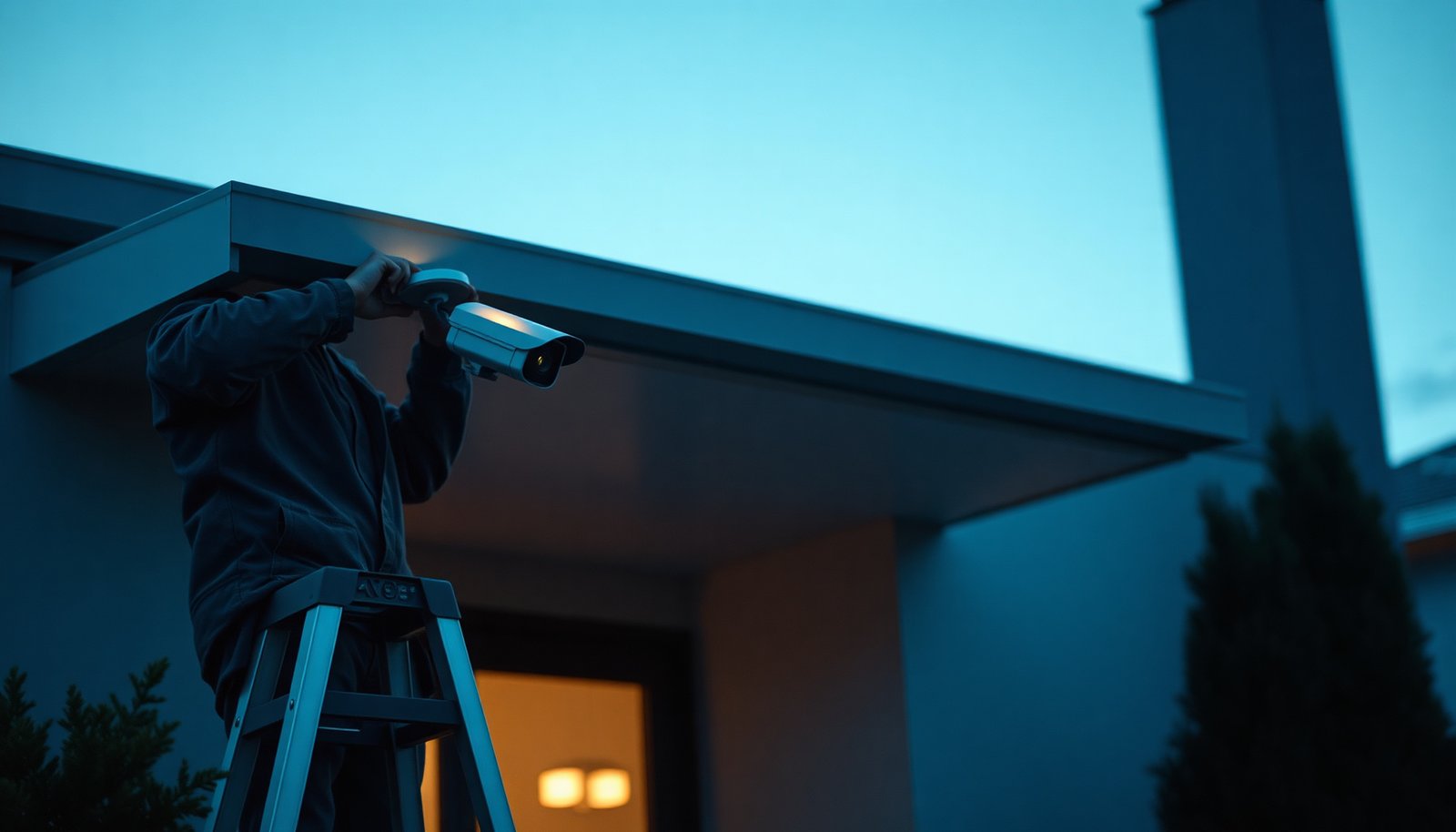

You unbox a Dahua CCTV camera, mount it where you want coverage, and then realize the next steps are mostly about getting power, network settings, and the right device pairing done in the correct order. Follow the process from wiring and initial startup to NVR or app configuration and basic testing, and you can have live video running reliably. It takes careful attention rather than special tools, and most setups are achievable in a short, focused session if you keep the included cables and access details ready.
Setting up a Dahua CCTV camera is mainly about getting three things right—proper mounting, correct power + network wiring (or PoE), and then configuration of time/network and recording in the Dahua app/NVR/web interface. Once those fundamentals are in place, troubleshooting becomes much simpler because you can isolate whether the issue is physical installation, connectivity, or settings.
Setting up a Dahua CCTV camera usually comes down to mounting the camera correctly, connecting power + network, then configuring the video settings in the Dahua app/NVR/web interface. In this guide, you’ll get a practical checklist of each step—plus what to double-check if the feed doesn’t show up or recording won’t start.
If you’re installing a new Dahua indoor/outdoor camera (wired or PoE, with or without an NVR), this walkthrough is for you—especially if you want a clean, reliable setup without guessing menu options.
Gather what you need before you start

Before you touch the mounting bracket, decide how your Dahua CCTV camera is powered and how you’ll manage it (app, web browser, or NVR). This upfront planning prevents the most common failure mode: installing the camera physically in the wrong location for the type of wiring you actually need.
– Identify whether your camera is PoE (one cable for power + network) or needs separate power and Ethernet.
– Locate the Dahua model number and confirm whether you’ll use a phone app, a web browser, or an NVR.
– Have basics ready: appropriate screws/anchors, weatherproofing materials (if outdoor), and an Ethernet cable rated for the install area.
Practical note for 2026 installs: most new business and home Dahua CCTV camera deployments still prefer Ethernet/PoE for reliability and simple troubleshooting. If you’re in a venue where running new wires is costly, consider how long your cable run must be before you commit to a PoE-only design.
From my own project workflow, I also recommend assembling a “minimum viable kit” before mounting: a laptop (or phone), the correct Dahua device model details, and whatever is required to reach the camera (NVR, PoE switch, router, or local DHCP environment). That avoids delays once the camera is physically positioned.
Mount the Dahua camera (placement and wiring)
Mounting determines whether your Dahua CCTV camera captures usable evidence; configuration can’t fix a bad angle. Choose placement that covers the target area while minimizing glare, and route cables in a way that won’t undermine outdoor reliability.
– Choose a view that covers the target area while avoiding direct glare from sun/headlights.
– Ensure the mounting height and angle match your goal (faces at entry points vs. overall yard coverage).
– Route cables carefully; for outdoor installs, keep connections protected and minimize water exposure at cable entries.
Where mounting choices usually decide success
A Dahua CCTV camera positioned for “maximum coverage” often performs worse than a slightly narrower, better-targeted mount. If you need identification (faces/plates), aim for an angle that reduces backlighting and keeps the subject within the camera’s effective field of view.
Also pay attention to reflections: polished surfaces, white walls, and car headlights can create washed-out video. If you’re installing outdoors, mount so the camera is shaded from direct, low-angle sunlight for part of the day.
Wiring matters here too. Outdoor Dahua CCTV camera installs tend to fail at cable junction points first—especially where connectors aren’t properly sealed or where water can wick along the cable jacket.
Connect power and network correctly
Correct power and network setup is what turns a Dahua CCTV camera from “offline” into a stable, discoverable device. For most builds, you either land the camera on a PoE switch/NVR port, or you provide the correct adapter power and then connect Ethernet for network access.
– For PoE: connect the camera to a PoE switch/NVR port using a proper Ethernet cable and verify link lights.
– For non-PoE: connect the correct power adapter/spec for the Dahua model, then connect Ethernet for network access.
– If you’re using an NVR, confirm the camera is connected to the right channel/port and that the NVR supports the camera type.
PoE and distance constraints you should not ignore
Ethernet over twisted pair has well-known length limits. According to IEEE 802.3, the maximum segment length for 100BASE-TX over copper is typically 100 meters (328 ft) in standard conditions. That matters for Dahua CCTV camera deployments because running beyond the limit often produces intermittent link drops—visible as “camera offline,” freezing video, or delayed recording.
PoE power budgets also matter. IEEE PoE standards define limits such as 802.3af (PoE) up to 15.4 W at the power-sourcing equipment (PSE) side, and 802.3at (PoE+) up to 30 W at the PSE side. See IEEE 802.3af and IEEE 802.3at for the stated power class limits. If your Dahua CCTV camera plus any IR/heat features require more than the port can deliver, you can get boot loops or reduced performance.
PoE vs. separate power: which is simpler?
If you’re deciding between options, here’s the practical trade-off many teams make when deploying Dahua CCTV camera systems in 2026.
| Factor | PoE (Recommended for most Dahua CCTV setups) | Separate power + Ethernet |
|---|---|---|
| Cabling complexity | One cable | Two connections |
| Troubleshooting speed | Link + power usually correlate | Can fail on either power or network separately |
| Outdoor water risk | Fewer wet connections | More points to seal |
| Switch/NVR support | Requires PoE-capable ports | Requires correct adapter for model |
| Power stability | Centralized, easier to monitor | Adapter quality and outlet reliability vary |
| Overall recommendation | Often the cleaner path | Works, but adds variables |
Configure the camera in Dahua software (app/web/NVR)
Once your Dahua CCTV camera is physically online, configuration is about making it predictable: correct time, correct credentials, correct network addressing, and correct stream/recording behavior. If those are right, live view and playback typically follow quickly.
– Set the correct device settings: time zone/date/time, stream settings (main/substream if available), and resolution/codec options.
– Create or confirm credentials (admin/user) and disable/avoid default passwords when prompted.
– Assign the camera to the correct network settings (DHCP vs. static IP) and verify the live view displays.
Network basics that usually matter most
– If live view works on one device but not others, check subnet/gateway and firewall rules.
– If you plan remote viewing, make sure you understand how Dahua access is intended (local LAN only vs. remote access via the app/DDNS).
At this point in most Dahua CCTV camera deployments, you’ll also want consistent time. Many NVR recording and analytics features behave more reliably when the camera and NVR agree on time. NTP typically uses UDP port 123; see RFC 5905 for NTP behavior and the standard port usage. In real troubleshooting, “time mismatch” can look like “recording didn’t save,” even when video is present.
Network/Power Limits That Affect Dahua CCTV Stability (Standards)
| # | Constraint (Dahua install) | Standard value | Typical impact | Reliability score |
|---|---|---|---|---|
| 1 | Copper Ethernet segment length (100BASE‑TX) | 100 m (328 ft) | Link instability if exceeded | ★★★★★ |
| 2 | PoE (IEEE 802.3af) PSE maximum power | 15.4 W | May underpower high-IR models | ★★★★☆ |
| 3 | PoE+ (IEEE 802.3at) PSE maximum power | 30 W | Better headroom for IR bursts | ★★★★★ |
| 4 | PoE++ (IEEE 802.3bt Type 3) PSE maximum power | 60 W | Supports power-hungry cameras/aux | ★★★★☆ |
| 5 | PoE++ (IEEE 802.3bt Type 4) PSE maximum power | 90 W | Reserve for advanced deployments | ★★★☆☆ |
| 6 | NTP network port used by default | UDP 123 | Time sync failures if blocked | ★★★★☆ |
| 7 | RTSP default service port (common) | TCP 554 | Live view blocked by port filtering | ★★☆☆☆ |
Enable recording, alerts, and storage
Recording settings turn a working Dahua CCTV camera into evidence you can review later. At a high level, you’re configuring (1) storage, (2) when to record, and (3) what events should trigger alerts.– If you’re using an NVR, confirm the HDD is installed/initialized and recording mode is enabled for the camera.
– Configure motion detection/alerts to match your environment (adjust sensitivity to reduce false notifications from trees, shadows, or headlights).
– Choose recording type (continuous vs. motion/event) based on what you actually need to review later.
Storage and schedules: how “nothing records” usually happens
If your live view is fine but playback shows blank timelines, the issue is often storage initialization (NVR not ready), a disabled channel, or a recording schedule that never matches your desired times. With Dahua CCTV cameras, confirm you’re checking the correct channel (channel mismatches are a frequent, fast-to-fix error).
Also verify that motion/event detection is actually enabled for recording—not just for notifications. Many systems separate “alert events” from “recording triggers,” and both must align.
Alerts: reducing false positives
Motion sensitivity and detection zones are not “set-and-forget.” If your Dahua CCTV camera faces landscaping, swaying branches, or parked vehicles that reflect headlights, alerts can spike. The best practice is to start with conservative sensitivity, then adjust zones so the camera sees people/vehicles while ignoring predictable background motion.
What can go wrong (and how to fix it)
Most Dahua CCTV camera problems fall into a few categories: connection, authentication, recording rules/storage, or remote access/network filtering. If you troubleshoot in that order, you usually isolate the root cause quickly.
– No video feed: wrong channel/port on the NVR, camera not getting power, or Ethernet link not established.
– You can’t log in: password left at default, incorrect username, or the camera/app pointing to the wrong IP.
– Recording doesn’t save: HDD not initialized (NVR), insufficient storage settings, recording schedule not enabled, or motion/event rules not triggering.
– Outdoor issues: condensation/water intrusion at cable connections can cause intermittent failures—use proper weatherproofing and protected cable runs.
– Remote viewing problems: port-forwarding/DDNS can be misconfigured; in some setups the app expects a specific connection method.
A tight troubleshooting path for Dahua CCTV cameras
1) Verify physical layer: PoE link lights or camera power status.
2) Verify network layer: confirm the Dahua CCTV camera IP on the local router/DHCP table, and ensure the viewing device is on the correct subnet.
3) Verify application layer: confirm the exact device credentials and interface settings.
4) Verify recording layer: confirm NVR channel assignment, HDD initialization, schedule, and event triggers.
Outdoor intermittent failures are especially tricky. If a Dahua CCTV camera works indoors briefly and fails outdoors, re-check cable entry points first. Even well-built cameras can appear “dead” when moisture degrades connectivity at the termination.
Remote viewing issues also often trace back to basic network security. If port-forwarding is blocked by a router policy or the wrong WAN port is exposed, your Dahua CCTV camera may work locally but not remotely.
Verdict / quick tip before you commit
If you follow the order—mount, connect correctly, then configure time/network/recording—you’ll usually get a stable Dahua CCTV setup. The downside is that small network or recording settings mistakes can look like “camera failure,” and outdoor installs increase the chance of cable/weather problems. If you don’t have someone comfortable with networking (IP addressing, router settings, or NVR storage setup), consider using a Dahua-compatible installer or sticking with an NVR + PoE approach where most steps are simpler.
In 2026, the most reliable Dahua CCTV camera builds still prioritize PoE, correct time synchronization, and conservative event rules first—then expand features once you’ve confirmed the camera records and plays back correctly.
Save-and-scan checklist
– [ ] Confirm camera model + install type (PoE vs power + Ethernet)
– [ ] Plan mounting angle/coverage; route cables cleanly
– [ ] Connect to PoE switch/NVR or power + network (verify link)
– [ ] Configure time zone/date/time in Dahua interface
– [ ] Set secure login credentials (avoid defaults)
– [ ] Verify live view locally
– [ ] Enable recording + confirm storage/HDD status (if using NVR)
– [ ] Configure motion alerts/sensitivity to reduce false triggers
– [ ] Test playback/alerts, then (if needed) test remote viewing
Frequently Asked Questions
What are the basic steps to set up a Dahua CCTV camera from unboxing to recording?
Start by checking that the kit includes the camera, mounting hardware, power adapter/PoE injector, and required cables. Next, mount the Dahua CCTV camera in the desired location, connect power (or PoE), and then connect to your NVR or Dahua-compatible recorder. Finally, use the Dahua web interface or the Smart PSS/DS app (depending on your setup) to confirm the camera is online, set time synchronization, and enable motion/recording so footage starts storing to your NVR.
How do I connect a Dahua CCTV camera to my NVR or monitor correctly?
If you’re using PoE, connect the camera to the NVR’s PoE port with an Ethernet cable, then wait for the channel to auto-detect; if you’re using power adapters, use coax or the proper video/power method your model supports and connect video to the NVR. After wiring, log into the NVR, go to the channel/camera management section, and add the camera (often “Auto Add” or “Discover”). Confirm the video stream is live, then test recording playback to ensure the Dahua CCTV camera is writing to the correct channel and storage schedule.
Which Dahua camera settings should I configure first for better reliability and image quality?
Begin with the basics: set the correct time zone, enable NTP time sync if available, and verify the day/night mode behavior for your environment. Then configure video parameters like resolution, bitrate, and (if supported) H.265 compression to balance clarity and storage usage for your Dahua CCTV system. Finally, set up key features such as motion detection zones or privacy masks, and adjust lens/angle positioning so the camera covers the area you care about most.
Why is my Dahua CCTV camera showing “no signal” or “offline,” and how can I fix it?
The most common causes are incorrect wiring (wrong PoE port, loose Ethernet/coax connections, or mismatched power method) and network/IP issues. Check that the camera is receiving power, confirm the NVR channel mapping, and use the NVR’s camera discovery tool to see if the Dahua camera is detected. If it’s a network-connected setup, verify IP settings, subnet compatibility, and any router/firewall rules affecting the Dahua surveillance app or web access.
What’s the best way to set up remote viewing for a Dahua CCTV camera using a phone or the internet?
For the most secure and reliable approach, use your Dahua NVR’s built-in remote access options (P2P) so you can log into the camera/NVR through the official Dahua mobile app. Make sure the NVR/camera time is correct, create a strong user account, and only enable required ports or use P2P as recommended for your model. After setup, test remote playback and live view from outside your Wi‑Fi network to confirm the Dahua CCTV camera streams correctly.
📅 Last Updated: November 03, 2026 | Topic: What steps are needed to set up a Dahua CCTV camera? | Content verified for accuracy and freshness.
References
- Closed-circuit television
- IP camera
- Network Interface Specifications – ONVIF
- https://www.cisa.gov/news-events/news/how-secure-your-internet-things-iot-devices
- https://www.nist.gov/programs-projects/iot-cybersecurity
- https://ico.org.uk/for-organisations/guide-to-data-protection/ico-cctv-code-of-practice/
- https://scholar.google.com/scholar?q=dahua+ip+camera+initial+setup Google Scholar
- https://scholar.google.com/scholar?q=ip+camera+installation+network+configuration Google Scholar
- https://scholar.google.com/scholar?q=onvif+device+setup+cctv+installation Google Scholar


[…] Bound by copper/Ethernet maximum segment length […]