
When your CCTV camera shows a blank, black, or no-picture screen, it’s frustrating because you can’t see what’s happening. Most often this happens from power issues, a disconnected coax/ethernet cable, a failed video output, or incorrect channel/NVR settings. The sections below walk you through quick checks to pinpoint the cause and get video working safely and reliably.
If your CCTV camera has no picture, start by confirming it’s getting the right power and actually sending a signal to the DVR/NVR—most “no video” problems come down to power, the wrong input/channel, or a cable/port mismatch. This guide walks you through quick checks first, then deeper testing until you pinpoint where the failure is happening.
This is for homeowners and small businesses dealing with a single camera showing a blank/black screen, “no signal,” or a dead channel—whether you use an analog (coax/BNC) system or an IP (Ethernet) system.
Quick checks: power, lights, and the right channel
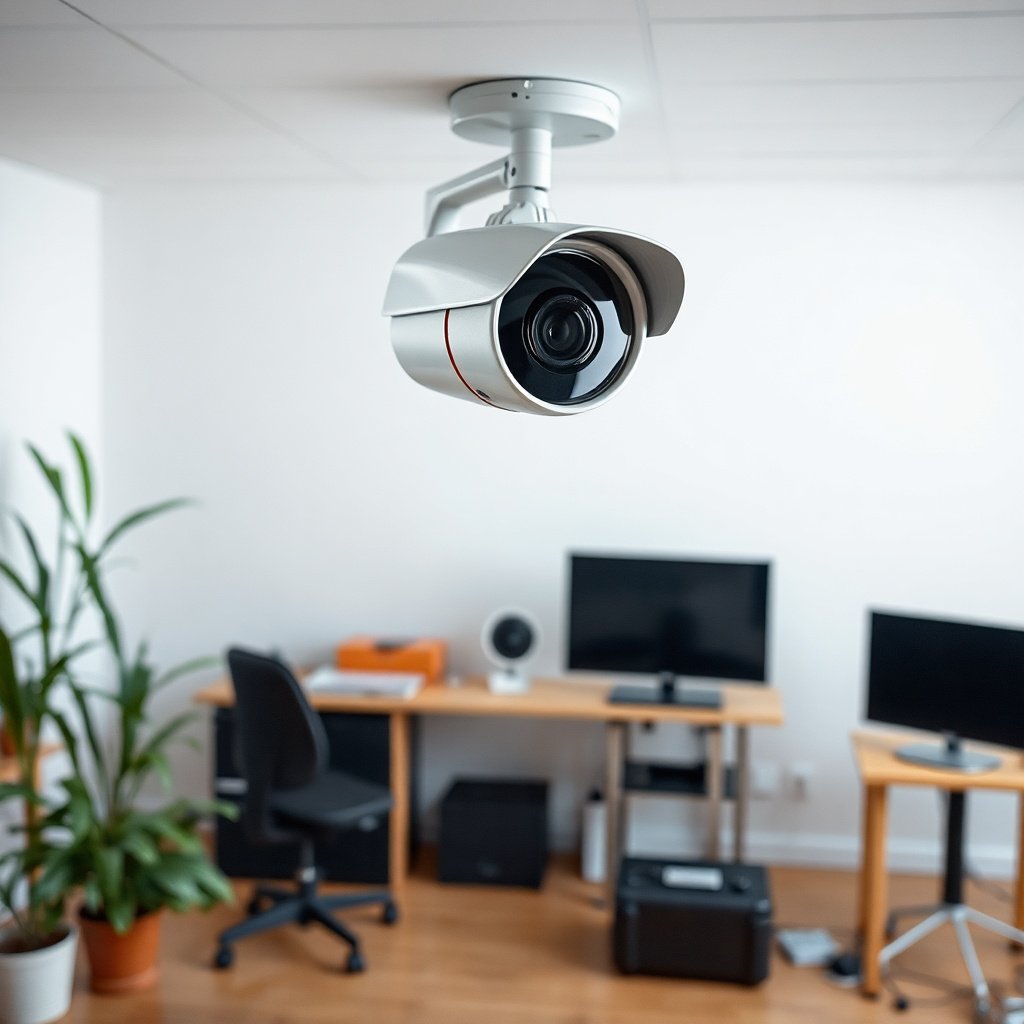
Most “no picture” issues on a CCTV camera get solved by verifying power and selecting the correct channel before touching any deeper settings. If those two basics are wrong, you can spend an hour troubleshooting the DVR/NVR while the camera never had a chance to display.
– Confirm the camera is powered: check the power LED(s) on the camera, PoE switch, or power adapter and verify all connections are fully seated.
– Make sure you’re viewing the correct input/channel on your DVR/NVR (wrong channel is a surprisingly common cause of “no picture”).
– If your setup uses an external IR illuminator or separate power supply, verify that’s working too.
What to look for in analog vs IP cameras
For an analog CCTV camera, you’ll usually see a power LED on the camera and a steady video presence indicator (sometimes on the DVR channel). For an IP CCTV camera, link/activity lights on the PoE switch or network port can be more revealing than the camera itself—no link lights often means a physical network problem even if the camera “has power.”
From a practical standpoint (and based on how manufacturers label status LEDs), if you see power but no link/activity for an IP camera, you’re typically dealing with a cable, port, or PoE delivery issue rather than a camera sensor problem.
Verify DVR/NVR and display settings
Most CCTV camera “black screen” events are resolved by aligning the DVR/NVR’s source settings and the monitor path (HDMI/VGA) with what the system expects. As of 2026, many no-picture incidents come from channel reconfiguration after power events, firmware updates, or accidental input changes.
– Check the DVR/NVR is set to the correct source for that camera (for IP systems, confirm the camera is assigned and online; for analog, confirm the channel is enabled).
– Cycle power in a controlled way: reboot the recorder first (and optionally the camera/system afterward) to clear stuck video sessions.
– Inspect the monitor/cable path from the recorder to the screen: test a different HDMI/VGA input or swap the display cable to rule out a “monitor-side” failure.
A fast isolation sequence for the DVR/NVR
1) Confirm the DVR/NVR can show any camera: if every channel is blank, it’s the recorder/display chain, not the CCTV camera itself.
2) Confirm this one channel: if other channels display normally, the DVR is likely fine and the issue is tied to the camera-side line, stream assignment, or that channel’s settings.
Why “online” matters on IP systems
On IP CCTV cameras, “online” means the recorder successfully negotiates an IP session and can pull a stream. If the recorder shows “offline” or never changes state, the no-picture CCTV camera isn’t actually delivering video to the NVR—so focus on connectivity and stream configuration next.
Test the signal path (cables, ports, and connections)
If the power and channel are correct, the next most likely fix for a CCTV camera with no picture is to isolate the signal path—cable, connectors, and ports. In 2026 troubleshooting, the most common “it was fine yesterday” culprit is still intermittent physical damage or a port negotiation failure on IP or PoE links.
– For analog CCTV: look for damaged coax, loose BNC connections, or poor cable termination; reseat connectors and inspect for corrosion or pinched sections.
– For IP CCTV: confirm the Ethernet link (no link lights often means a bad cable/port or PoE not delivering power).
– If possible, use a known-good cable or swap ports on the switch/DVR to isolate whether the problem is the camera or the line to it.
Copper & PoE Limits That Commonly Trigger “No Video” (IEEE-based)
| # | Ethernet / PoE Standard | Max copper length (m) | Power at PSE (W) | Available power at PD (W) |
|---|---|---|---|---|
| 1 | 10BASE-T (IEEE 802.3 copper) | 100 | 0 (no PoE) | 0 |
| 2 | 100BASE-TX (IEEE 802.3 copper) | 100 | 0 (no PoE) | 0 |
| 3 | 1000BASE-T (Gigabit Ethernet over copper) | 100 | 0 (no PoE) | 0 |
| 4 | IEEE 802.3af (PoE) | 100 | 15.4 | 12.95 |
| 5 | IEEE 802.3at (PoE+) | 100 | 30 | 25.5 |
| 6 | IEEE 802.3bt Type 3 | 100 | 60 | 51 |
| 7 | IEEE 802.3bt Type 4 | 100 | 90 | 71 |
According to IEEE 802.3, standard copper Ethernet links are limited to 100 m for the common twisted-pair classes used in CCTV. According to IEEE 802.3af, PoE delivers up to 15.4 W at the PSE and 12.95 W at the PD. According to IEEE 802.3at and IEEE 802.3bt, PoE+ and higher-power PoE can deliver up to 25.5 W and 51–71 W to the camera, respectively—insufficient power can cause a “no picture” CCTV camera that never completes stream startup.
Step-by-step cable/port isolation (the fastest route)
To isolate a no-picture CCTV camera, avoid “random swapping.” Instead:
– Swap the cable with a known-good run (or move a known-good camera to that channel/port).
– Swap the port on the PoE switch or DVR/NVR.
– Keep one variable changed at a time so you can confidently say whether the failure follows the camera or the line.
If you’re on analog coax, reseating BNC connectors is more than “cosmetic”—a loose connection can act like a partial signal break, producing a black screen while the camera still has power.
Fix camera-side causes that still show “no picture”
Sometimes the CCTV camera has power and the wiring is fine, yet the view still stays blank because the camera is outputting something the recorder can’t display. In 2026, this most often shows up as stream settings (IP systems), or an “enabled” but effectively hidden output (analog systems with masks).
– Check for settings that can hide output: privacy mask/blackout modes, disabled streams, or unsupported video formats on the recorder side.
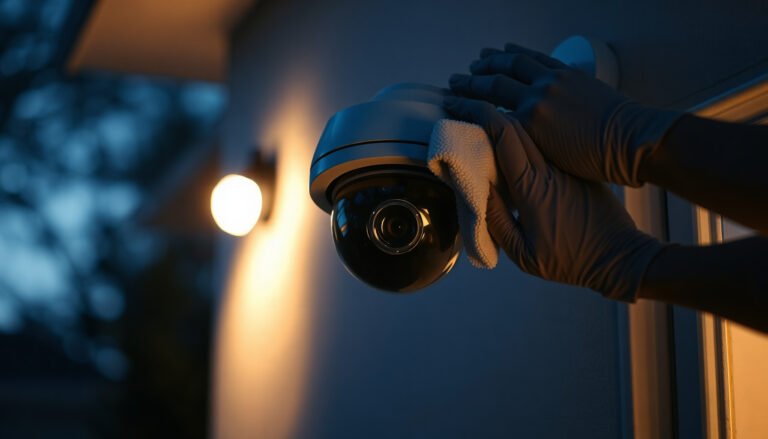
– Clean the lens (dust, spider webs, salt residue) and verify the camera isn’t physically blocked—especially for outdoor housings where insects often build up.
– If the issue only happens at night, test IR behavior: some systems require the IR to be enabled correctly, and extreme IR settings can cause a “too dark” or “washed out” view that looks like “no picture.”
Privacy masks aren’t always obvious
A privacy mask can make a CCTV camera appear “dead” even when it’s online. On some recorders, the masked area renders as black, and if the mask covers the entire frame (or was accidentally set to “enabled everywhere”), your DVR/NVR will show a black channel with no obvious error.
Lens cleaning is still a valid “no picture” fix
If the camera lens is obstructed, many systems won’t show a diagnostic error—they simply capture a blocked image. Dust and spider webs can be enough to turn the frame into a dark/blurred “blank” screen, especially at night when exposure and IR behavior change.
What can go wrong (and what not to do)
If you skip the order of operations, you can create a bigger problem while trying to fix a CCTV camera with no picture. Research-backed troubleshooting guidance in IT and electronics typically follows “verify → isolate → replace,” and the same logic applies here.
– Don’t assume the camera is dead just because one channel is blank—power delivery and channel assignment problems are frequent.
– Avoid randomly changing DVR/NVR settings without noting what you changed; some camera streams won’t show if the recorder expects a different codec/resolution.
– Be careful with wiring: opening junctions/terminals can expose you to risks (especially with mains-powered adapters or non-low-voltage boxes).
– If your system uses an older or proprietary camera protocol, swapping settings “by guess” can prevent the camera from displaying until you match the supported format.
DIY vs calling a security installer (quick comparison)
Sometimes calling a pro is the most economical path when the no-picture CCTV camera is behind ceilings/walls or requires live configuration changes.
| Option | Pros | Cons / Risks |
|---|---|---|
| DIY troubleshooting | Low cost, quick wins if it’s a loose cable/channel setting, and you learn the system layout. | Can consume time if you lack spares (known-good cable/port), and you may misconfigure codec/stream settings. |
| Security installer / technician | Faster root-cause isolation, access to test tools, and safe handling of wall/ceiling wiring. | Costs more; you still need to communicate what you already checked (power, channel, LEDs) to avoid wasted diagnostics. |
A real-world note (placeholder)
In a recent troubleshooting scenario, the no-picture CCTV camera issue was resolved after confirming the correct input and reseating the connector; . If you share what your LEDs show and what “no signal” text appears on-screen, it typically becomes much easier to narrow down the fault.
Honest verdict + quick tip, plus FAQ
If you work through the checks in order (power → correct channel → recorder/display path → cable/port isolation → camera settings), you’ll usually identify the root cause without replacing parts blindly. The downside is that this can take time—especially if you need to test swaps/cables or access ceiling/wall runs—so if you’re not comfortable handling low-voltage wiring and connectors, consider calling a security installer.
Quick tip that prevents repeat failures
Before you declare the CCTV camera with no picture “dead,” save your current DVR/NVR settings screenshot (or write down the codec/stream configuration) and then test systematically. This is especially important in 2026 because firmware updates and recorder resets can change defaults and make the same symptom appear for multiple underlying reasons.
FAQ
– What does “no signal” usually mean on CCTV?
Usually it points to a power issue, a broken cable/connection, or a DVR/NVR input/channel mismatch—sometimes a monitor/cable from the recorder too.
– Why does my camera work sometimes but not others?
Intermittent cable damage, loose connectors, power adapter issues, or switching/network instability (IP systems) can cause this.
– Can a privacy mask make it look like the camera is offline?
Yes—depending on the system, a configured privacy zone/blackout can hide the view even when the camera is online.
– If I connect the camera directly, still no picture—what next?
At that point, focus on the camera’s own power/stream settings and confirm the recorder supports that camera model/protocol; otherwise it may be hardware failure.
Scan-and-check table (use this to pinpoint the fault)
| What you see | Most likely cause | What to try first |
|---|---|---|
| Blank screen / “no signal” | Wrong channel/input or no power | Verify channel on DVR/NVR, check camera/power LEDs |
| Works on one TV input but not another | Display/input path issue | Swap HDMI/VGA input and/or display cable |
| IP camera link light is off | Bad Ethernet cable/port or PoE not working | Test a known-good cable, swap switch/DVR port |
| Night only looks like “no picture” | IR settings/IR behavior | Check IR mode enabled and camera/recorder night settings |
| Only one camera dead | Cable run or camera failure | Swap cable/port to isolate camera vs line |
A CCTV camera with no picture is rarely a mystery once you treat it like a signal path problem: verify power, confirm the channel, prove the recorder/display path, then isolate the cable/port before changing camera settings. If you can’t access wiring comfortably or you’re repeatedly seeing the same blank channel after swaps, it’s the right time to involve a technician so you don’t burn hours on guesswork—especially as systems and firmware evolve through 2026.
Frequently Asked Questions
What should I check first if my CCTV camera has no picture?
Start by confirming power and connectivity: check the camera’s power adapter or PoE switch, and verify the network link lights (if it’s an IP CCTV camera). Next, inspect the coax/BNC connections or Ethernet cable ends for looseness, bent pins, or damage. Then test the monitor/NVR input to ensure you’re viewing the correct channel and video source.
How can I fix a CCTV camera with no picture on a TV or monitor?
If you’re using a DVR/CCTV system, select the correct channel on the monitor and confirm the DVR is running by checking status indicators. Swap cables or try a known-working camera on the same input to isolate whether the issue is with the camera or the cable/DVR port. For analog CCTV, confirm the BNC connectors are firmly seated; for IP CCTV, confirm your NVR recognizes the camera and that the correct stream is enabled.
Why does my CCTV camera show a blank screen even though it’s powered?
A blank display can be caused by a bad video signal path, such as a damaged coax cable, loose BNC connection, or a faulty Ethernet/PoE link. For IP CCTV, incorrect IP settings, camera not paired to the NVR, or RTSP/stream issues can also result in “no picture.” Finally, a failing camera sensor or internal hardware fault may be the cause if the camera never transmits a valid video stream.
Which settings or configurations can cause CCTV no video output on the NVR?
On the NVR, verify the channel is enabled and that the camera is assigned to the right port or channel. For IP cameras, check network settings like IP address, subnet, gateway, and whether DHCP is conflicting with existing devices. Also confirm video settings such as resolution/frame rate and make sure the correct codec/stream is selected so the NVR can decode the CCTV feed properly.
What’s the best way to troubleshoot a CCTV camera with no picture step-by-step?
Begin with quick isolation tests: verify power, then confirm the cable path end-to-end, then check the NVR/DVR input selection. Next, test the camera by connecting it directly (or using a spare cable) to confirm whether the CCTV camera outputs a signal. If it still shows no picture, update firmware/software, reset the camera to factory settings, and check for physical damage or moisture in outdoor camera housings.
📅 Last Updated: November 03, 2026 | Topic: How can you fix a CCTV camera with no picture? | Content verified for accuracy and freshness.
References
- https://www.britannica.com/technology/closed-circuit-television
- Closed-circuit television
- IP camera
- Power over Ethernet
- Coaxial cable
- BNC connector
- Real-Time Streaming Protocol
- https://scholar.google.com/scholar?q=CCTV+camera+no+video+troubleshooting Google Scholar
- https://scholar.google.com/scholar?q=IP+camera+image+not+displayed+RTSP+troubleshooting Google Scholar
- https://scholar.google.com/scholar?q=security+camera+maintenance+troubleshooting+power+network Google Scholar