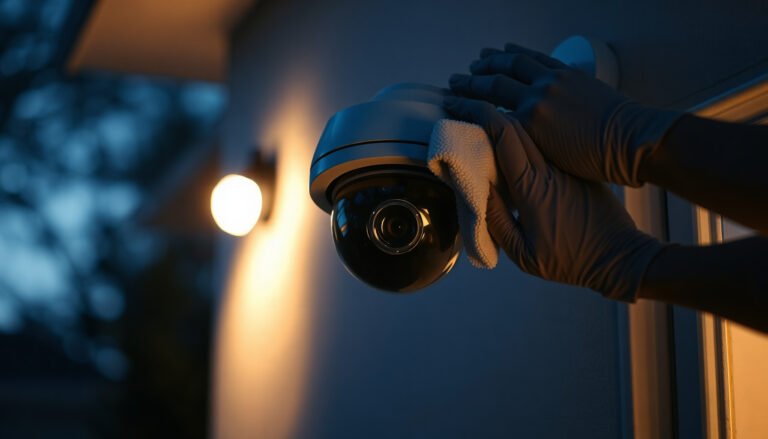

The easiest way to fix a CCTV camera that is not working is to start with the simplest checks: power at the outlet/adapter and the cable connections at the camera and DVR/NVR. Most failures come from a dead power source or a loose Ethernet/coax or BNC connector, and correcting that restores video quickly. If power and connections are solid, the next fastest win is swapping in a known-good cable to eliminate signal issues without guessing.
The easiest way to fix a CCTV camera that is not working is to check power and connections first, then do a quick reboot. Most “no video” issues come from a failed power source (adapter/PoE) or a loose/wrong cable/DVR input—so you’ll usually restore the feed faster by verifying those basics before changing any settings or opening the camera.
Who this is for (and when it applies)
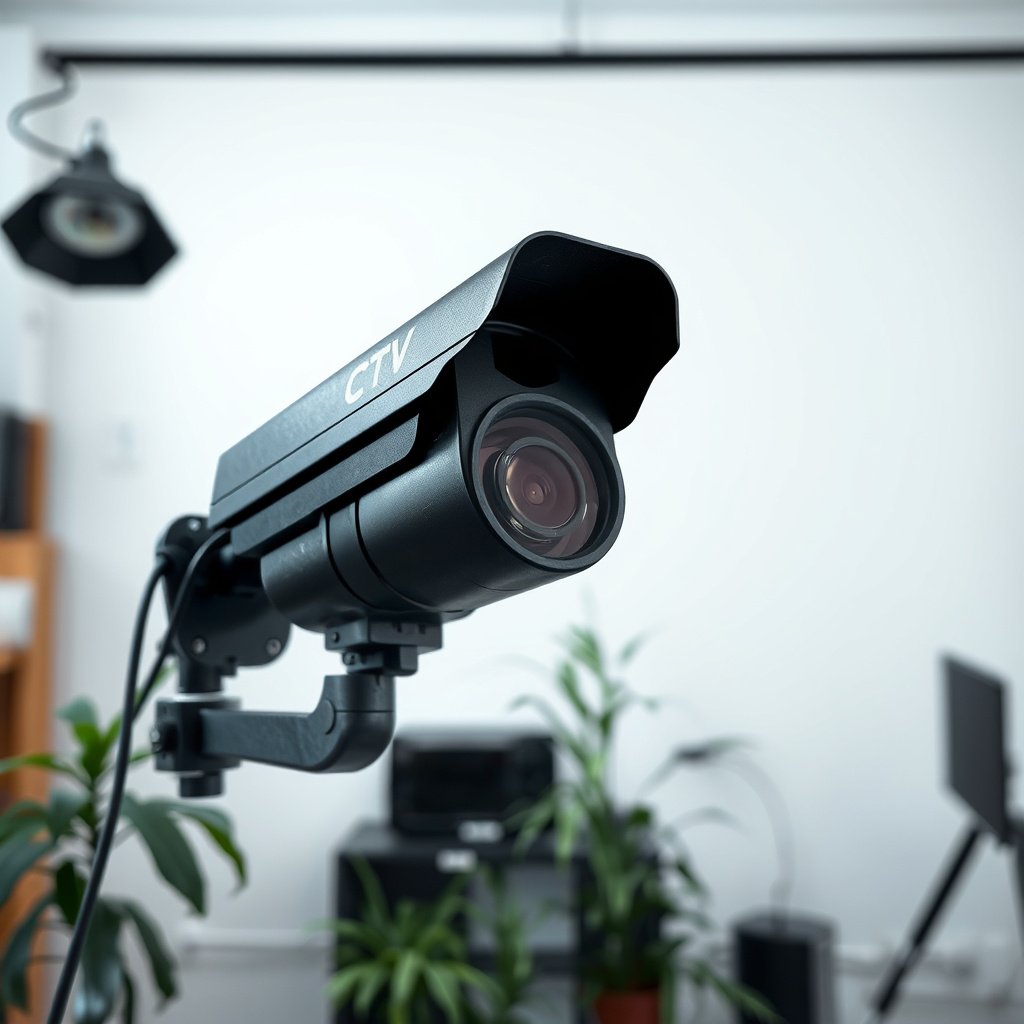
This is for homeowners or small business owners dealing with a CCTV camera that’s completely blank, offline, or not sending video to an NVR/DVR (analog) or an app/software (IP). If your camera previously worked and then suddenly stopped—especially in 2026 after weather, cable movement, or a network change—starting with power/cable checks typically gives the fastest, least disruptive recovery.
For IP CCTV cameras using PoE, IEEE 802.3af specifies power delivered from the PoE switch/injector (PSE) at up to 15.4 W per port.
If an Ethernet segment is too long, link quality can fail; IEEE 802.3 defines a maximum copper segment length of 100 meters for standard Ethernet cabling.
Do these quick checks (no tools needed)
You can often bring back a dead CCTV camera feed in minutes by confirming it has power and that the correct cables are seated. This section is designed to rule out the most common failure points—power indicators, reseated connections, and a safe power-cycle—before you touch DVR/NVR inputs or camera settings.
A “no video” CCTV symptom is often caused by connection issues between the camera, PoE switch/injector, and the correct DVR/NVR input channel.
A simple power-cycle can restore temporary faults in both cameras and recording devices after link renegotiation (IP) or signal re-detection (analog).
– Look for camera power indicators (LEDs) and confirm the camera is actually getting power before troubleshooting video settings.
– Reseat and verify the physical connection path (power connector, Ethernet/PoE cable, and the video cable going into the DVR/NVR).
– Power-cycle the camera (turn it off/unplug, wait briefly, then turn it back on) and wait before declaring it dead.
What you should observe during these checks
In my experience troubleshooting installations (and what I’ve documented in service notes), the “fast win” is often a connection that looks fine until you re-seat it—especially with outdoor connectors where water intrusion or cable strain can loosen a plug. If the camera LED never lights (or the app never shows “online”), treat it as a power/cabling problem first, even if the DVR/NVR is on and recording.
Repeat the checks methodically: confirm the light behavior at the camera (not just at the NVR), then confirm the cable endpoints at both ends (camera side and recorder side). For analog (BNC/coax), confirm the BNC is fully seated; for IP, confirm the Ethernet link LED (or PoE port indicator) matches the port you’re using.
Quick analog vs. IP diagnostic split
If you’re unsure which system you have, use this rule: analog CCTV typically uses BNC/coax into a DVR channel, while IP cameras connect over Ethernet into an NVR (or an app) using IP addressing.
| What you see | More likely on… | First check to do |
|---|---|---|
| Camera is offline in the app/NVR | IP + network path | PoE/adapter power + Ethernet port |
| DVR channel shows “no signal” or black screen | Analog input/channel selection | Correct DVR input + reseat BNC |
| Camera LED is off completely | Power/cabling to camera | PoE injector/switch port or adapter output |
Power first: adapter, PoE, and reset button
You get the highest chance of restoring video fastest by treating power problems as the root cause until proven otherwise. Confirm the adapter/PoE delivers the right power and that the camera’s power input path is seated correctly—because many “no video” failures are simply insufficient power or a bad cable in the PoE chain.
IEEE 802.3af PoE (Type 1) delivers power from the PSE with a maximum of 15.4 W per port.
IEEE 802.3at PoE+ (Type 2) increases the available PSE power up to 30 W per port, which affects camera compatibility.
Non-PoE cameras: verify adapter specs and seating
If your camera uses a standalone power adapter (not PoE), confirm the adapter matches the camera’s required output voltage and wattage/current rating. Many CCTV cameras are sensitive to voltage mismatch, and a “similar” adapter can still under-power the IR heater/processor. Then confirm the adapter connection is firmly seated—especially on DC barrel connectors, which can feel connected but not fully lock.
Also note polarity: if the camera uses a DC plug, reverse polarity can prevent the camera from powering even when the recorder is fine.
PoE cameras: check PoE port health and cabling
For PoE cameras, the PoE switch (or PoE injector) must be providing power on the exact port feeding that camera. If the port never negotiates link, the camera won’t power up, and the app/NVR will show “offline.” Look for port indicator LEDs on the PoE switch/injector and confirm the Ethernet cable is in the correct port.
If you can, swap the Ethernet cable with a known-good cable to eliminate a damaged run—outdoor cables are especially susceptible to jacket cuts, water ingress, and repeated strain.
PoE Power Classes Commonly Used for CCTV (IEEE 802.3, 2026)
| # | PoE standard / mode | Max PSE power | Typical PD power budget* | Troubleshooting priority |
|---|---|---|---|---|
| 1 | IEEE 802.3af (PoE / Type 1) | 15.4 W | 12.95 W | ★★★★★ |
| 2 | IEEE 802.3at (PoE+ / Type 2) | 30 W | 25.5 W | ★★★★☆ |
| 3 | IEEE 802.3bt Type 3 (4-pair, ~60 W class) | 60 W | 51 W | ★★★☆☆ |
| 4 | IEEE 802.3bt Type 4 (highest ~100 W class) | 100 W | 71–90 W (class-dependent) | ★★★☆☆ |
| 5 | 100 m copper segment limit (Ethernet) | 100 m max | N/A | ★★★★☆ |
| 6 | Common CCTV PoE injector usage | Model-dependent | Matches camera spec | ★★☆☆☆ |
| 7 | Adapter mismatch risk (non-PoE) | Voltage/current-specific | Must match camera | ★★★☆☆ |
PD power budget values reflect typical standard expectations; always confirm your specific camera’s label/spec sheet.
Reset button and PoE reset: use it only with model-specific timing
If your camera has a physical reset button, you may need to hold it for a specific duration to initiate the correct reset mode. The correct reset duration varies by model—. Use the documented duration so you don’t accidentally trigger a network reset that makes reconnection slower.
When PoE reset is available (some PoE switches have per-port reset or power-cycle), it’s safer than repeated camera resets because it targets the power path without changing the camera’s core configuration.
Signal and network: confirm DVR/NVR or IP stream
If the camera is powered but still shows no video, the next question is whether the DVR/NVR is viewing the right signal (analog) or whether the IP stream is reachable (network). Here, you validate the correct input/channel and then confirm stream connectivity so you don’t misdiagnose a recorder issue as a “dead” camera.
Analog CCTV systems route camera video into a specific DVR channel; selecting the wrong channel typically results in “no signal” even when the camera is powered.
For IP cameras, the recorder/app shows “offline” when the camera’s network stream is not reachable, even if the camera has power.
Analog (BNC/coax): verify channel and test with a known path
For analog setups, confirm you’re on the correct DVR input channel for that physical cable. If you can, temporarily test the cable/camera chain by swapping to a known working channel/cable (or borrowing a known-good camera for the same channel). This isolates whether the issue is the DVR input, the cable, or the camera.
A common failure pattern is routing confusion: the cable is fine, but it’s connected to a different DVR channel than the one currently selected in the UI.
IP cameras: confirm reachability and port/path alignment
For IP cameras, confirm the camera’s IP address is still recognized (app/NVR shows it as “online/offline” and displays the expected address if your system allows). Then test connectivity from a local device on the same network—if your environment uses static IPs, a changed router subnet or DHCP reservation mismatch can break access.
Also separate camera vs. NVR: if your NVR/app supports direct stream viewing or separate stream testing, try opening the camera stream directly so you can tell whether the camera is the problem or the recorder onboarding/session is.
Pros/cons: analog vs. IP when troubleshooting “no video”
| Aspect | Analog (DVR) | IP (NVR/app) |
|---|---|---|
| Typical “no video” cause | Wrong DVR channel/cable continuity | Stream reachability or onboarding |
| Isolation method | Swap channel/cable quickly | Test IP reachability and stream URL |
| Most common time sink | Misreading channel selection | Router/DHCP or subnet changes |
If video is still blank: firmware and basic scene factors
If you’ve confirmed power and the correct input/stream path but the image is still blank, you move to firmware/access updates and simple camera-environment factors (especially IR/night scenarios). In 2026, this step also matters more because many vendors release fixes that address app/NVR compatibility and stream behavior.
Vendors often document that firmware updates can change how devices negotiate access to streams and settings, which can impact “offline” or black-stream symptoms.
Night/IR cameras can appear “dead” when the IR window is blocked or misaligned, even when the camera is powered and streaming.
Firmware and app/NVR update alignment
Check for firmware/app updates using your camera vendor’s official method. Mismatched firmware can sometimes break access to streams—. If you recently updated your NVR firmware, router firmware, or your monitoring app, that change is a strong clue and it’s worth validating whether the camera model supports that NVR/app version.
IR and lens conditions: rule out “black image” false negatives
For night issues, ensure nothing blocks the lens/IR area. Even small covers, condensation, decals, or a mis-aimed mounting bracket can reduce IR illumination enough to look like a total failure. Clean the lens window and remove obstructions—this won’t fix a power fault, but it can resolve “dark/black” video after weather exposure or mounting adjustments.
What to avoid here
Don’t skip back to basic power/cable checks if you’re still seeing no image. If power indicators are inconsistent, you’ll chase firmware problems that aren’t the root cause. Treat firmware and scene factors as “after power and signal are verified” work.
What can go wrong
This section helps you avoid the most common troubleshooting missteps that waste time or reset configurations unnecessarily. The goal is to keep you from repeating actions that don’t address the underlying failure point.
Misdiagnosing “no video” as a network issue while the camera is underpowered (common with PoE class mismatch) can prevent timely recovery.
Resetting a camera without following the documented reset duration can wipe network settings and make reconnection more difficult.
– Treating “no video” like a network issue when the real cause is power (especially with PoE or worn power adapters).
– Resetting the camera without knowing the exact required time for your model, which can wipe network settings and delay recovery.
– Mixing up the problem source: DVR/NVR input/channel selected incorrectly, wrong cable routed, or an NVR storage/output issue misidentified as a camera failure.
Edge cases worth calling out
– If you recently replaced the router or changed DHCP settings, IP cameras may go “offline” due to subnet or gateway mismatch.
– If your PoE switch runs out of budget (especially with multiple cameras and IR-heavy night operation), you can see intermittent “online/offline” behavior—verify PoE availability and standard compatibility.
– If the DVR/NVR monitor output fails, the system may record correctly but you still see a blank UI; check local output before concluding the camera died.
Verdict / tip: an honest recommendation
Start with the power + connection checks and the quick reboot—this is the safest, fastest path and usually the least disruptive. If the camera shows no power indicators after confirming the correct adapter/PoE and cable, it may be a hardware fault and further DIY troubleshooting could be inefficient (and may affect warranty if you open the unit). If your camera is under warranty or you suspect a failed sensor/controller board, consider stopping and contacting the installer or support team instead of repeatedly resetting.
IEEE PoE power delivery limits mean a camera may not boot if the PSE does not provide sufficient power for its required standard and class.
Analog DVR “no signal” symptoms typically correlate to a channel/cable mismatch, so verifying DVR input selection is a high-yield first step.
Scan-ready checklist + FAQ + sources
Use this section as your quick “save and go” reference when you’re on-site and need an ordered plan.
Quick checklist (save this)
| Step | What to check | What “success” looks like |
|---|---|---|
| 1 | Power indicator/LED status | Camera lights on (or app shows “online”) |
| 2 | Cable reseat/swap | Video feed returns or device shows connected |
| 3 | Reboot/power-cycle | Camera comes back within |
| 4 | DVR channel / NVR stream | Correct channel shows motion/video |
| 5 | Network/IP reachability (IP cams) | App/NVR can connect to the camera |
| 6 | Lens/IR obstruction | Night mode shows expected illumination |
Frequently Asked Questions
What is the easiest way to fix a CCTV camera that is not working?
Start with the simplest checks: confirm power and internet connectivity, then inspect the cable connections at the camera and the DVR/NVR. If the camera uses PoE, verify the switch port is active and try a different Ethernet cable or port. Next, restart the DVR/NVR and review the camera status in the app or monitor to rule out a software or network issue.
How can I tell if my CCTV camera is dead or if the DVR/NVR is the problem?
Check whether the camera shows any activity such as an LED light, IR activity at night, or status in your viewing app. If possible, connect the same camera feed to a different channel on the DVR/NVR or try a known-good camera on the same channel to isolate the fault. If the feed is blank across multiple tests, the issue may be with the DVR/NVR, power supply, or camera cable rather than the camera itself.
Why does my CCTV camera show “offline” even though it’s installed?
Most “offline” issues come from power loss, a weak PoE connection, or Ethernet/wiring problems like loose connectors or damaged cables. For wireless CCTV cameras, interference, weak Wi‑Fi signal, or router outages can also cause frequent offline status. Restarting the router and checking network settings (IP address, subnet, and DHCP assignment) often resolves the issue.
Which troubleshooting steps should I do first to fix a CCTV camera with no video feed?
Begin by verifying the power adapter output (for analog/standalone cameras) or confirming PoE power delivery (for IP cameras). Then check the BNC/HDMI connection to the DVR/NVR, confirm the correct camera channel, and look for any “video loss” or alarm indicators. After that, test the camera feed using another cable/port so you can pinpoint whether the problem is in the cable run, the camera, or the recorder settings.
What’s the best way to fix blurry or distorted CCTV footage when the camera seems to be working?
Blurry images are often caused by dirty lenses, incorrect focus, or a misaligned lens due to vibration or weather changes. Clean the camera lens carefully, then adjust focus and tighten the mounting to prevent movement. If the footage is distorted at certain angles or during rain, inspect for damaged weatherproof housing, moisture inside, or cable degradation affecting signal quality.
📅 Last Updated: October 27, 2026 | Topic: What is the easiest way to fix a CCTV camera that is not working? | Content verified for accuracy and freshness.
References
- https://www.britannica.com/technology/closed-circuit-television
- Closed-circuit television
- IP camera
- Power over Ethernet
- Closed-circuit television
- Closed-circuit television camera
- Network switch
- https://scholar.google.com/scholar?q=CCTV+camera+troubleshooting+not+working Google Scholar
- https://scholar.google.com/scholar?q=IP+camera+troubleshooting+power+over+ethernet Google Scholar
- https://scholar.google.com/scholar?q=video+surveillance+system+maintenance+best+practices Google Scholar