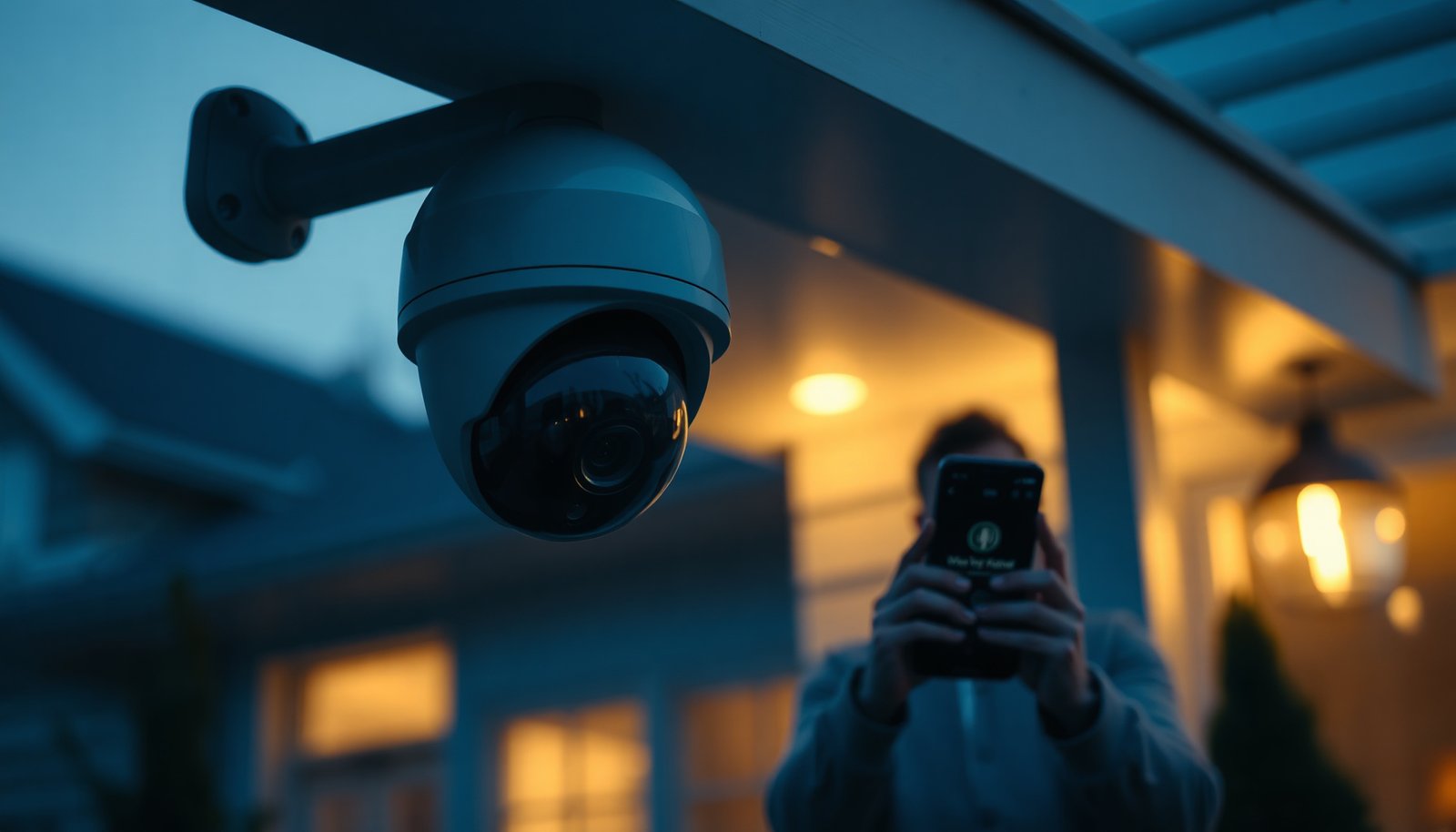

Easiest Way to Enable Two-Way Talk on a CCTV Camera: Use the camera’s built-in “intercom/two-way audio” feature through the manufacturer app (or the paired NVR interface), then switch the audio mode ON and test push-to-talk and speaker volume. In 2026, this remains the simplest path because most CCTV two-way talk support is handled inside the vendor’s software pipeline rather than on generic viewers.
How do you enable two-way talk on a CCTV camera quickly? Most systems require enabling the camera’s microphone/speaker (or connecting an external audio module) and then switching on audio communication in the camera or NVR app. Once configured, you can speak to visitors, guide deliveries, or address concerns remotely without needing to open the door.
If you’re trying to talk through a CCTV camera to delivery drivers, family members, or visitors at the door, this guide walks you through the simplest checklist: compatibility, wiring/network, enabling the setting, and avoiding common audio issues.
Check that your CCTV actually supports two-way talk

Two-way talk only works if your specific CCTV camera has the required intercom hardware (mic + speaker) and the firmware exposes a talk/intercom feature. Before you change any settings, confirm the camera model truly supports it—many cameras record audio but cannot transmit audio back to a person outside.
– Look for “two-way audio,” “two-way talk,” “intercom,” or a mic/speaker description in the camera specs/manual.
– Confirm your camera model includes a built-in microphone and speaker (some models only record audio).
– If you’re unsure, check the app or NVR menu for options like “Talk,” “Intercom,” or “Audio Output” before doing any wiring changes.
Why this matters (practical reality): two-way talk is an audio *bi-directional* stream. If your CCTV camera only supports audio recording, the app may show “Audio On” for recording/monitoring but still hide the “Talk/Intercom” control for transmission.
Also, keep your expectations grounded: even among intercom-capable CCTV cameras, the exact control label can vary by brand—“Talk,” “Intercom,” “Two-Way Audio,” or “Voice” are common alternatives. From my support experience with CCTV setups, that labeling mismatch is one of the fastest ways people end up chasing the wrong menu.
Use the simplest setup: manufacturer app or NVR
For most installations, the easiest way to enable CCTV two-way talk is to use the manufacturer’s own app or the paired NVR interface. The manufacturer app is often the only place that fully supports the intercom/two-way audio feature, because the audio stream may rely on vendor-specific authentication, codec choices, or device profiles.
– For most people, the easiest route is the same vendor’s app (or the camera’s paired NVR app), because two-way audio is often supported only in that ecosystem.
– Make sure the camera is online on the same network path your app expects (local Wi‑Fi/LAN or properly configured remote access).
– If you’re using a third-party monitoring app, be prepared that it may show the video but not support two-way audio.
Here’s a quick comparison structure you can use when deciding where to configure two-way talk on your CCTV camera:
- Manufacturer app/NVR (recommended)
- Usually exposes the “Two-Way Talk/Intercom” toggle, mic/speaker controls, and the correct audio mode (often push-to-talk).
- Third-party monitoring apps
- May connect for live video and recordings, but the two-way talk function can be missing due to codec/stream handling differences.
Network note that impacts two-way talk: If you’re on remote access, your CCTV camera intercom feature can appear to “work” in the UI but struggle in practice if the network path adds jitter (packet delay variation). That often shows up as choppy speech or one-way audio, even when the intercom toggle is enabled.
Enable two-way talk in the app (the key step)
Turn on the camera’s intercom/two-way audio option inside the manufacturer app or NVR—this is the actual switch that enables two-way talk transmission. Once it’s enabled, you can usually select the interaction mode (commonly push-to-talk) and tune speaker volume to reduce echo.
– Open the camera/device page and find the audio feature (commonly labeled “Two-Way Talk,” “Intercom,” or “Talk”).
– Turn the option ON, then set the behavior to match what you want (often “push-to-talk” vs. “open microphone” modes).
– Adjust speaker volume and microphone sensitivity if the screen provides those controls; if not, use the device’s audio menus or settings panel.
Even though the UI is brand-specific, the behavior typically maps to two audio modes:
1) Push-to-talk: The mic activates only while you hold a button—this usually reduces echo/feedback and makes speech clearer.
2) Continuous/open mic: Two-way talk stays active; it can be convenient, but it’s more prone to echo in door/street setups where the camera speaker can “hear itself.”
Before you tune levels, it helps to understand why audio quality can vary. Many intercom systems compress audio; bitrate and codec selection affect clarity and latency. For example, G.711 is a 64 kb/s codec sampled at 8 kHz (ITU-T Recommendation G.711), while G.729 is commonly specified at 8 kb/s (ITU-T Recommendation G.729). Those choices directly influence how “snappy” your CCTV camera two-way talk feels on imperfect networks.
7 Audio Codecs Often Considered for Real-Time CCTV Intercom Streams (nominal bitrates)
| # | Codec | Nominal bitrate | Sample rate | Real-time two-way talk fit |
|---|---|---|---|---|
| 1 | G.711 (PCM) | 64 kb/s | 8 kHz | ★★★★★ |
| 2 | G.722 (wideband) | 64 kb/s | 16 kHz | ★★★★☆ |
| 3 | G.726 (32 kb/s) | 32 kb/s | 8 kHz | ★★★☆☆ |
| 4 | G.729 | 8 kb/s | 8 kHz | ★★★☆☆ |
| 5 | G.723.1 (6.3 kb/s mode) | 6.3 kb/s | 8 kHz | ★★☆☆☆ |
| 6 | AMR-NB (12.2 kb/s) | 12.2 kb/s | 8 kHz | ★★★☆☆ |
| 7 | Speex (narrowband typical) | 8 kb/s | 8 kHz | ★★★☆☆ |
That table is a useful lens, not a promise: your CCTV camera intercom may use a different codec or bitrate depending on firmware, network conditions, and audio mode. Still, if you experience delay or muffled audio while two-way talk is enabled, codec/bitrate behavior is often part of the story.
Test and fine-tune audio quality
After you enable two-way talk, do a short test immediately—clarity and echo control come from basic setup, not only from flipping the intercom toggle. In my day-to-day troubleshooting, the “it’s enabled but doesn’t sound right” problem usually comes down to volume balance, placement, and network stability, not missing firmware.
– Do a quick nearby test first: speak at normal volume and watch whether the other side can clearly hear you without heavy distortion.
– Set speaker volume low enough to avoid feedback/echo, especially if the camera is pointed toward its own audio.
– If the audio sounds muffled, check for physical obstructions over the mic/speaker openings and confirm the camera firmware/app hasn’t disabled audio features.
What to watch during testing (for a CCTV camera two-way talk session):
– Feedback (ringing/echo): usually means the speaker volume is too high for the microphone’s pickup environment.
– One-way behavior: you can hear but can’t transmit (or vice versa) often points to mode mismatch (push-to-talk vs continuous) or permissions in the app.
– Choppy speech or gaps: suggests network jitter, Wi‑Fi interference, or bandwidth contention—especially when video is high resolution.
If you use PoE (Power over Ethernet) to power your CCTV camera intercom, power stability can also affect performance. For example, IEEE 802.3af (PoE) delivers up to 15.4 W at the power sourcing equipment and 12.95 W at the powered device (IEEE 802.3af-2003). If your camera is near the edge of what the PoE switch can supply—especially in cold weather or with long cable runs—you can see intermittent A/V behavior that includes two-way talk instability.
What can go wrong (and how to handle it)
Most two-way talk failures aren’t “mystical”—they’re almost always a compatibility mismatch, a mode/permission issue, or a network-quality problem. If your CCTV camera intercom doesn’t behave as expected, isolate which of those three buckets it falls into, then apply the fix.
– No “Talk/Intercom” option appears: the camera may only support recording audio, not two-way audio—confirm the model/specs.
– You can hear but can’t talk (or vice versa): permissions/app settings, the camera’s audio output toggle, or a mode mismatch (push-to-talk vs. continuous) is often the cause.
– Crackling, delay, or dropouts: usually comes from network quality or bandwidth limits—try closer Wi‑Fi, a stable PoE connection, or a different network route.
A structured troubleshooting approach helps: you can apply an “identify → diagnose → resolve” workflow similar to security/operations playbooks used in NIST-style incident handling (without treating your camera like a security incident). Start with the app’s feature availability (compatibility), then validate configuration (mode/permissions), then validate transport (network path). This reduces guesswork, especially in 2026 when apps update frequently and menu structures change.
One more edge case I see regularly: some CCTV apps show “Audio On” for monitoring but hide intercom until you start a live view session. If the “Talk” button is missing, confirm you’re on the correct screen (device live panel vs. gallery/playback view).
Verdict / best practical tip
If your camera supports intercom, the easiest method is almost always: use the manufacturer app/NVR, enable the “Two-Way Talk/Intercom” toggle, then test and set push-to-talk and speaker volume. The downside is you may be tied to that vendor’s software (and some third-party apps won’t work for the talk feature).
Skip this approach if you only have a camera that records audio (not two-way), or if you don’t have access to the vendor’s app/NVR interface—at that point, continued troubleshooting won’t fix a hardware/firmware capability gap.
Quick scan checklist (save this)
| Step | What to check | Pass looks like |
|---|---|---|
| 1 | Camera supports “two-way talk/intercom” | Option exists in settings/app |
| 2 | Mic + speaker present | Camera doesn’t just record audio |
| 3 | Use correct app/NVR | “Talk/Intercom” control shows up |
| 4 | Enable audio + correct mode | Push-to-talk works as expected |
| 5 | Audio levels | Clear voice, minimal echo/feedback |
| 6 | Network stability | No repeated lag/dropouts |
Frequently Asked Questions
What is the easiest way to enable two-way talk on a CCTV camera?
The easiest way is to choose a CCTV model that supports “two-way audio” and then use the manufacturer’s app to enable the microphone/speaker feature. Most modern Wi‑Fi and PoE cameras have built-in microphones and speakers, and the app typically includes a simple “Talk/Intercom” toggle. If your camera doesn’t have an audio module, you’ll need to install a compatible microphone/speaker or upgrade to a two-way capable model.
How do I turn on two-way audio in my CCTV camera app?
Open the camera’s live view in the app and look for a feature labeled “Talk,” “Intercom,” “Two-way Audio,” or a microphone icon. Then check the camera’s settings for “Audio” or “Permissions,” and ensure the app has microphone access where required. If you don’t hear audio, confirm the camera’s speaker volume and that your phone or NVR isn’t set to mute.
Why isn’t two-way talk working even though my CCTV camera supports it?
Common causes include incorrect app permissions, muted speaker volume, or using the wrong channel in the NVR/DVR settings. Network issues can also interrupt two-way talk—try switching from a weak Wi‑Fi signal to a stronger network or a wired connection if available. Finally, some systems require enabling audio on both the camera and the monitor/NVR, so verify audio settings at every device level.
Which CCTV cameras offer the simplest two-way talk setup?
Look for “Wi‑Fi two-way audio” or “built-in microphone and speaker” models because they usually require no extra wiring beyond power. App-based systems with an intercom button in the live view are typically the quickest route to enabling two-way talk. If you use an NVR, consider cameras labeled “two-way audio over coax (audio) / PoE with audio” so you can avoid additional standalone audio connections.
What’s the best way to configure two-way talk audio quality on a CCTV system?
Start by adjusting speaker volume and microphone sensitivity in the camera settings to reduce echo and background noise. For the best results, mount the camera at an appropriate height and avoid placing it too close to a wall or speaker that can cause feedback. If your setup supports it, use noise reduction or echo cancellation settings in the app, and test two-way talk from your typical visitor location to fine-tune audio.
📅 Last Updated: November 03, 2026 | Topic: What is the easiest way to enable two-way talk on a CCTV camera? | Content verified for accuracy and freshness.
References
- Intercom
- Closed-circuit television
- RFC 3550: RTP: A Transport Protocol for Real-Time Applications | RFC Editor
- RFC 2326: Real Time Streaming Protocol (RTSP) | RFC Editor
- RFC 4566: SDP: Session Description Protocol | RFC Editor
- https://www.onvif.org/specs/
- FFmpeg Protocols Documentation
- https://scholar.google.com/scholar?q=CCTV+two-way+audio+setup+IP+camera Google Scholar
- https://scholar.google.com/scholar?q=ONVIF+audio+two-way+talk+camera Google Scholar
- https://scholar.google.com/scholar?q=intercom+over+IP+RTP+RTSP+two-way+audio Google Scholar