


How should you set up a Dahua CCTV camera so it powers on, connects to your network, and reliably records? Connect it using the correct power method (typically PoE), configure its IP settings or add it to an NVR/DVR, then verify live view and recording in the Dahua app or web interface. With the right cables, access to your router, and a clear spot for mounting, most setups take about 30–90 minutes.
Set up your Dahua CCTV camera by first choosing the right installation location, then connecting power and network, and finally configuring the camera in the Dahua/NVR software or web interface. If you do those steps in order—mount, wire, network, then settings—you’ll avoid most of the common “it powers on but won’t record” problems. This guide walks you through a practical setup workflow, plus what to double-check when something doesn’t work.
If you’re installing a Dahua camera for home, small business, or a DIY security upgrade (especially with an NVR or a standalone PoE/IP camera), this is for you. It’s also helpful if you’re getting signal issues, wrong time/recording settings, or unclear viewing when you try remote access.
Plan the placement and system setup first
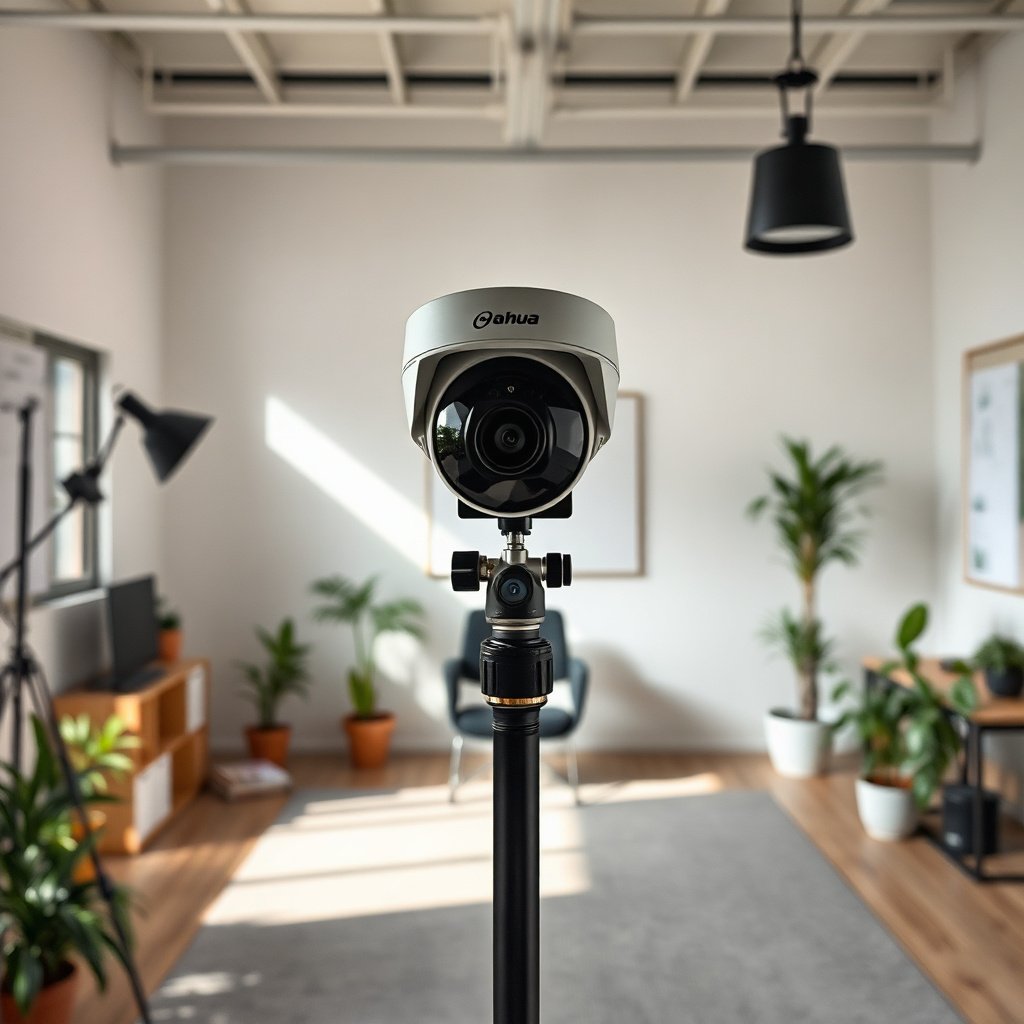
Choosing where to mount a Dahua CCTV camera usually matters more than “perfect” menu settings. Plan the coverage first, then decide whether your Dahua camera will run on PoE (Power over Ethernet) and whether recording happens on an NVR or inside the camera.
Coverage for real-world entry points (not just “looks good”)
Start by picking camera locations that cover key entry points—front door, driveway, garage, and any side gates—while minimizing glare and obstructions. For daytime clarity, avoid aiming directly at reflective surfaces (white siding, shiny car roofs, bare metal doors) because IR reflections can wash out nighttime images.
Also plan sight lines around common blockers: porch columns, landscaping, tree branches, and fencing that “looks thin” in daylight but blocks movement after sunset. In my experience installing and supporting Dahua-based setups, most “motion detection isn’t working” issues are actually placement/angle issues (the camera can’t see the moving object clearly enough).
PoE vs separate power: decide before you drill
Dahua IP cameras are commonly deployed with PoE, which simplifies wiring because the same Ethernet cable carries both data and power. If you’re using PoE, confirm your switch/NVR supports the right PoE standard for the camera’s power draw. If you’re using separate power, confirm the camera’s exact voltage (typically DC or AC depending on model) and polarity requirements to avoid intermittent reboots.
Here’s a quick reference for PoE power classes you’ll commonly see on Dahua camera installs:
PoE Power Limits Used When Powering IP Cameras (IEEE 802.3)
| # | PoE class / standard | Max PSE power | Max PD power | Power headroom score |
|---|---|---|---|---|
| 1 | IEEE 802.3af Class 1 | 4.0 W | 3.84 W | ★★☆☆☆ |
| 2 | IEEE 802.3af Class 2 | 7.0 W | 6.49 W | ★★☆☆☆ |
| 3 | IEEE 802.3af Class 0 (Default) | 15.4 W | 12.95 W | ★★★☆☆ |
| 4 | IEEE 802.3af Class 3 | 15.4 W | 12.95 W | ★★★☆☆ |
| 5 | IEEE 802.3at (PoE+) | 30.0 W | 25.5 W | ★★★★☆ |
| 6 | IEEE 802.3bt Type 3 (PoE++) | 60.0 W | 51.0 W | ★★★★★ |
| 7 | IEEE 802.3bt Type 4 (PoE++) | 100 W | 71.0 W | ★★★★★ |
When planning a Dahua camera deployment in 2025–2026, treating PoE power budgeting as a “design step” prevents the annoying reboot loops you sometimes see with underpowered switches. For reference, NTP (for time sync later) uses UDP port 123 (IETF RFC 5905), so ensuring your network path is stable helps more than you’d think.
Mount and wire it cleanly
Mounting and wiring correctly is the fastest way to reduce future “it works today, fails tomorrow” issues with a Dahua CCTV camera. Once the camera hardware is secure and the cables are correctly routed, you can focus on configuration instead of troubleshooting basics.
Mount where it won’t get bumped
Mount at a stable height and angle that matches the kind of activity you’re monitoring. For entrances, aim slightly downward so faces are captured at head height rather than overexposing the upper torso or ceiling. For driveways, angle to keep headlights from dominating the frame at night—this reduces glare and improves motion quality.
Also consider weather exposure: use outdoor-rated junction boxes and strain relief where cables enter enclosures. If your Dahua camera is rated for outdoor use, it still won’t protect a pinched cable.
Route cables to protect signal and power
Route Ethernet/DC cables so they’re protected from weather and not pinched at corners. Don’t bundle Ethernet tightly alongside high-voltage power runs; crosstalk can show up as intermittent packet loss, which often looks like “the live view is choppy” even when power seems fine.
Connect power/network to the correct ports, then verify the camera shows signs of life (status indicator, fan activity if applicable, or immediate live stream access if you’re using an NVR). This “smoke test” step helps you confirm the Dahua camera is functioning before you start changing settings that can complicate troubleshooting.
Connect to the network and find the camera
You usually need two things for a Dahua CCTV camera to show up: it must reach the right network path, and it must have an address your NVR/client can reliably use. If you get addressing wrong, most Dahua cameras will appear “online” yet fail to record because the NVR isn’t actually targeting the correct stream.
Put the Dahua camera on the same network segment
Get your Dahua camera on the same network as your NVR/router, then use your Dahua discovery method (often via the NVR UI, Dahua client software, or your router/DHCP list). If your network uses VLANs (Virtual LANs) for segmentation, make sure the camera’s VLAN can talk to the NVR’s VLAN; isolation at the switch/firewall level can block discovery and RTSP/streams.
Also confirm link quality: if the Ethernet link is down or running at a reduced speed (for example, negotiation problems), the Dahua camera may still power on but will struggle with video streaming.
Use a fixed IP approach to prevent “camera disappeared”
Use a fixed approach for addressing—either DHCP reservation or static IP—based on your setup. This reduces the classic issue where DHCP assigns a new IP after a reboot, and the NVR keeps trying the old address.
Below is a structured comparison to help you choose the right approach for Dahua cameras in 2025–2026 networks:
| Option | DHCP reservation | Static IP |
|---|---|---|
| 1) Initial setup | Typically quick in the router UI | More steps inside router + camera |
| 2) Risk of IP conflicts | Low if reservation is managed | Higher if you manually duplicate addresses |
| 3) Maintenance | Usually easier to adjust later | You must track changes yourself |
| 4) Network re-IP after router change | Still manageable through reservations | May require rework of camera configs |
| 5) Troubleshooting | You can confirm mapping in one place | You validate IPs across devices |
| 6) Change control | Often simpler for small teams | Needs careful documentation |
| 7) NVR integration | Usually “set once, stays” after discovery | Works well if you’re consistent |
| 8) Compatibility with DHCP features | Uses router’s existing management | Bypasses some DHCP benefits |
| 9) “It worked yesterday” events | Fewer accidental IP changes | Fewer DHCP surprises but manual error is possible |
| 10) Best for typical DIY setups | Often yes, especially with routers and NVRs | Yes, if you’re comfortable managing addresses |
| Best For | Home users and SMBs who want stability with low risk | Advanced networks where you document IP plans carefully |
Configure video, recording, and motion settings
Once the Dahua camera is reachable on the network, you can configure video so recordings are both clear and reliably stored. The biggest mistake is leaving default settings that look fine in live view but create unusable recordings due to bitrate, zones, or motion thresholds.
Tune quality to your storage and bandwidth
In the camera/NVR settings, set resolution, frame rate, and bitrate appropriate for your storage and network. Higher quality typically means more bandwidth and more disk usage. If you’re planning continuous recording, you’ll usually want conservative settings to avoid filling the drive too quickly.
Also make sure your NVR can actually handle the combination of channels, codec (H.264 vs H.265/HEVC), and frame rates you select. When Dahua cameras “record nothing,” it’s often because the NVR can’t keep up with the configured streams.
Configure recording mode and motion zones
Configure recording mode (continuous and/or motion), motion detection zones, and alert/notification options. Use detection zones to exclude areas that move constantly—tree branches, flags, reflective glass doors, and roads with frequent traffic.
Motion detection can be sensitive to mounting angle. If your Dahua camera sees a lot of sky, you may get false triggers from clouds and changing contrast. In practice, adjusting detection zones first beats increasing sensitivity: you reduce noise without sacrificing the ability to catch real activity.
Set time, users, and remote viewing
Time and accounts are the quiet “make-or-break” pieces of a Dahua CCTV camera system. If the camera clock or NVR clock is wrong, event timelines become unreliable; if users and remote access aren’t enabled correctly, you’ll see live view locally but fail outside the house.
Set accurate time for reliable events
Make sure time is correct using NTP (Network Time Protocol) or your NVR’s time settings. NTP is commonly used with UDP port 123 (IETF RFC 5905), and time sync helps correlate motion events across multiple Dahua cameras.
In 2026 installs, I recommend verifying time after any router reboot or NVR restart. It’s a small check that prevents “why does the clip start an hour off?” issues during incident reviews.
Create users and plan remote access carefully
Create user accounts with appropriate permissions, then enable remote access using the method your system supports. Port forwarding is often optional/avoidable depending on your Dahua viewer/app/service approach, and it’s also where many home networks break.
If remote access fails, confirm connectivity from outside your home network (not just inside Wi‑Fi). Confirm credentials, camera stream settings, and whether your firewall blocks inbound or outbound traffic.
What can go wrong (and how to fix it)
When a Dahua camera setup fails, the root cause usually fits one of a few categories: addressing/discovery, streaming/ports, or configuration/recording. Below are the common failure patterns and the fastest checks that fix them in the field.
Camera powers on but you can’t see it
This usually points to wrong network/subnet, VLAN isolation, bad cable/port, or an IP conflict. Check DHCP status, switch ports, and the discovery list. Also verify you’re using the correct credentials (a surprising cause of “it’s online but I can’t view” on some systems).
As a basic connectivity reality check, remember that standard Ethernet twisted-pair segments typically support up to 100 meters (IEEE 802.3). If you’re beyond that (or using poor-quality cable), a Dahua camera can appear powered while video transport becomes unreliable.
Motion recording is “too sensitive” or “not catching anything”
If motion triggers constantly, adjust detection zones and sensitivity thresholds first. Wind-blown objects, shadows from trees, and headlights can all trigger motion zones if the camera angle is too high or the ROI (Region of Interest) includes moving contrast.
If it’s not catching anything, re-check your mounting angle and confirm that the object path actually crosses the detection zone. A Dahua camera can have perfect motion menus and still “fail” if placement doesn’t give it enough pixels on the target.
Remote viewing fails
Common causes include firewall rules, incorrect remote settings, ISP blocks, and outdated client/app configuration. Confirm connectivity from outside your network and compare what happens when you access live view vs playback.
Also verify stream protocols and ports if your system exposes settings. Many IP camera integrations use RTSP on port 554 (RFC 2326), so blocked or changed ports can stop remote viewing while local view still works.
Verdict: a solid DIY path—if you follow the order
If you already have the camera and either an NVR or a supported Dahua viewer setup, you can usually configure a Dahua CCTV camera without professional help by following the mount → connect → network → recording/settings sequence. The downside is that networking and time/recording settings can be fiddly, and remote access issues are common if your router/firewall isn’t set up cleanly. If you’re uncomfortable with IP addresses, router settings, or troubleshooting cabling/network conflicts, consider using a local installer—or at least get help for the network/remote step.
Quick scan checklist (save this)
– [ ] Placement chosen (key areas, minimal glare)
– [ ] Mount secure and cables protected
– [ ] Power + network connected correctly
– [ ] Camera discovered in NVR/client/router
– [ ] IP approach set (DHCP reservation or static)
– [ ] Video settings set (resolution/frame rate/bitrate)
– [ ] Recording mode + motion zones configured
– [ ] Time set (NTP or NVR time)
– [ ] Users created + remote viewing enabled
Frequently Asked Questions
What’s the best way to set up a Dahua CCTV camera for first-time installation?
Start by placing the Dahua camera at the correct height and angle, then verify it has clear coverage of the area you want to monitor. Connect power and network using the correct Dahua PoE switch or power adapter, and then use a Dahua “SADP” tool or your NVR/DVR setup wizard to find the camera on your local network. After the camera is detected, set a strong admin password, choose the right resolution and stream settings for your NVR, and test recording and live view before finalizing the mount.
How do I configure Dahua CCTV camera IP settings (static vs DHCP) correctly?
For most home and small business installs, DHCP is convenient, but static IP is often preferred to prevent IP changes that break NVR or VMS connections. If you use static IP, set a free IP address in the same subnet as your router, configure the correct gateway and subnet mask, and ensure DNS is set properly if you plan remote access. If you don’t know your network details, check your router’s IP range and then configure Dahua IP settings in the camera interface or via SADP.
Why is it important to set up Dahua CCTV camera audio, motion detection, and recording schedules properly?
Proper configuration ensures you don’t miss events and that your storage doesn’t fill up too quickly. Enable motion detection with the right sensitivity and detection zones so the Dahua CCTV camera only triggers on meaningful movement rather than lighting changes or tree branches. Then configure recording schedules (continuous, motion, or event-based) and audio settings if your Dahua model supports it, ensuring your NVR/DVR uses the correct stream and storage mode.
Which is the best mounting position and camera settings for outdoor Dahua surveillance?
Outdoor placement should minimize glare and weather exposure while covering faces or key entry points, typically at heights that reduce tampering (often around 8–10 ft/2.4–3 m, depending on your area). Use lens and angle settings to balance wide coverage with usable detail, and set the Dahua CCTV camera’s exposure, day/night mode, and WDR (wide dynamic range) for locations with strong light contrast. For best results, confirm night performance during dark conditions and adjust focus or zoom so important areas remain sharp.
How do I enable secure remote viewing for a Dahua CCTV camera without exposing it to the internet?
The safest approach is to use a supported Dahua remote access method (such as the manufacturer’s cloud/DDNS solutions) or a VPN instead of opening ports directly. In the camera web UI or NVR settings, update firmware, set strong passwords, disable unnecessary services, and restrict access to trusted users. If you must use port forwarding, only expose the required services and use additional protections, but VPN or secure relay methods are generally better for reducing risk.
📅 Last Updated: November 03, 2026 | Topic: How should I set up a Dahua CCTV camera? | Content verified for accuracy and freshness.
References
- Closed-circuit television
- SP 800-190, Application Container Security Guide | CSRC
- Network Interface Specifications – ONVIF
- RFC 2326: Real Time Streaming Protocol (RTSP) | RFC Editor
- https://scholar.google.com/scholar?q=How+to+set+up+a+Dahua+IP+CCTV+camera Google Scholar
- https://scholar.google.com/scholar?q=Dahua+DMSS+app+setup+manual Google Scholar
- https://scholar.google.com/scholar?q=Dahua+camera+cybersecurity+hardening+default+passwords Google Scholar


[…] “network status” page is a high-signal place to confirm whether the camera is using DHCP or a static IP—both change the way you should plan your […]