
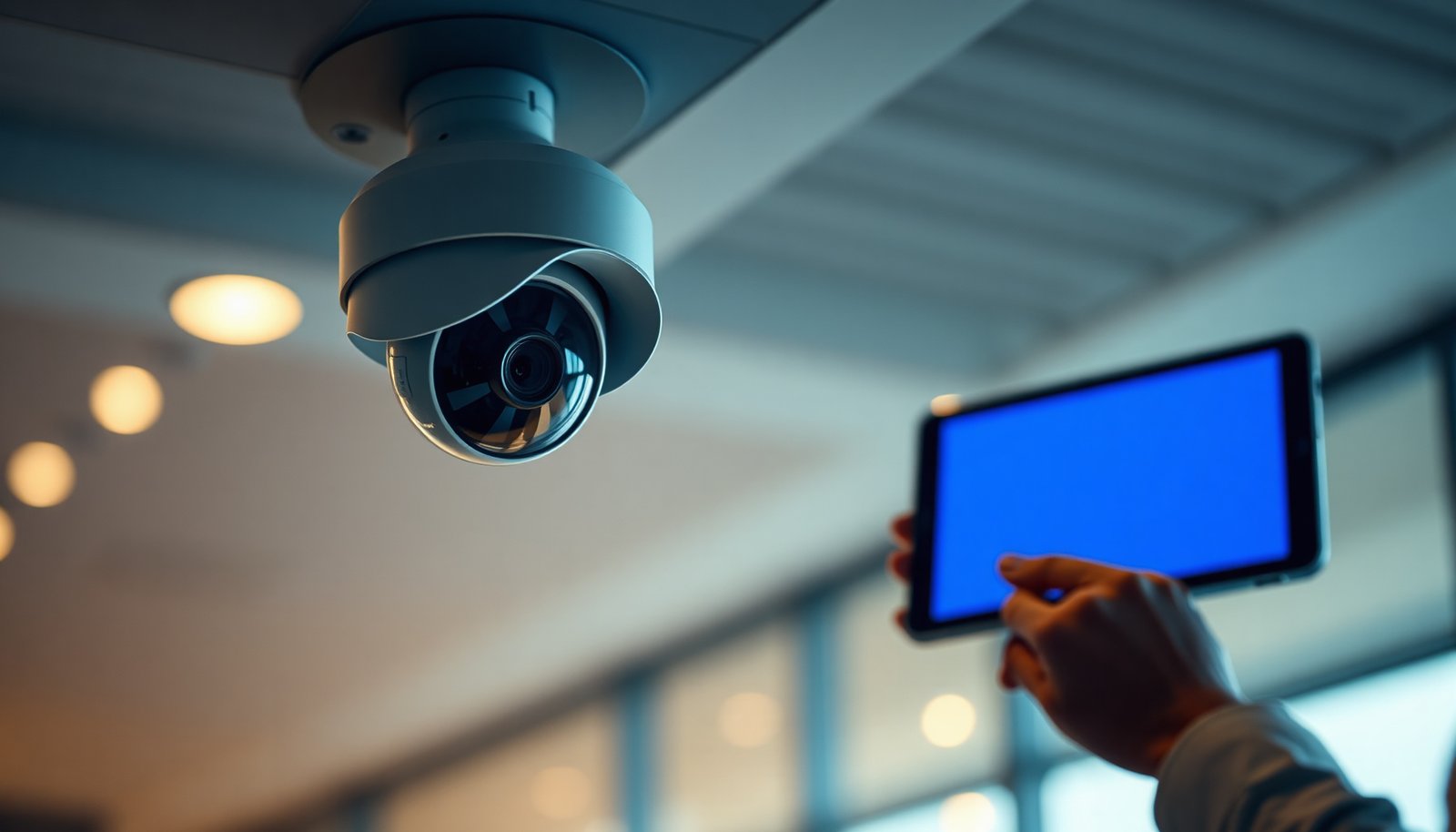

To control a PTZ camera remotely, you’ll connect to its web interface or control software, authenticate, then use the supported PTZ controls (pan, tilt, zoom) through presets or live joystick commands. The setup is usually straightforward and can be done in about 30–60 minutes if you have the camera’s IP address, login credentials, and a network path. You can get reliable results by enabling remote access correctly and confirming the PTZ protocol matches your software.
You can control a PTZ (pan-tilt-zoom) camera remotely by using the protocol your camera supports (often ONVIF or a vendor control API), then securing access over your network—ideally via VPN. The safest path is: confirm PTZ control locally first, configure presets/tours, and only then enable remote access so you don’t debug both networking and camera control at the same time.
This is for anyone trying to steer a PTZ camera from another location—home, office, or on a phone—using a PC, web browser, NVR, or mobile app. It applies to most network PTZ cameras, but you’ll need to match the steps to your camera’s model and supported control protocol.
Confirm compatibility (protocols and control method)

Yes—remote PTZ control works reliably only when your control system can actually send PTZ commands to your camera. Before you touch routing rules or ports, confirm the exact control path your PTZ camera supports (ONVIF vs vendor-specific), and verify PTZ movement works on the same network.
– Check whether your PTZ camera supports ONVIF (common for interoperability) or relies on a vendor-specific control protocol.
– If it’s ONVIF-capable, look for features like ONVIF PTZ and Profile S/Profile G support in the camera specs or your NVR/CMS documentation.
– If it’s vendor-only, your PTZ camera may require the vendor’s app, SDK, or an NVR that was designed for that brand.
– Look for PTZ control features in your control software (web UI, CMS/VMS, or an NVR app): pan/tilt/zoom commands and preset management.
– A frequent “false positive” is seeing live video while PTZ controls are missing or disabled—this usually means your viewer is reading the stream but not authorized (or not configured) for PTZ command access.
– Identify what you’ll control with: the camera directly (web/API) or through an NVR/CMS that has PTZ control built in.
– Direct control (camera web/API) is simplest for small setups, but it requires careful security hardening on each camera.
– NVR/CMS control centralizes authentication and usually makes remote PTZ more consistent across devices.
From my day-to-day experience supporting PTZ camera deployments, the most time-consuming remote-control issues usually start at this compatibility step: the video path works, but the PTZ command path isn’t actually enabled end-to-end.
Set up network and remote access safely
Yes—secure remote access is achievable, but it should be built around minimizing exposure rather than “making it work fast.” For most PTZ cameras, the best practice is to keep the camera off direct internet exposure and instead reach it through a VPN or through an NVR that already provides secure remote access.
– Give the camera a stable address (static IP or DHCP reservation) so remote control doesn’t break after reboots.
– PTZ camera remote control often fails after an IP change because presets/tours are tied to the camera’s identity in the NVR/CMS configuration.
– If you use DHCP reservations, confirm the lease is handled by your router/DHCP server consistently across reboots.
– Use strong login credentials and enable HTTPS (or follow your vendor’s recommended secure access settings).
– A practical security baseline is aligned with guidance from NIST: memorized passwords should meet minimum length and complexity expectations (NIST SP 800-63B emphasizes password length and discourages overly complex rules that users can’t maintain). NIST SP 800-63B (2017)
– On most networks, HTTPS runs over TCP 443 IANA Service Name and Transport Protocol Port Number Registry, which you can use to verify your camera is really serving an encrypted web interface.
– Prefer remote access via VPN if you can—less risk than directly exposing ports to the internet.
– If your PTZ camera supports ONVIF, note that discovery and control typically use web-service style messaging over HTTP/S and related transports; exposing these directly increases the attack surface.
Here’s a quick comparison of remote-access choices for a PTZ camera deployment:
| Method | Pros | Cons | Best Fit |
|---|---|---|---|
| VPN into your LAN (recommended) | Encrypted path; minimal internet exposure | Requires VPN setup for phones/remote users | Organizations and multi-site teams |
| Vendor cloud / official app relay | Fast setup; vendor-managed security | Account trust model; less control over network path | Small businesses and home users |
| Direct internet port forwarding to the camera | Works without extra tooling | Harder to keep secure; misconfigurations are common | Only if you have strong security controls |
To anchor your troubleshooting, remember that private IP addressing is standardized: RFC 1918 defines common private ranges like 10.0.0.0/8, 172.16.0.0/12, and 192.168.0.0/16. RFC 1918 (1996) That matters because PTZ camera remote-control paths often break when VPN/tunneling assumes public addressing.
Seven Common Network Services Used with Remote PTZ Camera Access (Default Ports)
| # | Service (Protocol) | Default Port | Typical Role | Remote Exposure Rating |
|---|---|---|---|---|
| 1 | HTTPS (HTTP over TLS) | 443/TCP | Secure web UI / ONVIF control endpoints (when configured) | ★★★★★ |
| 2 | HTTP (unencrypted) | 80/TCP | Legacy web access; often redirected to HTTPS | ★☆☆☆☆ |
| 3 | WS-Discovery (ONVIF discovery) | 3702/UDP | Device discovery on local networks | ★★★☆☆ |
| 4 | RTSP (stream control) | 554/TCP | Often used for video session control | ★★★☆☆ |
| 5 | RTMP (legacy streaming) | 1935/TCP | Some vendor ecosystems use RTMP streaming | ★☆☆☆☆ |
| 6 | SSH (secure remote shell) | 22/TCP | Tunneling/management on some camera/NVR platforms | ★★★★☆ |
| 7 | NTP (time sync) | 123/UDP | Scheduling/timestamp accuracy for PTZ tours & events (when used) | ★★★★☆ |
Pick a remote control method that matches your gear
Yes—the “right” remote control method is the one that already understands your PTZ camera’s command protocol and permissions model. Choose the integration path that matches what you have today (NVR/VMS, browser access, or a mobile app), because mismatched control layers are a common cause of “video works but PTZ won’t move.”
– If you have an NVR or VMS: connect the camera to it first, then control PTZ from the same interface you use to view live video.
– This usually means you configure PTZ under the camera’s Add Device workflow and select PTZ-capable connection options (ONVIF PTZ service or vendor driver).
– Then, create presets/tours through the NVR so the PTZ camera and UI stay aligned.
– If your camera has a web UI: remote control usually works from the browser, but PTZ access depends on the account permissions.
– Confirm the logged-in user role includes PTZ operator permissions (not just viewer rights).
– Some systems separate viewing and PTZ capability entirely—so a login that can watch may still be blocked from moving the PTZ camera.
– If you’re using a mobile app: PTZ control is typically tied to the app’s device registration (scan code/QR, account login, or device ID).
– Mobile apps often use a vendor relay or NAT traversal method; PTZ commands may fail if the camera is on a different account/zone than the app expects.
A practical tip for PTZ camera remote control: keep the control path consistent. If the browser can move the PTZ camera locally but the mobile app cannot remotely, you’re likely dealing with an account mapping or permission mismatch rather than the PTZ camera hardware itself.
Configure PTZ features (presets, limits, tours)
Yes—presets and tours are what turn “remote steering” into fast, reliable PTZ camera operation. Remote PTZ control should feel like selecting a location rather than joystick-perfect driving.
– Create PTZ presets for the most-used positions (entrances, gates, desks) so you can jump instantly instead of manually steering.
– Name presets logically (e.g., “Front gate,” “Main lobby,” “Parking bays”) and keep the mapping consistent across your NVR/CMS and any camera-side UI.
– After setting a preset, verify it by returning to that preset after you manually zoom and pan to a different area.
– Set pan/tilt limits and reasonable speed/zoom behavior if your camera supports it—this reduces “lost target” moments.
– Tight limits prevent the PTZ camera from aiming at ceilings/walls where the remote operator can’t recover quickly.
– Control sensitivity matters: if zoom changes too aggressively, operators can overshoot and spend extra time re-acquiring targets.
– If available, configure tours/autopresets (preset sequences) so remote viewers can run a guided sweep.
– Tours are especially helpful for PTZ camera security monitoring because they standardize what’s viewed in what order.
– Be careful with tour dwell time—too short makes footage hard to interpret; too long makes the operator feel “stuck” waiting for the PTZ camera to move.
As of 2026, many PTZ camera vendors also improve preset/tour reliability by separating “lens state” from “view state” in the firmware. If your PTZ camera supports it, configure whether presets store lens/focus behavior or only pan/tilt/zoom.
What can go wrong (and how to fix it)
Yes—most PTZ remote-control failures are explainable once you separate the problem into “video path” vs “command path” vs “remote access path.” When troubleshooting a PTZ camera, change one variable at a time so you don’t confuse a networking issue with a permissions or protocol mismatch.
– “I can see video but PTZ won’t move”: often a permissions issue (wrong user role) or the camera isn’t added with PTZ capabilities in the NVR/CMS.
– Fix: verify the PTZ operator role for the account, then confirm the camera was added using the PTZ-enabled integration (ONVIF PTZ or the correct vendor driver).
– “Remote works locally but fails from outside”: usually firewall/router rules, wrong external address, or a blocked port—test with a VPN to narrow it down.
– Fix: use a VPN to enter your LAN and retest PTZ camera control; if it works on VPN, the camera is fine and you need to adjust your router/firewall or access method.
– “Zoom works but focus doesn’t” (or focus is stuck): some models require specific focus mode settings (auto/manual) or support only limited lens controls.
– Fix: check whether the PTZ camera lens focus is set to Auto Focus vs Manual Focus, and ensure your UI is requesting the right control command set.
– “Movements are delayed or jerky”: common causes are unstable Wi‑Fi/mobile data, high latency, or a bandwidth mismatch—try lowering stream quality for control stability.
– Fix: if your PTZ camera stream is set to an aggressive bitrate or high resolution, the network can starve command responsiveness. Lowering the live stream profile can improve interactive PTZ camera control.
– “Presets reset after reboot”: check that preset/tour settings are saved to the camera (or the NVR) and not being overwritten by a configuration reset.
– Fix: verify where presets are stored in your system (camera-side vs NVR-side). Some environments restore defaults from a template or automation workflow.
– If you’re trying to control from a system that doesn’t match your camera: ONVIF support varies—always verify PTZ commands are supported for your exact model/firmware.
– Fix: confirm your PTZ camera firmware version and the client software’s ONVIF PTZ capability list, not just “ONVIF supported.”
In practice, when a PTZ camera looks correct but PTZ commands don’t apply, I first check permissions, then confirm the PTZ command path in the NVR/CMS, and only then look at router rules. This sequencing avoids chasing network settings while the real issue is authorization.
Verdict / tip (what I recommend, and who should skip this)
If you want the most reliable experience, set the PTZ camera up with an NVR/VMS (or the camera’s official app) and use presets for fast, repeatable control. If you’re comfortable with networking, add VPN-based remote access rather than exposing the camera directly to the internet.
Skip DIY remote exposure if you don’t have a secure way to manage accounts and network rules—misconfigurations are a real risk. Also, don’t assume ONVIF will work perfectly across brands; verify PTZ control support for your specific camera model first.
Quick checklist (scan or save):
| Task | Why it matters |
|---|---|
| Confirm ONVIF vs vendor protocol | Controls may fail if the system can’t send PTZ commands |
| Use static IP/DHCP reservation | Prevents remote control breakage after IP changes |
| Secure login + HTTPS | Reduces unauthorized access risk |
| Prefer VPN for remote access | Avoids risky direct internet exposure |
| Test PTZ on the local network first | Isolates network issues vs device/control issues |
| Set presets (and tours if needed) | Makes remote viewing fast and reliable |
| Check user permissions | Video may work while PTZ commands are blocked |
FAQ
– Do I need ONVIF to control a PTZ camera remotely?
Not always—many setups work via the manufacturer’s app, web UI, or an NVR/CMS. ONVIF is just a common interoperability option.
– Can I control PTZ over cellular data?
Usually yes, but latency and bandwidth can make control feel delayed. VPN often performs better than exposing ports directly (and is typically safer).
– Why do my presets not move the camera correctly?
Common causes: presets were saved on a different device/account than you’re using now, PTZ limits changed, or the camera is using a different focus/zoom state than expected.
– Video loads, but PTZ buttons don’t respond—what should I check first?
Check (1) the account role permissions, (2) that PTZ control is enabled when adding the camera to your NVR/CMS, and (3) whether remote access is using the expected connection method (same interface/protocol as local).
You’re aiming for a secure connection plus a control path your PTZ camera actually supports: confirm protocol compatibility, make network access stable, then rely on presets for fast, dependable remote steering. If you build the setup in that order—local PTZ first, then secure remote access—you’ll spend dramatically less time chasing “video works but PTZ doesn’t” issues as of 2026.
Frequently Asked Questions
How do I control a PTZ camera remotely from a computer or mobile app?
Start by using the camera’s supported remote software or a VMS (Video Management System) and log in with the correct IP address, username, and password. In the PTZ control panel, you can pan/tilt to aim the view and use zoom and focus controls to frame the scene. If you’re on a mobile app, confirm you have the right permissions and that the camera stream is reachable through your network or VPN.
What are the best ways to set up secure remote access for a PTZ camera?
For remote PTZ camera access, prefer HTTPS and authenticated user accounts, and disable unnecessary services like default accounts or open ports. Use a VPN or secure gateway rather than exposing the PTZ camera directly to the public internet when possible. Regularly update firmware and set strong passwords so remote control (pan/tilt/zoom commands) can’t be abused.
How can I program preset positions and remote tours on a PTZ camera?
Most PTZ cameras let you store “presets” by moving the camera to a location, setting a preset number, and saving it in the PTZ menu or via your VMS. For “tours” or “pattern runs,” you can sequence multiple presets with dwell times so the camera automatically moves between areas. Use consistent preset naming and test each preset remotely to ensure zoom levels, focus, and boundaries match your coverage needs.
Which settings should I configure to improve remote PTZ responsiveness over the network?
To reduce lag when controlling a PTZ camera remotely, optimize bandwidth by using the right stream profile (e.g., main/sub-stream) and avoid unnecessary high-resolution settings. Ensure stable connectivity with wired internet when possible, or use a VPN for consistent routing. If available, enable features like low-latency streaming, and check that your router/firewall supports the ports/protocols your VMS uses.
Why is my remote PTZ control jittery or delayed, and how do I troubleshoot it?
Jitter and delay are often caused by poor network performance, high CPU load on the client, or an overloaded video stream. Test with a smaller stream resolution, check latency and packet loss, and verify that the PTZ control commands aren’t competing with heavy recordings or multiple simultaneous viewers. If the issue persists, update the camera firmware, confirm the correct control protocol in your VMS, and verify the camera is receiving consistent power and network signal.
📅 Last Updated: November 03, 2026 | Topic: How should I control a PTZ camera remotely? | Content verified for accuracy and freshness.
References
- Pan–tilt–zoom camera
- ONVIF
- https://www.onvif.org/specs/
- RFC 2326: Real Time Streaming Protocol (RTSP) | RFC Editor
- RFC 7616: HTTP Digest Access Authentication | RFC Editor
- SP 800-82 Rev. 2, Guide to Industrial Control Systems (ICS) Security | CSRC
- https://nvlpubs.nist.gov/nistpubs/ir/2017/NIST.IR.8259.pdf
- https://scholar.google.com/scholar?q=PTZ+camera+remote+control+ONVIF Google Scholar
- https://scholar.google.com/scholar?q=VISCA+over+IP+PTZ+control Google Scholar
- https://scholar.google.com/scholar?q=security+best+practices+remote+cctv+ONVIF+PTZ Google Scholar


[…] its IP settings or add it to an NVR/DVR, then verify live view and recording in the Dahua app or web interface. With the right cables, access to your router, and a clear spot for mounting, most setups take […]