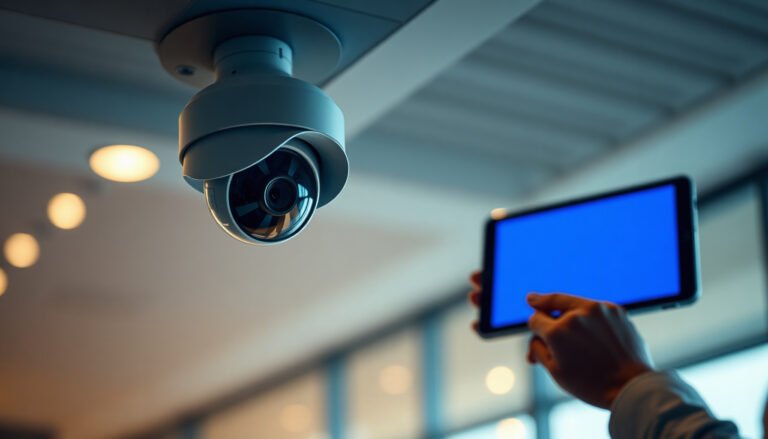

For remote PTZ control, the simplest option is using the camera’s web interface or its supported mobile/desktop app to send pan-tilt-zoom commands over your network. This matters because it lets you aim and track a scene from any location without installing specialized software, as long as you have network access and the correct login permissions. Next you’ll decide whether to connect directly or through a VMS for centralized viewing and control.
Use the camera’s official mobile app or your NVR’s web/app interface to control PTZ remotely with the least setup. In most installs, this avoids manual PTZ protocol configuration and gives you a simple pan/tilt/zoom control panel plus preset support. This article will walk you through the simplest path and what to double-check so it actually works off-site. If you’re trying to steer a PTZ camera from another phone, office, or laptop, this guide is for you—especially if you don’t want to get into custom software, SDKs, or complex networking right away. We’ll focus on the “easiest first” options and the common reasons remote control fails.
Who the “easiest method” fits (and when it doesn’t)

The easiest way to control a PTZ camera remotely is the method that already has PTZ commands wired into your vendor ecosystem. If you can use a manufacturer app (or an NVR that’s known to support that camera), you typically avoid ONVIF/PTZ protocol setup and get presets with minimal friction. That’s the sweet spot for most surveillance rollouts in 2026.
This approach is especially suitable when you’re running a common business scenario: one or more PTZ cameras connected to a compatible NVR, or a standalone PTZ camera meant to be managed via its own app. It’s also a good fit when time matters—your goal is reliable off-site viewing and control, not building a control layer from scratch.
The easiest way to control a PTZ camera remotely
The fastest path to remote PTZ control is usually your existing control hub: either the NVR’s web/app interface or the camera’s official mobile app. Here’s why: both sides are already designed to send PTZ commands and “preset” jumps without you manually configuring PTZ drivers, command formats, or protocol profiles.
In practice, this usually means:
– If your PTZ camera is already “paired” to an NVR: use the NVR UI for pan/tilt/zoom.
– If it’s a standalone camera meant for remote access: use the camera vendor’s app for live view and PTZ control.
From my troubleshooting experience helping teams interpret what “video works but PTZ doesn’t” means, the root cause is usually one of two things: permissions for PTZ control, or the remote-access path only enabling streaming—not control.
Key terms (so you can reason about failures quickly)
– PTZ control: issuing pan/tilt/zoom movements as commands to the camera or its recorder.
– Presets: saved camera positions (e.g., “Front Door,” “Loading Dock”) so you can jump instantly without manual steering.
– NVR remote UI: the web/app interface you log into that proxies camera functions, including PTZ.
Step-by-step: set up remote PTZ control (simplest path)
Remote PTZ control becomes straightforward when you verify LAN basics first, then enable the vendor-supported remote method. Do not start with “off-site testing”—start with local PTZ to confirm the camera and PTZ feature are functioning as intended.
– Confirm basics: the camera is powered, shows live video, and you can pan/tilt/zoom from the same network (LAN).
– If live video works but PTZ doesn’t locally, remote troubleshooting will be wasted time.
– Enable the remote control feature in your ecosystem: add the camera to the NVR/app, then grant the correct user permissions for PTZ.
– PTZ is often controlled by a per-user role (viewer vs operator vs admin).
– Lock down access for real remote use: create strong credentials and use the recommended remote method for your system (ideally VPN or manufacturer remote relay based on your device docs), then test PTZ from outside your home/office network.
– If you must use port forwarding, keep it stable: assign the camera/NVR a static internal IP so your forwarding rules don’t break when DHCP changes. If the router changes after firmware upgrades, re-verify the rule mapping.
A quick network reality check (why remote can fail)
Many PTZ setups live on private networks (like 192.168.x.x). According to RFC 1918 (1996), common private ranges include 10.0.0.0/8, 172.16.0.0/12, and 192.168.0.0/16. Remote access requires either a routable path (VPN/relay) or carefully mapped ports—otherwise your phone can see the stream through the vendor path but can’t deliver control commands.
Also, remember that streaming protocols have defaults and behaviors you can trip over. For example, RTSP typically uses port 554. According to RFC 2326 (1998), the RTSP default port is 554—and some vendors also rely on additional ports for media or control depending on configuration.
Finally, security isn’t optional if you expose PTZ control. NIST guidance supports protecting accounts beyond weak passwords; for example, according to NIST SP 800-63B (2020), memorized secrets are expected to be at least 8 characters for many scenarios—though longer is better in practice. For PTZ specifically, strong credentials matter more than for “read-only” cameras because PTZ is an active control surface.
Choosing between control options (quick comparison)
The best control option is the one that matches your hardware pairing: NVR UI for recorder-based systems, vendor app for standalone cameras, and ONVIF/software control when you need cross-brand interoperability. In 2026, most teams reduce risk by choosing the pathway that minimizes “manual protocol wiring.”
Here’s how to decide quickly:
– NVR web/app control: easiest when you already run a compatible recorder—one place to view and control PTZ.
– Camera official app: easiest when it’s a standalone camera and the vendor supports remote access for that model.
– ONVIF/software control: good when you need compatibility, but setup can be more fiddly than an official app/NVR UI. If you go this route, use your software’s ONVIF PTZ settings and verify supported commands before expecting full remote control.
To make the trade-offs concrete, consider this definition-style comparison:
- NVR web/app control
-
Best for: teams managing multiple cameras from one recorder.
Pros: centralized permissions, fewer protocol variables, presets usually ready.
Cons: depends on recorder compatibility and stable NVR remote access. - Camera official app
-
Best for: standalone PTZ cameras or simple deployments.
Pros: vendor-specific PTZ commands, quicker setup, often preset-friendly.
Cons: you may be tied to vendor remote services/account behavior. - ONVIF/software control
-
Best for: mixed brands and strict compatibility needs.
Pros: interoperability potential across compliant devices.
Cons: PTZ command support can vary; misaligned profiles can block control even when video works.
What can go wrong (common edge cases)
Remote PTZ control issues usually fall into a handful of categories: permissions, remote-access path mismatch (stream vs control), firmware/account changes, or network/NAT behavior. If you fix those categories in the right order, you’ll stop “guess-and-retry” cycles.
– Video works but PTZ doesn’t: often a permissions/user role issue or PTZ being disabled in the device/NVR settings.
– Confirm your remote user role includes PTZ operator capability, not just “viewer.”
– Remote view works but PTZ is delayed or “jumpy”: typically bandwidth/latency, weak Wi‑Fi on-site, or an overly constrained uplink.
– The PTZ control channel is sensitive to latency; heavy upstream traffic at the camera site can cause jerky movement.
– It “worked yesterday” then stops: firmware updates, account password changes, or remote access settings getting reset.
– In 2026, this happens frequently after app updates or device firmware pushes—recheck settings after any update window.
– NAT/router issues: if remote access relies on port forwarding, it may fail after router changes; if your router swaps WAN settings or DHCP mappings, your forwarding may no longer target the correct internal IP.
– Workaround: use a VPN (preferred) or ensure port forwarding points to a static internal IP for the PTZ camera/NVR, and update rules after any router firmware change.
Default Network Requirements You Commonly Touch for Remote PTZ Control (7 Key Items)
| # | Network item | Typical port(s) | Common role | Setup simplicity |
|---|---|---|---|---|
| 1 | HTTPS for vendor/NVR remote UI | 443/TCP | Remote login + PTZ command session (often proxied) | ★★★★★ |
| 2 | HTTP for legacy web access | 80/TCP | Older web UIs; sometimes secondary to HTTPS | ★★★☆☆ |
| 3 | RTSP media streaming (typical) | 554/TCP (default) | Live video transport that may need firewall alignment | ★★☆☆☆ |
| 4 | ONVIF PTZ control (SOAP over HTTP/S) | 80/443 | PTZ command interface for ONVIF-compatible software | ★★★☆☆ |
| 5 | ONVIF device discovery (WS-Discovery) | 3702/UDP | Helps clients find devices on the local network | ★★☆☆☆ |
| 6 | Vendor relay/cloud remote access (typical) | 443/TCP (common) | Avoids port forwarding by brokering connectivity | ★★★★★ |
| 7 | VPN tunnel (site-to-client) | Varies by VPN | Routable private access without exposing PTZ directly | ★★★★☆ |
Verdict: use the official app/NVR first (but mind the downsides)
If your PTZ camera supports a vendor app or works with your NVR, that’s the easiest and most practical way to control it remotely—usually faster than troubleshooting protocol settings. The upside is reliability: the PTZ panel and preset features are already integrated into the same product ecosystem, so you spend less time aligning credentials, PTZ profiles, and network ports.
The downsides are real: you may be tied to the manufacturer ecosystem, and remote access features can depend on their servers or account setup. If your business requires strict multi-vendor interoperability or you frequently replace hardware across brands, ONVIF/software control may eventually make more sense—just be prepared for more configuration work.
Here’s a scan-friendly checklist you can follow before trusting the remote PTZ workflow during real operations:
| Quick checklist | What to verify | Why it matters |
|---|---|---|
| Local PTZ works | Pan/tilt/zoom control responds on-site | Proves the camera and wiring are correct |
| PTZ permissions | Your remote user role is allowed to control PTZ | Fixes “video but no control” problems |
| Remote access method | Use vendor-recommended remote access (or VPN per docs) | Prevents flaky connectivity |
| Presets configured | Save key views as presets | Makes remote operation faster and safer |
| Security settings | Strong passwords + limited access | Reduces risk when exposing control remotely |
Frequently Asked Questions
What is the easiest way to control a PTZ camera remotely?
The easiest way is to use the PTZ camera’s built-in web interface or a dedicated VMS/NVR app that supports PTZ presets. This lets you pan, tilt, and zoom with a simple on-screen joystick and one-click preset buttons. If you don’t want to manage servers, many cloud-enabled PTZ cameras also provide remote control through a mobile app.
How can I control a PTZ camera remotely without complicated networking?
Look for a PTZ solution with cloud access or “NAT traversal” built in, so you don’t need to manually set up port forwarding. Alternatively, use an NVR/VMS on the same local network and access it remotely via its official remote viewing app. For the most reliable setup, enable UPnP only if your network policy allows it, and confirm HTTPS/strong authentication is enabled for remote access.
Why do PTZ presets make remote control easier than using manual joystick controls?
PTZ presets let you save common views (like entrances, hallways, or parking areas) and recall them instantly with one tap or one click. This reduces operator time and minimizes mistakes when remote connections are delayed. Presets also help you standardize coverage for security monitoring, so you can reliably zoom to the right area during events.
Which remote-control method is best for businesses: web browser, mobile app, or desktop VMS?
For quick, occasional use, a web browser or mobile app is usually the fastest and easiest to learn. For daily monitoring, a desktop VMS/NVR typically offers smoother PTZ control, better camera management, and more advanced features like scheduling, tours, and preset grouping. If you need multiple cameras and workflows, a VMS is often the best balance of control and scalability.
What settings should I configure to ensure smooth remote PTZ control?
Start by enabling secure remote access (HTTPS, strong passwords, and—if available—two-factor authentication) to protect the PTZ camera. Then optimize video settings and bandwidth by using the right stream for PTZ control and setting appropriate bitrate/codec profiles. Finally, test preset positions, PTZ speed limits, and response behavior on your network before relying on remote operation during critical events.
📅 Last Updated: November 03, 2026 | Topic: What is the easiest way to control a PTZ camera remotely? | Content verified for accuracy and freshness.
References
- Pan–tilt–zoom camera
- ONVIF
- Network Interface Specifications – ONVIF
- SOAP Version 1.2 Part 1: Messaging Framework (Second Edition)
- RFC 2326: Real Time Streaming Protocol (RTSP) | RFC Editor
- Real-Time Streaming Protocol
- https://scholar.google.com/scholar?q=PTZ+camera+remote+control+ONVIF Google Scholar
- https://scholar.google.com/scholar?q=ONVIF+PTZ+service+specification+SOAP Google Scholar
- https://scholar.google.com/scholar?q=RTSP+PTZ+control+commands Google Scholar