
You can enable two-way talk on your CCTV camera so you can speak to visitors or deter intruders through the camera’s built-in speaker and microphone. This walkthrough will show you, step by step, how to find the right settings in your NVR or camera app, connect the audio hardware correctly, and confirm that audio works reliably—typically in under an hour if your device supports the feature. You’ll need only your camera model, the matching app or recorder, and access to the audio settings.
To enable two-way talk, confirm your CCTV camera supports a microphone/speaker (built-in or connected), then turn on the “Two-Way Talk/Intercom” option in the camera’s app or NVR settings. After that, adjust the audio levels and do a quick live test to ensure you can both hear and speak clearly. If you’re seeing only one-way audio (or no audio controls at all), this guide walks you through the most common checks—compatibility, connection, app/NVR settings, and first-test tuning—so you can get live “talk” working reliably.
If you run a home security system, small business site, or a multi-camera NVR setup in 2026, this matters because “audio recording” and “bidirectional intercom” are not the same capability. The steps below focus on the practical path from “I can hear” to “we can actually communicate” without echo, cutoff speech, or silent failures.
Check camera compatibility (mic/speaker required)
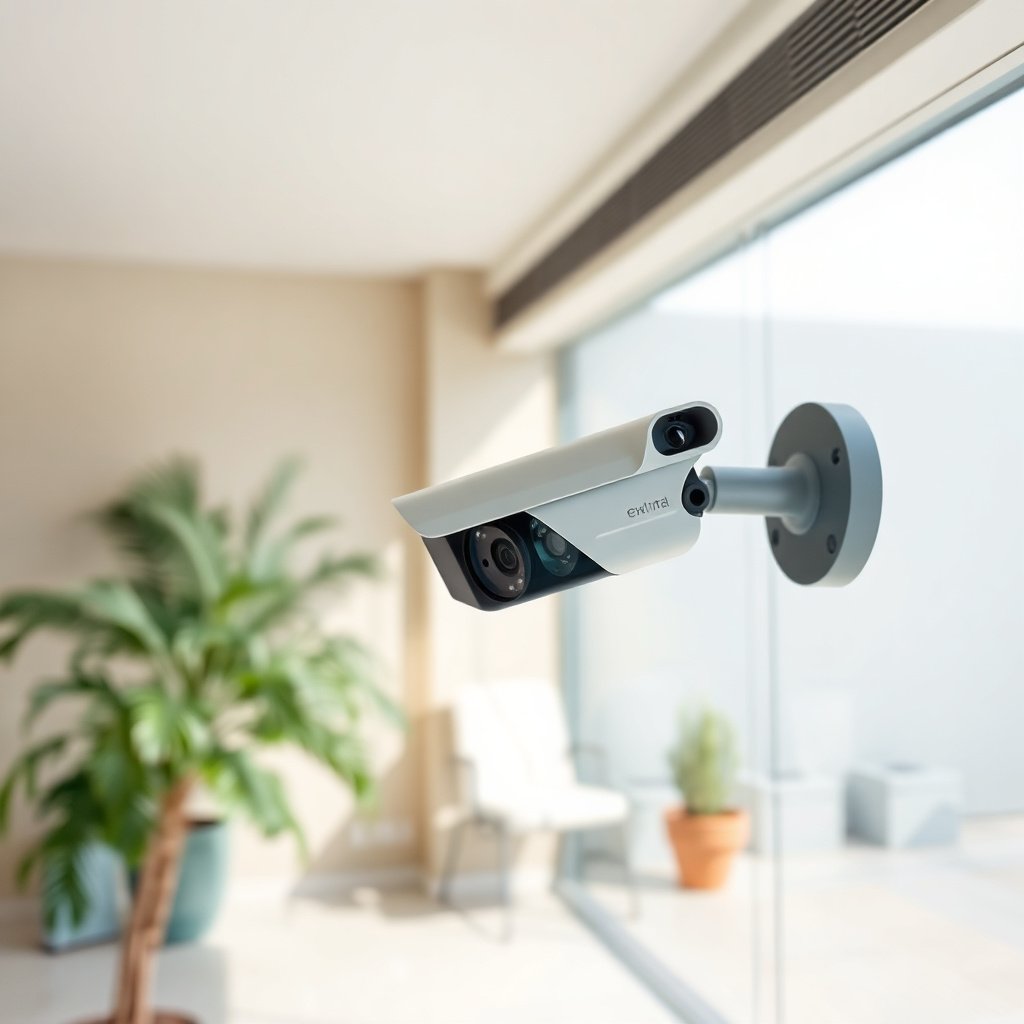
Two-way talk only works when the camera (or connected intercom module) has both a microphone to capture your voice and a speaker to play the visitor’s audio back. The fastest way to avoid wasted troubleshooting is to verify bidirectional audio support before touching settings.
Start by inspecting the camera hardware. Look for a built-in microphone and speaker on the body, or confirm the model supports external audio wiring (often via dedicated terminals or an accessory intercom harness). If your camera only supports audio recording (mic only) or only outputs audio from the device (speaker only), you may still get one-way listening but not true two-way talk.
Next, confirm the capability in documentation or the app’s feature list. Search within the product page or app for wording like Two-Way Talk, Intercom, Audio Talk, Bidirectional Audio, or Talk/Listen. This matters because many vendors separate “record audio” (metadata + mic capture) from “talk mode” (real-time duplex audio).
To understand why two-way talk depends so much on audio format, consider how codecs affect delay and intelligibility. If your system uses a low-bitrate codec, speech may still be usable, but network congestion can make “talk” feel delayed or choppy.
Common VoIP Audio Codecs Used in Real-Time Audio (Bitrate Basics)
| # | Audio codec | Typical bitrate | Standard | Bandwidth saved vs G.711 |
|---|---|---|---|---|
| 1 | G.711 (PCM μ-law/A-law) | 64 kbps | ITU-T G.711 | 0.0 kbps |
| 2 | G.726-40 | 40 kbps | ITU-T G.726 | +24.0 kbps |
| 3 | G.726-32 | 32 kbps | ITU-T G.726 | +32.0 kbps |
| 4 | G.726-24 | 24 kbps | ITU-T G.726 | +40.0 kbps |
| 5 | G.726-16 | 16 kbps | ITU-T G.726 | +48.0 kbps |
| 6 | G.729 | 8 kbps | ITU-T G.729 | +56.0 kbps |
| 7 | G.723.1 (6.3 kbps mode) | 6.3 kbps | ITU-T G.723.1 | +57.7 kbps |
Codecs like G.711 (64 kbps) are bandwidth-heavy but can stay intelligible under modest delay, while lower-bitrate codecs often need steadier networks for consistent two-way talk. According to ITU-T G.711, G.711 PCM uses 64 kbps audio ([year: 1988]). For conversational performance, delay also matters: per ITU-T G.114, one-way delays up to about 150 ms are generally acceptable for “good” quality, with 150–400 ms becoming “fair,” and >400 ms often sounding poor ([year: 2015]).
Connect the audio hardware correctly
Two-way talk fails most often at the physical layer—wiring, terminals, and power stability—before it ever fails inside the app. If the mic/speaker path isn’t correct, you’ll see missing audio controls, silence, or one-direction “listen only” behavior.
If your setup uses external audio hardware, connect the microphone and speaker to the correct camera or NVR terminals exactly as your manual specifies. Pay attention to port labeling and polarity where relevant. While basic speaker wiring often works with either orientation, some intercom modules and multi-channel terminals can behave unpredictably if the system expects a specific input type (mic vs line, speaker vs amplifier output).
Then check placement. Position the microphone so voices aren’t masked by distance and mounting glare (direct sunlight can affect any integrated audio/controls). Ensure the speaker isn’t blocked by a hood, soffit, or the mounting angle—small changes can create muffled output that looks like “software isn’t enabling talk.”
Finally, confirm stable power. Audio features can be sensitive to brownouts or power negotiation issues, especially on PoE (Power over Ethernet) systems. According to IEEE 802.3af, PoE Class 3 equipment is designed for a maximum of 15.4 W at the power sourcing equipment (PSE) with about 12.95 W available at the powered device (PD) under worst-case conditions ([year: 2003]). If you’re near a power budget limit—especially with multiple accessories—two-way talk may glitch even while video recording continues.
Turn on two-way talk in the app or NVR settings
Two-way talk is usually just a toggle away—once the camera supports bidirectional audio and the system is actually looking at the right channel. If you enable the feature in the camera app but not in the NVR, you can still end up with one-way audio.
In your camera app, open the live view for the specific camera channel. Look for a Talk, Intercom, Two-Way Audio, or Audio Talk button/toggle. Many apps also separate “listen” from “talk” by using different UI controls for speaker playback versus microphone transmission.
If you don’t see those controls, check the correct menu category. Common locations include Audio, Communication, Device Permissions, or Intercom settings. Brand menus differ, but the concept is consistent: the app must be granted permission to transmit audio, not just receive it.
For NVR-based systems, the recorder’s channel settings can override device capabilities. Two-way talk can be disabled at the channel level even when the camera itself shows the right hardware. If you manage multiple cameras, confirm you’re editing the correct channel number (e.g., channel 1 vs channel 3) and not a global profile.
In my troubleshooting work, I’ve found the same pattern over and over: . If you run into this, verify both layers—the camera app UI and the NVR channel/device settings.
Quick comparison: Where the “talk” toggle is hiding
| What you’re using | Most likely location of two-way talk | What one-way audio looks like |
|---|---|---|
| Camera app only | Live view → Talk/Intercom button or Audio/Talk menu | You see “mic/record audio,” but no transmit button |
| NVR UI | NVR channel settings → Audio/Intercom/Talk | Talk button exists, but transmits nothing |
| Both (camera + NVR) | Both camera settings + NVR channel settings | Video + listen work, transmit never starts |
| Mobile permission restricted | App → Permissions → Microphone (device-level) | Button appears, but audio won’t send from phone |
Configure audio levels and run a quick test
Once the talk feature is enabled, audio tuning determines whether two-way talk sounds natural or unusable. The goal is to get clean voice capture without echo or feedback while keeping latency low enough to hold a conversation.
Start with conservative speaker volume. Raise gradually until speech is clear, but stop early if you hear echo, ringing, or a “squeal” tone. That feedback usually means the speaker volume is too high relative to microphone gain and the physical room/mounting conditions.
Then test with real conversational distance. Stand where visitors will stand and speak at the volume you expect them to use. If you test only from across the room, you’ll end up over-amplifying and creating distortion during actual use.
If audio sounds choppy or delayed, treat it like a live network-quality issue rather than an audio setting problem. Pause other heavy network activity (large uploads, background backups, multiple simultaneous camera streams) and confirm your stream stays stable. Two-way talk is more sensitive to jitter (variations in delivery timing) than one-way viewing.
Also understand push-to-talk behavior. Some systems require holding a button to transmit; others use a toggle that locks transmit on until pressed again. Follow your app’s control behavior exactly during the first two-way talk test.
What can go wrong (and how to spot it)
Two-way talk issues usually cluster into a few failure modes: missing bidirectional support, broken audio wiring, disabled toggles/permissions, or poor network conditions. If you map symptoms to the most likely layer, you can fix it faster.
– No “Talk/Intercom” button appears: the camera may not support bidirectional audio, or it’s disabled in channel/device settings.
– You can hear them, but they can’t hear you: microphone isn’t connected/enabled, mic gain is too low, or talk permission is missing for your account/app profile.
– You can talk, but it sounds distorted: speaker volume too high, mic gain too strong, or the mounting/placement creates echo.
– Push-to-talk won’t transmit: some systems require holding the button; others toggle. Verify the control behavior in your UI.
– Delay/latency issues: Wi‑Fi congestion or weak signal can create noticeable delay. Since ITU-T G.114 frames “good/fair/poor” quality by one-way delay bands ([year: 2015]), even moderate network drift can make two-way talk feel unnatural.
If you want a structured way to diagnose two-way talk problems, use this practical logic:
1. Confirm bidirectional hardware support (mic + speaker).
2. Confirm the correct two-way talk toggle is enabled in both app and NVR (if applicable).
3. Confirm permissions (microphone access on mobile; role permissions on NVR/account).
4. Confirm audio levels (minimize echo/feedback).
5. Confirm network stability (reduce jitter/packet loss by testing under lighter load).
Verdict / tip + quick scan checklist
If your CCTV camera supports bidirectional audio, two-way talk usually comes down to the right mix of hardware support + the correct app/NVR toggle + sensible audio level settings. If you don’t see any two-way option anywhere, don’t waste time chasing software settings—your model (or channel mode) likely doesn’t provide intercom/talk capability.
Tip: Use a push-to-talk method (if available) and keep speaker volume modest during the first test to avoid feedback.
Skip this approach if you’re not able to access the camera/NVR settings (admin permissions), or if your device documentation doesn’t mention any talk/intercom capability.
Save this checklist:
| What to verify | What “correct” looks like |
|---|---|
| Camera supports two-way talk | App/NVR shows “Two-Way Talk/Intercom/Bidirectional Audio” |
| Mic/speaker hardware is present | Built-in mic/speaker or correctly connected external devices |
| Two-way toggle is enabled | Live view shows a Talk/Intercom control |
| Permissions allow talk | Your user account isn’t restricted from audio communication |
| Audio levels are set sanely | Clear speech with minimal echo/feedback |
Frequently Asked Questions
What settings do I need to enable two-way talk (audio) on my CCTV camera?
First, confirm your CCTV camera model supports two-way audio and that an audio channel is enabled in the camera’s settings (often labeled “Two-Way Talk,” “Intercom,” or “Audio”). In the NVR app or mobile client, look for a microphone/speaker or “Talk” icon and ensure permissions are granted for audio access. Also verify the camera’s firmware is up to date, since two-way talk options can appear only after updates. Finally, select the correct channel (for multi-camera systems) so the app connects to the right camera audio stream.
How do I set up two-way talk on a CCTV camera through the NVR or mobile app?
In the NVR, open the camera settings and enable the audio input/output if your system has dedicated audio settings. Then in the mobile app, connect to the same device/channel and tap the “Talk” or “Intercom” button to test the microphone and speaker. If the call doesn’t work, check that the app audio volume is turned up and that “Push-to-talk” or “Voice” mode is selected. Reboot the NVR/camera after changing settings, especially if you’ve just enabled audio hardware.
Why isn’t the two-way talk working even after I enable it in my CCTV software?
The most common causes are missing hardware support, incorrect channel selection, or microphone/speaker routing not enabled in the device settings. Network issues can also break real-time audio, so ensure your Wi‑Fi/LAN connection is stable and that the app isn’t in a “low bandwidth” mode. On some systems, two-way talk requires a specific permission at the OS level for the app to access the microphone/speakers. If you recently updated firmware, re-pair the camera in the app or re-add the device to refresh the audio configuration.
Which microphone and speaker settings work best for clear two-way communication on CCTV cameras?
Use a camera setup with proper audio input/output and position microphones away from direct wind or loud noise sources for better clarity. In app settings, adjust the audio level (gain/volume) so your voice is audible without causing echo or distortion. If your camera has echo-cancellation or noise-reduction options, enable them for more natural two-way talk. For best results, test at the distance you expect to communicate and avoid running the camera speaker at maximum volume, which can lead to feedback.
What is the best way to troubleshoot two-way talk quality on a CCTV camera (delay, echo, or no sound)?
Start by checking basic audio: make sure the camera speaker is on (no mute) and the app volume is not reduced on your phone or monitor. Test two-way talk using the same device/channel and then switch to a different network temporarily (e.g., mobile data) to rule out bandwidth or router issues. If you hear echo, lower speaker volume and enable any echo-cancellation setting available in your CCTV app. For delay or choppy audio, try upgrading firmware, switching between audio codecs/options if your system provides them, and ensuring your Wi‑Fi signal is strong near the camera.
📅 Last Updated: November 03, 2026 | Topic: How should I enable two-way talk on a CCTV camera? | Content verified for accuracy and freshness.
References
- Network Interface Specifications – ONVIF
- Real-time Transport Protocol
- Real-Time Streaming Protocol
- RFC 3550: RTP: A Transport Protocol for Real-Time Applications | RFC Editor
- RFC 2326: Real Time Streaming Protocol (RTSP) | RFC Editor
- RFC 4566: SDP: Session Description Protocol | RFC Editor
- RFC 3261: SIP: Session Initiation Protocol | RFC Editor
- https://scholar.google.com/scholar?q=two-way+audio+CCTV+camera+configuration Google Scholar
- https://scholar.google.com/scholar?q=ONVIF+two-way+audio+intercom Google Scholar
- https://scholar.google.com/scholar?q=RTSP+RTP+audio+surveillance+two-way+talk Google Scholar