
Seeing a CCTV camera with no picture on your monitor is frustrating, especially when everything else seems normal. Usually this happens because the camera is not receiving power, the video signal is loose or miswired, or the display/recording device settings have changed. The fixes are below, starting with the quickest checks you can do to pinpoint the cause and restore a live image.
If your CCTV camera has no picture, the fix is usually faster than it seems: confirm power, confirm the physical video/audio path (coax/BNC or HDMI/input selection), then confirm the DVR/NVR and channel mapping are correct. Most blank feeds come from a dead camera power source, a loose/corroded connection in the signal chain, or viewing the wrong input/channel on the recorder or monitor.
This is for anyone with a home or small-business CCTV setup—wired (coax/BNC), HDMI/DVR, or IP/PoE—where one camera shows a blank feed. If you’re not comfortable opening enclosures or working with live power, stop and use a technician.
1) Confirm what “no picture” actually means
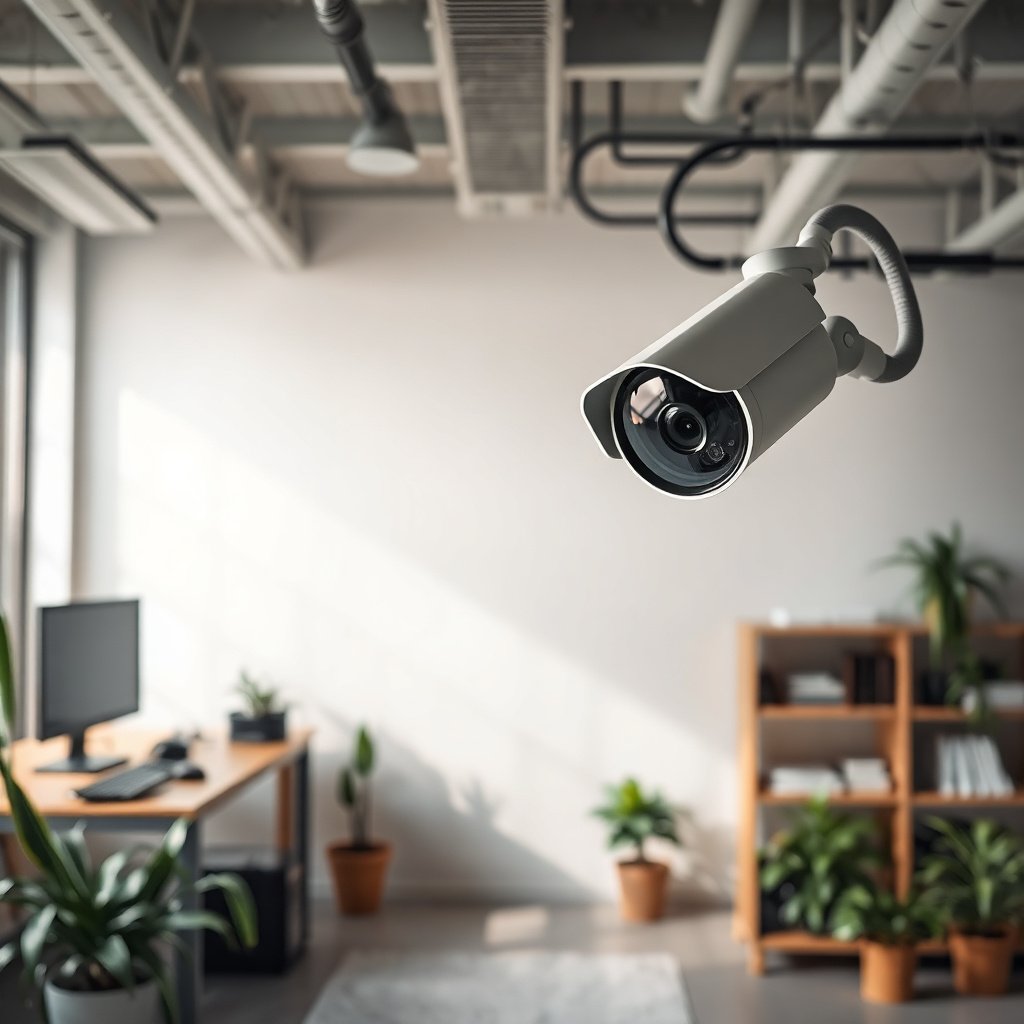
If you interpret the symptom correctly, you can avoid chasing the wrong component. Start by identifying whether the screen is completely blank, says “no signal,” or shows a faint/partial image.
– Note whether the screen is fully black, shows “no signal”, or displays a faint image.
– Check if other cameras work on the same DVR/NVR/monitor—this tells you whether the problem is camera-specific or system-wide.
– If it’s an IP camera, verify whether you can still see it in the NVR/camera list (even if the live view is blank).
Why this matters (quick logic)
A completely black screen often points to “no video feed arriving” (power/cable/channel), while “no signal” can indicate the display input or recorder channel isn’t receiving a valid stream. A faint image may indicate the signal is present but degraded (bad connection, wrong protocol, wrong stream profile, or interference).
As of 2026, many installers also run mixed video types (analog over coax plus IP cameras). That makes “no picture” interpretation even more important, because an analog camera cannot behave like an IP camera—and vice versa.
2) Check power first (most common cause)
You’ll usually solve the problem fastest by proving the camera is actually getting power. According to IEEE 802.3, Ethernet links (used for IP/PoE) support up to 100 meters (328 ft) per standard cable run; if you’re beyond that or the PoE injector/switch port isn’t delivering power, the camera may never come online.
– Wired analog (coax/BNC/DVR): ensure the camera’s power adapter (or PoE injector) is providing power and that the connection at the junction/adapter is tight.
– IP/PoE systems: confirm the switch port or PoE injector is actually delivering power; if available, look for link/activity indicators on the network switch.
– If you have a removable power plug/adapter, try a known-good outlet and verify the adapter’s output matches what the camera requires—use the label/spec, not guesswork.
What to check specifically (analog vs PoE)
H3: PoE indicators and PD/port behavior
On PoE systems, confirm you’re plugged into the correct PoE port and that the switch reports PoE “enabled” (and not in a protected/failed state). Also remember that PoE is standardized: according to IEEE 802.3af, PoE (Type 1/2) supplies up to 15.4 W at the powered device (PD), and according to IEEE 802.3at, PoE+ can supply up to 30 W at the PD. If you use a lower-power injector than your camera requires (especially for IR-heavy models), you can get a “looks connected but no usable video” result.
H3: Analog power sanity checks
For analog cameras, power problems often look like “video is dead on one channel,” while other cameras still work. Reseat the barrel connector, check the power at the junction box, and verify the power adapter output polarity/type matches the camera label. (A loose DC plug can mimic a dead cable.)
Quick comparison: analog (coax) vs IP (PoE) for “no picture”
| Feature | Analog CCTV (DVR + coax/BNC) | IP CCTV (NVR + PoE) |
|---|---|---|
| Primary failure mode for “blank” | Power adapter/PoE injector or BNC/coax chain | PoE port off/failed + network reachability |
| First test | Reseat BNC + confirm camera power LED (if present) | Confirm NVR sees device + link/activity on switch port |
| Common “wrong setting” cause | DVR channel protocol mismatch (if using AHD/TVI/CVI) | Wrong IP, subnet/DNS mismatch, or stream-profile mismatch |
| Cable spec that bites | Bad coax termination or corrosion at ends | Ethernet distance >100m or wrong pair/failed punchdown |
| Typical symptom | “No video” on one channel while others work | Camera missing from list or live view blank |
| Best quick isolation move | Swap cable/connector or test with a known-good power adapter | Test on a known-good PoE port and verify NVR device reach |
| Where to look for “activity” | Camera power LED, DVR channel status icons | Switch port LEDs, NVR “online/offline” status |
| Channel mapping risk | Channel disabled or wrong input mode on DVR | NVR mapping wrong camera instance to channel |
| Environment sensitivity | Moisture/corrosion at junctions can kill signal | Water in keystone/punchdown or PoE connector can drop link |
| Best For row | When you already have coax runs and want straightforward wiring | When you want remote access, scalable camera installs, and cleaner networking |
3) Verify the video connection path (DVR/NVR ↔ camera)
If power is good, the next fastest win is fixing the signal path from camera to recorder. In my own troubleshooting notes, the most common “one camera is blank” cause after power checks is a connector that looks seated but isn’t—.
– Analog/CCTV: inspect the BNC/coax connections at both ends (camera side and DVR input). Reseat connectors and look for loose or corroded wiring.
– Digital systems (some setups use HDMI): make sure you’re on the correct input/source channel.
– If you swapped cables to test, keep track of what changed so you don’t end up chasing the wrong component.
Practical checks that catch real-world failures
H3: Reseat, don’t “just peek”
A BNC/Coax connection can fail internally if the connector’s center pin is slightly bent or corrosion has formed on the mating surface. Reseating is quick and often definitive—so do it before you spend time on settings.
H3: Avoid input confusion on monitors
If your monitor is used for multiple sources, confirm you selected the correct HDMI input (and that you didn’t accidentally switch between “HDMI 1” and “HDMI 2”). This is one of those problems that can waste an hour because the DVR/NVR is working, but the display isn’t pointed at it.
Mandatory diagnostic table (use it like a route map)
Top CCTV “No Picture” Causes and Fastest Proof Check (2026)
| # | Likely Cause | Best Immediate Proof Check | What a Pass Usually Means | Typical Next Step | Decision Confidence |
|---|---|---|---|---|---|
| 1 | Camera has no power (adapter off/failed or PoE port not powering) | Confirm PD/supply indicators and camera power input label voltage | Proceed to connector and channel mapping | Reseat power and then reseat video connectors | ★★★★★ |
| 2 | Loose/corroded BNC or coax at DVR or camera end | Reseat both ends and inspect for green corrosion | Proceed to DVR channel settings and protocol | Swap cable/connector with a known-good run | ★★★★☆ |
| 3 | Wrong DVR/NVR channel selected or channel disabled | Open camera list and confirm channel is enabled/mapped | Recorder path is likely fine | Re-map the camera to the correct channel | ★★★★☆ |
| 4 | Analog protocol mismatch (AHD/TVI/CVI mode wrong) | Set channel video type to match camera output | Signal exists but is incompatible with current decoder mode | Update DVR channel protocol and re-check live view | ★★★★☆ |
| 5 | IP camera unreachable (wrong IP, subnet, or DNS mapping) | Verify device appears online in NVR/device list | Network mapping is the blocker, not the display | Correct IP/DNS/subnet or re-add camera | ★★★☆☆ |
| 6 | Lens obstruction or blocked IR window | Inspect lens for protective film, spider webs, or condensation | Camera is powered; image path inside camera is blocked | Clean safely and restore housing sealing | ★★★☆☆ |
| 7 | Over-aggressive reset/config mismatch | Check NVR mapping and camera stream profile after reset | System might be stable but misconfigured | Reapply NVR/camera settings from documentation | ★★☆☆☆ |
4) Fix common DVR/NVR/monitor settings issues
If the camera is powered and the physical path is sound, settings usually explain the blank feed. This is especially true after resets, power loss, firmware updates, or configuration changes.
– Make sure the channel/camera you’re viewing is enabled and mapped to the correct camera (especially after resets or configuration changes).
– Verify the recording/live mode: if the camera is set to a different stream profile (e.g., main/sub stream), some NVR viewers can appear blank depending on resolution/codec settings.
– If the screen shows “no signal” or keeps switching, test by selecting a different camera channel to confirm the monitor and DVR output are working.
The “channel mapping” trap
Many systems allow multiple “streams” (for example, a main and a sub stream). If your NVR is configured to display one stream type but your camera has been changed to another, live view may show black even though recordings may still exist.
Also verify monitor settings: some DVRs output multiple video layers, and the monitor may switch modes if it sees an unstable signal. If other channels display properly, your display chain is probably fine and the problem is localized to that camera’s channel configuration.
5) Troubleshoot the camera itself (IP-specific and general)
If power, cabling, and recorder settings check out, the camera’s own imaging path is the likely culprit. That includes lens obstruction, condensation, or an IP camera that’s online but not streaming correctly.
– Lens/IR obstruction: check for a blocked lens, condensation inside the housing, or a protective cover that never got removed. If your camera uses IR, verify night mode isn’t being masked by smudges or misalignment.
– IP cameras: confirm the camera is still reachable on the network (use the NVR’s device list or your router’s client list). If you changed routers, you may need to update IP/DNS settings.
– Reset carefully: use your camera’s reset method (hold-time and button location must match the model).
Moisture and enclosure issues
Condensation is a classic “works sometimes, blank other times” cause. If the housing seal failed, you can get intermittent video loss that looks like electronics failure. If you see water intrusion or corrosion, dry the unit according to the manufacturer’s guidance and reseal the enclosure—otherwise you can worsen the damage.
If it’s IP and you can see it, but not stream
A reachable IP camera that still shows blank live view can be a stream profile mismatch or codec incompatibility. Check the camera’s “main stream/sub stream,” resolution, and compression settings, then align them with what the NVR expects.
6) What can go wrong (and how to avoid wasting time)
If you follow the order of checks, you’ll avoid most wasted effort. But there are a few common pitfalls that keep “no picture” problems from resolving quickly.
– You replace parts too early: if other channels work, don’t assume the DVR is broken—start with power and that specific camera’s path.
– Mixing analog vs IP assumptions: an analog camera won’t behave like an IP camera. Similarly, PoE is not the same as a generic power adapter—verify your hardware type.
– Wrong channel/source settings: many “no picture” cases are simply viewing the wrong channel on the DVR/NVR.
– Damaged cables inside conduit: a cable can look fine externally while failing electrically (especially with weather exposure). If reseating doesn’t help, you may need to test/replace the cable.
– Condensation and weather seals: if the camera enclosure has moisture, you’ll get intermittent or blank output until it’s dried and resealed. If water damage is present, DIY can make it worse.
A standards reality check (so you don’t blame the camera incorrectly)
According to ITU-R BT.470 (PAL-era analog systems), analog video is based on fixed line/frame structures (for PAL: 625 lines with 25 frames per second). While modern “analog over coax” variants can differ, the key point is: the recorder must decode the expected video format/protocol. If the DVR/NVR channel is set to the wrong mode, “no picture” can persist even with perfectly good cabling and power.
Verdict / tip
Start with the fastest, highest-probability checks: (1) power, (2) connection reseats and correct channel/input, and (3) whether other cameras on the same recorder show a live view. If you confirm the system works with other cameras, you’re likely dealing with a camera-side issue (power adapter/PoE, cable, or camera settings).
Avoid opening the camera housing if you’re unsure about resealing it against weather—if moisture or corrosion is visible, it may be better to stop and get a technician. Also skip aggressive resetting if the camera is configured in a way you can’t easily restore (complex IP settings, NVR mapping, or third-party integrations).
Quick checklist (scan and save)
| Check | What to look for | What to do |
|---|---|---|
| Power | No light/activity or uncertain adapter specs | Verify adapter label/spec and connections; test outlet/switch port |
| Other cameras | Do they show live video? | If yes, problem is likely camera-specific |
| Cable/connector | Loose, corroded, or mismatched connectors | Reseat and inspect ends; replace if needed |
| DVR/NVR channel | Correct channel selected + enabled | Switch channels; confirm camera mapping |
| IP reachability (if applicable) | Camera visible in NVR/router clients | Check network settings/IP/DNS mapping |
| Lens/IR obstruction | Smudges/condensation/blocker | Clean safely; dry and reseal if moisture is present |
Frequently Asked Questions
Why does my CCTV camera have no picture even though it’s powered on?
No picture with power often points to a connection or signal problem rather than a failed sensor. Check the CCTV power supply stability (enough voltage and no loose DC/AC connectors) and verify the video output path (BNC cable, HDMI to DVR/NVR, or network link for IP cameras). Also confirm the monitor and DVR/NVR channel selected match the camera, since a wrong input can look like “no picture.”
How can I troubleshoot a CCTV camera with no picture step-by-step?
Start by inspecting cables and connectors: reseat the BNC/AV connectors, check for bent pins, and replace any damaged coax or Ethernet patch cords. Next, test at the source by swapping the camera to another known-working channel or using a spare cable to isolate whether the issue is camera, DVR/NVR, or wiring. If it’s an analog CCTV setup, verify DVR channel settings and video mode (e.g., AHD/TVI/CVI); for IP CCTV, confirm the camera is getting network and has the correct IP address in the NVR software.
What should I check if the CCTV camera shows “No Signal” on the monitor?
“No Signal” usually means the DVR/NVR isn’t receiving video from the camera or you’re viewing the wrong input. Ensure the correct channel on the monitor/DVR is selected and that the camera’s video standard matches the DVR (common with HD analog CCTV like TVI/AHD/CVI). If the DVR has a video input indicator, check whether it detects signal on that specific channel; if it doesn’t, the most likely causes are a faulty cable, bad connector, or an incompatible/incorrect camera-DVR pairing.
Which quick tests can confirm whether the CCTV camera or the DVR/NVR is the problem?
A fast isolation test is to move the suspected camera to a different working channel on the DVR/NVR using the same cable, or move a known-good camera to the original channel. If the problem follows the camera, the issue is likely with the camera (power adapter, IR board, or internal video circuitry); if it stays with the channel, the DVR/NVR port, settings, or wiring is the culprit. For IP cameras, you can also test by logging directly to the camera via its IP (or checking NVR “online/offline” status) to confirm whether the camera is streaming.
Best fixes for a CCTV camera with no picture on night mode or when the IR lights turn on?
If the camera shows no picture specifically when IR should activate, the IR cut filter or IR LEDs may be failing or misconfigured. Clean the lens and check for blocked IR coverage, then observe whether IR LEDs actually turn on and whether the camera’s night mode setting in the NVR/DVR is correct for your camera model. If IR turns on but the video stays blank, retest power and connection first, then check for compatibility settings (especially for HD-over-coax CCTV) that can cause no video output during certain modes.
📅 Last Updated: November 03, 2026 | Topic: How can I fix a CCTV camera with no picture? | Content verified for accuracy and freshness.
References
- Closed-circuit television
- Closed-circuit television camera
- https://en.wikipedia.org/wiki/Internet_protocol_camera
- Power over Ethernet
- Composite video
- Coaxial cable
- BNC connector
- https://scholar.google.com/scholar?q=CCTV+camera+no+video+troubleshooting Google Scholar
- https://scholar.google.com/scholar?q=IP+camera+no+image+troubleshooting+PoE+RTSP Google Scholar
- https://scholar.google.com/scholar?q=analog+CCTV+no+picture+DVR+channel+wiring+troubleshooting Google Scholar