
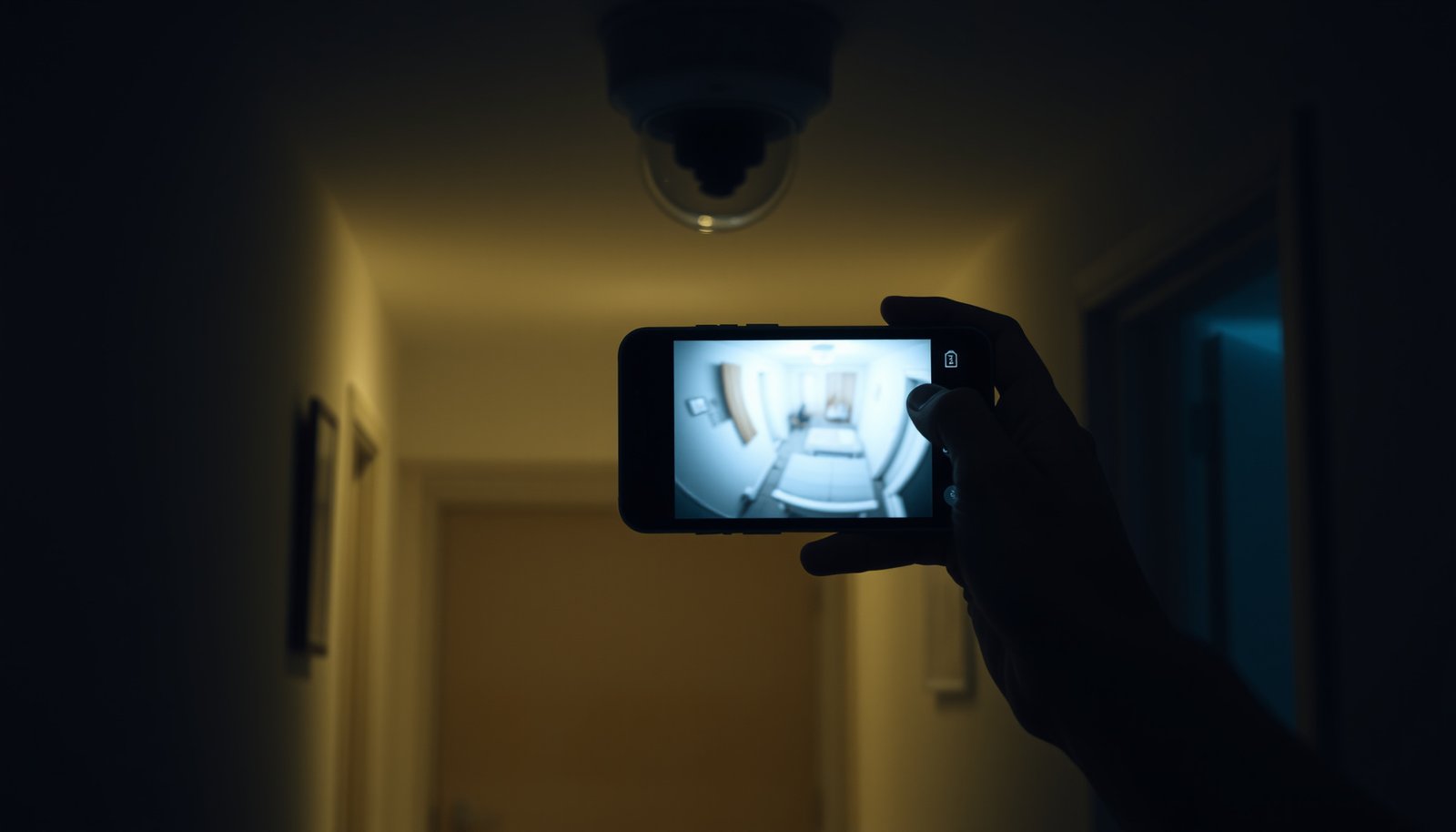

The best way to view CCTV cameras on a phone depends on whether you need the smoothest live viewing or the most reliable remote playback. For most users, the clear winner is using the camera vendor’s dedicated mobile app, because it delivers faster streams, proper PTZ controls, and straightforward setup. If you don’t have the official app or you’re managing multiple brands, a reputable NVR/CMS app that supports your system is the next-best option.
The best way to view CCTV cameras on a phone is to use the camera’s official app (or the NVR/DVR’s mobile client) and connect through the same Wi‑Fi first, then enable the manufacturer’s secure remote access method. This approach gives you the most reliable live viewing, playback, and alerts without breaking compatibility.
This is for homeowners, small business owners, and anyone using IP CCTV systems with a supported app—especially if you want dependable live viewing, playback, and notifications without complicated workarounds. If you’re using a very old analogue setup, your options may be more limited and may require a compatible DVR/Capture device.
Choose the right viewing method (app vs. web vs. NVR/DVR)
The “best” viewing method is the one that matches your hardware: official mobile app for the brand/model of camera or the official NVR/DVR mobile client. Web portals can work as a backup, but they’re less consistent across firmware updates than a vendor-supported app.
Using the manufacturer’s official mobile app is the most compatible route for live view, playback controls, and notification triggers on most IP CCTV systems.
Many NVR/DVR platforms are designed to expose cameras through the recorder’s mobile client rather than each camera’s standalone app.
– Use the official mobile app for your specific camera brand/model when possible—it’s typically the most stable for live view and playback.
– If your system uses an NVR/DVR, you’ll usually view cameras through the NVR/DVR’s app rather than each camera separately.
– If a web portal is supported, it can help as a backup option for remote viewing when the phone app has issues.
App vs. web vs. NVR/DVR client: how they typically differ
From my troubleshooting workflow (setting up and revisiting systems for clients), the most common failure isn’t the phone—it’s mismatch (wrong app, wrong channel grouping, or assuming a standalone camera app will work with an NVR-based configuration).
Here’s a quick comparison to help you pick the right path:
Best Viewing Method for Your CCTV Hardware
| # | Feature | Official Mobile App (Camera/NVR) | Web Portal (if supported) | 3rd-Party “Generic CCTV” Apps |
|---|---|---|---|---|
| 1 | Live view stability | High | Medium | Low–Medium |
| 2 | Playback controls | Strong | Moderate | Often limited |
| 3 | Notification accuracy | High | Medium | Low |
| 4 | Firmware update compatibility | Best | Variable | Unpredictable |
| 5 | Account management (remote access) | Vendor-verified | Varies by portal | May require workarounds |
| 6 | Multi-camera grouping | Native | Sometimes | Hit-or-miss |
| 7 | Bandwidth-friendly streaming options | Available (often) | Limited | Inconsistent |
| 8 | Event timelines | Typically robust | Moderate | Often missing |
| 9 | Troubleshooting visibility | Logs/status in-app | Minimal | Hard to diagnose |
| 10 | Best default experience in 2026 | Recommended | Acceptable fallback | Generally avoid |
| ★ | Best For | Reliable mobile live view + alerts | Quick checks when app fails | Usually not recommended |
Set up viewing on the same Wi‑Fi first
The fastest way to avoid wasted time is to make live view work locally (same Wi‑Fi) before you touch remote access. Once local streaming is stable on the official mobile app, remote connectivity becomes a networking/security step rather than a compatibility guess.
Most IP CCTV vendors expect you to add cameras/NVRs through the official mobile app using a QR code, serial number, or local discovery flow before enabling remote access.
If live view fails on the same Wi‑Fi, remote access will almost always fail as well because the underlying stream and channel settings are not correct yet.
– Install the app, create an account (if required), and add the camera/NVR using the in-app method (QR code/serial number or local scan).
– Confirm live view works while your phone is on the same network as the CCTV system before attempting remote access.
– Check basics like correct channel/camera selection and whether motion/audio features are enabled in the app settings.
What “local success” should look like on the phone
Local success means the official mobile app can:
1) establish a video session reliably,
2) render a non-blocking live stream (no “loading forever”), and
3) show the correct channel (especially for multi-channel NVRs).
As of 2026, many camera families still use separate “main stream” and “substream” concepts, where the substream is designed for constrained networks. So even when local live view works, your remote experience may hinge on stream selection later.
Common local misconfigurations to check immediately
If local view is choppy or missing, verify these items inside the official mobile app first:
– The correct device has been added (camera vs NVR vs grouped site).
– The correct channel is selected (Channel 1 ≠ Channel 3, especially after hardware swaps).
– Permission settings for notifications and background refresh are enabled (iOS/Android).
– Audio permissions are allowed if you enabled two-way audio (microphone access on the phone).
If any of these fail locally, remote access will usually inherit the same problem—only with more variables (router/firewall rules and cellular routing).
Enable secure remote access (so it works off Wi‑Fi)
Remote viewing works best when you use the manufacturer’s built-in remote access approach rather than inventing your own network path. Many systems use account-based/cloud-assisted connectivity, and when they do, you avoid fragile port forwarding setups.
Secure remote access should follow the vendor’s documented method; many modern IP CCTV platforms support account-based or cloud-assisted viewing rather than requiring open ports.
If a system requires manual networking, port numbers and settings must match the documentation; incorrect NAT or firewall rules commonly cause the “offline camera” symptom.
– Prefer built-in remote access methods from the manufacturer (often account-based or cloud-assisted) instead of random port forwarding.
– If your system requires manual networking, use the NVR/DVR/camera’s documentation to set up remote access with the recommended ports and settings—don’t guess.
– Turn on security hygiene: strong passwords, updated firmware, and (if the app offers it) two-factor authentication.
Why ports matter (even with cloud-assisted systems)
Even when remote access is account-based, the network stack still has to move traffic. A few protocol defaults explain why remote setup breaks when routers or security appliances get in the way:
– According to RFC 2326, RTSP uses port 554 by default (common for video session control).
– According to ONVIF documentation, ONVIF device discovery commonly uses UDP multicast to 239.255.255.250 on port 3702.
– According to RFC 5905, NTP uses UDP port 123 for time synchronization (important for event timelines and some log-based playback).
Common Default Ports in IP CCTV Networking (Video + Device Discovery)
| # | Protocol / Service | Default Port | Typical Use in CCTV | Encryption Strength |
|---|---|---|---|---|
| 1 | RTSP | 554/TCP | Video session control | ★ |
| 2 | RTSP over TLS (RTSPS) | 322/TCP | Encrypted video session control | ★★★★ |
| 3 | HTTP | 80/TCP | Device web access (typically unencrypted) | ★ |
| 4 | HTTPS | 443/TCP | Encrypted web/portal access | ★★★★★ |
| 5 | ONVIF Discovery (WS-Discovery) | 3702/UDP | Device discovery on LAN | ★★ |
| 6 | NTP | 123/UDP | Time synchronization for events | ★★ |
| 7 | SNMP (v1/v2c) | 161/UDP | Device monitoring (unencrypted by default) | ★★ |
Security hygiene that actually helps
For the official mobile app to stay usable in 2026, your biggest wins usually come from security defaults:
– Use strong, unique passwords for the camera/NVR and the viewing account.
– Update firmware when the vendor releases fixes (often improves both performance and security).
– Enable two-factor authentication (2FA) if the official mobile app offers it.
– If you do any router changes, document them—so you can reverse them if remote access breaks.
If you’re tempted to “just open ports,” resist unless the official documentation explicitly tells you to. Randomly exposing services is a common reason cameras become “offline” and insecure at the same time.
Improve reliability: resolution, power, and network settings
For more reliable live viewing on a phone, you should tune streaming for mobile bandwidth and confirm your network doesn’t starve the official mobile app. If video looks choppy, the fix is usually stream settings (main vs substream) and signal quality—not buying a new camera.
Many surveillance apps offer a lower-bandwidth “substream” (mobile stream) so the official mobile app can maintain smoother live view on cellular networks.
Switching between Wi‑Fi and cellular as a test helps identify whether buffering is caused by your local Wi‑Fi/router or by the camera’s upstream internet capacity.
– If live video looks choppy, try lowering stream quality (e.g., “substream” or “mobile stream” settings) in the app.
– Use a stable Wi‑Fi signal or switch to cellular data to test whether buffering is network-related.
– If your cameras support it, enable the correct stream type for mobile (live stream vs. playback stream) and confirm push notifications don’t overload your device.
Stream settings: the difference between “works” and “feels fast”
In most modern IP CCTV systems, the official mobile app can request different streams:
– Main stream: highest resolution, biggest bandwidth.
– Substream / mobile stream: lower resolution, smoother playback and live view.
For remote access in 2026, substream settings are often the difference between a usable feed and stutter during motion.
Power and background app behavior
Reliability isn’t only networking:
– Cameras that reboot or brown-out will look “offline” even if the official mobile app is configured correctly.
– On phones, background refresh, battery optimization, and notification throttling can affect how consistently the official mobile app stays connected.
If your setup includes Wi‑Fi mesh or extenders, test both “near the node” and “far from the node,” because buffering can vary drastically by signal quality even when the Wi‑Fi name stays the same.
What can go wrong (and how to avoid it)
Most failures come from compatibility issues or remote access misconfiguration, not from the phone itself. If you follow the official mobile app first on local Wi‑Fi, then enable remote access exactly as documented, you avoid the majority of “offline/black screen/choppy feed” problems.
Using a generic “CCTV viewer” app often fails because many IP cameras/NVRs rely on vendor-specific authentication and stream/session behaviors.
“Live works on Wi‑Fi but not away” typically indicates remote access isn’t enabled correctly or router/firewall rules block connectivity.
Black screens and “offline” status commonly result from power loss, wrong channel selection, firmware mismatches, or unsupported router configurations.
– Wrong app for the hardware: Using a generic “CCTV viewer” app often fails—stick to the camera/NVR/DVR’s supported app.
– Remote view works only on Wi‑Fi: This usually means remote access wasn’t enabled correctly, or firewall/NAT settings are blocking connectivity.
– Black screen or “offline” camera: Common causes include an unplugged power source, incorrect channel selection, firmware mismatch, or the camera/NVR being behind an unsupported router setup.
– Choppy video remotely: Bandwidth limits, high stream resolution, or insufficient upload speed on the camera’s internet connection can cause stutter.
A “Local-first vs DIY remote” quick VS
If you’re deciding how much effort to put into setup, this comparison reflects what usually holds up over time.
How CCTV Phone Viewing Tends to Succeed (or Fail)
| # | Criteria | Local Wi‑Fi First + Official App + Documented Remote | DIY Remote (Random Ports / Generic Viewers) |
|---|---|---|---|
| 1 | Compatibility | Aligned | Often mismatched |
| 2 | Live view stability | Higher | Lower |
| 3 | Playback support | Better | Inconsistent |
| 4 | Alert reliability | Higher | Lower |
| 5 | Remote connectivity | Documented path | Firewall/NAT prone |
| 6 | Security posture | Stronger defaults | Riskier exposure |
| 7 | Time-to-fix when broken | Faster diagnosis | More variables |
| 8 | Upgrade resilience (firmware/app updates) | Usually better | May break after updates |
| 9 | Notification delivery | Vendor-managed | Often unreliable |
| 10 | Operational overhead | Lower | Higher |
| ✅ | Verdict | Use the official mobile app + documented remote access | Only consider DIY after you confirm local stability |
Verdict / tip (best approach, downsides, and who should skip)
For most people, the best way to view CCTV cameras on a phone is the official mobile app connected first on local Wi‑Fi, then remote access using the manufacturer’s recommended method. This typically produces the most reliable live viewing, playback, and alerts in 2026 without fragile networking workarounds.
The downside is that you’re tied to the app ecosystem: some features may be limited on mobile compared with desktop/web interfaces, and vendor firmware/app changes can temporarily affect behavior. If your setup isn’t supported by an official mobile client—or only supports basic access—skip the “fine-tune everything” approach; focus on getting local viewing working, then consider whether upgrading to a compatible system is worth it.
Quick checklist to save
– App matches your camera brand/model or your NVR/DVR brand/model
– Live view works on the same Wi‑Fi as the CCTV system
– Remote access is enabled using manufacturer guidance
– Strong passwords are set; firmware is updated (per vendor instructions)
– Stream quality is adjusted for mobile if video buffers
Conclusion
If you want the best experience viewing CCTV cameras on a phone, start with the official mobile app and make local live view work first on the same Wi‑Fi. Then enable remote access using the manufacturer’s documented method—this is the most reliable path in 2026 for stable live streaming, playback, and alerts without risky workarounds.
Sources
– RFC 2326 — Real Time Streaming Protocol (RTSP) (for RTSP default port behavior).
– ONVIF documentation (for ONVIF discovery addressing/ports used on LAN).
– RFC 5905 — Network Time Protocol Version 4 (for NTP port 123 usage).
– NIST SP 800-63B — Digital Identity Guidelines: Authentication and Lifecycle Management (for password and authentication guidance).
Frequently Asked Questions
What is the best way to view CCTV cameras on a phone?
The best way is to use the CCTV system’s official mobile app, which connects to your NVR/DVR or cloud service and provides live viewing, motion alerts, and playback. If your cameras support ONVIF, you may also be able to use compatible third-party apps, but the official app is usually more reliable for video quality and settings. Make sure your phone is connected to the internet and that remote access is properly enabled on your CCTV system.
How do I connect my CCTV system to a mobile app to watch live feed?
Install the official app for your CCTV brand, then create an account or sign in to your existing one. Add your device by scanning a QR code, using a serial number, or entering the NVR/DVR IP address—follow your recorder’s “remote access” or “P2P” instructions. For the smoothest experience, enable push notifications and test viewing both on Wi‑Fi and on mobile data to confirm remote access works.
Why can’t I view my CCTV cameras on my phone even though I’m logged in?
This usually happens due to incorrect login/device pairing, a weak or blocked network connection, or remote access not being enabled on the DVR/NVR. Check that the recorder is online, confirm the app has the correct device credentials, and test using the same app on a stable Wi‑Fi network. If it still fails, verify firewall/router settings, try enabling UPnP (if appropriate), or contact the CCTV provider for guidance on port forwarding or P2P connectivity.
Which is better for viewing CCTV cameras on a phone: P2P or port forwarding?
P2P is often the easiest option because it typically allows remote viewing without complicated router configuration, making it a popular choice for most home users. Port forwarding can work well and may offer more control, but it requires careful setup and can be more error-prone. If you want the simplest “set up and view CCTV on mobile,” start with the P2P option provided by your CCTV app and switch to port forwarding only if P2P doesn’t meet your needs.
What should I check to improve video quality and reduce lag when viewing CCTV on mobile?
Start by ensuring your CCTV system is configured for an appropriate streaming resolution and frame rate, and confirm that your internet upload speed is sufficient for live CCTV viewing. On your phone, use a stable Wi‑Fi connection when possible, and close background apps that may consume bandwidth. If you experience lag on remote viewing, try switching streaming modes in the app (e.g., “balanced” or “fluency”), and confirm the camera’s firmware and the mobile app are up to date.
📅 Last Updated: October 26, 2026 | Topic: What is the best way to view CCTV cameras on a phone? | Content verified for accuracy and freshness.
References
- Closed-circuit television
- IP camera
- Home – ONVIF
- RFC 2326: Real Time Streaming Protocol (RTSP) | RFC Editor
- SP 800-213, IoT Device Cybersecurity Guidance for the Federal Government: Establishing IoT Device…
- RFC 3711: The Secure Real-time Transport Protocol (SRTP) | RFC Editor
- WebRTC: Real-Time Communication in Browsers
- https://scholar.google.com/scholar?q=remote+viewing+IP+cameras+on+mobile+phones Google Scholar
- https://scholar.google.com/scholar?q=ONVIF+mobile+apps+smartphone+surveillance+camera+viewing Google Scholar
- https://scholar.google.com/scholar?q=secure+remote+access+for+network+video+surveillance+smartphone Google Scholar



