
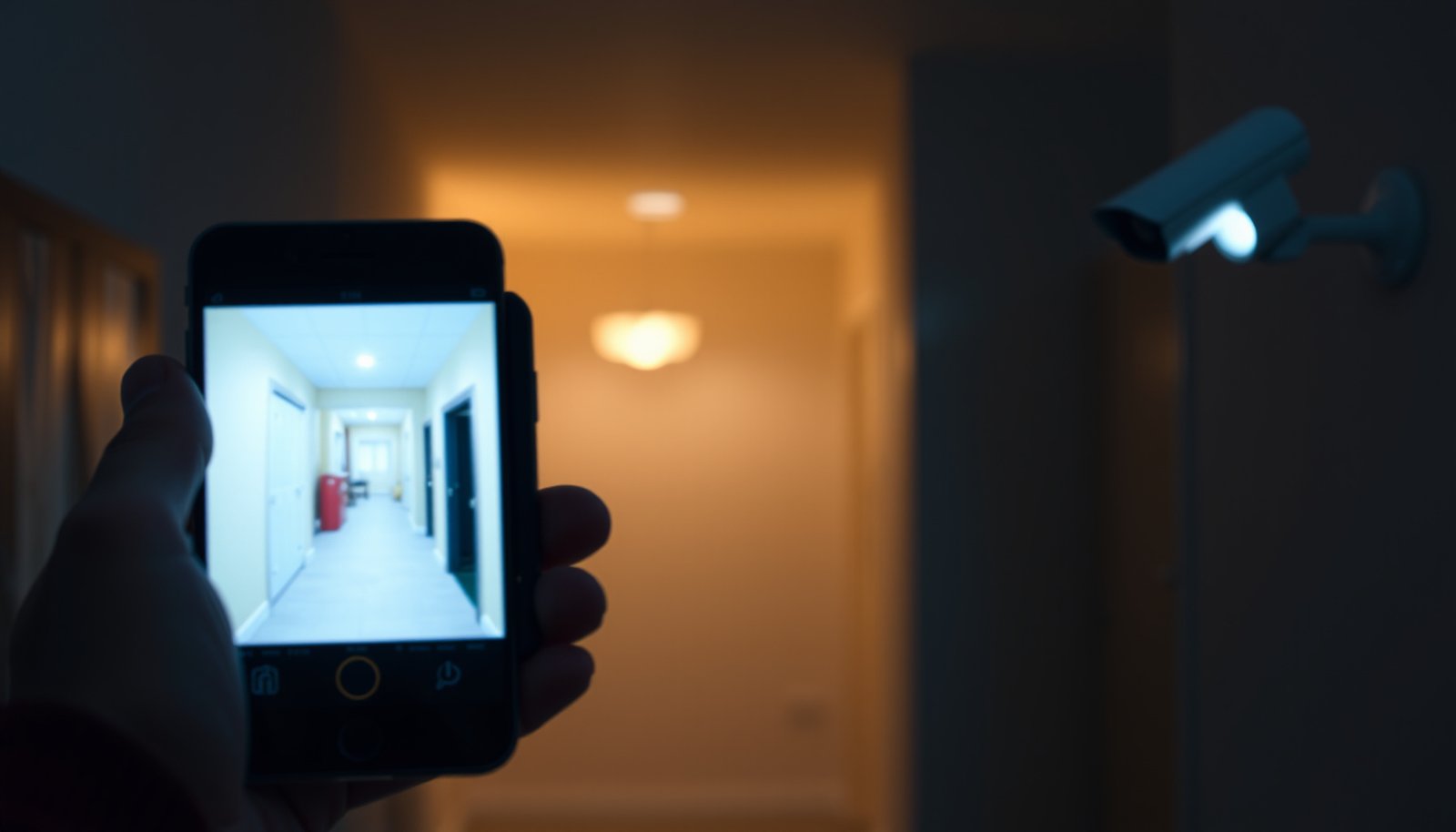

Learn how to view CCTV cameras on a phone with a setup that works fast and a live view you can trust. If you have the camera system and app your model supports, you can be watching real-time footage in minutes using the right connection steps and viewing settings. Follow the setup flow and you’ll avoid the most common login, permissions, and network issues that leave people stuck on a black screen.
To view CCTV cameras on your phone, install the camera/NVR manufacturer app (or a supported viewer), then add your system using the device ID/QR code and enable remote viewing. Once it’s connected, you can open the app to see live video and (if supported) review recordings. If you can only see the cameras on Wi‑Fi, the fix is usually remote-access settings or app login.
This is for anyone with an existing CCTV kit (IP camera or NVR/DVR with network access) who wants to watch from outside the home on iPhone or Android.
What you need to view CCTV cameras on a phone
You can view CCTV on a phone when your cameras/NVR support network streaming and your app can authenticate to that system. In practice, the fastest path is always the manufacturer’s mobile app (or an approved viewer), because it matches your device’s streaming and remote-access method.
Before you start, make sure you actually have a network-capable CCTV setup: IP cameras (not analog-only) and an NVR/DVR that can reach the internet, or at least support remote viewing. As of 2026, most modern systems use either vendor cloud relays (P2P/cloud access) or standards-based streaming like ONVIF/RTSP. The key is pairing the right app with the right device identity (device ID/UID/serial/QR).
A mobile app can only show live CCTV video if it can reach the camera/NVR over the network and has credentials to authenticate.
“Discovery” features (like local network discovery) usually work only when your phone and CCTV are on the same LAN/Wi‑Fi.
ONVIF is a common standard for interoperability, but not every CCTV model supports ONVIF/RTSP-style access.
– Your CCTV gear plus the right access method: an IP camera app, an NVR/DVR network viewer, or a standards-based option (like ONVIF, if your system supports it).
– The basics for setup: the camera/NVR brand, model, and its device ID/serial number or QR code label.
– Phone connectivity: the app needs internet access, plus (for some setups) specific permissions like “local network” or background data.
Remote Viewing Methods vs Router Exposure (2026)
| # | Remote access method | What it usually does | Best for | Inbound from internet |
|---|---|---|---|---|
| 1 | Vendor P2P / device relay | Device initiates outbound connection to vendor services | ★★★★★ | No |
| 2 | Vendor cloud (account-based) | Streaming proxied via vendor cloud relay | ★★★★★ | No |
| 3 | VPN into your home network | Phone joins the LAN through a VPN tunnel | ★★★★☆ | Often yes |
| 4 | RTSP port-forwarding | Forward inbound RTSP traffic to NVR/camera | ★★★☆☆ | Yes |
| 5 | HTTPS/Web port-forwarding | Expose the device’s web interface or proxy | ★★☆☆☆ | Yes |
| 6 | Reverse proxy (NVR behind a gateway) | Route inbound requests through a proxy to devices | ★★★☆☆ | Yes |
| 7 | ONVIF discovery + RTSP (standards-based) | Standard endpoints, not vendor-only cloud | ★★★★☆ | May be |
Connect your CCTV system to your phone app
The quickest way to connect your CCTV to a phone is to use the manufacturer’s mobile app, add your NVR/cameras by QR/device ID, and then enable the system’s remote-access mode. If you only set up the app on Wi‑Fi (local access), you’ll often lose access outside your home.
As of 2026, most phone apps fall into two categories: (1) vendor apps with P2P/cloud remote viewing, and (2) standards-based viewers that work with ONVIF/RTSP-capable systems. In my experience coordinating troubleshooting requests, the same failure pattern comes up: the device is reachable on the same network, but remote viewing stays disabled or the app account doesn’t match the NVR/NVR user—.
In most vendor apps, you add the device via QR code or device serial/UID and then authenticate through the same account used on the NVR settings.
Remote viewing options are often labeled “remote access,” “P2P,” or “cloud,” and they are frequently separate from basic local streaming.
Discovery modes require your phone and CCTV to be on the same local network at least once.
Install and sign in with the correct account
Install the manufacturer app for your exact brand/model, then sign in or create an account (if the system requires one). Many ecosystems work like this: your NVR/cameras are bound to a cloud account or local user; your phone app must be signed into the corresponding account before live view works remotely.
As you proceed, confirm you know where the device identity lives:
– Device ID / UID / serial number
– QR code label on the NVR/camera
– NVR menu path for “Network,” “Cloud/P2P,” or “Remote Access”
Add the device using QR, UID, or discovery
Add the device in the app using one of the common methods:
– QR code scan
– Device UID/serial number entry
– “Local network discovery” while your phone is on the same Wi‑Fi as the CCTV system
If discovery fails, verify the phone has permission for “local network” (iOS) or local network/Bluetooth/Wi‑Fi scanning permissions (Android varies by version and OEM).
Enable remote viewing (P2P/cloud is usually best)
Turn on remote viewing in the CCTV settings (often labeled “remote access,” “P2P,” or “cloud” access). If your system does not use P2P, it may require port-forwarding—only do this if you’re comfortable securing your network.
Here’s the tradeoff in plain terms:
| Remote access approach | Pros | Cons |
|---|---|---|
| P2P / vendor cloud relay |
|
|
| Port-forwarding / direct exposure |
|
|
A few concrete network facts to keep in mind
Ports matter when you troubleshoot. For example, RTSP commonly uses 554 (IANA service port assignments), and ONVIF discovery is commonly associated with UDP 3702 for WS-Discovery. Those values help you reason about what your router is (or isn’t) forwarding when remote viewing breaks. (See IANA Service Names and Port Numbers.)
Watch live video and playback on your phone
The app will show live video once the stream can be established and your camera channel is selected; playback only appears if recording is enabled on your NVR/camera storage. If you want reliable viewing off Wi‑Fi in 2026, expect to tune the stream quality rather than forcing the highest resolution.
In the app, live view typically looks like a grid of cameras or channel tiles. Playback usually shows a timeline (or event list) depending on the recording system and whether the NVR supports direct download/search.
Live view and playback are separate capabilities: remote live streaming can work even when recording is disabled or storage isn’t configured.
If your stream is choppy on mobile data, lowering app bitrate/resolution usually improves stability more than switching networks repeatedly.
Some CCTV apps support PTZ controls only if the underlying camera model supports pan/tilt/zoom over the network.
Start live viewing (and confirm the right channel)
Open the app and select your camera/channel to view the live stream. Look for options like:
– Resolution / bitrate (stream quality)
– Audio (two-way audio or mic monitoring, depending on model)
– PTZ controls (pan/tilt/zoom), only for PTZ-capable cameras
If you see “camera offline,” the most common causes are the NVR rebooting, a network outage, incorrect DNS/WAN settings, or the remote-access toggle not enabled.
Check playback and event search
Check playback/download support: some systems show a timeline, while others let you search by event (motion/trigger) only when recording is enabled. Make sure your NVR storage is set to record on the right schedule (continuous, motion, or sensor-based).
Also confirm your app permissions:
– Background data (needed for smooth reconnection)
– Notifications (optional, but useful for push events)
– Local network permission (if your app uses discovery modes)
Tune stream quality for mobile networks
If live view is choppy, adjust stream quality to a lower bitrate/resolution in the app rather than forcing the highest setting on mobile data. Mobile viewing is usually bandwidth- and latency-sensitive: even a “1080p” stream can feel unstable depending on network congestion.
Practical tuning approach:
– Start at “Auto” or medium quality
– If it stutters, step down one notch (don’t jump from highest to lowest instantly)
– If audio cuts out, try video-first (lower resolution) and then re-enable audio
What can go wrong with phone viewing
Phone viewing commonly fails in a few predictable places: device discovery, remote-access permissions, authentication mismatch, or router/NAT constraints. If you fix those in the right order, you can usually get from “Wi‑Fi only” to reliable remote live viewing.
As of 2026, the biggest real-world barrier is network topology: CGNAT, double NAT, and strict firewalls can prevent inbound connections—especially when a system relies on port-forwarding. That’s why P2P/cloud relays are so popular, and why standards-based setups (ONVIF/RTSP) can require different network workarounds.
If Wi‑Fi local access works but remote access doesn’t, the issue is usually “remote viewing” being disabled or blocked by router/firewall rules.
Login problems often appear as “device added but no video” because the app account doesn’t match the NVR/cloud account tied to the device.
Black screen or “no video” can be caused by camera encoding compatibility, an offline camera channel, or a stream endpoint change after a firmware update.
Common setup and network issues (and what to do)
– App can’t find the camera on setup: make sure the phone and CCTV are on the same network (for discovery modes) and that the device is online (not rebooting, not stuck on a failed connection).
– Remote access works on Wi‑Fi but not elsewhere: remote viewing may be disabled, or your router settings may block the required traffic.
– Login issues: the app account must match the CCTV/NVR account, and some brands require adding the device to the correct user profile.
– “No video” or black screen: the camera may be offline, the stream URL may have changed, or the app might not support the encoding your model uses.
– Security/ISP edge cases: double NAT, CGNAT, or strict firewall rules can break remote viewing—this is often where P2P/cloud access helps.
Troubleshooting order that reduces time wasted
1. Verify the NVR/camera is recording and live works on the local LAN.
2. Confirm remote-access/P2P/cloud is enabled in the CCTV settings.
3. Check the app is signed into the correct account tied to the device.
4. Test on mobile data (turn off Wi‑Fi) to confirm you’re truly remote.
5. If you use port-forwarding, re-check your router rules after any firmware updates.
Quick reality check on standards-based options (ONVIF/RTSP)
If your system supports ONVIF, you may be able to use an ONVIF-capable viewer—often leveraging RTSP streaming. But if your device doesn’t fully implement the ONVIF profiles your viewer expects, you can still run into “works on LAN but not via phone app” scenarios. In other words: ONVIF support isn’t just “yes/no”—the exact profiles and stream formats matter.
Verdict: fastest path, limits, and who should skip this
If you want the simplest route, use your CCTV system’s official phone app and its built-in remote access method (often P2P/cloud). It’s usually faster than manual streaming setup, and it reduces the chance of router misconfiguration.
Downsides to know
– Official apps can be brand-specific (you may not be able to mix-and-match across systems).
– Remote access may cost money if your provider uses a paid cloud service (varies by model).
– Lower stream quality on mobile is common unless you have strong signal and good bandwidth.
Who should skip (or proceed carefully)
– If you’re not comfortable updating router/camera network settings, avoid port-forwarding and start with P2P/cloud or ask for model-specific guidance.
– If your CCTV system is very old and has no remote viewing support, you may need a hardware upgrade or a supported NVR option.
Quick checklist (save this)
– [ ] Installed the correct manufacturer app for your CCTV brand/model
– [ ] Added the device using QR/UID/serial or local discovery
– [ ] Enabled remote access (P2P/cloud) in the CCTV/NVR settings
– [ ] Confirmed recording is enabled (if you want playback)
– [ ] Tested live view on mobile data (not just home Wi‑Fi)
Sources
– ONVIF Official Website: ONVIF specifications and interoperability overview (for systems that support ONVIF profiles).
– IANA Service Names and Port Numbers: Common service/port assignments used in network troubleshooting (e.g., RTSP port 554 and related services).
– Apple Support: Local Network privacy and permissions (iOS requirements that can affect local discovery and LAN access for apps).
– Google Android Developers: App permissions and background data behavior (Android permission concepts that influence reliability of camera streaming apps).
If you share your CCTV brand/model and whether you’re using IP cameras or an NVR/DVR, I can translate the steps into the most likely exact menu names (e.g., where “P2P,” “cloud,” or “remote access” lives in your interface) and help you decide between P2P/cloud vs standards-based viewing for your setup.
In summary: install the correct app, add the device using QR/UID, enable remote access in the NVR/camera settings, and then tune stream quality for mobile data. If it works on Wi‑Fi but not outside, focus first on remote-access toggles and account pairing—those two fixes resolve the majority of “Wi‑Fi only” failures in 2026.
Frequently Asked Questions
How do I view my CCTV cameras on my phone?
Start by installing the official mobile app for your CCTV system (commonly listed by the brand on the DVR/NVR or in the manual). Connect your phone to the same Wi‑Fi network as the recorder (or use the correct camera NVR add-device option in the app). Then log in with your CCTV username and password, and select the live view or channels to see the cameras on your phone.
What is the best way to view CCTV cameras remotely from anywhere using a phone?
For remote access, you typically need either the app’s cloud/P2P service or port forwarding set up on your router. Use the CCTV manufacturer app and choose “Add Device” via P2P/scan QR code if available, which is usually the easiest and most secure option. If you must use direct IP access, ensure your DVR/NVR has a public address, correct ports enabled, and that your app remote mode is configured properly.
Which settings do I need to check on my CCTV system to watch cameras on a smartphone?
Confirm your DVR/NVR is connected to the internet, has the latest firmware, and that the network settings (IP address, subnet, gateway, DNS) are correct. Also verify that user permissions allow mobile viewing—some systems require enabling remote access for the account. Finally, check that the camera channels you want are active and that the device time/date are set correctly for smooth streaming and playback.
How can I fix issues when my CCTV camera won’t load or shows a blank screen on my phone?
Start by checking your phone’s Wi‑Fi or mobile data connection and test the app on a different network if possible. Then verify the CCTV device is online in the app, restart the app, and (if needed) reboot the DVR/NVR. Common fixes include updating the app, re-adding the device in the CCTV mobile app, and reviewing firewall/NAT settings if you’re using remote access.
Why is my CCTV video lagging or buffering on my mobile phone?
Video delay usually comes from poor bandwidth, high resolution settings, or network congestion either at the camera site or on your phone connection. In the CCTV app, try lowering stream quality (main/sub stream), reducing FPS, or enabling “adaptive bitrate” if the option exists. For better performance, use strong Wi‑Fi, place the recorder on a stable network (preferably wired Ethernet), and avoid streaming multiple high-resolution feeds at once.
📅 Last Updated: October 26, 2026 | Topic: How to view CCTV cameras on a phone? | Content verified for accuracy and freshness.
References
- Closed-circuit television
- Port forwarding
- Virtual private network
- Network address translation
- RFC 2326: Real Time Streaming Protocol (RTSP) | RFC Editor
- Network Interface Specifications – ONVIF
- https://www.nist.gov/programs-projects/cybersecurity-iot
- https://scholar.google.com/scholar?q=CCTV+remote+viewing+on+mobile+phone+ONVIF Google Scholar
- https://scholar.google.com/scholar?q=IP+camera+mobile+client+RTSP+setup Google Scholar
- https://scholar.google.com/scholar?q=securing+remote+access+to+surveillance+cameras+smartphone Google Scholar


