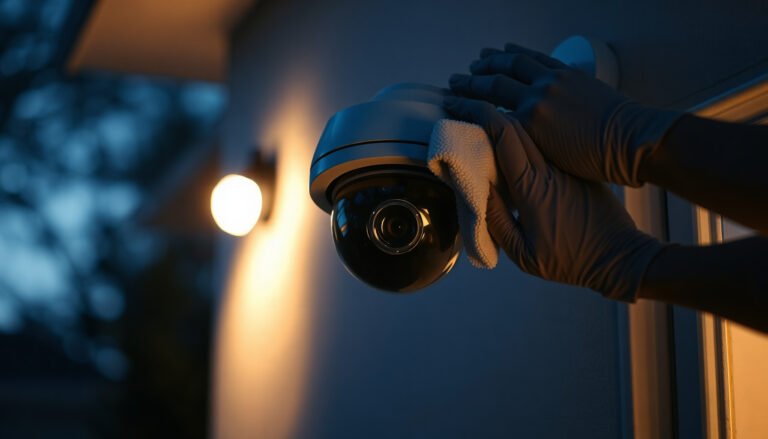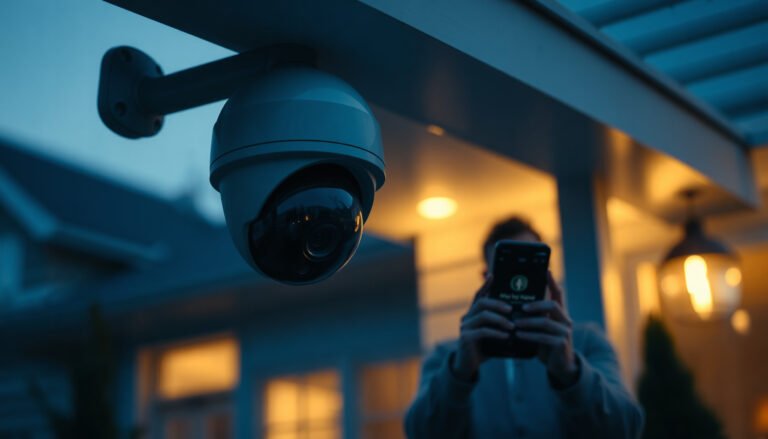

You notice your IP camera’s live feed loading from a device you did not use, and you realize the same password may be protecting more than just your view. You can secure an IP camera with a focused set of settings—typically 30 to 60 minutes—by changing default credentials, locking down network access, and enabling encrypted connections. You will need the camera admin login, access to your router, and the camera’s configuration menu, and once you make these changes, you can significantly reduce the risk of unauthorized viewing or tampering.
If you want to secure an IP camera, start by locking down access: change default passwords, disable remote access unless you truly need it, and enable encryption (HTTPS/secure streaming features) if your model supports it. Then harden the network—use a strong Wi‑Fi setup or a separate VLAN/guest network—so a compromise can’t easily spread. In this guide, you’ll get a practical checklist for what to configure and what to avoid on real IP camera deployments.
If you’re installing a home or small-business IP camera (especially a new one still using factory settings), these steps are for you. It’s also useful if you’re noticing odd logins, weak video privacy, or you just want a safer baseline before exposing anything to the internet.
Start with accounts: change passwords and usernames
Change the camera’s account access first, because compromised credentials are the most common reason an IP camera gets taken over. If attackers can log in, network protections and encryption can’t help you.
– Replace the default admin password with a unique, strong password (don’t reuse it anywhere else). For guidance on memorized secret length, NIST recommends at least 8 characters for passwords ([NIST SP 800-63B (Digital Identity Guidelines)](https://pages.nist.gov/800-63-3/sp800-63b.html)). In practice, longer passphrases are far harder to crack than typical default strings.
– Turn off or limit “anonymous” access. Many IP camera apps let you view a feed without signing in; even if video looks “private,” unauthenticated endpoints can still be scraped or discovered.
– Review who can log in to the camera app/web portal and remove anything you don’t recognize. For small businesses, treat every user account like a real identity with a clear onboarding/offboarding process.
– If your camera supports it, enable account-level security like MFA/2FA. Not all models include MFA, but when it’s available, it meaningfully reduces risk from stolen passwords.
One thing I consistently see in real-world IP camera maintenance: people secure the password, then leave older user accounts from “test” setups enabled. Attackers often try those stale logins first.
Secure the connection: enable encryption and safe remote access
Secure the connection next—because an IP camera feed is only as safe as the transport layer used to deliver it. Encryption prevents eavesdropping and reduces the value of intercepted traffic.
– Prefer HTTPS and secure streaming features over plain HTTP. In TLS 1.3, the protocol is designed for efficiency (for example, using a 1‑RTT handshake in the common case) ([RFC 8446 (The Transport Layer Security (TLS) Protocol Version 1.3)](https://www.rfc-editor.org/rfc/rfc8446)). When a camera supports HTTPS/secure streaming, enabling it is one of the highest-impact configuration changes.
– If you need remote viewing, use the manufacturer’s secure remote access method rather than exposing ports directly. Direct exposure (publicly reachable services) turns “account security” into your single point of failure.
– Keep firmware updates enabled so the IP camera can receive security patches. As of 2026, many vendors still issue urgent fixes for authentication, cryptography, and API endpoints—not just “feature” changes.
Here’s how to compare remote-access approaches in a way that maps to risk:
| # | Remote access method | Primary risk if misconfigured | Safer when you… |
|---|---|---|---|
| 1 | Manufacturer secure tunnel/cloud relay | Credentials still matter, but inbound exposure is minimized | Use unique passwords + keep firmware updated |
| 2 | VPN into your network (IP camera stays private) | Your VPN account/password hygiene becomes critical | Harden VPN access and MFA where supported |
| 3 | Direct port-forwarding to the camera | Attackers can probe the service nonstop | Avoid this (or only for tightly controlled setups) |
As of 2026, the practical takeaway for any IP camera: prefer “inbound-restricted” remote access designs (tunnels, relays, or VPNs) over exposing camera services to the public internet.
Harden the network: reduce exposure and isolate devices
Harden the network before you expand access, because isolation limits what an IP camera compromise can reach. If one device gets abused, VLANs and guest networks can stop lateral movement.
– Don’t place cameras on the same network as laptops/phones by default. Use a dedicated VLAN, separate SSID, or a guest network so IP camera traffic can’t freely reach workstations and mobile devices.
– Disable UPnP if you don’t need it. UPnP (Universal Plug and Play) can automatically create inbound rules on your router. Even if your IP camera is secure, an “auto-open port” can bypass your careful setup.
– Use a modern router with current security settings—and change the router admin credentials too. A router with default credentials undermines every IP camera hardening step.
– Consider router-side controls: if your router supports it, block “device-to-device” traffic between Wi‑Fi clients, allow only the ports/protocols needed for your IP camera app, and restrict admin access to a management subnet.
To keep the “isolation” idea concrete: VLANs rely on IEEE 802.1Q tagging, which uses a 12-bit VLAN ID space (up to 4096 identifiers). That’s why a dedicated VLAN can provide a clean boundary around IP camera devices ([IEEE 802.1Q (VLAN tagging, VLAN ID field)](https://standards.ieee.org/standard/802_1Q-2022.html)).
7 High-Impact IP Camera Security Controls (2026)
| # | Control | What to configure | Technical baseline | Alignment |
|---|---|---|---|---|
| 1 | Unique administrator password | Set a non-default secret | NIST: ≥8 chars for memorized secrets | ★★★★★ |
| 2 | Disable anonymous/guest camera access | Require authenticated viewing | Eliminates unauthenticated feed endpoints | ★★★★☆ |
| 3 | Enable HTTPS / secure streaming | Turn on TLS-based transport | TLS 1.3: 1‑RTT handshake design | ★★★★★ |
| 4 | Use secure remote access (tunnel/VPN) | Avoid direct inbound camera ports | Keeps camera services off the public internet | ★★★★☆ |
| 5 | Isolate the IP camera VLAN/SSID | Segregate from PCs/phones | IEEE 802.1Q: 12-bit VLAN ID space | ★★★★★ |
| 6 | Disable UPnP on the router | Stop auto port mapping | Reduces unintended inbound exposure | ★★★☆☆ |
| 7 | Port-forward camera directly to internet | Publicly expose camera service | Increases scan/probe opportunities | ★☆☆☆☆ |
Lock down camera settings and access permissions
Lock down your IP camera’s internal options after account and network controls are in place. This is where you remove “convenience features” that quietly broaden visibility.
– Review motion-detection and alert settings so notifications only go to intended users. If your camera sends snapshots to email or pushes to mobile apps, make sure those destinations have appropriate account security.
– Remove unused users and revoke old accounts. For small business IP camera systems, monthly access reviews can be the difference between a secure deployment and a lingering risk from a former employee.
– Check sharing permissions inside the camera app. Many systems treat “shared viewers” differently from “admin users.” Ensure viewing accounts can’t change settings or export video if you don’t need that capability.
– Disable features you don’t use, such as remote admin panels, default services, or any “demo” or “guest mode.” Even when these features seem harmless, every enabled interface increases attack surface for an IP camera.
Practical tip: if you’re migrating from a factory setup to a locked-down configuration, do it in phases. Apply account changes first, then encryption, then sharing permissions—so you can identify what caused downtime if anything breaks.
Keep firmware and apps updated (and verify changes)
Keep your IP camera current because the threat model changes every year. As of 2026, attackers increasingly target known vulnerabilities in camera web interfaces, RTSP endpoints, and mobile companion apps.
– Update camera firmware, the NVR/VMS software (if you use one), and the mobile app from official channels only.
– After updates, re-check critical settings: password, encryption/HTTPS status, remote access method, and the user list. Some updates can reset toggles or change how the IP camera reports status.
– Create a simple record of changes (even a one-page document or spreadsheet): what you changed, when you changed it, and how to revert. This matters because recovery is faster when you know what “safe” looked like before the update.
This verification step is important for IP camera deployments at work: if you rely on recordings for compliance, you don’t just want encryption—you want proof the configuration remained correct after patching.
What can go wrong (common mistakes to avoid)
Many security failures happen when teams skip one link in the chain, even if they secured the rest. If your IP camera is still reachable from the internet in an unsafe way, a strong password alone may not be enough.
– Leaving default credentials in place—this is the #1 reason IP cameras get accessed by strangers. Automated scanning is constant, and default logins are well-known.
– Port-forwarding the camera directly to the internet—it’s easy to get wrong and increases risk if credentials are ever reused or leaked.
– Putting cameras on the main LAN without isolation—if one device is compromised, attackers may pivot to other systems on your network.
– Assuming “private” streaming is private—some setups still depend on account permissions, link access tokens, or unsecured settings.
– Ignoring router security—even a hardened IP camera can be undermined by a weak router admin password, outdated router firmware, or risky features like UPnP.
– Edge case: If your IP camera model doesn’t support encryption settings (HTTPS/secure streaming), focus harder on network isolation and authenticated access through the manufacturer where available. Don’t assume “no HTTPS option” means “no risk”—it usually means you must reduce exposure more aggressively.
Also watch for operational pitfalls: if you share camera access broadly (family members, contractors, multiple tenants), credentials management becomes a process problem, not just a technical one.
Verdict / tip: secure first, then decide how much convenience you need
The best approach is to secure access (passwords + accounts), then secure the path (encryption/secure remote access), and finally reduce exposure (isolation from your main network). The trade-off is convenience: disabling certain remote features or isolating devices can make troubleshooting and remote viewing more annoying.
If you run an IP camera system for a business, don’t skip the “network isolation” and “post-update recheck” steps—even if everything seems to work today. And if you aren’t willing to manage passwords, updates, and router settings (or you plan to share camera access with many people), skip any configuration that resembles “open-to-the-internet” access and keep access tightly controlled.
Quick scan checklist
| Area | What to do now |
|---|---|
| Login security | Change default admin password; remove unused accounts |
| Remote access | Use secure manufacturer access; avoid direct port exposure |
| Encryption | Enable HTTPS/secure streaming if available |
| Network placement | Isolate cameras (VLAN/SSID/guest network) |
| Router settings | Disable UPnP (if not needed); update router firmware |
| Maintenance | Update camera/NVR/VMS and re-check settings after updates |
Frequently Asked Questions
How can I secure my IP camera from hackers?
Start by changing the default username and password and using a strong, unique password. Disable unnecessary services like UPnP and remote access unless you truly need them, and keep the camera firmware updated to fix known security vulnerabilities. Use WPA2 or WPA3 for your Wi‑Fi, and consider turning on the camera’s built-in security features such as HTTPS/SSL and account lockouts.
What settings should I change right away on a new IP camera?
Immediately update the firmware and review the camera’s user accounts, removing any default users you don’t recognize. Turn on encryption for video streams (HTTPS/RTSP over TLS if available) and restrict who can view the stream through the mobile app or web interface. Also check motion alerts and notification settings to ensure they don’t expose sensitive information publicly.
How do I use a VPN or firewall to safely access my IP camera remotely?
The safest approach is to avoid exposing your IP camera directly to the internet and instead use a VPN to access your home network. If you use a router firewall, block inbound connections by default and only allow required traffic through carefully configured rules. When remote access is needed, prefer manufacturer-supported secure connections and verify that the connection uses encryption, not plain HTTP.
Why is firmware updates important for IP camera security?
IP camera firmware updates often include patches for security flaws that could be exploited for account takeover, malware, or spying. Many attacks target cameras that run outdated software with known vulnerabilities. Set a reminder to check for updates regularly or enable automatic updates if your camera supports them.
Which network and privacy practices best protect IP camera video?
Place your IP camera on a separate VLAN or “IoT” network so a compromised device can’t easily reach other devices on your main network. Use strong Wi‑Fi security (WPA2/WPA3) and avoid weak passwords or open networks. For privacy, store recordings securely (local NVR or encrypted cloud storage), restrict viewer permissions, and regularly review account access and sharing settings.
📅 Last Updated: November 03, 2026 | Topic: How should I secure an IP camera? | Content verified for accuracy and freshness.
References
- SP 800-213, IoT Device Cybersecurity Guidance for the Federal Government: Establishing IoT Device…
- IR 8228, Considerations for Managing Internet of Things (IoT) Cybersecurity and Privacy Risks | CSRC
- https://www.cisa.gov/resources-tools/resources/securing-internet-things
- CIS Critical Security Controls Version 8
- IP camera
- IP camera cybersecurity – Search Results – PubMed
- https://scholar.google.com/scholar?q=secure+IP+camera+cybersecurity+guidance Google Scholar
- https://scholar.google.com/scholar?q=network+video+surveillance+camera+security+best+practices Google Scholar
- https://scholar.google.com/scholar?q=IoT+camera+security+authentication+encryption+vulnerabilities Google Scholar