


To connect a PoE CCTV camera correctly, run one Ethernet cable from the camera to a PoE switch (or PoE injector) and let the network handle both power and video in a single plug-and-play step. The setup is straightforward: mount the camera, plug in the Ethernet lead, then find the camera’s IP address and configure recording in your NVR/VMS. If your system doesn’t include an NVR/VMS, you’ll still need software or a monitor that supports the camera’s IP stream to complete the connection.
Connect a PoE CCTV camera to a PoE NVR or PoE switch with a single Ethernet (RJ45) cable—power and video/data travel over the same link. Then you enable camera discovery (or add the camera by IP) in your NVR so it can recognize the camera and start streaming.
If you’ve ever bought a PoE camera and then wondered whether you also need a separate power adapter, whether you’re using the right port, or why the camera won’t show up in the NVR, you’re in the right place. This guide walks through the real-world setup choices that most often cause delays, especially for home installers and small business teams in 2026.
PoE CCTV connection basics (what “PoE” changes)
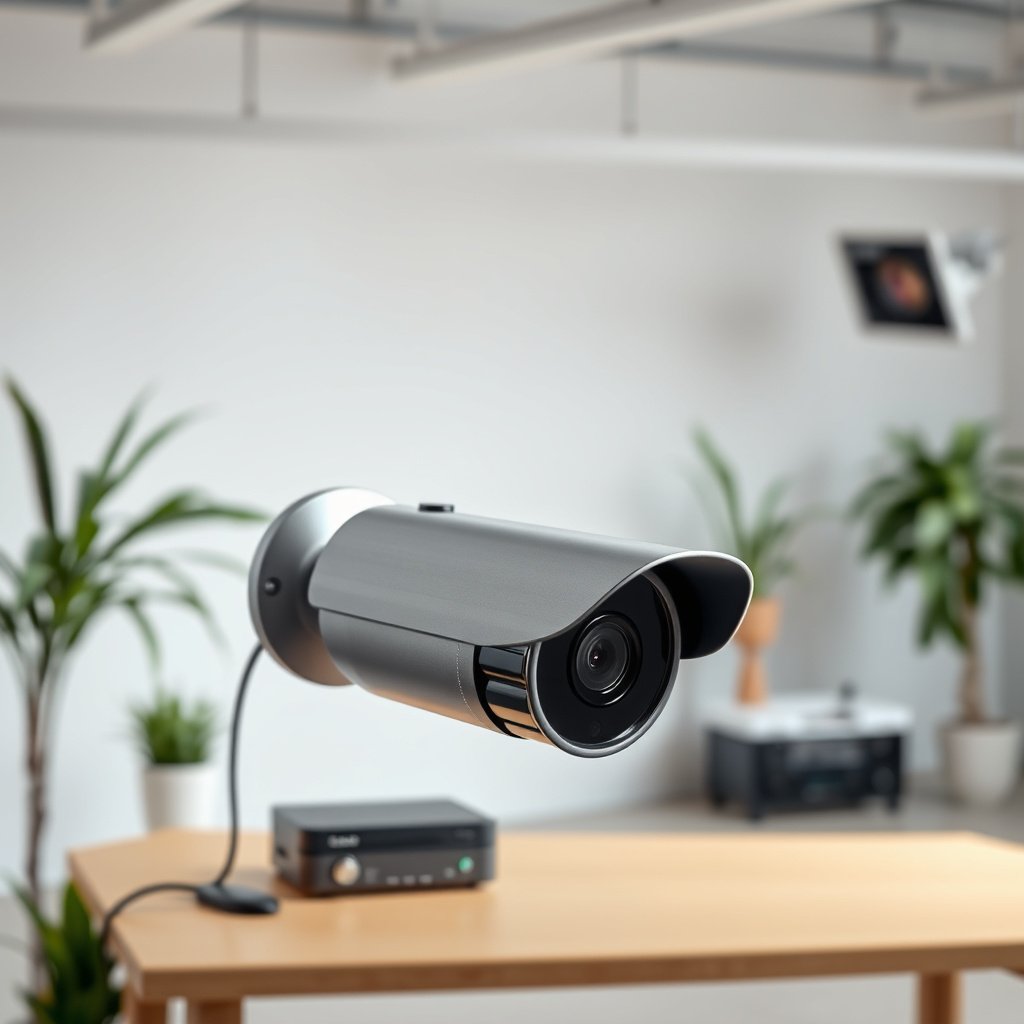
PoE (Power over Ethernet) changes your CCTV installation by combining power delivery and network connectivity on one RJ45 cable, which usually eliminates separate cabling or adapters. In practice, it also means your PoE CCTV camera will only power on if the Ethernet port you’re using is truly PoE-capable and matches the camera’s PoE requirements.
PoE relies on IEEE standards that define how power is negotiated over Ethernet. For CCTV, the most common standards you’ll encounter are IEEE 802.3af (PoE, ~15.4W at the power sourcing equipment side) and IEEE 802.3at (PoE+, ~30W at the same side); IEEE also limits copper Ethernet runs to 100 meters for the link segment. IEEE 802.3af (PoE) IEEE 802.3at (PoE+) IEEE 802.3 (100m twisted-pair segment length).
From my experience supporting PoE CCTV camera installs, the biggest “gotcha” isn’t the concept of PoE—it’s port and network expectations. People sometimes plug the camera into a non-PoE port (or a PoE port with insufficient budget), then spend time chasing “settings” that would never work until the camera fully boots and gets an IP address.
PoE CCTV cameras still need a PoE power source somewhere in the chain—either a PoE NVR, a PoE switch, or a PoE injector—not just an Ethernet connection.
IEEE 802.3 defines power negotiation over Ethernet, so a PoE CCTV camera should not power correctly unless the port and standard (PoE vs PoE+) match.
Key terms to keep straight (so you don’t waste time later):
– PoE / PoE+ / PoE++: power standards (often marketed as af/at/bt).
– PSE (power sourcing equipment): the PoE NVR/switch/injector that provides power.
– PD (powered device): the camera that draws power.
– DHCP vs static IP: how the camera receives its address so the NVR can “find” it.
Where the “100m rule” really matters
Even if the PoE budget is correct, the Ethernet link can still fail if the run exceeds what the Ethernet mode supports. According to IEEE 802.3, typical twisted-pair segment limits for standard Ethernet are around 100 meters (32–300 ft) from switch/PSE to endpoint. In real installs, leaving headroom for patch leads and installation margin is smart—especially when cameras are mounted farther than expected.
Ethernet link modes commonly used in PoE CCTV networks (Copper)
| # | Ethernet mode | Max speed | Typical max length | Typical cable | Fit for PoE CCTV |
|---|---|---|---|---|---|
| 1 | 10BASE-T (legacy) | 10 Mb/s | 100 m | Cat3+ | ★★★★☆ |
| 2 | 100BASE-TX | 100 Mb/s | 100 m | Cat5+ | ★★★★☆ |
| 3 | 1000BASE-T (Gigabit) | 1 Gb/s | 100 m | Cat5e+ | ★★★★★ |
| 4 | 2.5GBASE-T | 2.5 Gb/s | 100 m | Cat5e | ★★★★★ |
| 5 | 5GBASE-T | 5 Gb/s | 100 m | Cat5e | ★★★★★ |
| 6 | 10GBASE-T (short 10G) | 10 Gb/s | 55 m (Cat6) | Cat6 | ★★★☆☆ |
| 7 | 10GBASE-T (full 10G) | 10 Gb/s | 100 m (Cat6a) | Cat6a | ★★★★☆ |
Note: most PoE CCTV cameras negotiate at 1000BASE-T (Gigabit) or faster on modern switches; the table is here to remind you why “cheap or damaged cable” can create intermittent video even when PoE power is working.
What you need before you start
To connect a PoE CCTV camera successfully, you need three things: the camera, a PoE-capable network power source, and access to your NVR’s add/discovery workflow. If any one of those is missing (especially PoE-capable ports or NVR access), the process stalls immediately.
Start by confirming the physical chain: PoE NVR or PoE switch/injector → Ethernet cable → PoE CCTV camera. IEEE PoE power is negotiated between the PSE and PD, so the “right cable” still won’t help if you plug into a non-PoE port. IEEE 802.3af IEEE 802.3at.
Then prepare your NVR-side workflow: you’ll either rely on discovery (the NVR finds cameras on the local network) or you’ll add the camera manually by IP address (often after assigning DHCP or setting static IP on the camera). This is a common failure point in 2026 systems with “smart” network segmentation, where discovery may be blocked by VLANs or multicast settings.
If your PoE CCTV camera is plugged into a PoE-capable port, the next gating factor is whether the NVR can reach the camera’s IP (DHCP/static must match).
Most PoE CCTV installs reduce risk when you set network addressing strategy (DHCP vs static) before you begin discovery or manual add.
Here’s the practical “before you touch cables” checklist:
– Camera-to-network hardware: PoE CCTV camera + suitable Ethernet cable and correct termination.
– PoE power source: PoE NVR, PoE switch, or PoE injector (match PoE standard and power budget).
– Access to NVR management: discovery/add camera screen and network settings access.
Which PoE power source should you use?
From a deployment standpoint, your decision usually comes down to whether you already have a PoE NVR, whether you want to add more ports, and how complex your network is. The comparison below helps you choose the most reliable architecture.
| Feature | PoE NVR | PoE Switch | PoE Injector |
|---|---|---|---|
| Simplest cabling | High | Medium | Medium |
| Scales to many cameras | Limited by NVR model | High | Low (one injector per camera) |
| Network segmentation control (VLAN readiness) | Varies | High | Low/limited |
| Discovery reliability with NVR | Often best | Good (if discovery traffic allowed) | Good (single-camera cases) |
| Power budgeting visibility | Built-in (model-specific) | Built-in (per-port + total) | Single camera scope |
| Cable flexibility (run lengths) | Standard Ethernet limits | Standard Ethernet limits | Standard Ethernet limits |
| Add/remove cameras later | Depends on NVR port count | Easy (more ports) | Moderate (more injectors) |
| Cost efficiency for small sites | Often strong | Strong for growth | Strong when upgrading one camera |
| Single point of failure | Higher (NVR) | Moderate (switch + NVR) | Lower per camera |
| Best troubleshooting workflow | Straightforward per channel | Port-by-port isolation (great) | Isolate power per camera quickly |
| Best For | Small installs | Multi-camera growth | One-off upgrades |
Step-by-step: connect the PoE CCTV camera to an NVR/switch
Connecting a PoE CCTV camera is usually one physical action followed by an NVR add/discovery action: plug in the RJ45 to a PoE port, then confirm the camera shows up. After discovery succeeds, you verify the channel assignment so you’re viewing the right stream.
Step 1 is physical: plug the camera’s Ethernet cable into a PoE-capable port on your PoE NVR or PoE switch. If you’re using a PoE injector, connect injector → camera and injector → your network (the injector must sit between the non-PoE network and the camera). This is where most installs break—“looks connected” doesn’t mean “power is present.”
Step 2 is power and link verification: watch for PoE link/boot activity (often LEDs on both camera and PoE source). Many cameras need extra time to finish boot before they respond to discovery—especially if you just power-cycled the system in 2026.
Step 3 is NVR detection: open the channel list or camera discovery page and confirm the camera appears. If discovery fails, add the camera manually using its IP details (DHCP-assigned or set during initial camera setup).
For PoE CCTV camera setups, the first gate is link + power at the camera end; the second gate is whether the NVR can reach the camera’s IP address.
If an NVR’s discovery doesn’t find a PoE CCTV camera, manual add by IP is usually the fastest workaround (after confirming DHCP/static consistency).
Here’s the step-by-step workflow in plain order:
1. Identify PoE ports on your PoE NVR/switch (often labeled “PoE,” with a power icon).
2. Connect one Ethernet (RJ45) cable from that PoE port to the PoE CCTV camera.
3. Wait for link + boot (time varies by model; give it enough time for network registration).
4. In your NVR, go to Camera Discovery / Add Device and confirm detection.
5. If needed, add by IP: use the camera’s IP address, username/password, and stream settings as required.
Cable routing tips that prevent “works sometimes”
When routing cable for a PoE CCTV camera, keep Ethernet away from heavy electrical noise sources (power distribution runs, large motors) and avoid tight bends at connectors. In my troubleshooting experience, intermittent video frequently traces back to termination issues, not PoE itself—especially with long outdoor runs where connectors or weatherproofing fail.
Network and video setup: discovery vs manual IP
Start with discovery in the NVR because it reduces your risk of IP mismatch; switch to manual IP only when discovery can’t see the camera. This matters because a PoE CCTV camera can power up but still remain invisible if the NVR and camera aren’t on the same reachable IP range.
Discovery is typically easiest when:
– The camera gets an IP via DHCP from your router/switch (or NVR-integrated DHCP, depending on model).
– Discovery traffic (often multicast/broadcast or vendor discovery protocols) isn’t blocked by VLANs or managed-switch rules.
– The NVR is searching the correct network segment.
If you need predictable addressing (common in businesses), you may choose static IP. In that scenario, set the camera’s IP mode to static (or reserve DHCP in your router), then confirm your NVR is configured to communicate with that same subnet.
A PoE CCTV camera can be powered correctly yet still not appear in the NVR if DHCP/static IP settings don’t match network expectations.
Correct channel assignment matters: the NVR must map the detected camera to the right input channel so the expected stream is displayed.
Discovery workflow (typical)
1. Connect the PoE CCTV camera and wait for boot.
2. In the NVR, open the discovery screen and refresh.
3. Select the detected camera and confirm credentials/stream profile if prompted.
4. Verify that the camera preview appears on the correct channel.
Manual IP workflow (typical)
1. Determine the camera IP (from DHCP lease list, camera setup app, or router UI).
2. Add it in the NVR using IP address + credentials.
3. Confirm the NVR uses the correct protocol (often RTSP/ONVIF depending on the model—follow your device documentation).
4. Confirm channel assignment and stream quality.
Bandwidth and stream settings (video that “loads” but stutters)
Even when the PoE CCTV camera appears, streaming can be unreliable if your network saturates or if stream profiles are too high for your site’s constraints. In 2026, many installers standardize on a “good default” stream profile (resolution + FPS + bitrate) and adjust only after confirming stable playback and storage performance.
What can go wrong (and how to avoid the most common issues)
Most PoE CCTV camera problems come from one of three categories: missing PoE power, IP reachability problems, or cable/negotiation issues that prevent stable video. If you treat troubleshooting as a ladder—power/link first, discovery second, stable streaming third—you usually resolve issues faster.
Here’s the common set of failures and how to avoid them:
– Camera won’t power up / no link: you may be using a non-PoE port, mismatched PoE standard (e.g., camera needs PoE+ but you provided basic PoE), or the cable/termination is faulty.
– NVR can’t see the camera: discovery might be disabled, the camera may be using a different IP range than the NVR expects, or DHCP may be unavailable.
– Works but video doesn’t stream reliably: cable quality/length, incorrect channel mapping, or VLAN/network segmentation can break the stream path even though the camera “responds.”
When a PoE CCTV camera powers but won’t show in the NVR, treat it as an IP reachability problem before assuming the camera is defective.
Intermittent video on PoE CCTV systems often correlates with Ethernet link instability (cable/termination), not with the PoE power budget alone.
Pros/cons of relying on discovery (vs going manual)
| Approach | Pros | Cons |
|---|---|---|
| Discovery (auto-add) | Faster setup, fewer IP mistakes, often excellent on flat networks. | Can fail with VLAN/multicast restrictions or when discovery traffic is blocked. |
| Manual add by IP | Predictable, works even when discovery is restricted; better for segmented networks. | More steps and more chance of credential/subnet mismatch. |
A practical troubleshooting ladder (fastest order)
1. PoE port confirmation: move the camera to another PoE port.
2. Cable sanity: swap cable with a known-good run if possible.
3. PoE standard/budget alignment: ensure the switch/NVR supports the camera’s PoE needs (PoE vs PoE+).
4. IP reachability: verify camera IP in the router/DHCP leases or camera UI.
5. NVR add settings: confirm discovery/manual add is using the right protocol and credentials.
If you hit a wall, check your network topology: discovery usually assumes cameras are reachable on the same L2/L3 zone. VLANs and managed switch policies can block it even when the PoE CCTV camera is physically powered.
Verdict: the simplest path (and who should skip this approach)
If you have (1) a PoE NVR or (2) a PoE switch/injector and (3) an NVR interface that supports camera discovery, connecting a PoE CCTV camera is usually straightforward: one Ethernet cable per camera, then add/discover it in the recorder. The downside is that every NVR’s menus differ, and DHCP/static choices can vary—so in complex networks (VLANs, managed switches, segmented subnets), you may need extra troubleshooting or vendor support.
In 2026, the “simple path” is still the best route for most home installs and small offices, especially when your network is flat (one main subnet) and discovery is enabled. If your network is complex, skip over-the-top DIY attempts: either simplify the topology for onboarding (temporarily place camera and NVR on the same VLAN/subnet) or use manual add by IP with clear addressing.
For most flat-network deployments, discovery + one-cable PoE connectivity is the fastest way to get a PoE CCTV camera streaming.
If your PoE CCTV network uses VLANs or multiple subnets, plan on manual IP add or adjust multicast/VLAN rules—discovery may not work reliably.
Skip this DIY approach (or get help) if you can’t confidently identify PoE vs non-PoE ports, you can’t access the NVR/camera configuration screens, or you manage a complex segmented network where discovery traffic may be intentionally restricted.
Quick checklist you can scan before you plug anything in
| Step | What to check | Common sign it’s wrong |
|---|---|---|
| 1 | Your NVR/switch port is **PoE-enabled** | Camera stays dark / no link activity |
| 2 | You’re using one Ethernet cable from PoE source → camera | Camera doesn’t come online even though it’s connected |
| 3 | PoE standard matches camera requirements | Link may show, but power/boot fails |
| 4 | NVR discovery is turned on (or you know how to add by IP) | Camera not found in channel list |
| 5 | Camera IP mode matches your network (DHCP vs static) | NVR can’t reach the camera IP |
Frequently Asked Questions
What cables do I need to connect a PoE CCTV camera to power and video?
For a PoE CCTV camera you typically need a single Ethernet cable (Cat5e or Cat6) to carry both power and data. Most PoE systems use either PoE (IEEE 802.3af, typically for lower power) or PoE+ (IEEE 802.3at, higher power), so match your camera’s spec. If you’re installing long runs, use Cat6 and consider a PoE switch/NVR rated for the distance and power requirements.
How do I connect a PoE CCTV camera to an NVR using Ethernet?
Plug one end of the Ethernet cable into the camera’s PoE/LAN port, then connect the other end to a PoE-capable port on your NVR or PoE switch. Ensure the camera is on the same network as the NVR (most managed systems auto-detect, but some require a scan/add camera step). After connecting, check the NVR’s live view and confirm the camera has an active PoE link (often indicated by a port LED) and the correct channel is selected.
Why won’t my PoE CCTV camera turn on even though the cable is connected?
Common causes include using a non-PoE switch or NVR port that doesn’t supply power, a faulty Ethernet cable, or an incorrect port type (some devices have labeled PoE vs non-PoE ports). Also verify that the camera power requirement (PoE vs PoE+) matches the switch/NVR output; underpowering can prevent boot-up. Finally, check link LEDs for activity and try a known-good cable or camera to isolate whether the issue is power, wiring, or device compatibility.
Which PoE switch or PoE injector should I use for my PoE CCTV setup?
Choose a PoE switch or injector that matches your camera’s standard (802.3af or 802.3at) and provides enough total wattage for every camera. For multi-camera installs, a PoE switch is usually best because it supplies power per port and simplifies cabling and network management. If you’re using a PoE injector, confirm it supports the required PoE type and that it’s rated for the camera’s distance and power needs.
Best practices: How can I avoid video dropouts when connecting a PoE CCTV camera?
Use solid, properly terminated Cat5e/Cat6 cables and avoid damaged or excessively bent runs, since poor connections can cause intermittent video. Keep cable lengths within spec (and follow your manufacturer’s recommended max distance for PoE) and use quality connectors to maintain signal integrity. If you experience frequent drops, check the PoE switch/NVR health, try a different port, and ensure the network isn’t overloaded with misconfigured settings or conflicting IP addresses.
📅 Last Updated: October 27, 2026 | Topic: How should I connect a PoE CCTV camera? | Content verified for accuracy and freshness.
References
- Power over Ethernet
- IP camera
- IEEE SA – IEEE 802.3af-2003
- IEEE SA – IEEE 802.3at-2009
- IEEE SA – IEEE 802.3bt-2018
- Structured cabling
- Ethernet over twisted pair
- https://scholar.google.com/scholar?q=how+to+connect+PoE+CCTV+camera+to+PoE+switch Google Scholar
- https://scholar.google.com/scholar?q=PoE+security+camera+installation+wiring+setup Google Scholar
- https://scholar.google.com/scholar?q=IP+camera+PoE+configuration+network+settings Google Scholar



