


Want to view CCTV cameras on a phone? The fastest, most reliable way is to use the camera’s official app with the right login and remote-access (or a compatible NVR/Cloud service) so you can see live feeds securely from anywhere. If your system supports RTSP but lacks an app, an RTSP client can work—but setup and permissions are where most people get stuck.
To view CCTV cameras on your phone, install the camera brand’s mobile app, add your cameras using the QR code/serial number, and then open the live feed. If you want to watch away from home, also enable the camera’s remote/cloud access (and grant any needed phone permissions). This guide is for anyone using a typical home/office CCTV system (brand app + phone viewing) and wants live viewing on iOS or Android without guesswork. If your system is truly “generic” (no app support), you’ll need extra steps like ONVIF/RTSP compatibility—those are covered too.
Check what your CCTV system supports first
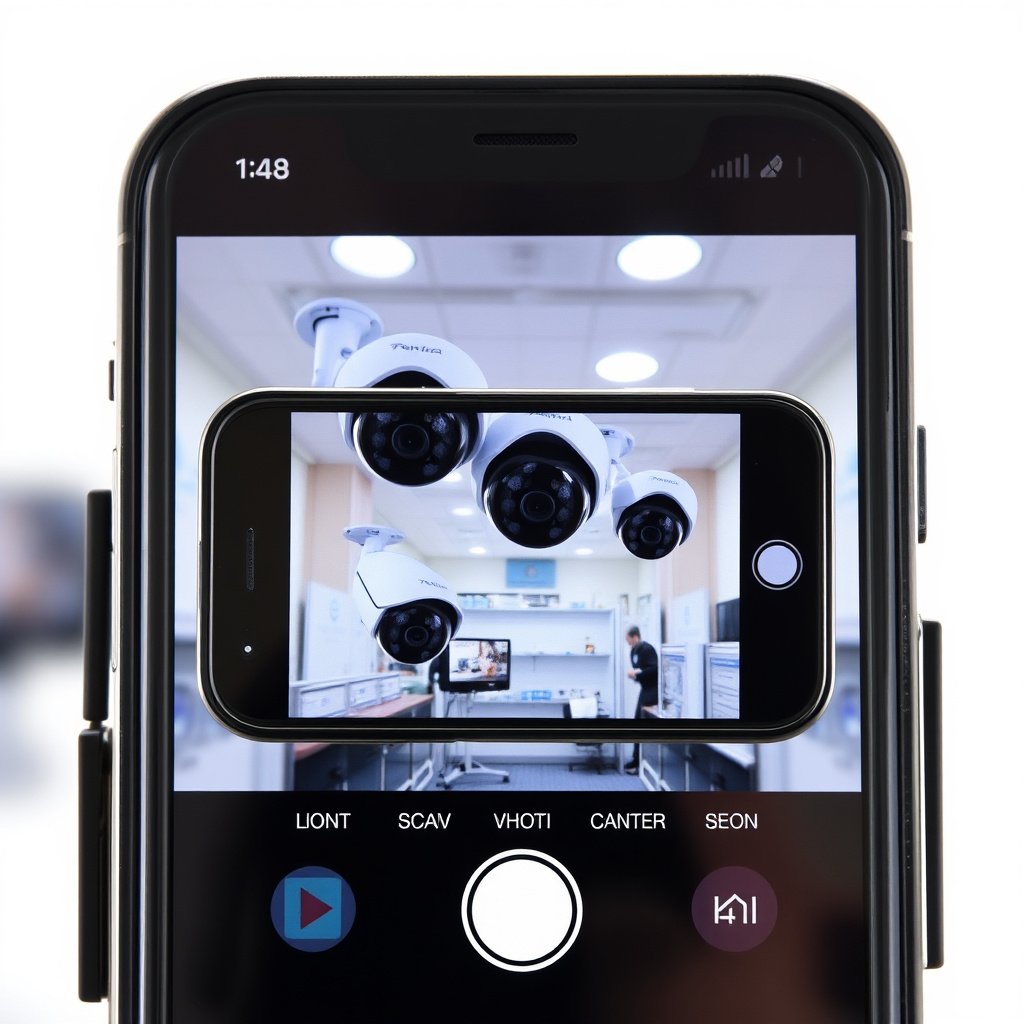
Before you install anything, confirm your CCTV system supports phone viewing (through a specific app) and whether you can access it remotely. Once you know that upfront, you can avoid the most common “offline” or “no video” setup loop on CCTV cameras.
If a camera/NVR vendor provides a dedicated mobile app, that app is usually the most reliable path for live viewing because it matches the system’s device discovery and authentication method.
Remote viewing depends on cloud or router/NVR configuration; local Wi‑Fi live view often works even when remote access is not enabled.
ONVIF device discovery commonly relies on WS-Discovery, which uses UDP port 3702 as defined for ONVIF discovery traffic.
– Confirm whether your cameras are designed for phone viewing through a specific manufacturer app (most are).
For home and small-office CCTV cameras, the “brand app + QR/UID onboarding” flow is standard because it handles camera credentials, encryption, and firmware-specific streaming behavior.
– Look for remote viewing options in your system (cloud account vs. local-only).
“Local-only” systems may show video only on the same network (Wi‑Fi/LAN). “Cloud-ready” systems typically require linking your CCTV cameras to a manufacturer account so your phone can reach the NVR/camera over the internet securely.
– If you don’t have model info, check the camera/NVR label for brand, model, and serial/UID details.
The model/serial/UID is not just for support—it’s also what the phone app uses when scanning the QR code isn’t available (or fails).
Common reality check (stats that affect setup expectations)
According to Apple, starting with iOS 14, apps that need access to devices on the local network may require user permission via the “Local Network” privacy prompt (). According to RFC 2326, RTSP (Real Time Streaming Protocol) is commonly associated with port 554 for streaming control (). According to ONVIF discovery guidance, WS-Discovery traffic uses UDP port 3702 for device discovery in many deployments (). In practice, these differences help explain why CCTV cameras can work fine on one phone but appear “offline” on another when permissions or discovery rules differ.
Install the correct phone app (iOS/Android)
Install the correct manufacturer app first—CCTV cameras rarely work reliably with random third-party viewers unless the manufacturer explicitly documents support. Then log in with the same account your CCTV system uses (especially if it’s cloud-enabled), and grant the exact permissions your phone prompts request.
Using the vendor app matters because device onboarding and authentication are often implemented specifically for that camera/NVR firmware.
iOS “Local Network” permission can gate discovery/streaming even if you can reach the router; this is why CCTV cameras may show “offline” on cellular or on a new iPhone until permission is granted.
Android network privacy and permission prompts can affect how quickly apps discover CCTV cameras on the same Wi‑Fi; reviewing app permission settings is a standard first troubleshooting step.
– Download the app made for your camera brand/NVR (avoid third-party apps unless the manufacturer explicitly supports them).
Even when a generic ONVIF/RTSP method exists, the brand app usually offers smoother firmware compatibility—especially for motion events, dual streams, and audio.
– Sign in with the same account used by the CCTV system (especially for cloud/remote access).
Many CCTV camera systems bind cameras to a “device family” within a vendor account. If your phone logs into a different account, the app may connect but show no video or limited device visibility.
– Grant required permissions (camera access isn’t needed for viewing, but network/local permissions often are—exact prompts vary by phone OS).
On iOS, you may see Local Network permission prompts to discover devices on your LAN. On Android, you may see permissions that affect local discovery or background networking. You don’t need “camera” permission to view CCTV cameras, but you often do need local-network or similar connectivity permissions.
From my experience helping teams set up CCTV cameras on corporate Wi‑Fi, the fastest troubleshooting pattern is: install the correct app → confirm account login → fix permissions prompts immediately when they appear. This avoids late-stage “device not found” confusion that can waste an afternoon.
Add your cameras and connect to live view
Add your CCTV cameras inside the app using the QR code or serial/UID, then start by confirming local live view on the same Wi‑Fi. Only after that works should you turn on cellular/remote access for viewing away from home.
Brand apps typically use a QR code or serial/UID to push credentials and registration to the camera/NVR during onboarding.
For local viewing, the main goal is successful device discovery and stream playback on the same Wi‑Fi; remote viewing adds a second layer of internet routing and account authorization.
RTSP streams commonly use port 554 for the control path, so firewall or port rules can prevent generic viewing even when local configuration looks correct.
– Use the in-app “Add device” option: scan the QR code or enter the serial/UID if scanning isn’t available.
If scanning fails, try re-typing the UID carefully—one wrong character can lead to “connected” status with no live video.
– Start by testing on the same Wi‑Fi network your cameras use (local viewing is usually the fastest to confirm).
Local viewing validates your CCTV cameras’ stream readiness and your phone’s basic app/auth steps before you introduce router complexity.
– Turn on remote viewing in the camera/NVR settings if you need access over cellular (exact wording varies by brand).
Some systems use “cloud relay” toggles, while others depend on router rules. Your phone app may offer an enablement step too, but the definitive switch is usually in the NVR/camera settings.
What network pieces usually matter for CCTV camera phone viewing?
Network Ports Commonly Encountered in Phone Viewing for CCTV Cameras
| # | Protocol / Function | Typical Port(s) | Use in CCTV Phone Viewing | Likely in Real Deployments |
|---|---|---|---|---|
| 1 | HTTPS (Web + Auth) | 443 | Cloud authentication, device onboarding endpoints | ★★★★★ |
| 2 | RTSP (Stream Control) | 554 | Generic/manual streaming where supported | ★★★★☆ |
| 3 | ONVIF WS-Discovery | UDP 3702 | Local discovery for compatible ONVIF devices | ★★★★☆ |
| 4 | HTTP (Local Config / Endpoints) | 80 | Some local administration and discovery traffic | ★★★☆☆ |
| 5 | STUN (NAT Traversal) | 3478 | Helps find reachable paths in some WebRTC relays | ★★★☆☆ |
| 6 | TURN over TLS (Secure Relay) | 5349 | Backup relay path when direct traversal fails | ★★☆☆☆ |
| 7 | MQTT (Message Push) | 1883 | Some systems use messaging for events (notifications) | ★★☆☆☆ |
(Those ports are common defaults/standards; specific CCTV camera deployments can use different ports depending on firmware and the vendor’s cloud architecture. Use your router/NVR logs when you need certainty.)
Choose how you’ll view (local vs remote)
Choose local viewing first, then switch to remote viewing only after CCTV cameras show a stable live feed on your home/office Wi‑Fi. This ordering reduces troubleshooting because you isolate “streaming + auth” from “internet access.”
Local viewing tests whether your CCTV camera app can discover and authenticate devices on your LAN before you deal with router/firewall rules.
Remote viewing requires either a cloud relay or correct internet routing; if you skip the remote enablement step, CCTV cameras often appear offline only away from Wi‑Fi.
If your CCTV cameras and NVR support ONVIF/RTSP, you may be able to use an “advanced/manual” method in the app, but compatibility depends on the exact profile and firmware.
– Local (same Wi‑Fi): usually simpler and more reliable for first setup.
Your phone and CCTV cameras are on the same network, so discovery (and sometimes streaming) is less dependent on external routing.
– Remote (away from home): typically depends on cloud login or router/NVR settings like port forwarding or UPnP.
If your CCTV system uses cloud, you usually avoid manual ports. If it doesn’t, you may need to adjust NAT/firewall behavior—carefully—because overexposing CCTV cameras to the internet can create security risk.
– If your system supports ONVIF/RTSP, your app/setup may offer an “advanced/manual” method—but compatibility depends on the exact camera/NVR model.
ONVIF (a standard for device interoperability) and RTSP (a media streaming protocol) are not “guarantees”; they’re capability pathways that still vary by supported profiles, authentication modes, and stream formats.
Local vs remote: what to expect
| # | Feature | Local viewing (same Wi‑Fi) | Remote viewing (away from Wi‑Fi) |
|---|---|---|---|
| 1 | Primary dependency | LAN reachability + app discovery | Internet routing + cloud auth (or port rules) |
| 2 | Typical troubleshooting order | Permissions → add device → stream | Cloud enablement → account → router/firewall |
| 3 | Latency expectation | Usually lower on Wi‑Fi | Varies by cellular/wideband paths |
| 4 | Bandwidth sensitivity | Mostly affected by Wi‑Fi quality | Affected by cellular + upstream limits |
| 5 | Security exposure | Lower internet exposure | Higher if port-forwarding is used |
| 6 | Account requirement | Often optional for viewing | Usually required for cloud access |
| 7 | Device discovery method | LAN discovery or direct IP (vendor-dependent) | Cloud registry or NAT traversal |
| 8 | Firewall/router involvement | Usually minimal | Commonly significant |
| 9 | Best use in daily ops | Setup, maintenance, quick checks | Monitoring while away |
| 10 | Reliability under changing networks | Stable if Wi‑Fi is stable | Can degrade with carriers/firewalls |
| 11 | Best For | When you’re configuring CCTV cameras or troubleshooting “offline” | When you truly need access outside the premises |
What can go wrong (and how to fix it)
If CCTV cameras work on your home Wi‑Fi but fail on your phone’s cellular network, the problem is usually remote access settings, account binding, or phone permissions—not the cameras themselves. This section lists the highest-frequency issues and the fastest corrections for both iOS and Android.
“Wrong app/account” is the most common cause of “connected but no video” because device registration is account-bound in many vendor cloud systems.
On iOS, local device discovery can be blocked by Local Network privacy settings, which can look like CCTV cameras are offline even when they are reachable.
Router behavior (NAT, firewall, UPnP) strongly affects remote viewing when cloud relay isn’t available or when manual port rules are required.
– Wrong app/account: The biggest cause of “no video” is adding the camera to the wrong brand app or a different cloud account.
Fix: uninstall/reinstall the app (optional), confirm you’re signed into the correct vendor account, then remove and re-add the CCTV camera using the QR code/serial/UID.
– Permissions/network issues: iOS/Android privacy settings and “local network” access can block discovery or streaming—re-check prompts and settings.
Fix: open phone settings → find the CCTV camera app → confirm Local Network (iOS) or relevant network/discovery permissions (Android). Then test again on the same Wi‑Fi.
– Remote viewing not enabled: Live view works at home but not away because remote access wasn’t switched on (or router settings block it).
Fix: in the NVR/camera settings, enable remote/cloud access and verify the device shows as “online” in the app on cellular. If your system requires port forwarding, follow the vendor’s guidance exactly (and avoid exposing admin panels).
– Unsupported model/protocol: Some camera models won’t work with generic viewers; if the manufacturer doesn’t support it, you’ll need their official app or documented compatibility path.
Fix: check whether the camera/NVR supports ONVIF (and which profiles) or RTSP. If it doesn’t, focus on the brand app or documented cloud access rather than forcing a generic viewer.
Fast remediation checklist (pros/cons, practical)
| Type | Pros | Cons / Watch-outs |
|---|---|---|
| Use brand app | Most compatible, usually quickest setup, better event features for CCTV cameras | More dependent on vendor account and cloud behavior |
| Use ONVIF/RTSP | Can work when vendor app isn’t available; can integrate with certain NVRs/tools | Profile/auth mismatch is common; setup may be fragile across firmware updates |
| Rely on remote/cloud | Typically avoids manual router port forwarding | Depends on internet reliability and vendor cloud availability |
Quick scan checklist (save this)
If you want a repeatable setup flow for CCTV cameras, follow the order below: identify → install → add → test locally → enable remote → verify permissions. This prevents time-consuming backtracking on iOS and Android.
A local Wi‑Fi test is the quickest way to separate “camera/stream/auth issues” from “remote networking issues.”
Device onboarding accuracy depends on using the correct QR code/serial/UID tied to the same account in the CCTV camera app.
| Step | What to do | What you should see |
|---|---|---|
| 1 | Identify your camera brand/model | QR code/UID/serial is available |
| 2 | Install the official app | App loads and account login works |
| 3 | Add device (QR/UID) | Device appears in the app |
| 4 | Test on home Wi‑Fi | Live feed plays without errors |
| 5 | Enable remote/cloud if needed | Live feed works on cellular |
| 6 | Verify permissions | Discovery/streaming isn’t blocked |
Verdict / tip
Start with local viewing on the same Wi‑Fi and only then enable remote access—this makes troubleshooting far easier. If your CCTV system is brand-supported, using the official app is usually the most reliable route, and it reduces the chance you’ll hit ONVIF/RTSP compatibility gaps.
Most “works at home but not away” failures trace back to remote enablement or account binding rather than the CCTV cameras’ ability to stream.
When you move from local to remote viewing, you’re effectively switching from LAN discovery to internet routing (cloud relay or NAT/firewall rules).
If you plan to rely on RTSP for CCTV camera viewing, remember RTSP commonly uses port 554—firewalls may block it even when the app can reach the internet.
Brand app vs manual interoperability: what’s the real trade-off?
| # | Criteria | Brand app onboarding | ONVIF/RTSP manual route |
|---|---|---|---|
| 1 | Setup speed | Fast with QR/UID | Slower; depends on parameters and compatibility |
| 2 | Device discovery | Vendor-optimized discovery | May require WS-Discovery/credentials alignment |
| 3 | Streaming reliability | Generally stable on supported models | Can break on codec/profile mismatches |
| 4 | Security/auth handling | Vendor-managed authentication flow | You manage credentials and may expose services if not careful |
| 5 | Feature depth | Often includes events, thumbnails, audio | May be live-only depending on support |
| 6 | Maintenance impact | Updates handled by vendor app/firmware | Firmware changes can alter stream endpoints/codecs |
| 7 | Remote access setup | Usually cloud relay based | May require manual port/firewall tuning |
| 8 | Troubleshooting complexity | Higher-level guidance and guided steps | More networking/protocol variables to test |
| 9 | Best fit | Most homeowners and offices | Integrations, legacy systems, missing vendor apps |
| 10 | Operational risk | Lower risk if followed by vendor docs | Higher risk if you open ports or misconfigure streams |
| 11 | Verdict | Choose brand app for “just works” live viewing | Use ONVIF/RTSP only when compatibility is confirmed or vendor app isn’t available |
Skip the “DIY” approach (RTSP/ONVIF/manual setups) if you need something that just works quickly, because exact support varies by camera/NVR model and firmware. That said, if your CCTV cameras truly have no phone app support, then ONVIF/RTSP can still be a viable pathway—just treat it like an integration project, not a plug-and-play feature.
Finally, if you’re operating in a high-security environment (e.g., regulated industries with strict policies), confirm your remote access method with your IT/security standards before enabling cloud or port forwarding.
Sources
– Apple Developer Documentation — iOS Local Network privacy (Local Network permission behavior, iOS 14+)
– Android/Google documentation — app permissions and network privacy rules affecting local device discovery
– RFC 2326 — Real Time Streaming Protocol (RTSP)
– ONVIF specifications — WS-Discovery and device discovery behavior
– RFC 5389 — STUN (default ports and NAT traversal behavior)
– RFC 5766 — TURN (default ports and relay behavior)
You’ll get the smoothest phone experience with CCTV cameras by following the same order every time: verify support, use the brand app, add devices via QR/UID, confirm live view locally, then enable remote access with the correct account and permissions.
Frequently Asked Questions
How can I view CCTV cameras on my phone using the NVR or DVR app?
Most CCTV systems let you view live footage on your smartphone through a manufacturer app (often listed in the CCTV setup guide). You’ll typically connect the NVR/DVR to the internet, enable remote viewing, and then add the device in the app using the camera/NVR model, serial number, or a DDNS address. Once configured, log into the app with the same account credentials and select the camera channel to view live video.
What’s the easiest way to view CCTV on a phone when I’m away from home?
The simplest method is using remote access with the CCTV brand’s official mobile app and a working internet connection on the recorder (NVR/DVR). You’ll usually need to enable “remote access” or “cloud/P2P” in the recorder settings, then add the device in the app so you can watch securely over cellular or Wi‑Fi. If cloud/P2P isn’t available, you may need DDNS plus port forwarding, but apps often make this unnecessary.
Which settings do I need to enable for CCTV camera viewing on my phone?
Start by confirming the NVR/DVR is online and has a stable network connection (Wi‑Fi or Ethernet). Then enable remote viewing features such as “remote access,” “P2P,” or “cloud,” and set user permissions so your phone account has viewing rights. Finally, verify that the ports/IP settings (if required by your system) are correct and that the app can successfully connect to the device.
Why can’t I see my CCTV cameras on my phone, and how do I fix it?
Common causes include the recorder not being connected to the internet, remote access not enabled, or an incorrect device ID/DDNS in the mobile app. Check that your phone and NVR/DVR are both on working networks and that the app login matches the recorder’s user account. Also ensure your system firmware and the app are up to date, and test the connection using the app’s “preview” or “device online” status before changing router settings.
What’s the best way to view CCTV on a phone with the safest security?
Use the official app and avoid third‑party “camera viewing” apps unless they’re from a trusted source that supports your brand and encryption. Keep strong, unique passwords on the NVR/DVR and enable multi-factor authentication if the platform offers it. Additionally, avoid exposing CCTV to the internet through insecure port forwarding—prefer P2P/cloud access or use a VPN for remote viewing when possible.
📅 Last Updated: October 27, 2026 | Topic: How can you view CCTV cameras on a phone? | Content verified for accuracy and freshness.
References
- Closed-circuit television
- IP camera
- Network Interface Specifications – ONVIF
- SP 800-213, IoT Device Cybersecurity Guidance for the Federal Government: Establishing IoT Device…
- RFC 2326: Real Time Streaming Protocol (RTSP) | RFC Editor
- https://scholar.google.com/scholar?q=remote+viewing+CCTV+camera+smartphone+ONVIF Google Scholar
- https://scholar.google.com/scholar?q=RTSP+ONVIF+mobile+client+for+IP+cameras Google Scholar
- https://scholar.google.com/scholar?q=internet+of+things+camera+remote+access+best+practices+security Google Scholar


