


To properly enable motion detection on a CCTV camera, you need to set detection sensitivity and zones correctly, then verify recordings trigger only when they should. The fastest way to get it working reliably is to calibrate motion sensitivity for your lighting conditions, mask irrelevant areas, and run a short test walk-through before locking the settings. Follow these steps and you’ll cut false alerts while ensuring real activity is captured every time.
Enable motion detection by turning it on in the correct device (camera app/web UI or the NVR/recorder), then define zones, sensitivity, and the exact “actions” that should happen when motion is detected (recording, alerts, snapshots). After you save, run a short test and fine-tune sensitivity and timing until events trigger consistently with minimal false alarms—this approach prevents the most common failure mode: getting notifications without reliable saved clips.
This applies to most CCTV setups: a standalone IP camera controlled through an app, or an IP camera feeding an NVR/recorder. If you’re not sure where “motion detection” lives in your system, the steps below help you locate the right menu and set the correct recording behavior—an issue that matters even more in 2026 as more systems split “detection” and “recording” across camera and NVR.
Confirm motion detection is available and know where to enable it
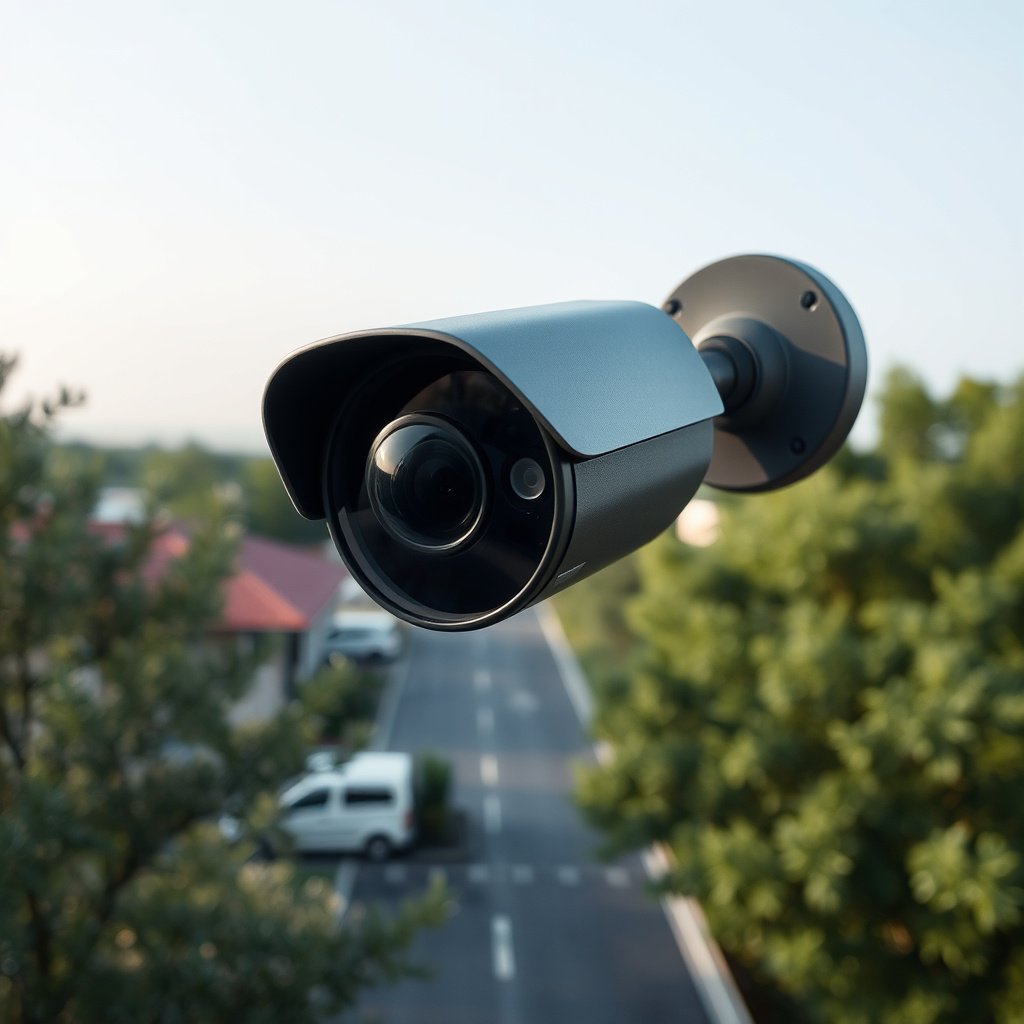
Motion detection is available either on the camera itself, the NVR/recorder, or—most commonly—split across both (camera detects, recorder decides what to record). The fastest path is to confirm your camera supports motion detection (and optionally human/vehicle modes), then enable it in the same place that applies the recording/alert actions.
Start by checking the camera model’s capabilities in its user manual or vendor documentation. Some budget IP cameras only support basic “video motion” (anything moving), while more advanced models include “person/vehicle detection” (a more selective type of motion detection that reduces false alarms). As of 2026, many systems also use “smart detection” options layered on top of motion detection, so you want to know what your firmware actually offers before you tune sensitivity.
Next, decide where your motion detection setting is controlled: on the camera app/web UI (often under Alarm, Events, or Video Analytics) or on the NVR/recorder (often under Channel Settings or Event Management). This matters because enabling motion detection in the wrong device can yield alerts that don’t translate into saved footage. In my own setup planning, I recommend treating motion detection as a two-part workflow—detection first, then actions—so you don’t miss the “actions” page in either the camera or the NVR.
Finally, confirm the destination for events and clips: does your system record to the NVR only, to an SD card in the camera, or to both? Also confirm storage capacity and status (healthy HDD/SD card). If the storage target is misconfigured, you can still see “motion detected” indicators even though no event clip is saved.
“Motion detection” in CCTV systems is frequently implemented as a camera-side event generator that triggers NVR/recorder-side recording rules.
Person/vehicle modes are typically exposed as a separate “detection type” option rather than a sensitivity-only toggle.
Event clips often depend on both detection enablement and per-channel recording/retention settings on the NVR or SD target.
Quickly map your menu (camera vs NVR)
If you control the system through a single app, it may still be hiding two different configuration surfaces:
– Camera UI/app (common): enables detection logic, zones, and event triggers.
– NVR/recorder UI: enables recording behavior for each channel when motion (or a motion alarm) occurs.
A practical way to confirm where motion detection is configured is to open the camera’s event list (if available) and watch whether motion events appear when you enable/disable motion detection from each side. If motion events only appear after you toggle the setting on the camera, the detection enablement is camera-side; then you still must ensure the NVR is set to record that event.
What to look for in the menus (names vary by brand)
Common motion detection labels:
– “Motion Detection,” “Video Motion,” “Motion Alarm”
– “Intrusion Detection,” “Perimeter Protection”
– “Video Analytics,” “Smart Detection”
– “Event Rules,” “Action,” “Linkage,” “Schedule”
Turn motion detection on and configure core settings
Motion detection becomes reliable when you enable it, set an appropriate schedule, and—most importantly—configure the actions that follow detection. In most CCTV systems, you’ll see an “Actions” or “Linkage” section where you choose what to record and what alerts to send when motion detection triggers.
First, enable Motion Detection. Depending on the model, the setting might appear as:
– “Motion Detection” / “Video Motion”
– “Motion Alarm”
– “Intrusion/Motion Detection”
Then set the detection schedule. Many people leave motion detection off for certain hours, because daytime false triggers (sun movement, trees, passing traffic) can be higher. If you only want alerts at night, create time blocks rather than enabling 24/7. In 2026, this approach is especially effective for households and small offices where staff activity can cause constant motion detection events.
If your camera supports it, choose the detection mode:
– Basic motion: triggers for any moving pixels (wide triggers, higher false alarms).
– Person/vehicle detection: triggers only when the model identifies people/vehicles (narrower, usually fewer false positives).
Under Actions, set what should happen when motion detection triggers:
– Record video (event recording or continuous+event)
– Send push notifications
– Email alerts
– Capture snapshots
– Trigger an output/siren (if your system has I/O)
One common cause of “I get alerts but no clips” is that motion detection is enabled, but the recording action is disabled for that event type/channel. Another cause is that the NVR is recording, but to a channel that isn’t actually the one you’re watching.
According to RFC 2326 (RTSP), the default RTSP port is 554, which many CCTV systems use for live view and media access.
PoE-powered cameras and IR LEDs can draw near power limits; IEEE 802.3af specifies up to 15.4 W at the PSE (2003), affecting night performance and stability.
A quick “core settings” comparison (what to prioritize)
If your goal is fewer false alarms, you should prioritize detection type and action linkage more than sensitivity at first. Use this comparison to decide where to invest your tuning time:
| Feature | Basic Motion | Person/Vehicle Detection |
|---|---|---|
| Detection focus | Any pixel movement | Model-identified people/vehicles |
| False alarm risk | Higher (wind, shadows, insects) | Lower (more selective triggers) |
| Sensitivity tuning | Often required | Usually simpler, fewer edge cases |
| Night performance | More vulnerable to IR glare | Often more robust in mixed lighting |
| Zone utility | Critical to exclude background movement | Still useful to focus on approach paths |
| Event types | Usually “motion” alarms | Often “person/vehicle” alarms + rules |
| Action mapping | Record/notify on motion alarm | Record/notify on smart detection alarms |
| Operational overhead | More manual tuning | More effective default behavior |
| Best for edge cases | Wide general surveillance | Entryways, driveways, sidewalks with noise |
| Implementation dependency | Works on most cameras | Requires firmware/analytics support |
| Best For | Teams who can triage alerts | Organizations that prioritize fewer false alarms |
Fine-tune zones and sensitivity to reduce false alerts
Motion detection becomes “usable” when the camera only watches the parts of the scene that matter and the sensitivity threshold matches your environment. The fastest way to reduce false alarms is to define zones first (so background movement can’t trigger you) and then adjust sensitivity gradually.
Begin with motion zones. Most cameras allow you to draw rectangles/areas to include or exclude. Exclude parts of the frame that constantly change:
– Trees and branches that move in wind
– Busy sidewalks where motion is frequent
– Headlights or reflective surfaces
– Water, flags, or curtains in airflow
Then adjust sensitivity/threshold. Start conservative. If motion detection triggers too easily, increase selectivity by raising the threshold (or lowering sensitivity, depending on your brand’s scale). The key is to tune slowly and observe results after each change—especially around sunrise/sunset, where shadows shift quickly.
Also re-check camera placement and viewing angle. Motion detection often “sees” movement in the background rather than the target area. Tilt, height, and lens alignment change how many pixels move. If your camera is pointed slightly upward or toward a swaying backdrop, motion detection will interpret it as constant activity.
Night adds complexity. If your camera uses IR (infrared) night mode, glare from close reflective surfaces (walls, fences, glass) can produce artificial motion detection triggers. In 2026, many sites also see more false alarms after weather changes—rain droplets on the lens and condensation can create a high-contrast “moving” pattern.
According to IEEE Std 802.3af-2003, power over Ethernet specifies up to 15.4 W at the PSE, which can influence stable night operation for IR-heavy cameras.
According to IEEE Std 802.3at-2009, PoE+ specifies up to 30 W at the PSE, which can reduce power-related instability when cameras use strong IR illumination.
Motion zones reduce false alarms by limiting detection to defined regions, preventing background motion from being interpreted as a target event.
Mandatory data table (useful while tuning firewall/event workflows)
When motion detection triggers, many systems rely on standard protocols to deliver event clips or notifications. If alerts work but playback/clip saving fails, it’s often an event-to-media path issue (storage, permissions, or network/service access). The table below lists common default protocol ports that can be involved in CCTV event workflows:
Default Ports Commonly Used in CCTV Motion Event Workflows (Standards)
| # | Protocol / Service | Default Port | Typical Motion-Event Use | Dependence Rating |
|---|---|---|---|---|
| 1 | RTSP | 554 | Live view / event stream | ★★★★☆ |
| 2 | HTTP | 80 | Device/NVR web access | ★★★☆☆ |
| 3 | HTTPS | 443 | Secure access for events | ★★★☆☆ |
| 4 | WS-Discovery | 3702 | ONVIF discovery | ★★★☆☆ |
| 5 | FTP | 21 | Snapshot upload | ★★☆☆☆ |
| 6 | SMTP | 25 | Email notification | ★★☆☆☆ |
| 7 | SMTP Submission (STARTTLS) | 587 | Email notification (modern) | ★★★☆☆ |
(Port defaults are standardized values; whether your motion detection alert uses them depends on your camera/NVR event action configuration. Verify your device’s documentation and network rules.)
Test your setup and verify recordings/events work
Motion detection tuning is incomplete until you confirm the system saves the right event footage and triggers the expected alerts. A good test is short, repeatable, and checks both detection behavior and the downstream recording/action pipeline.
First, generate real motion in the scene in a controlled way: walk through the zone, wave at the intended detection area, or open/close a door (whatever best simulates your use case). Then check:
– Does the camera/NVR event indicator show motion detection?
– Does it create an event clip (and is it saved to the correct place)?
– Do snapshots/alerts appear as configured?
Next, verify storage and channels. Many NVRs manage multiple channels, and it’s easy to check the wrong channel playback. Confirm the event clip includes the correct camera stream and is written to the intended storage device (NVR HDD vs camera SD). If your system supports “pre-record,” confirm the clip starts early enough to show the beginning of the activity—this often matters more than increasing sensitivity.
Then adjust timing parameters. If your camera offers:
– Pre-record: seconds captured before the trigger
– Post-record: additional seconds after motion ends
Use those settings to capture the entire incident, not just the “after” portion. If you find that motion detection triggers too late, you usually increase zone confidence (zone size/placement) before pushing sensitivity higher.
As a final step, test both day and night if your site changes drastically. In 2026, many motion detection false alarms show up specifically at night because IR reflection changes what the camera “sees.” If you only test during the day, you may lock in settings that fail after dusk.
Event recording typically depends on both detection enablement and the event-to-recording “rule/action” mapping configured per channel.
Pre-record and post-record timing directly affects whether motion detection captures the incident start versus only its aftermath.
Minimal-test workflow (so you don’t chase noise forever)
1. Keep changes small: adjust one setting at a time (zones, then sensitivity, then timing).
2. Run at least 3 trials per test scenario (different directions/distances) so motion detection isn’t “lucky” on one pass.
3. Record what you changed and what happened so you can backtrack quickly.
This reduces the common problem where motion detection seems fine for an hour, then false alarms spike when wind/light conditions change.
What can go wrong when enabling motion detection on CCTV
Motion detection often fails in predictable ways: either it triggers too often, it triggers in the wrong place, or it triggers without saving anything. If you map detection, zones, and actions in one pass, you avoid most “it works but…” troubleshooting loops.
First, too-sensitive detection is the classic problem. If rain, insects near the lens, or swaying shadows change the frame, basic motion detection will interpret those as activity. Start conservative and refine zones before maxing sensitivity.
Second, wrong zones or camera angle can cause both misses and false positives. If the zone includes a background that moves constantly, motion detection will become noisy. Conversely, if the zone excludes the approach path, motion detection may not trigger when someone arrives.
Third, alerts without recordings typically indicates action mapping or storage issues:
– Recording schedule might be disabled for that channel.
– “Record on motion” might be unchecked in the NVR action rules.
– SD card/HDD might be full, read-only, or incorrectly formatted.
Fourth, lighting/IR issues often appear at night. IR glare, fogged lenses, or reflective surfaces can create moving patterns. In those cases, the best fix is frequently a placement adjustment (angle/hood/cover) plus zone refinement—not just sensitivity.
Fifth, menu mismatch (camera vs NVR) is extremely common. You enable motion detection on the camera but forget the NVR needs an event rule to record. Or you disable recording on the NVR schedule and wonder why clips don’t save.
A frequent root cause of motion detection “no clips” issues is a missing or disabled recording action rule for that camera channel on the NVR.
Night false alarms commonly increase when IR lighting causes glare on reflective surfaces within the configured motion zone.
Motion zones should be treated as a filter layer; sensitivity tuning alone cannot compensate for a zone that watches constantly moving backgrounds.
Verdict / tip: a reliable way to get it working (and when not to DIY)
A reliable motion detection setup comes from conservative tuning, clear zones, and validation that event clips actually save. In practice, I recommend enabling detection, setting zones first, then adjusting sensitivity in small steps while confirming recordings and alerts after each change.
The advantage of this workflow is stability: you prevent the “constant alerts” situation that causes teams to disable motion detection later. The downside is time: fine-tuning can take multiple short iterations, particularly when your scene includes vegetation, changing weather, or shifting light angles in 2026.
Skip DIY tuning if you need a strict compliance/security workflow, can’t access camera/NVR settings, or your system is managed by a vendor who updates firmware remotely. In those cases, changes to motion detection zones and recording rules can disrupt alert routing, retention policies, or remote monitoring—especially if you don’t have a documented baseline configuration.
Motion detection reliability improves when zones limit detection to target regions and sensitivity is increased gradually rather than set to maximum on day one.
Event clip creation requires alignment across detection enablement, action rules, and storage status (SD/NVR capacity and permissions).
Frequently Asked Questions
How do I properly enable motion detection on my CCTV camera?
Start by logging into your CCTV camera’s web interface or mobile app and find the “Motion Detection,” “Video Analytics,” or “Alarm” settings. Turn the feature ON, then set a detection mode (often “Day/Night” or “Schedule”) and configure sensitivity to an initial mid-level. Define the motion detection area with the privacy mask/zone tools so only relevant parts trigger alerts, then save changes and test by walking through the monitored area.
What are the best motion detection settings to reduce false alerts on CCTV?
Use the camera’s sensitivity and threshold controls to avoid triggering on small movements like shadows, foliage, or passing headlights. Adjust detection zones so high-traffic or noisy areas (e.g., busy roads or reflective surfaces) are excluded, and enable options like “object size,” “human detection,” or “vehicle detection” if available. If your camera supports it, set schedule rules for only the times you want alerts, and fine-tune after several test runs to reach reliable coverage without excessive notifications.
Which motion detection zone should I set for indoor vs. outdoor CCTV?
For indoor CCTV, set motion zones to cover entry points (doors, windows, hallways) while masking cluttered areas that move slightly (curtains, ceiling fans). For outdoor CCTV, focus zones on driveways, walkways, and entrances, and avoid areas affected by frequent sunlight changes, rain streaks, or moving trees. Use the camera’s “region of interest” grid to keep detection targeted, and consider adding a privacy mask for neighbors’ property or windows not intended to be monitored.
Why isn’t motion detection working even after I enable it on my CCTV camera?
First, confirm motion detection is enabled in the correct menu (some cameras separate “motion” and “alarm” settings or require enabling notifications separately). Check that motion recording or event triggers are turned on in the NVR/DVR settings and that detection zones are not set to “full off” or left blank. Also verify IR/night settings, camera firmware, network/app permissions for alerts, and that the camera view is not obstructed or misaligned (e.g., lens moved, dirty lens, or strong glare causing unreliable detection).
How can I configure motion detection schedules and notifications for CCTV alarms?
In the motion detection settings, set a schedule (e.g., 24/7, business hours, or specific time blocks) so alerts trigger only when needed. Then configure event actions such as sending push notifications, emails, or FTP uploads, and ensure “alarm output” or “record on event” is selected if you want CCTV footage saved. Test the schedule by triggering motion during and outside active hours, and review event logs to confirm the CCTV alarm system is responding as expected.
📅 Last Updated: October 27, 2026 | Topic: How do I properly enable motion detection on a CCTV camera? | Content verified for accuracy and freshness.
References
- Video content analysis
- Motion detector
- Foreground detection
- Closed-circuit television
- OpenCV: How to Use Background Subtraction Methods
- https://www.onvif.org/specs/
- https://scholar.google.com/scholar?q=CCTV+motion+detection+configuration Google Scholar
- https://scholar.google.com/scholar?q=video+surveillance+motion+detection+zones+sensitivity Google Scholar
- https://scholar.google.com/scholar?q=ONVIF+MotionAlarm+event+specification Google Scholar


