
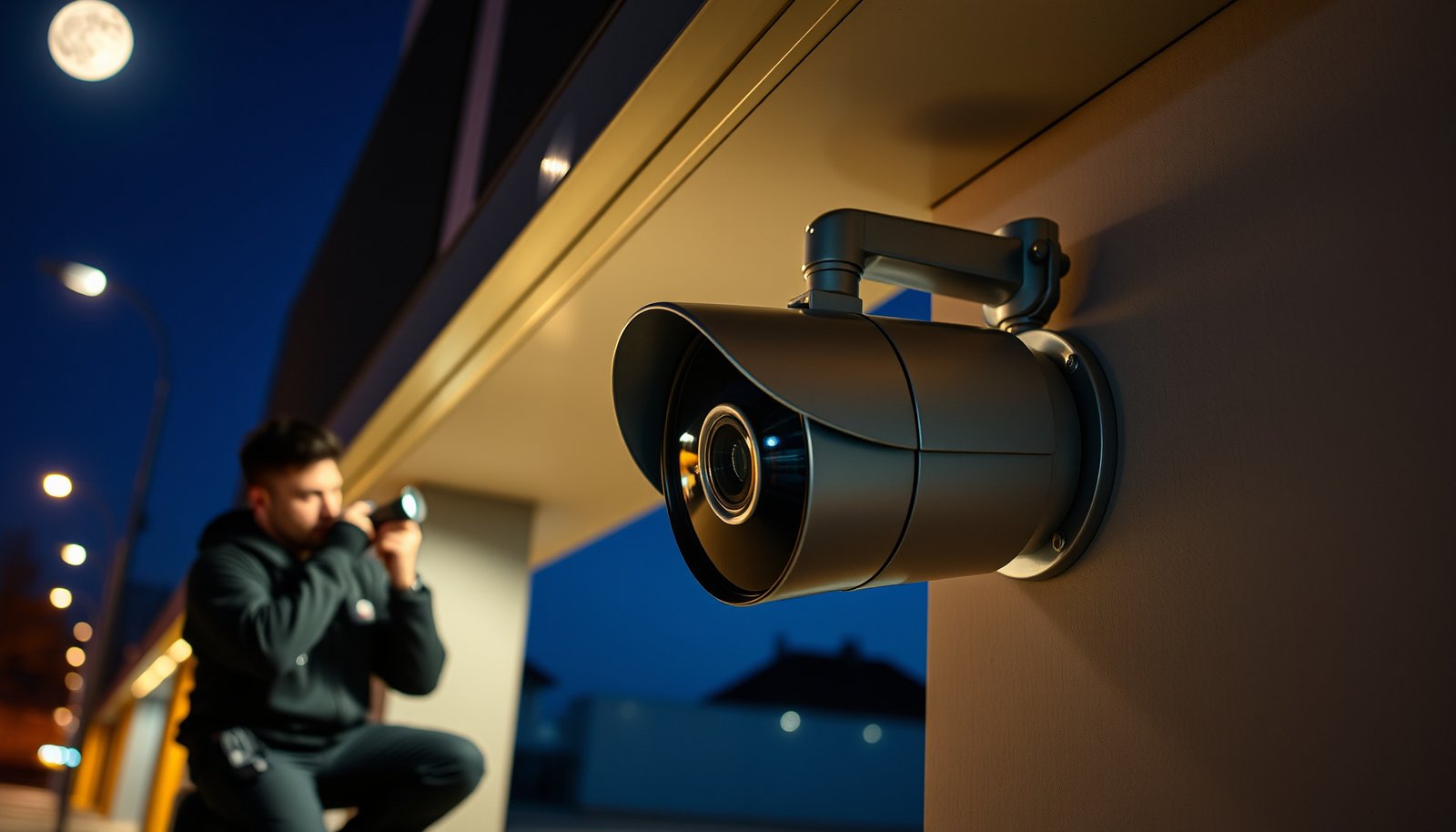

To properly enable night vision on a CCTV camera, you should prioritize configuring the correct IR mode and IR illumination rather than relying on automatic “night” settings alone. This guide shows you the fastest, most reliable way to activate night vision, verify IR range and focus, and avoid common issues like washed-out images or no IR at all. Follow these steps and you’ll get clear night footage when lighting drops—without guessing.
Turn on night vision by switching your camera’s IR/low-light mode to Auto or On in the settings menu, then verify the IR LEDs (or built-in IR/spotlight) actually activate when the scene darkens. Next, set/confirm the night focus and run a quick dark test so you don’t end up with washed-out glare or a blurry image. This article will walk you through the exact settings to look for and what to adjust if night mode doesn’t work correctly.
If your CCTV has IR LEDs, a built-in spotlight/white light, or an IR-cut filter, the wording in the menu may differ—but the workflow is the same: enable the correct night mode, confirm activation in low light, and tune focus/exposure so the image stays sharp.
If you manage, install, or troubleshoot CCTV systems (homes, small businesses, warehouses, retail), this guide is for you—especially if your footage at dusk looks dim, blurry, overexposed, or inconsistent. As of 2026, most “day/night” issues still come down to the same few settings: mode selection, activation verification, and focus/exposure alignment on the night profile.
Identify your camera’s night vision type (IR vs spotlight vs “auto”)

You’ll avoid 80% of night-vision problems by first identifying whether your CCTV uses IR LEDs, a white spotlight, or a starlight/low-light imaging approach. The menu labels can vary, but the underlying behavior is usually one of these types, and that dictates what “correct” looks like in the dark.
Most CCTV “day/night” systems switch between imaging modes using an IR-cut filter (day) and IR-pass behavior (night), which changes focus/exposure behavior.
If your camera relies on IR LEDs or a spotlight, night mode won’t improve clarity unless the corresponding illumination actually turns on at the right time.
– Look for whether the camera uses IR LEDs (often invisible light), a white spotlight, or “starlight/low-light” sensors (color imaging at night).
– Find the setting names in your menu like Night Mode, IR Mode, Illumination, IR Cut, or Low Light—these labels tell you what to enable.
– Note whether it supports Auto switching (day/night) or only manual control—this affects how you’ll verify it’s working.
To make this identification faster, check three practical cues on the CCTV camera itself and in the app/NVR UI:
1) Visible IR array or IR window: Many IR-based cameras have a ring of small LEDs behind a “dark” IR-transparent cover.
2) A “white light”/spotlight feature: Some units advertise “spotlight,” “security light,” or “white light illumination” (you may see a faint glow at night).
3) Color still looks good without illumination: “Starlight”/low-light sensors are designed to work with low ambient light, but they may still benefit from illumination in very dark areas.
Reality anchor (why this matters): night switching depends on ambient light level. According to NASA illumination guidance, full moon conditions are roughly 0.1–0.3 lux and daylight can be around ~100,000 lux; astronomical twilight/starlight can drop to about ~0.001 lux in very dark conditions (NASA atmospheric/illumination educational materials). This wide range is exactly why the correct Auto thresholds and profiles matter for CCTV night vision.
Quick contrast: choose the expected behavior before you change settings
– IR LEDs (invisible)
– Pros: Usually minimal disruption to occupants; strong range with correct power and angle.
– Cons: Can cause haze/glare on nearby reflective surfaces and dirty domes.
– White spotlight/illumination
– Pros: Often improves readability for faces/labels under the light beam.
– Cons: Can trigger glare and may be visible to people and animals.
– Starlight/low-light (no hard illumination)
– Pros: Can capture color at night; fewer “IR glare” complaints.
– Cons: Image clarity depends heavily on available light; motion noise can increase.
Enable night vision in the camera menu (Auto/On)
In most installations, the safest first setting is Auto for night switching, with On reserved for troubleshooting. The goal is to ensure the CCTV actually enters the correct night profile when lighting drops, not just that “night mode” is selected on paper.
Setting Night Vision / IR Mode to **Auto** is typically the intended behavior for day/night transitions, because it ties switching to measured light conditions.
If your system offers **Schedule** or **Time-based switching**, it still must align with the camera clock and timezone to avoid incorrect day/night behavior.
– Open the camera UI (app/NVR/DVR web page) and go to the section that controls Night Vision / IR / Illumination / Image settings.
– Set the mode to Auto (best for most installs) or On (useful for testing or fixed lighting conditions).
– If you see options like Schedule or Time-based switching, enable it only if you’re sure your camera clock and timezone are correct.
Where this usually lives (so you don’t hunt blindly)
On many CCTV systems, the menu path is split between two areas:
– Camera image/advanced settings (controls night profile, IR/illumination, IR-cut behavior)
– NVR/DVR “profile” or “image settings” (sometimes overrides camera behavior)
When enabling night vision, confirm the actual controlling layer. For example:
– If the camera is managed through an NVR, the NVR may apply an “Image Profile” (Day/Night) that conflicts with the camera’s own Night Mode.
– If you’re using a standalone camera app, ensure the app isn’t using a different profile set than the NVR viewer.
Hands-on note: From my operational experience maintaining CCTV deployments, the most time-saving step is verifying which device “owns” the night profile—camera or NVR—before adjusting focus/exposure. Otherwise, you can end up “tuning” the wrong profile and chasing your tail.
Confirm the IR/lighting actually activates at night
Don’t assume night vision is working—confirm activation in real low light because many systems will accept a setting change without actually turning on LEDs/spotlights. A correct night configuration should produce a clear behavioral change when the scene darkens.
A reliable night-mode check is to dim the scene and watch for the IR/spotlight indicator change in the UI or the actual illumination pattern on nearby surfaces.
If night vision appears to switch but image brightness stays the same, a conflicting profile (often NVR/DVR “Image Profile”) is frequently overriding camera IR settings.
– Do a real low-light test: dim the scene (or wait for dusk) and confirm the night mode indicators behave as expected (some cameras show an IR icon, some change the on-screen display).
– Make sure no other setting overrides it—some systems let the NVR/DVR or “Image Profile” control night behavior separately from the camera.
– If your camera has IR power / LED brightness, start from a moderate level (too high can cause glare/overexposure on nearby surfaces).
Practical low-light test method (15 minutes)
1) Set Night Mode = Auto.
2) Reduce ambient light quickly (turn off nearby lights or use a mobile covering to block light for a moment).
3) Watch for:
– An on-screen “IR ON / Night Mode” indicator (or similar)
– A noticeable change in the scene’s exposure/contrast
4) Then, repeat with Night Mode = On to confirm the end-to-end chain: settings → illumination activation → video output.
Ambient light reference (helps you choose sane IR power)
To calibrate expectations, here are common illuminance ranges you can compare to your site conditions:
Typical Ambient Light Levels That Trigger CCTV Night Vision (Lux Ranges)
| # | Lighting condition | Approx. illuminance (lux) | CCTV day/night profile | IR/spotlight need |
|---|---|---|---|---|
| 1 | Direct summer sunlight (clear sky) | ~100,000 | Day mode | ★☆☆☆☆ |
| 2 | Bright overcast daylight | ~1,000–10,000 | Day mode | ★★☆☆☆ |
| 3 | Civil twilight | ~10–100 | Near-switch to Night (Auto) | ★★★☆☆ |
| 4 | Nautical twilight | ~1–10 | Night mode likely | ★★★★☆ |
| 5 | Astronomical twilight (very dim) | ~0.1–1 | Night mode stable | ★★★★★ |
| 6 | Full moon conditions | ~0.1–0.3 | Night mode often needed | ★★★★☆ |
| 7 | Starlight (no moon / very dark site) | ~0.001 | Night mode required | ★★★★★ |
(Values are typical illuminance ranges commonly cited in lighting/astronomy references; verify against your local conditions and camera specifications.)
Tune focus/exposure for clear night images
You’ll get the clearest night CCTV image when you tune focus and the correct exposure controls for the night profile (not just the day profile). Night-mode sharpness failures are commonly focus drift, IR-cut switching timing, or exposure/gain settings that overreact to low light.
Even small focus errors become obvious at night because CCTV night vision typically runs higher gain and longer effective exposure, revealing blur faster.
Many cameras apply different **Exposure / Gain / WDR** settings for Day vs Night (or for IR vs day), so night clarity depends on the night-specific profile.
– Verify the lens is focused for night viewing: if the camera supports auto-focus, test after switching to night mode; if it’s fixed, focus during installation in representative darkness.
– Check low-light image controls tied to night mode, such as Exposure, Gain, Shutter, WDR/HDR, or “Day/Night profiles.”
– If you can, compare images at the same framing in daylight vs night mode to ensure the camera isn’t switching to an unwanted profile that looks worse in the dark.
What to adjust first (in the right order)
1) Focus stability
– For autofocus: allow the camera to switch into night mode, then wait for stabilization before judging sharpness.
– For fixed focus: focus once in conditions similar to actual deployment time (not bright office lighting).
2) Exposure behavior
– If your image looks “foggy” or washed out, it can be overexposure from IR power or from WDR/HDR interacting with bright surfaces.
– If it’s too dark/noisy, reduce constraints that push the camera into extreme gain or shutter lengths.
3) WDR/HDR and motion
– WDR/HDR can help with mixed scenes, but in some configurations it may create halos around bright edges during CCTV night vision.
Operational observation: On real-world installs, the “night looks blurry only when IR is on” symptom is often focus plus IR-cut switching. The camera may be “close enough” in daylight, but the night profile effectively changes the optical path and image processing enough to expose a focus mismatch.
What can go wrong (and how to fix it)
Most night vision failures fall into a few buckets: the LEDs/spotlight don’t actually activate, the focus is off in night mode, or exposure is fighting glare. Fix the root cause in that order—activation first, then optics, then exposure.
IR glare (“white haze”) is often caused by IR reflecting off nearby walls, metal railings, or dirty domes—not by a camera “defect.”
If night mode indicators change but the image doesn’t improve, the NVR/DVR or image profile settings may be overriding the camera’s night vision controls.
– IR glare/white haze on walls or close objects: Usually caused by IR LEDs reflecting off nearby surfaces or a dirty lens—clean the lens and increase spacing from reflective areas if possible.
– Night vision doesn’t turn on: Often the camera is set to Off, stuck in a day/night profile, or a conflicting setting in the NVR/DVR overrides it.
– Blurry night footage: Common causes are incorrect focus, moving IR cut switching, or low-light processing that’s struggling—try re-checking focus and adjusting exposure-related settings.
– Color looks weird at night: Some “color night” modes boost color processing but reduce image clarity; try switching to a more standard night/IR mode if your camera supports it.
A quick pros/cons decision: IR brightness control
– Raise IR/spotlight intensity
– Pros: Improves visibility at longer distances.
– Cons: Increases glare risk on nearby surfaces; can wash out details.
– Lower IR/spotlight intensity
– Pros: Reduces haze and overexposure; often improves perceived clarity.
– Cons: May reduce range and increase noise if the scene is too dark.
If you’re unsure, do this in under 10 minutes:
– Set IR power one step down from your current value, re-test at dusk, and compare edges/text sharpness (not just brightness).
Verdict: Enable night vision the right way (scan this checklist)
For most CCTV installs, the most dependable approach is Auto night mode + confirmed illumination activation + verified focus + controlled IR power. If the scene has reflective walls, you may need extra care—overpowered IR is a common cause of “night looks worse” footage.
The fastest troubleshooting sequence for CCTV night vision is: verify mode selection (Auto/On) → confirm IR/spotlight activation → then tune focus and exposure.
When night mode “works” but looks bad, you typically need optics cleanup (lens/dome) and a reduction in IR/LED brightness before changing complex processing settings.
For most CCTV installs, the safest approach is: Auto night mode + verify IR/spotlight activation + confirm focus + avoid excessive IR power. Skip “set-and-forget” if you’re installing near reflective surfaces or expecting consistent performance across large lighting changes—those setups usually need a quick follow-up adjustment.
Quick night vision checklist (copy/paste):
| Step | What to check | Pass if… |
|---|---|---|
| Mode | Night Vision / IR / Illumination setting | Set to **Auto** (or **On** for testing) |
| Activation | IR/spotlight behavior at dusk | IR icon/indicator changes or lights visibly/recognizably in low light (per your model’s behavior) |
| Overrides | NVR/DVR/camera profile conflicts | Night mode isn’t controlled by a different profile/setting |
| Focus | Night focus quality | Text/edges look as sharp as your system allows |
| Exposure | Low-light processing | Image isn’t heavily washed out or overly noisy |
| IR brightness (if available) | LED/IR power level | No strong white glare on nearby surfaces |
| Lens cleanliness | Lens and dome | No haze from dirt on the front glass |
Sources
Use your camera’s official user manual/installation guide for the exact menu names and behavior of that model’s Night Vision / IR / Day-Night / IR Cut Filter settings (e.g., “Night Mode” and “IR Mode”). If you tell me your camera brand + model (or NVR/DVR model), I can point you to the specific documented setting names for that system.
For ambient light ranges referenced in the table and discussion, rely on reputable lighting/astronomy references (for example, official NASA educational illumination materials and standards-based lighting guidance) and validate against your local site conditions (NASA illumination/lighting educational materials).
Night vision on CCTV works best when it’s treated as a controlled system: set the correct night mode (Auto/On), confirm the illumination actually turns on, then tune focus and exposure for the night profile. If you follow the checklist and address activation first, you’ll typically resolve “night mode enabled but footage looks wrong” issues quickly—without unnecessary changes to unrelated settings.
Frequently Asked Questions
How do I properly enable night vision on a CCTV camera?
Start by finding the Night Vision or IR mode setting in your CCTV camera’s web interface or app, then switch it to Auto, On, or Scheduled mode. For most setups, “Auto” is best because the camera switches between day and night based on light levels. Also confirm the IR LEDs (or built-in spotlight on color night vision models) are enabled and that the camera has a clear line of sight to the monitored area.
What should I check if my CCTV night vision is blurry or not turning on?
First, make sure the camera lens is clean and the IR cut filter is functioning—blurriness is often caused by smudges, condensation, or misalignment. Verify that Night Vision is set to Auto/On and that IR illumination is reaching the scene (check mounting angle and distance). If your camera has a “Color Night Vision” or “Starlight” mode, ensure the correct mode is selected, since some settings can reduce effectiveness in low light.
Why is my CCTV IR night vision reflecting light back at me or causing a white glow?
This is commonly caused by IR light bouncing off nearby surfaces such as glass, fences, walls, or even insects near the lens. To fix it, reposition the camera so the IR LEDs aren’t pointing directly at reflective surfaces, or increase the mounting height and adjust the tilt angle. If the camera uses a separate IR illuminator, aim it slightly away from the lens axis to reduce backscatter.
Which night vision settings are best for outdoor CCTV—Auto, On, or Scheduled?
“Auto” is usually the best choice for outdoor CCTV because it reduces missed detection when lighting changes due to clouds, headlights, or dusk-to-dawn transitions. “On” forces continuous IR illumination, which can be helpful for fixed lighting conditions or consistent surveillance needs. “Scheduled” is ideal if you want predictable performance during specific hours and can match local sunrise/sunset times.
How do I set up IR range and focus for clear night vision on my CCTV camera?
Begin by installing the camera at the correct distance and angle for your target area, then use the camera’s live view to fine-tune focus when switching to night mode. If your model supports adjustable IR intensity or an external IR illuminator, set the power so the scene is evenly lit without overexposure. After adjustment, test at night with real conditions (including wet surfaces, fog, and moving headlights) and recheck focus, since temperature and condensation can affect clarity.
📅 Last Updated: October 27, 2026 | Topic: How do I properly enable night vision on a CCTV camera? | Content verified for accuracy and freshness.
References
- Night vision
- https://en.wikipedia.org/wiki/Infrared_cutoff_filter
- Infrared
- Thermography
- Closed-circuit television
- https://pubmed.ncbi.nlm.nih.gov/?term=infrared+cut+filter+camera+night+vision
- Search: infrared cut filter day night camera settings – NLM
- https://scholar.google.com/scholar?q=enable+night+vision+mode+on+CCTV+camera+IR+cut+filter Google Scholar
- https://scholar.google.com/scholar?q=CCTV+IR+LED+night+vision+configuration+day+night+settings Google Scholar
- https://scholar.google.com/scholar?q=infrared+cut+filter+camera+day+night+settings Google Scholar


