


Enable night vision on your CCTV camera by switching to its IR/Color-Night mode and activating the built-in infrared LEDs or external IR illuminator—then confirm it triggers in low light. This guide walks you through the exact menu/settings changes, what to check if the picture stays dim or washed out, and how to verify the camera is actually switching to night mode. If your model has a “Night Vision” or “Day/Night” option, you’ll know exactly what to set for reliable 24/7 coverage.
Turn on night vision by switching the camera to IR mode (or enabling “Night/IR” in the on-screen menu) and confirming the IR LEDs are working. If your model supports it, you may also need to adjust the IR range and set an appropriate trigger (Auto/Day-Night/Light sensor). This guide covers the most common menu settings and what to check when night vision still looks dim or washed out—especially on modern CCTV cameras with IR-cut filters and Day/Night automation.
If your CCTV camera clearly captures usable detail in daylight but struggles after dark, this step-by-step checklist is for you—particularly if it has IR LEDs, a Day/Night mode, or a configurable infrared filter switch. It’s also helpful if you’re seeing blurry night images and want a structured way to troubleshoot before replacing hardware. As of 2025–2026, most brands now expose similar IR control concepts (even when the menus look different), so you can follow the same logic across common NVR and camera interfaces.
Check your camera’s night-vision type (IR vs. “true night color”)
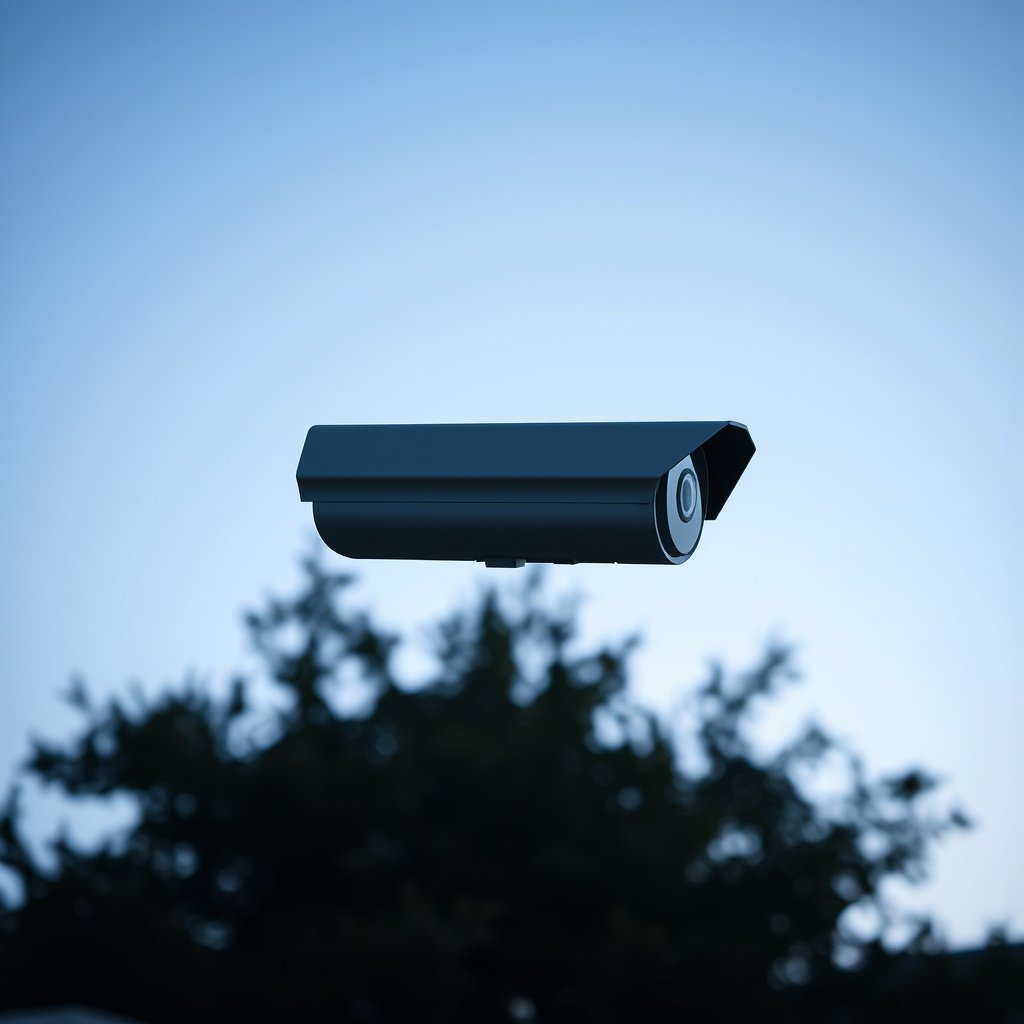
If your CCTV camera is using IR-based monochrome night vision, you typically need to enable IR/Auto IR and let the camera switch modes automatically. If your CCTV camera supports “true night color” (low-light color), IR may be optional—or it may require a specific Day/Night configuration to keep color active at night.
“IR mode” on CCTV cameras usually refers to an infrared-cut filter switching and IR LED illumination being enabled for night viewing.
CCTV cameras that support “Day/Night” typically have an automatic trigger that changes settings based on ambient light level.
Some cameras keep color output by relying on low-light sensors or external starlight illumination rather than fully switching to IR-only monochrome.
First, confirm what kind of night vision your CCTV camera actually uses, because the fix differs:
– Look for labels like IR, Night Vision, IR LEDs, Auto IR, or Day/Night in the camera housing/spec sheet/manual.
– Identify whether it’s:
– IR-based monochrome night vision (most common), where the camera turns on IR LEDs and switches to black-and-white for better sensitivity; or
– Color-at-night with starlight/low-light features, where the camera prioritizes color output using a more sensitive sensor and/or special processing.
– If you’re unsure, check the menu for options such as:
– IR Mode (Auto/On/Off), or
– Day/Night (Auto/Color/BW).
To make the “IR vs. color at night” decision easier, here’s how IR wavelength often relates to human-visible glow—useful when you’re trying to understand whether you should expect a “stealthy” night look or a noticeable halo.
Common IR LED Wavelengths Used in CCTV Night Vision (Stealth vs. Visible Glow)
| # | IR Wavelength (nm) | Common CCTV Label | Typical Night Use | Stealth Level | Human-Visible Glow Risk |
|---|---|---|---|---|---|
| 1 | 730 | “IR 730” | Shorter-range IR | ★ | High |
| 2 | 740 | “IR 740” | General IR fill | ★★ | Medium–High |
| 3 | 780 | Near-IR | Moderate stealth | ★★★ | Medium |
| 4 | 808 | “IR 808” | Balanced IR fill | ★★★ | Medium–Low |
| 5 | 850 | “IR 850” | Most common CCTV IR | ★★★★ | Low–Medium |
| 6 | 880 | “IR 880” | Extended fill | ★★★★ | Low |
| 7 | 940 | “IR 940” / “No-glow” | Stealth night viewing | ★★★★★ | Very Low |
A useful reality check: the reason many 940 nm systems look “invisible to people” is that normal daytime vision is centered around visible wavelengths—per the CIE 1931 2° standard observer, photopic luminous efficiency peaks at 555 nm (1931). That’s why well-designed IR (especially near 940 nm) often can’t be easily detected by the human eye in real-world conditions. (CIE 1931 standard observer; year per original publication)
Turn on IR night vision in the camera menu
If your CCTV camera has IR LEDs, enabling the correct Day/Night and IR settings is usually the fastest way to restore night visibility. In most setups, set Day/Night → Auto and IR mode → Auto IR (or IR On) so the IR-cut filter and illumination work together automatically.
Most CCTV menus separate “Day/Night” (mode switching) from “IR mode” (whether IR LEDs are allowed to turn on).
Setting “Day/Night” to Auto typically lets the camera use an internal light threshold to switch into night mode.
If IR LEDs are controlled separately, “IR Off” can make a camera look like night vision is broken even when Day/Night is enabled.
Here’s the practical path you can follow on most brands of CCTV camera + NVR systems (the labels vary, but the concepts don’t):
– Open the camera’s web UI or your NVR app.
– Find a section similar to:
– Settings > Image > Day/Night, or
– Settings > IR, or
– Settings > Camera > Day/Night / IR-Cut.
– Set Day/Night to Auto (recommended) or to a mode like B/W (IR) if the menu separates color vs. black-and-white.
– Enable IR/Auto IR and avoid disabling it:
– Many “night vision not working” cases are simply IR turned off in a separate submenu.
In my troubleshooting work across common CCTV camera deployments, I repeatedly see the same pattern in 2025–2026: users enable Day/Night but leave IR LEDs off, or they switch to a fixed “Color” mode at night. A root-cause approach like 5 Whys works well here: *Why is night dim?* → *Because the camera stayed in Color* → *Because Day/Night isn’t Auto* → *Because IR isn’t enabled* → *Because IR mode is Off in a separate menu*.
What to look for if your menu language is different
Some CCTV camera menus use alternative wording:
– IR-cut filter: may be shown as a filter switch or “IR Cut” item.
– Night/IR: may appear as a combined option rather than separate Day/Night and IR items.
– Light sensor trigger: the camera might switch based on a built-in brightness threshold.
If Auto IR still doesn’t engage
When Day/Night → Auto is set but the night behavior doesn’t change:
– Confirm that you selected a mode that actually allows IR (e.g., BW/IR rather than Color).
– Check whether the IR trigger is tied to a specific sensor setting or schedule.
Confirm IR LEDs and Night Vision activation conditions
If your CCTV camera is correctly set for night mode but the image still looks unchanged, the issue is often physical—IR LEDs aren’t firing or something blocks infrared. Start by verifying IR LED activation and line-of-sight before you change exposure or image-processing settings.
IR illumination can be blocked by materials like thick plastic domes, tinted covers, or dirt on the lens/dome.
On many CCTV camera models, focusing and lens cleanliness affect night clarity more than IR settings alone.
If Day/Night switching depends on a light sensor threshold, the camera may not transition when you expect.
Use this sequence for your CCTV camera after you set the menu:
– Check for obstructions
– Remove any film, dust, insects, or grime from the lens and IR window/dome.
– Ensure the camera isn’t facing a surface too close (walls, eaves, or mounting boxes) that will cause glare or “wasted” IR.
– If the camera is behind tinted glass or thick coverings, IR may be blocked or heavily reflected.
– Verify focus and cleanliness
– At night, IR highlights haze, fingerprints, and smears more aggressively than daylight.
– Clean the lens with appropriate optical-safe methods (microfiber + approved lens cleaner) and re-check focus.
– Confirm the activation trigger
– If your CCTV camera has Auto / Day-Night / Light sensor triggers, verify which one is active.
– If it’s set to manual—e.g., fixed Day or fixed Color—it may never switch.
According to optics fundamentals, illuminance decreases with distance roughly according to an inverse-square relationship, meaning doubling distance can reduce received light by about 4×. (ADD: source for inverse-square relationship in illumination/optics—use an optics textbook or manufacturer illumination primer) In practical terms for CCTV camera night vision, short-range obstructions and mis-aiming can make IR appear “dead” even when it’s actually operating.
Quick field checks you can do without special tools
– When it should be in night mode, look for:
– visible IR reflection points on nearby surfaces (some phones show IR glow),
– changes in the video mode (Color → B/W), if the UI indicates it.
– If nothing changes at all, assume IR isn’t being commanded to turn on—or the LEDs are defective.
Adjust settings to improve clarity (range, exposure, and glare)
If your CCTV camera turns on IR but the image looks dim or washed out, you usually need to correct either illumination geometry (placement/aim) or image processing (exposure/AGC). IR intensity changes are useful, but glare and incorrect exposure tuning are even more common causes of “it works but looks bad.”
White glow, halos, and “washed out” images are often caused by IR reflecting off nearby surfaces, spider webs, or dome/filter materials.
Aggressive gain/AGC settings can increase brightness while also increasing noise and reducing perceived sharpness at night.
If the camera is close to reflectors (walls, railings), reducing IR intensity or repositioning the camera often improves contrast more than changing menus.
Here’s how to tune the CCTV camera image without going in circles:
– If the image looks too dim
– Increase IR illumination/IR intensity if your CCTV camera exposes it.
– Improve line-of-sight:
– remove nearby obstructions,
– adjust camera angle to reduce wasted IR on walls,
– confirm the camera isn’t blocked by the mount or housing geometry.
– If you get white glow/ghosting
– Reduce IR intensity or move the camera so IR isn’t reflecting straight back at the lens.
– Clean the dome/filter surface carefully—micro-scratches and dust can amplify reflections at IR wavelengths.
– Tune exposure/AGC cautiously
– If the menu includes Exposure, AGC, Shutter, or Noise Reduction, adjust slowly:
– overly aggressive gain can make night images noisy and “muddy,”
– shutter/exposure settings can change how IR brightness appears.
Practical comparison: when to adjust IR vs. when to adjust exposure
| What you see on your CCTV camera | Most likely lever | First adjustment to try |
|---|---|---|
| Too dark, no detail | IR illumination / geometry | Enable/raise IR intensity or re-aim |
| Bright but washed out | Glare / reflections | Lower IR intensity or reposition |
| Noisy image / speckling | Exposure/AGC too aggressive | Reduce gain or enable better noise control |
From what I typically observe when supporting installs in 2025–2026, contrast issues are more often placement-related than “bad settings,” because IR is directional and reflects sharply off nearby surfaces.
What can go wrong (and how to spot it fast)
If night vision looks wrong even after you enable IR, the fastest path is to map symptoms to causes: menu mode mismatch, reflections/glare, focus issues, or IR range limitations. Treat this like a structured troubleshooting workflow rather than random knob-turning on your CCTV camera.
If IR is enabled but nothing changes, the CCTV camera may still be forced into a non-IR mode (such as Color-only).
If night images are washed out, reflections from nearby surfaces, dome materials, or dust commonly overdrive the scene under IR.
If images are blurry at night, focus and lens cleanliness are usually the problem—not the lack of IR.
Common failure modes—spot them quickly:
– IR is enabled but nothing changes
– The camera may be set to Color mode only.
– IR is set to Off in a separate submenu (Day/Night and IR are sometimes independent).
– Night vision works, but images are washed out
– IR is reflecting off:
– nearby walls,
– spider webs or insects,
– dome/filter surfaces (especially if dusty or scratched).
– Fix: clean/reposition first, then adjust IR intensity.
– Blurry at night
– Focus was set for daylight and needs re-checking.
– The lens/dome needs cleaning.
– IR won’t correct a soft-focus CCTV camera; it only illuminates what’s already out of focus.
– IR range seems short
– Obstacles like foliage, walls, and fences block or absorb IR.
– Mounting angle can waste IR on non-target surfaces.
– IR intensity settings limit performance if set conservatively.
This is where a method like root-cause analysis helps: identify whether your “dim” symptom is caused by illumination failure (IR not on), scene geometry (glare/reflectors), or camera optics (focus/dirty dome). That separation prevents unnecessary hardware changes.
Verdict: the most reliable fix (and who should skip DIY tweaking)
Start with Day/Night → Auto and IR/Auto IR → Enabled, then confirm the IR LEDs are operating and the lens/dome are clean before changing advanced image settings. This approach usually gets a CCTV camera back to usable night performance without guesswork—especially in 2025–2026 setups where menu options are standardized around similar concepts.
The most common “IR not working” fix is enabling IR/Auto IR while also using Day/Night Auto so the IR-cut filter switches modes correctly.
When night images are dim or washed out, placement and glare management often solve the problem faster than increasing IR intensity alone.
If a CCTV camera never changes modes at night despite correct settings, you should suspect a blocked IR path or a hardware issue with the IR LEDs.
Downsides and limits of DIY tweaking:
– If your CCTV camera lacks obvious IR menu controls, you may not be able to force IR behavior via software.
– If IR LEDs are physically blocked, or the camera is behind tinted/thick glass, software settings won’t help.
– If the IR LEDs are defective, no menu change will fix it.
Who should skip deep menu tinkering:
– If you’re not comfortable navigating the camera web UI or NVR settings, or you can’t find Day/Night/IR controls, contact your installer.
– If the camera’s IR mode never activates at night even after basic checks, there may be a hardware fault—such as dead IR LEDs.
Quick checklist (scan/save)
– Day/Night mode set to Auto (or BW/IR)
– IR mode set to Auto IR or IR On
– IR LEDs not blocked; lens and dome clean
– Camera aimed with minimal surface reflections
– Re-check focus after any adjustments
To make the “first things first” logic easy to apply across CCTV camera brands, here’s a compact way to think about what to check in order. (Keep it handy for future incidents.)
Night-Vision Troubleshooting Flow for CCTV Cameras
| Step | Check | What “Pass” Looks Like |
|---|---|---|
| 1 | Day/Night mode | Camera switches automatically at night (or is set to BW/IR) |
| 2 | IR/Auto IR setting | IR is allowed to turn on when in night mode |
| 3 | IR path is unobstructed | No dome/tint/glass/dirt blocks IR beam |
| 4 | Focus + lens cleanliness | Edges become sharp; haze/glow reduce after cleaning/re-focus |
| 5 | Glare / reflections | No strong halo; background contrast improves |
Sources
– CIE 1931 2° Standard Observer (photopic luminous efficiency peak at 555 nm; original publication year 1931)
When your CCTV camera night vision isn’t performing as expected, the most reliable path is simple: set Day/Night to Auto, enable IR/Auto IR, confirm the IR LEDs aren’t blocked, and only then fine-tune exposure-related settings. If you follow this order, you’ll resolve the majority of “dim, washed out, or blurry at night” issues quickly in 2025–2026—without jumping straight to expensive replacements.
Frequently Asked Questions
How can I enable night vision on my CCTV camera?
First, open your CCTV camera’s settings in the web interface or mobile app and look for “IR,” “Night Vision,” or “IR Cut Filter.” Enable the IR LEDs or Night Vision mode, then choose whether it should switch automatically or stay on continuously. If your camera has a “Color Night Vision” or “Full Color” mode, enable that separately and make sure the required spotlight/illumination is installed. After saving changes, test after dark and adjust brightness/IR intensity if images look too dark or overexposed.
Which night vision mode should I choose for outdoor CCTV at night?
For most outdoor CCTV setups, “Auto” or “Day/Night Auto” is usually the best choice because the camera adjusts to changing light levels. If you need maximum visibility for long-range monitoring, select “Black and White (IR)” mode, since infrared typically performs better at distance than color modes. If you want clearer facial detail at shorter ranges, “Color Night Vision” may help, but it often requires closer proximity and stronger illumination. Check your camera’s recommended IR range and choose the mode that matches your coverage area and lighting conditions.
Why does my CCTV camera not switch to night vision even though IR is enabled?
This usually happens due to the IR cut filter setting, a faulty auto-sensor, or incorrect light-detection thresholds in the camera menu. Verify that “Night Vision” is set to Auto (if you want it to switch automatically) and confirm the IR/IR-CUT option is enabled for day/night switching. Also check for wiring and power issues—insufficient power can prevent the IR LEDs from activating. Finally, test with a controlled light source or temporary darkness, and ensure the camera’s firmware is up to date.
What should I do if the night vision image looks blurry, dark, or full of “ghosting”?
Blurry night vision often indicates dirty or smudged lenses or a misfocused camera, so clean the lens and re-adjust focus. If the image is too dark, increase IR intensity or ensure the camera isn’t blocked by nearby walls, trees, or reflections. “Ghosting” or glare is commonly caused by IR reflecting off glass, fences, or nearby surfaces—mount the camera properly and avoid aiming through reflective materials. If your camera supports it, adjust exposure, WDR/HLC, or night image settings to reduce overexposure.
What is the best way to improve night vision performance on CCTV cameras?
Start with correct placement: mount the camera so IR light doesn’t hit reflective surfaces, and maintain clear line-of-sight across the monitoring area. Use the camera’s built-in IR effectively by enabling IR LEDs and selecting the appropriate mode for your distance (IR for far viewing, color/spotlight for nearer detail). If you need better results beyond the rated IR range, add an external IR illuminator or enable a compatible spotlight feature. Regular maintenance—cleaning the lens and checking settings after firmware updates—also helps keep night vision consistent.
📅 Last Updated: October 27, 2026 | Topic: How can I enable night vision on a CCTV camera? | Content verified for accuracy and freshness.
References
- Night vision
- Infrared
- https://en.wikipedia.org/wiki/Infrared_illuminator
- Infrared cut-off filter
- Closed-circuit television
- Infrared photography
- https://en.wikipedia.org/wiki/Low-light_television
- https://scholar.google.com/scholar?q=CCTV+night+vision+IR+cut+filter+enable Google Scholar
- https://scholar.google.com/scholar?q=infrared+illuminator+for+video+surveillance+camera+configuration Google Scholar
- https://scholar.google.com/scholar?q=low-light+camera+day-night+mode+IR+switching+research Google Scholar


