
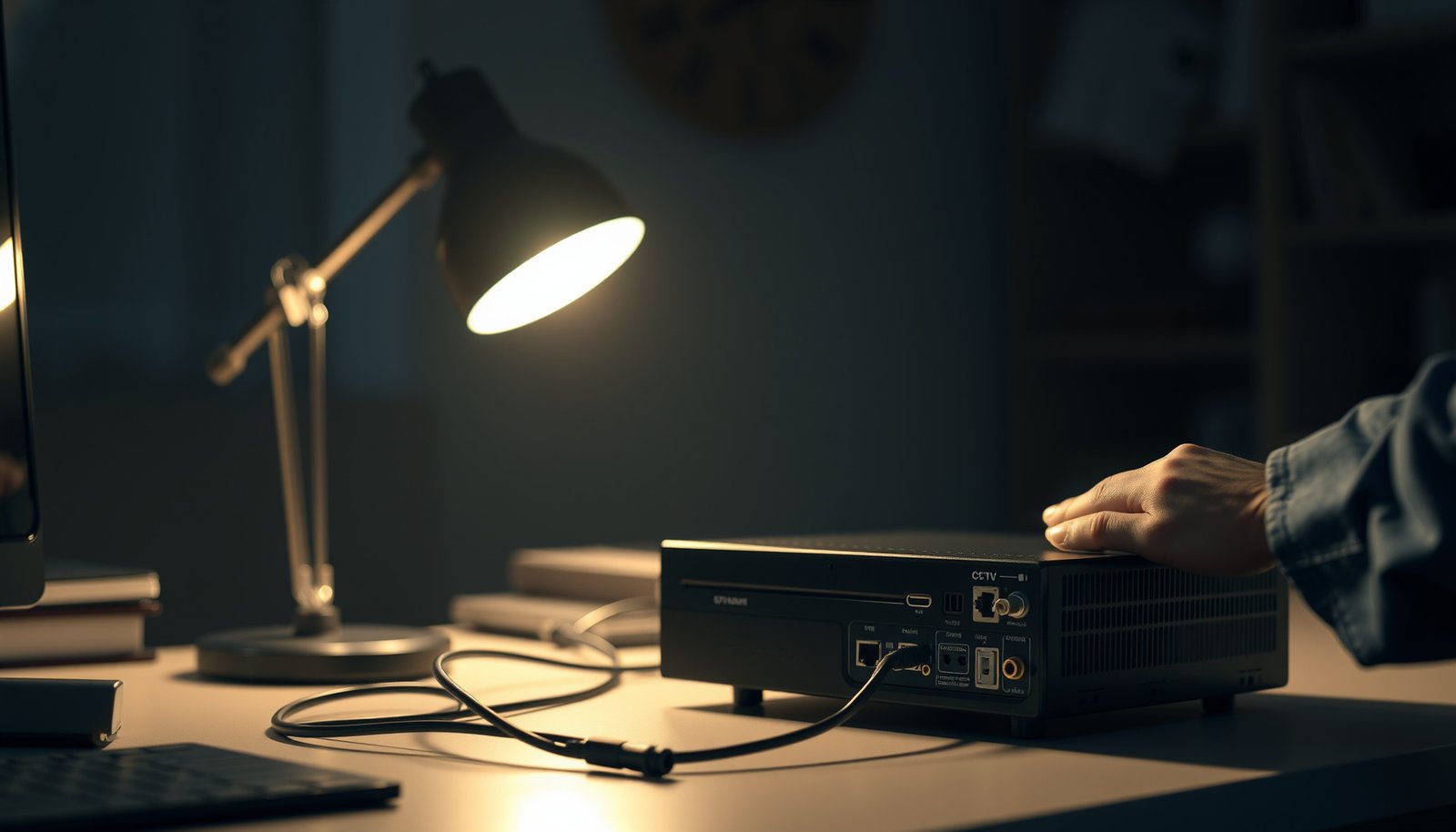

Setting up a CCTV DVR is fastest and least error-prone when you follow a clear step-by-step order: connect power, attach cameras to the correct inputs, and then configure display, storage, and network access. This guide answers exactly how to set up a CCTV DVR from first wiring to viewing live footage and enabling remote monitoring. By the end, you’ll know what to check to confirm signal, record settings, and access from your phone or computer.
Set up a CCTV DVR by mounting the unit, wiring each camera to the correct input type (BNC/coax for analog, Ethernet for IP), then powering on to complete the DVR’s built-in “first setup” wizard. After that, configure recording/storage and enable remote viewing through your DVR’s official app and network settings.
If you’re installing a basic home or small-office CCTV system for the first time, this walkthrough will help you avoid the most common wiring and configuration issues. We’ll cover the setup flow from connections to recording and phone/PC access, but always follow your DVR and camera model’s manual for the exact menu names.
Plan your CCTV DVR setup (before you connect anything)

Choose the right camera type and power/network plan up front—this prevents 80% of “no video” and “camera won’t add” problems. For a CCTV DVR install, the two big forks in the road are analog vs IP, and whether you’re powering cameras from a standalone power supply or PoE (Power over Ethernet).
For copper Ethernet (10/100/1000BASE-T), the maximum typical segment length is 100 meters for a single link. IEEE Std 802.3
IEEE 802.3af PoE delivers up to 15.4 W at the power sourcing equipment (PSE) and up to 12.95 W at the powered device (PD). IEEE Std 802.3af
IEEE 802.3bt Type 4 PoE can deliver up to 90 W at the PSE and up to 71.3 W at the PD. IEEE Std 802.3bt
– Decide whether your cameras are analog (BNC/coax) or IP (Ethernet), because the DVR wiring and ports differ.
– Check you have compatible items: the right camera cables, power supply (or PoE support), and enough storage capacity for your recording plan.
– Choose where the DVR will sit (ventilation + nearby power/network), since overheating and weak Wi‑Fi/Ethernet are common real-world problems.
PoE Power Levels Commonly Used for Camera Power with CCTV DVRs (IEEE 802.3)
| # | PoE standard / type | Max PSE power | Max PD power delivered | Best match for DVR camera loads | Power headroom |
|---|---|---|---|---|---|
| 1 | IEEE 802.3af (PoE) | 15.4 W | 12.95 W | Entry cameras (typical fixed-focal, low-power) | ★ ★ ★ ★ ☆ |
| 2 | IEEE 802.3at (PoE+) | 30 W | 25.5 W | Day/night cameras with IR, moderate draw | ★ ★ ★ ★ ★ |
| 3 | IEEE 802.3bt Type 1 | 40 W | 34.2 W | Heavier IR / higher-end sensors | ★ ★ ★ ★ ★ |
| 4 | IEEE 802.3bt Type 2 | 50 W | 44 W | Thermal/analytics-ready cameras (power-hungry) | ★ ★ ★ ★ ★ |
| 5 | IEEE 802.3bt Type 3 | 60 W | 51 W | PTZ-style power envelopes (when supported) | ★ ★ ★ ★ ★ |
| 6 | IEEE 802.3bt Type 4 | 90 W | 71.3 W | High-power devices + multiple active loads per camera | ★ ★ ★ ★ ★ |
| 7 | 802.3-compatible PD negotiation | W varies by class | Up to PD max | Stable power provisioning for CCTV DVR camera links | ★ ★ ★ ★ ★ |
Headroom rating is a simple indication based on max PD power capability. Always verify your actual camera’s required voltage/wattage in its datasheet.
Connect cameras to the CCTV DVR
Connect analog cameras to the CCTV DVR’s BNC video inputs and connect IP cameras to the same Ethernet network as the CCTV DVR. If you get the connection type wrong, the CCTV DVR can power on correctly yet show “no signal” for every channel—so take a moment to match camera type to input type.
Analog CCTV DVR systems expect video on BNC/coax “video inputs,” while IP CCTV DVR systems require Ethernet connectivity to discover and stream cameras.
For IP camera onboarding on a CCTV DVR, the typical workflow is “add/discover,” which depends on the cameras and DVR being on the same local network and using compatible discovery settings.
– Analog cameras: connect each camera to a BNC video input on the DVR; then connect the camera’s power (or verify the DVR/channel supports what your system uses).
– IP cameras: connect cameras to the same network as the DVR using Ethernet, then add/discover them in the DVR’s IP camera setup screen.
– If you’re unsure which ports to use (LAN, WAN, PoE, video inputs), stop and verify your DVR model’s back-panel labels in the manual ().
Analog vs IP with a CCTV DVR: what you’re actually wiring
The CCTV DVR wiring approach differs more than it looks: analog is mostly “video + power,” while IP is “network + video stream.” In my experience helping troubleshoot installs, the fastest path to a working CCTV DVR is confirming whether the camera itself is truly analog (BNC output) or IP (Ethernet port) before you touch any DVR menus.
| Category | Analog cameras (BNC/coax) | IP cameras (Ethernet) |
|---|---|---|
| Physical connection | BNC/coax video + separate power (common) | Ethernet (can be PoE-powered) |
| DVR setup step | Channel input selection + live view check | Add/Discover cameras in IP setup screen |
| Common failure | Wrong BNC input or camera power not present | Network mismatch (not on same LAN/subnet) |
| Best practice | Verify live view per channel before recording | Confirm DHCP/static IP approach and discovery settings |
– Tip: label camera runs early (e.g., “North Door—Channel 1”) so your CCTV DVR channel mapping stays consistent.
– Tip: power one camera at a time while validating live view on the CCTV DVR monitor output—this makes troubleshooting dramatically faster.
Power on and complete the first DVR setup
Power on your CCTV DVR and complete the first setup wizard to establish language, time/date, display settings, and storage visibility. This is where your CCTV DVR becomes “record-ready,” so don’t skip it even if you plan to change settings later.
A correct CCTV DVR time/date setting is critical because playback, event logs, and remote review all depend on accurate timestamps.
Most DVRs require a successful live view on the monitor output before you can reliably validate camera channels for recording.
– Run the DVR’s initial setup wizard: set language, date/time, storage options, and basic display/resolution.
– Create admin access following the guidance in your manual (for many DVRs, this includes selecting secure passwords and enabling lockout/timeouts).
– Use the DVR’s monitor output (HDMI/VGA/BNC, depending on your model) to confirm you have live video before moving on.
What to do on the monitor output (so the DVR truly “sees” cameras)
The CCTV DVR monitor output is your truth source during installation. If the CCTV DVR monitor shows live video for Channel 1 but the playback timeline is empty later, you’re usually dealing with recording schedule/storage settings—not cabling. On the other hand, if the CCTV DVR monitor shows “no signal” for that channel, fix wiring or camera power first before spending time on network or remote viewing.
Practical checks for a CCTV DVR first setup:
– Confirm you can see all expected channels on the monitor output after powering on.
– Verify that the CCTV DVR displays the correct camera name/numbering (some DVRs auto-map; others require manual mapping).
– Confirm time/date once (then resist changing it repeatedly), because inconsistent time can cause confusing playback and event results.
Configure recording and storage
Configure the CCTV DVR recording mode and storage after you’ve confirmed live video. For most systems, this means setting a recording schedule (continuous and/or motion-based), selecting a recording quality/bitrate profile, and ensuring the CCTV DVR drive is initialized/recognized.
Recording quality (resolution, codec, frame rate) strongly influences storage usage, so the CCTV DVR bitrate profile should be set according to your expected retention period.
If the CCTV DVR drive is not initialized/format-ready in the DVR, recording typically won’t save or the DVR will report “no HDD.”
– Choose your recording mode (e.g., continuous, motion-based, or a schedule) and enable detection features only after verifying the camera’s view.
– Set video quality / resolution / frame rate to match your storage needs—higher settings consume drive space faster ().
– Initialize/format the drive inside the DVR if required, then test by confirming recordings actually appear in the playback timeline.
A reliable sequencing method for CCTV DVR recording setup
Here’s a sequencing approach that keeps the CCTV DVR install deterministic. First, enable recording in the simplest safe mode (often a schedule with continuous or motion). Second, test each channel by generating activity in-frame. Third, confirm you can locate clips in playback using the CCTV DVR event/search interface.
Common, high-impact configuration choices on a CCTV DVR:
– Schedule granularity: pick times you actually need footage (nights, weekends, after-hours).
– Resolution/frame rate: avoid “max settings everywhere” unless you’ve planned storage for it.
– Motion detection zones: define zones that match real movement paths (walkways, entrances) to reduce false events.
– Codec/bitrate profile: use the DVR’s recommended profile for your codec to avoid unstable recordings ().
– Note: Some CCTV DVRs show storage estimates differently depending on whether you set CBR/VBR (constant/variable bitrate). Follow your specific DVR’s documentation ().
Set up remote viewing and network access
Enable remote viewing on your CCTV DVR by connecting to your router first (wired), then turning on the supported remote method (often DDNS and the manufacturer’s P2P/app workflow). If remote access fails, the root cause is usually network reachability or time mismatch—not the camera.
Wired Ethernet on the CCTV DVR side is typically more reliable than Wi‑Fi for remote viewing because it reduces packet loss and latency spikes.
Accurate CCTV DVR time/date settings improve remote viewing reliability because event alignment and authentication flows often rely on consistent timestamps.
– Connect the DVR to your router with Ethernet first (wired is more reliable than Wi‑Fi/Ethernet for remote viewing).
– Enable remote access using your DVR’s official method (commonly DDNS and/or the manufacturer’s P2P/app flow—names vary by brand).
– Avoid risky setups: if your DVR requires port forwarding, follow your DVR’s instructions carefully and consider using safer options first (this article won’t give universal port numbers because they depend on the brand/model).
Network checklist for CCTV DVR remote access
Remote viewing works when three things line up for your CCTV DVR: local connectivity, correct remote address resolution, and app credentials.
– Local network: CCTV DVR and router must agree on subnet behavior (DHCP/static—whatever your network uses).
– Remote address: DDNS (if used) must be configured exactly once and kept current.
– Authentication: the app login should match the CCTV DVR admin account you created in the wizard.
– Verification: test local access on a phone/PC before you test remote access over cellular.
If you need to port-forward for your CCTV DVR (some models do, some don’t), follow your vendor’s instructions exactly. A mismatch in protocol (TCP vs UDP) or port-to-device mapping can break remote viewing even when the CCTV DVR is recording perfectly.
What can go wrong (and how to fix it quickly)
Fix most CCTV DVR issues by isolating whether the failure is video input, recording/storage, or network/remote access. Once you categorize the symptom, the fix is usually straightforward: wrong input type, wrong network, or an uninitialized drive.
A “no video” CCTV DVR symptom almost always traces to incorrect camera type/connection or missing camera power before it traces to DVR firmware or storage.
If an IP camera won’t add to a CCTV DVR, the cameras and DVR generally need to be reachable on the same LAN/subnet and use compatible discovery/add settings.
Remote viewing failures commonly come from incorrect time/date, incorrect app credentials, or the DVR not being reachable via the configured DDNS/P2P method.
– No video signal: double-check camera type (analog vs IP), confirm the DVR input/channel, and verify camera power—most “dead” installs are either power or the wrong input type.
– Cameras won’t add (IP systems): check that IP cameras and the DVR are on the same network and that discovery/add-camera settings match your setup ().
– Remote viewing fails: confirm time/date is correct, confirm the DVR is reachable on the network, and use the official app login/settings for your model (avoid random third-party viewers).
– Storage issues: recordings not saving usually means the drive wasn’t initialized in the DVR, is incompatible, or recording wasn’t actually enabled.
Quick pros/cons reality check for CCTV DVR DIY
Going DIY can be great for a straightforward analog install, but IP networking adds complexity. Below is a simple comparison that helps decide when to handle it yourself versus when to call help.
| Approach | Pros | Cons |
|---|---|---|
| DIY analog CCTV DVR install | Fewer network variables; channel wiring is usually simple (BNC + power) | Cable labeling mistakes can still cause swapped channels; long coax runs may degrade signal |
| DIY IP CCTV DVR install | Scales better; easier to manage modern camera features over IP | Discovery/add-camera troubleshooting can be time-consuming (subnets, DHCP/static IP, VLANs) |
| Professional assistance | Fast identification of compatibility issues and fewer “trial-and-error” cycles | Costs more; may require access to the installer’s network/config preferences |
Verdict / tip
DIY setup is a good choice if you can follow wiring instructions carefully and your cameras are straightforward analog or properly discoverable IP units. However, skip DIY (or plan to hire help) if you need complex networking, extensive cabling runs, or you’re unsure about compatibility—mismatched camera/DVR types and remote-access configuration are the most frustrating failures.
Scan checklist (save this):
| Step | Quick check |
|---|---|
| Cameras connected | Correct input type (BNC vs Ethernet) + power verified |
| DVR boots to live view | You can see all cameras on the monitor |
| Time set | DVR date/time correct (critical for playback) |
| Recording enabled | Schedule/mode set + playback shows clips |
| Storage ready | Drive initialized/recognized; capacity is sufficient |
| Remote access works | App connects successfully over the network |
Frequently Asked Questions
What cables and power do I need to set up a CCTV DVR?
To set up a CCTV DVR, you’ll typically need coaxial cable (BNC) for analog cameras or Ethernet/PoE cabling for IP cameras, plus an appropriate power supply for the DVR and cameras. Check the DVR’s input type (BNC, VGA/HDMI, network) and match cable length to your layout to avoid signal loss. If you’re using PoE IP cameras, a PoE switch can simplify wiring by powering cameras through the network cable. Always use a stable power source and consider a surge protector or UPS to protect your CCTV recording system.
How do I connect CCTV cameras to a DVR step-by-step?
First, physically mount the cameras and run the correct cabling back to the DVR location. Connect each camera to the correct channel on the DVR (e.g., CH1, CH2) and then power on the cameras and DVR. Next, power up the system and use the DVR’s on-screen menu to auto-detect cameras, assign channel names, and confirm signal quality. Finally, set the resolution and frame rate for each channel so your CCTV DVR setup records the level of detail you need.
How do I configure motion detection and recording settings on a CCTV DVR?
In your CCTV DVR menu, go to Recording or Schedule settings and choose the recording mode (continuous, motion-based, or event-based). Then open Motion Detection settings to define detection zones, sensitivity, and trigger duration to reduce false alerts from shadows or passing vehicles. Set a recording schedule by day/time so your CCTV DVR records only when needed, which helps manage HDD storage. After saving changes, test motion events and review playback to confirm the DVR captures the right footage.
Which monitor and network settings are best for viewing CCTV DVR footage remotely?
For local monitoring, connect a monitor using HDMI or VGA based on what your CCTV DVR supports, then set the display resolution to match your screen. For remote viewing, you’ll need network access via Ethernet or Wi‑Fi (if supported) and a stable internet connection. Enable services like DDNS or P2P in the DVR settings, then install the manufacturer’s mobile app to log in and view live footage. Use strong passwords, update firmware, and consider port-forwarding only if the manufacturer requires it—many systems work better with P2P/DDNS.
Why won’t my CCTV DVR recognize the cameras, and how can I fix it?
The most common causes are incorrect channel wiring, damaged coax/Ethernet cables, or power issues at the camera. Verify that each camera is connected to the right DVR channel and test the cable by checking signal quality or swapping with a known-good cable. For IP cameras, confirm they are on the same network/subnet (or use the DVR’s auto-discovery), and check camera power (PoE injector/switch) and IP settings. If recognition still fails, reboot the DVR and cameras, then update DVR firmware to ensure compatibility.
📅 Last Updated: October 26, 2026 | Topic: How to set up a CCTV DVR? | Content verified for accuracy and freshness.
References
- Closed-circuit television
- Digital video recorder
- Network Interface Specifications – ONVIF
- ONVIF Profiles – ONVIF
- RFC 2326: Real Time Streaming Protocol (RTSP) | RFC Editor
- support
- https://scholar.google.com/scholar?q=CCTV+DVR+installation+configuration+guide Google Scholar
- https://scholar.google.com/scholar?q=IP+camera+DVR+setup+network+ports+RTSP+ONVIF Google Scholar
- https://scholar.google.com/scholar?q=video+surveillance+system+installation+DVR+best+practices Google Scholar




[…] output to your DVR/NVR using the correct cable/connector. If you wire it the wrong way (or mismatch analog vs IP), you’ll usually get no signal or unstable video—so the key step is verifying the camera’s […]