
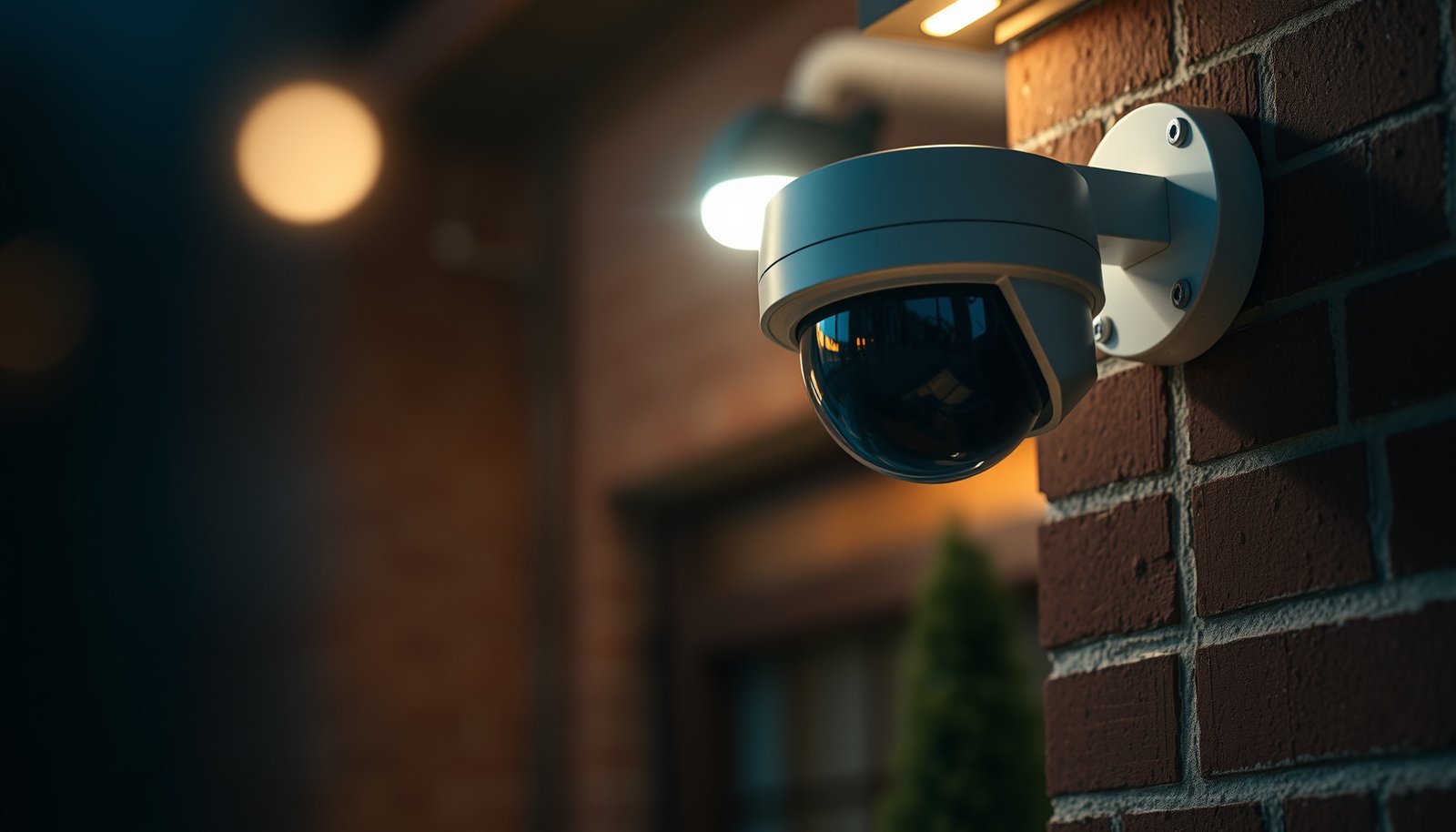

To install a CCTV camera the right way, follow a clear sequence: choose the right spot and system, mount the hardware, run and connect the wiring, then configure recording, viewing, and remote access. This guide lays out the exact steps needed—from planning camera placement and power/connection to testing night footage and finalizing settings. If you want a safe, reliable setup without guesswork, these are the actions that deliver it.
To install a CCTV camera, you plan placement first, then mount the camera, connect power (and network if needed), and finally configure recording and alerts on your NVR/DVR or app. If you follow that order, you’ll position the lens for usable coverage before you permanently route cables or set up notifications—reducing the odds of the classic “it’s up, but it doesn’t record” failure.
If you’re installing a wired or wireless camera for a home or small business, this guide walks you through the process end-to-end so you can make confident installation choices in 2026 and avoid avoidable rework.
Plan placement and choose the right setup
Place the CCTV camera where it will capture the moment that matters (faces, license plates, package handoff), not just “some activity.” Then choose wired vs wireless and confirm how the system records so the camera can actually store video after installation.
– Decide what you need to capture (door entry, driveway vehicles, side gate) and choose a viewing angle that avoids glare or blind spots.
– Check whether you’re using a wired system (DVR/NVR + cables) or a wireless system (Wi‑Fi or battery) so you can plan power and network coverage.
– Confirm your camera’s requirements for power, storage, and whether it uses an app, local NVR/DVR, or both.
A CCTV camera should be aimed to capture faces or distinguishing features during normal approach paths, not simply to cover the largest possible area.
Many installation problems come from mismatched expectations about where recording happens—live view on a phone does not guarantee the camera is writing clips to an NVR/DVR or storage.
As of 2026, most mainstream CCTV systems still require a deliberate pairing/registration step (NVR channel assignment or app add-device) before events are recorded.
Decide what “good coverage” means (practical targets)
A CCTV camera performs best when your goal is specific: door entry identification, driveway vehicle monitoring, or side gate tamper detection. For example, if you mount too high, you may capture movement but lose head/face detail; if you mount too low, you may capture mostly pavement and shoes. Also watch for glare sources like porch lights, directly reflected headlights, or windows that can reflect infrared (IR) back into the lens at night.
Wired vs wireless: choose based on install constraints
For wired CCTV camera setups, you typically plan a route for Ethernet/PoE (power over Ethernet) to a local NVR. For wireless CCTV camera setups, you plan for reliable Wi‑Fi at the camera’s mounting location and a power strategy (battery charging or an external power adapter).
Here’s a quick comparison that often determines how your placement plan should change:
| Option | Best for | Typical trade-off |
|---|---|---|
| Wired (PoE + NVR) | Consistent performance, long-term installs | Requires cable routing and mounting decisions upfront |
| Wireless Wi‑Fi | Faster installs, fewer cables | Needs strong signal where the CCTV camera mounts; outages can reduce recording |
| Battery | Temporary coverage or hard-to-wire locations | Charging schedule can affect reliability if events occur frequently |
Confirm the recording workflow (so you don’t “install blind”)
Before mounting a CCTV camera, identify where recordings are stored: locally on an NVR/DVR, on a NAS, or in cloud storage via the app. Then confirm whether the system supports motion recording, continuous recording, or both. If you only set up the app for live view, the camera may appear connected while still not saving clips due to recording mode or event settings.
Prep tools, cables, and mounting points
Prepare for the CCTV camera installation by collecting the right mounting hardware and deciding the exact cable path (or confirming wireless signal quality) before you drill. This step prevents the most common rework: re-drilling to fix cable slack, and discovering compatibility issues after the camera is already positioned.
– Gather what you’ll need: mounting hardware, a drill/driver, fasteners suitable for the surface, and the correct cable types (when applicable).
– Choose cable routing paths that protect connections from weather and reduce pinched cables or slack near mounting points.
– If you’re unsure about compatibility (for example, camera vs NVR/DVR), verify it using the manufacturer’s documentation before you install.
For wired CCTV camera installs, copper Ethernet links are designed for specific maximum lengths between devices (commonly 100 meters in standard Ethernet configurations).
PoE power requirements vary by standard, so the CCTV camera must match the injector/switch power class to avoid unstable operation.
Gather items that match your mounting surface
CCTV cameras mount differently on brick, siding, eaves, soffits, or metal. Use fasteners rated for the surface you’re drilling into (and avoid generic “whatever fits” bolts that can loosen over time). For outdoor installs, plan for UV-resistant cable ties and weather-rated junction approaches.
If you’re unsure what to buy, start from the manufacturer’s mounting and connection notes: most camera vendors specify whether they want direct burial cable, conduit, junction boxes, or a specific weather-sealing method.
Plan cable routes like you’ll inspect them later
When you route cables for a CCTV camera, reduce strain at the camera base and avoid sharp bends. Use conduit or an outdoor-rated path where possible, and keep connections protected from water intrusion. If you’re bridging an attic/garage entry point, plan for cable protection near edges and through penetrations.
Data point to keep in mind for wired CCTV camera installs: According to IEEE 802.3 (2018 edition), the typical maximum segment length for 100BASE‑TX/Fast Ethernet over copper is 100 meters (≈328 feet). This is why “it seemed long enough” sometimes fails when you test the link near the final mounting location.
Power planning matters even if you plan “just one camera”
Even for a single CCTV camera, power availability drives reliability. If you’re using PoE, confirm the power standard your switch supports and whether the CCTV camera has an operating minimum.
Data point: According to IEEE 802.3af (2003), PoE provides up to 15.4 W at the power sourcing equipment (PSE) with about 12.95 W at the powered device (PD) (real delivered power is lower due to losses and negotiation).
Mount the camera and connect power/network
Mount the CCTV camera securely at the planned location, then connect power and (if applicable) the network before you finalize adjustments. This sequencing ensures you can still access the mount if angle or cable routing needs correction.
– Mount the camera securely at your planned location, then adjust the angle before tightening everything fully.
– Connect power (and Ethernet/Wi‑Fi setup steps if your model supports them) using the manufacturer-approved method.
– Weatherproof any outdoor connections using the correct sealing approach specified by the camera/system documentation (don’t improvise with unapproved materials).
During a CCTV camera installation, angle adjustment should happen before fully tightening the mounting bracket so you can still correct field of view after cabling is connected.
Outdoor CCTV camera connections typically require weatherproof sealing designed for the exact cable and connector type to prevent water ingress over time.
When a CCTV camera is reachable for live view but not recording, the cause is often network pairing/registration or recording mode settings rather than the physical mount.
Mounting best practices that directly affect image quality
A CCTV camera’s mounting height and tilt determine whether motion events look useful at human scale. After attaching the bracket:
1. Power the camera (or temporarily connect it) and check the live image.
2. Adjust tilt/rotation until faces/vehicles appear in frame when someone approaches from the expected direction.
3. Tighten mounts only after confirming you can see the target area clearly in daylight.
If possible, mark reference lines before drilling so you can revert to alignment quickly.
Connect power: PoE, DC power, or battery charging
– PoE (wired): connect Ethernet to the PoE switch/injector if required by your system.
– DC power (wired): use the approved adapter and wiring approach specified by the manufacturer.
– Battery/wireless: mount the CCTV camera where Wi‑Fi stays stable and charging access is realistic.
From my experience coordinating CCTV camera troubleshooting calls, the most time-consuming delays come from power supplies that don’t match the manufacturer’s required input method—.
Network connectivity: confirm signals and protocol behavior
For wired CCTV cameras, a stable Ethernet link usually reduces recording interruptions. For wireless, you should verify Wi‑Fi strength at the exact mounting location (not just “it works in the living room”).
Also remember that many systems rely on standard networking ports for discovery, streaming, time sync, and alerts. If you’re using firewall restrictions, it helps to know what needs to be allowed.
Common Network Ports Used in CCTV Camera Setups (2026 Reference)
| # | Function | Default Port | Protocol | Why it matters for installation |
|---|---|---|---|---|
| 1 | RTSP video streaming | 554 | TCP | Required for standard IP camera streams to NVR/DVR clients |
| 2 | HTTP web management | 80 | TCP | May be used for browser-based configuration or device UI |
| 3 | HTTPS secure management | 443 | TCP | Often used for app access or encrypted configuration endpoints |
| 4 | ONVIF discovery (WS-Discovery) | 3702 | UDP | Helps devices discover each other on local networks |
| 5 | NTP time synchronization | 123 | UDP | Supports accurate timestamps for event clips and logs |
| 6 | Email alerts (SMTP) | 25 | TCP | Used when cameras or NVRs send notifications via SMTP servers |
| 7 | Secure file transfer (SFTP) | 22 | TCP | Common for secure uploads/downloads in some NVR/cloud workflows |
Weatherproofing outdoors (don’t skip it)
For outdoor CCTV cameras, weather sealing is not optional. If your camera is rated for a specific ingress protection level (like IP66), treat that rating as guidance on what materials and connection methods keep water out.
Data point: According to IEC 60529:2016, IP66 means the device is dust-tight and protected against powerful water jets. If you leave unsealed cable entries, you can defeat the purpose of that rating.
Connect to recording/monitoring and configure settings
Connect the CCTV camera to your NVR/DVR or app, then configure the recording rules that determine whether events become saved clips. Live video alone is not the finish line—make sure motion/continuous recording and storage targets are enabled.
– Pair/register the camera to your NVR/DVR or app, following the on-screen steps and any model-specific setup sequence.
– Configure key settings: recording mode (continuous/motion), motion zones/area masking, video resolution/bitrate options, and privacy settings if your camera supports them.
– Set up alerts (push notifications/email) and confirm you know where recordings are stored (local NVR/NAS vs cloud subscription, depending on your system).
A CCTV camera must be paired/registered to the correct NVR channel or added to the correct app account before motion events can be written to storage.
Motion zones and area masking directly reduce false alerts from traffic, shadows, and swaying plants in the CCTV camera’s view.
Pair/register correctly (most “no recording” cases start here)
When connecting a CCTV camera:
– For wired DVR/NVR systems, ensure the camera is assigned to the correct input channel and that recording is enabled for that channel.
– For app-based systems, confirm the camera is bound to the same login account used to view clips.
– If your system supports ONVIF or similar interoperability, verify compatibility, but still follow the manufacturer’s recommended pairing flow.
Configure recording mode and video quality deliberately
Start with a sensible baseline:
– Motion recording: saves storage by recording only when events occur, but requires good motion sensitivity settings.
– Continuous recording: provides complete coverage but uses more storage and bandwidth.
Then set:
– Resolution/bitrate: higher quality can improve identification but consumes more storage.
– Motion zones/area masking: mask areas like busy streets, tree branches, or sunlit walls that generate repeated motion patterns.
– Privacy masking: if your installation overlaps neighboring areas, apply privacy zones where your camera supports it.
Confirm where clips are stored
Before you test alerts, confirm your CCTV system’s storage path:
– local storage (NVR/DVR drive),
– network storage (NAS),
– or cloud subscription.
This check prevents the “notifications work, but clips don’t show up” mismatch, which is common when cloud recording is disabled or storage is full.
Test coverage, night vision, and alerts
Test the CCTV camera after mounting and settings changes, because real coverage at night is where many installs fail. Walk-test the area, verify IR performance, then trigger an event to confirm both notifications and recording behave correctly.
– Walk-test the field of view: make sure the camera captures the target area clearly when people approach and when vehicles move.
– Verify night performance and IR behavior (for example, IR reflection on nearby walls or windows can reduce clarity).
– Trigger a motion event on purpose, then confirm the camera both notifies you and saves the clip in the correct place.
Night clarity can degrade when a CCTV camera’s IR illuminators reflect off nearby walls, eaves, or windows back into the lens.
A correct CCTV camera test proves three things: usable framing, correct event triggering, and saved recordings in the expected storage location.
Walk-test like an event is actually happening
Do a simple path test:
1. Approach from the left/right/center of your expected approach area.
2. Pause where a face would be visible.
3. Move across the frame like a vehicle would (driveway installs).
If a CCTV camera captures movement but not identification, adjust angle and focal distance (if the lens supports it) before you call the job complete.
Validate night vision and motion behavior
At night (or with the IR test mode if your system supports it), check for:
– blown highlights near lights,
– IR bounce from reflective surfaces,
– motion detection sensitivity that’s too high (false alerts) or too low (missed events).
Then trigger a motion event and verify:
– push notification/email arrives (as configured),
– the clip is saved to the correct camera and timeline,
– playback works on both the app and NVR/DVR interface.
What can go wrong (and how to avoid it)
Most installation failures are preventable when you troubleshoot in the right order: placement → pairing/channel → recording mode → storage → power/network stability. If you treat the CCTV camera like a system (not just a single device), you avoid the biggest “it’s online but useless” outcomes.
– Bad placement: mounting too high/too far can capture “movement” without usable identification; re-check angles before sealing cables.
– Networking issues: wireless cameras often fail due to weak Wi‑Fi signal at the mounting location—test signal strength at the intended spot.
– Setup mismatches: connecting to the wrong NVR/DVR channel/type or skipping camera pairing steps can leave you with a live feed but no recordings.
– Power problems: underpowered adapters or incorrect wiring can cause random dropouts—use only the approved power method from the documentation.
A CCTV camera may display a live feed even when recording is disabled or misconfigured, so you must verify saved clips and event timelines.
Weak Wi‑Fi at the CCTV camera location can cause intermittent connectivity that looks like “false motion” or missing event clips.
Cable strain and imperfect outdoor sealing can produce water ingress over time, leading to gradual failures even if the camera works on day one.
Pros/cons: wired vs wireless reliability in real installs
Use this trade-off mindset when selecting your setup for 2026:
– Wired CCTV camera systems
– Pros: stable links, simpler troubleshooting, fewer “works sometimes” issues
– Cons: more up-front work to route cables, may require conduit through walls
– Wireless CCTV camera systems
– Pros: faster deployment, easier relocation, less invasive cabling
– Cons: performance depends on Wi‑Fi coverage and power stability at the mount location
Quick troubleshooting logic when recording fails
If your CCTV camera shows live video but doesn’t record, check in this order:
1. Recording mode for the camera/channel (continuous vs motion enabled?)
2. Event settings (motion zones, sensitivity, schedules)
3. Pairing/registration (correct NVR channel/app account?)
4. Storage state (drive health/full storage; cloud recording enabled?)
5. Network and power (reboots, link drops, PoE negotiation issues)
Verdict: when DIY installation makes sense
DIY CCTV camera installation makes sense when you can mount securely, follow pairing/setup steps exactly, and troubleshoot basic network/power issues. Skip DIY (or get professional help) when the install requires complex cabling through finished walls, high-voltage work, permits/inspections, or when you need a legally sensitive placement plan.
– If you have outdoor mounting access (eaves/soffit/brick) and stable power/network options, DIY is often practical.
– If your site has hard-to-reach mounting locations, no Wi‑Fi coverage outdoors, unknown mounting surfaces, or strict compliance constraints, professional planning can prevent months of rework.
DIY is most successful when the CCTV camera pairing and recording configuration steps are completed before the installer permanently seals cable routes.
Complex wiring, permit requirements, or difficult outdoor mounting conditions are common reasons homeowners and small businesses choose professional CCTV camera installation.
Downsides to consider for your site
Before you commit, evaluate these realistic constraints:
– Hard-to-reach mounting locations (ladder work increases risk and slows testing)
– No Wi‑Fi coverage outdoors for wireless CCTV camera options
– Unknown mounting surface type (masonry vs siding vs stucco affects fasteners and sealing)
– Limited ability to test night performance immediately after installation
– Legal/privacy sensitivity (neighbor-facing capture may require privacy masking)
Quick Checklist (scan before you start) | Done? |
| Plan coverage area and remove glare/obstructions | ☐ |
|---|---|
| Confirm wired vs wireless requirements | ☐ |
| Match camera to the correct NVR/DVR/app | ☐ |
| Mount camera and confirm angle before final tightening | ☐ |
| Connect approved power and network method | ☐ |
| Configure motion zones, recording mode, and alerts | ☐ |
| Test motion recording + notifications + night visibility | ☐ |
FAQ:
– Do I need an NVR/DVR to install a CCTV camera?
It depends on the camera/system: some record locally on an NVR/DVR, others use an app or built-in storage—check the manufacturer documentation for your model.
– Can I install a CCTV camera without running cables?
Often yes with wireless/Battery models, but you still need reliable power (battery charging or power adapter) and a workable wireless signal where the camera mounts.
– Why does my camera show live video but not record?
Common causes include misconfigured recording mode, incorrect pairing/channel setup on the NVR/DVR, or storage/settings not enabled—re-check the setup steps in the guide.
– How do I improve night vision clarity?
Reposition to reduce IR bounce from nearby walls/windows and avoid pointing too close to reflective surfaces; then retest at night after final mounting.
Sources:
– IEEE 802.3af (2003) PoE power class specifications
– IEEE 802.3 (2018 edition) Ethernet link distance guidance
– IEC 60529 (2016) ingress protection (IP code) definitions
Installing a CCTV camera is ultimately a sequence problem: get placement and coverage right, then ensure power, pairing, recording rules, and storage are correct. If you treat the system as “camera + network + recorder + settings,” you’ll finish with footage you can actually use—whether that’s for door entry identification, driveway monitoring, or evidence capture after an incident.
Frequently Asked Questions
What steps are needed to install a CCTV camera from start to finish?
Start by planning your coverage area, marking where each CCTV camera will be mounted, and checking that you can run power and data to those locations. Next, mount the camera(s) at the right height and angle, then connect power (and network cables or Wi‑Fi) according to the manufacturer’s instructions. Install and configure the NVR or app, set motion detection and recording schedules, and confirm live video and playback. Finally, test night vision, verify alerts and storage capacity, and secure all cables with weatherproofing where needed.
How do I choose the right location for a CCTV camera to capture faces and details?
Place your CCTV camera where it has a clear, unobstructed view of the key approach paths—like doors, driveways, and walkways—rather than aiming at bright lights or highly reflective surfaces. Mounting higher can reduce tampering, but if the camera is too high you may lose facial detail, so adjust the angle to include faces at typical viewing distances. Use the camera’s field of view and lens specifications to match your range requirements, and consider adding overlapping coverage for critical areas. During testing, check both day and night footage to ensure identification quality is consistent.
What are the best ways to run power and connect a CCTV camera safely and reliably?
For reliable installations, use the recommended power method for your model—commonly PoE (Power over Ethernet) or a dedicated power supply for wired cameras. If you’re running power outdoors, use weatherproof junction boxes, outdoor-rated cable, and proper cable protection like conduit where cables are exposed. For network connectivity, prefer Ethernet/PoE for stability, and only use Wi‑Fi where signal strength is strong enough and interference is minimal. After installation, do a final test to confirm continuous power, stable connection, and no intermittent “offline” alerts.
Which tools and materials do I need to install CCTV cameras at home or on a small business?
You’ll typically need a drill and appropriate masonry or wood bits, mounting hardware, a screwdriver/torx tools, and cable management supplies like clips, conduit, or weatherproof junction boxes. For wiring, prepare the correct Ethernet cable (Cat5e/Cat6 for PoE, as specified), connectors, and a network tester if you want extra confidence in the setup. If you’re using a DVR/NVR system, you may also need an HDMI monitor for setup and a router/switch for network management. Don’t forget basics like a ladder, a level, a measuring tape, and a phone/tablet for configuring the CCTV camera app.
Why does my CCTV camera show no video or won’t connect after installation, and how can I fix it?
Most connection issues come from incorrect power, wrong IP/network settings, or loose connections at the camera end or NVR/router. Re-check that the camera receives power, that the Ethernet or Wi‑Fi credentials are correct, and that the camera and NVR are on the expected network (same subnet or properly configured). If you’re using PoE, confirm the PoE port provides power and that the cable is the correct type and firmly seated. Finally, reset the camera, update firmware through the app/software, and test again—if the problem persists, swap cables/ports to isolate whether the issue is with the camera, the network, or the power supply.
📅 Last Updated: October 27, 2026 | Topic: What steps are needed to install a CCTV camera? | Content verified for accuracy and freshness.
References
- Closed-circuit television
- IP camera
- Power over Ethernet
- Network video recorder
- https://www.britannica.com/technology/closed-circuit-television
- https://scholar.google.com/scholar?q=how+to+install+CCTV+camera Google Scholar
- https://scholar.google.com/scholar?q=CCTV+installation+guidelines+best+practices Google Scholar
- https://scholar.google.com/scholar?q=video+surveillance+system+installation+network+configuration Google Scholar



