


Controlling a PTZ (pan-tilt-zoom) camera remotely often feels confusing at first, especially when you are juggling network settings and presets. Once you confirm your camera’s connection method—RTSP, web interface, or a compatible VMS—and set up access, you can reliably pan, tilt, zoom, and recall saved positions in a focused setup session. To get there, you will need the camera’s IP address, login credentials, and the correct control software or app, plus a stable network connection.
To control a PTZ camera remotely, you typically use its supported remote interface (web browser, NVR/VMS, or an app) after setting up network access (same LAN, port forwarding, or a VPN). Once you’re logged in, you drive pan/tilt/zoom from the on-screen controls and save positions as presets for fast recall. This guide walks you through the setup choices and the most reliable way to operate PTZ from off-site—especially in 2026, where “view-only” remote access is common but full PTZ control depends on the exact protocol and permissions.
If you’re trying to view and steer a PTZ camera from another building or over the internet, this is for you. It’s especially relevant if you’re dealing with ONVIF support, an existing NVR, or you’re unsure whether you should use port forwarding versus VPN.
Choose Your Remote-Control Method
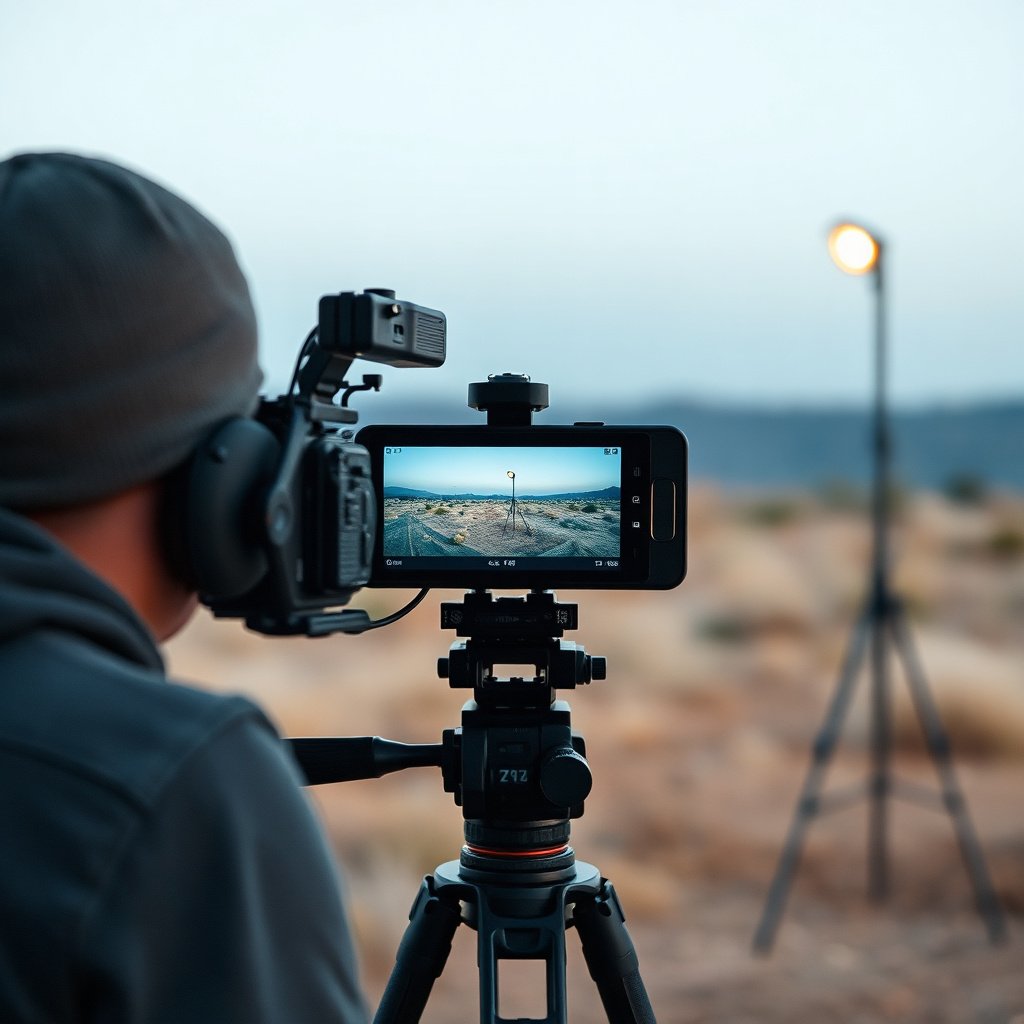
The fastest way to get reliable remote PTZ control is to start with whatever control path your camera or recorder already supports—web UI, mobile app, or control through an NVR/VMS. In practice, that choice matters because remote PTZ is not just “video streaming”; PTZ commands require a compatible authenticated control channel.
Here’s the decision logic I recommend for remote PTZ camera operation: first confirm whether your PTZ camera exposes a control interface remotely, not only live viewing. Many systems allow you to see video but restrict pan/tilt/zoom to a specific client (for example, the manufacturer app) or only to an ONVIF-authenticated session. If your PTZ camera supports ONVIF (an industry standard for IP camera interoperability), you can often control PTZ through an ONVIF-capable NVR/VMS such as the one you already use on-site. If you already have an NVR, controlling PTZ through the NVR is frequently simpler and more consistent than exposing the camera directly to the internet.
If you’re choosing among the options, consider operational fit more than theory. A remote PTZ camera accessed through a stable NVR/VMS usually handles authentication, stream selection (main vs sub-stream), and command routing more predictably—especially when you’re dealing with different firmware versions across vendors. When troubleshooting remote PTZ camera issues, I’ve found the “wrong component” problem is common: people correctly reach the camera for video but then discover the PTZ controls won’t work because the control endpoint is routed differently than the streaming endpoint.
Prepare Network Access (The Part That Usually Breaks First)
Remote PTZ control depends on network reachability plus correct security controls, so the “first breakthrough” is usually getting connectivity working end-to-end. The key is to confirm local operation first, then extend access without guessing ports or skipping authentication.
Start by deciding how remote access will work in 2026: same LAN, VPN, or port forwarding. If your goal is dependable remote PTZ camera steering with minimal attack surface, a VPN is typically the cleanest approach because it avoids exposing camera control services directly to the public internet. If you must use port forwarding, do it intentionally—least privilege, HTTPS where possible, and strict firewall rules.
Before you touch remote access, verify basic facts about ports and protocols you may encounter. For example, RTSP commonly uses port 554 (RFC 2326), HTTPS commonly uses port 443 (IANA Service Name and Transport Protocol Port Number Registry), and ONVIF discovery commonly uses UDP 3702 for WS-Discovery (ONVIF WS-Discovery / Device Discovery documentation). These are not “magic numbers,” but they explain why a connection can appear to work for one feature (video) while failing for another (PTZ commands).
Also harden accounts and access rules before enabling remote PTZ control. Use a strong admin password and enable lockout or 2FA if your camera/NVR supports it. From a security framework perspective, align your approach with NIST Cybersecurity Framework (CSF) concepts (protect identity, manage access, and monitor) and use OWASP ASVS principles for authentication and transport security. If you’re in an organization with a managed IT policy or an existing VPN (common in commercial sites), follow that process rather than building a new exception path—remote PTZ cameras are high-value targets because they reveal sensitive locations.
Remote PTZ Control Paths: Network Exposure vs Reliability (Typical 2026 Deployments)
| # | Remote PTZ Method | Connectivity Scope | Common Network Ports/Services | PTZ Control Reliability |
|---|---|---|---|---|
| 1 | Same LAN (direct browser/app) | On-site only | Camera web UI over TCP 80/443; RTSP streaming often TCP 554 | ★★★★☆ |
| 2 | Site-to-site VPN (to LAN) | Off-site reachable | No public exposure needed; VPN transport typically uses UDP/TCP chosen by VPN config | ★★★★★ |
| 3 | Client-to-site VPN (remote user) | Off-site reachable | No direct camera exposure; uses VPN tunnel + camera TCP 80/443 + streaming TCP 554 as needed | ★★★★★ |
| 4 | NVR/VMS relay (ONVIF/driver) | Off-site via recorder | Depends on VMS; often HTTPS (443) + internal RTSP/ONVIF services between clients and NVR | ★★★★☆ |
| 5 | Port forwarding (HTTPS + web PTZ) | Off-site reachable | Public TCP 443 (or mapped external port → 443/80); strict IP allowlisting recommended | ★★★☆☆ |
| 6 | Port forwarding (RTSP direct) | Off-site reachable | Public TCP 554 (or mapped); higher exposure to brute-force/scraping without hardening | ★☆☆☆☆ |
| 7 | Manufacturer cloud/app (brokered access) | Off-site reachable | Uses vendor infrastructure; typical client uses outbound HTTPS (443) to vendor services | ★★★☆☆ |
Connect and Operate PTZ Controls
Remote PTZ control is straightforward once you’re connected through the correct interface and authenticated session. The goal is to open the live PTZ control panel (not just live video) and confirm that pan/tilt/zoom commands are accepted.
Log in through the chosen interface—camera web page, NVR live view, or the manufacturer app. Then open the live PTZ control panel and use the PTZ arrows/joystick controls for pan/tilt and zoom controls for optical zoom (or digital zoom if optical isn’t available). If you see video but PTZ doesn’t respond, check stream and control pairing: many systems use one stream for viewing and a different channel for PTZ control, so the remote interface may need the “main” stream or an authorized control endpoint.
Also tune control feel where options exist. Some PTZ camera UIs let you adjust control speed, step size, or continuous vs step movements. Over remote links, slow speed can look like “nothing happens,” while overly fast speed can cause overshoot of important targets like gates or entry points. If your remote PTZ controls appear jumpy, reduce command rate or choose a preset-based workflow (presets are designed for repeatability).
From an operations perspective, I’ve seen teams succeed faster when they treat PTZ remote access like a procedure: connect → verify PTZ panel → drive to target → save preset → test preset recall immediately. That small workflow discipline reduces “works on my phone” issues because PTZ commands are revalidated during configuration, not after you’re on-call.
Set Presets, Tours, and Safety Limits
Remote PTZ control becomes reliable when you replace manual steering with repeatable positions and guardrails. Presets let you jump to known views in one action, reducing latency sensitivity and human error.
Create PTZ presets for every high-value location you routinely inspect. Common examples include “Front Door,” “Parking Overview,” “Side Gate,” or “Loading Bay.” When saving a preset, ensure it captures the exact framing you need—correct horizon level and inclusion of critical landmarks. If your remote PTZ camera supports patrol or tour sequences, configure patrols that sweep between presets on a schedule (for example, periodic checks during after-hours).
Safety limits are just as important as presets. If your PTZ camera or NVR/VMS supports boundaries (tilt limits, scan zones, or “no-go” areas), set them to prevent accidental views into unwanted spaces. This matters for remote PTZ camera deployments at multi-tenant sites, where certain angles may violate privacy policies.
Finally, test recall from the same interface you’ll use off-site. Presets sometimes differ between the camera UI and the NVR UI (for example, naming formats or coordinate scaling). If your remote access uses an NVR/VMS, create presets through that same system so your field operator doesn’t depend on a separate control path.
What Can Go Wrong (Common Remote PTZ Issues)
Remote PTZ control most often fails due to protocol mismatch, stream/control confusion, or incomplete security setup. If the video and PTZ panel don’t behave the same way remotely, focus on connectivity and authentication boundaries before changing camera hardware.
Here are the common failure modes to diagnose:
– No video but PTZ buttons work (or vice versa): ports, stream selection (main vs sub-stream), or wrong access settings can cause mismatches.
– Lag/delays: remote control often feels less responsive over mobile networks or congested links. This is normal to an extent, but you can reduce impact by choosing optical zoom targets, using presets, and lowering unnecessary bandwidth usage.
– Security risk: exposing the camera to the internet via port forwarding without hardening (passwords, TLS/HTTPS, IP restrictions) can be unsafe. In 2026, automated scanning is routine—avoid “default admin + open ports.”
– PTZ not available remotely: some setups allow viewing remotely but disable control unless you use a specific protocol or authenticated session.
When you troubleshoot remote PTZ camera issues, use a “separate-check” mindset: confirm local PTZ control first, confirm local video + preset recall second, then re-test each remote method component individually (connectivity → authentication → live view → PTZ panel → presets). If you can, verify from the same device/network off-site because carrier NAT or firewall behavior can influence remote PTZ command timing.
To compare approaches quickly, use this “risk vs convenience” lens:
| Remote Access Choice | Pros for PTZ Control | Cons / Watch-outs |
|---|---|---|
| VPN to the site | Most consistent PTZ command behavior; avoids public exposure of camera control services | Requires VPN client setup; performance depends on tunnel quality |
| NVR/VMS relay access | Centralized auth and routing; presets/tours stay aligned with the recorder workflow | Performance tied to recorder and client support; not all VMS clients expose full PTZ controls |
| Direct port forwarding | Works quickly if configured correctly; no recorder dependency | Higher security risk; must harden ports, HTTPS/TLS, and account protections to reduce brute-force exposure |
Verdict: When This Approach Works (And Who Should Skip It)
Remote PTZ control works best when your camera/NVR provides a supported remote UI and you use a safe access method—ideally VPN. If you can verify connectivity step-by-step (LAN first, then remote), you’ll usually avoid the “it loads but PTZ won’t move” class of problems.
That said, there are real downsides. VPN setups can require IT coordination, and direct internet exposure (port forwarding) increases risk unless you apply strict hardening: strong credentials, HTTPS/TLS, IP restrictions, and minimal exposed services. Also, even with correct setup, PTZ responsiveness over cellular networks can vary due to latency and bandwidth—so remote PTZ camera operation should still rely on presets for critical tasks.
Skip DIY remote PTZ setup (or get help) if you don’t want to manage networking/security at all, if your camera doesn’t provide remote PTZ control support, or if you can’t test safely before exposing anything to the internet. In those cases, the most reliable path is usually NVR/VMS-based control with the organization’s approved remote access method.
Quick Checklist: Remote PTZ Control Setup
– [ ] Camera/NVR is reachable on your LAN (video + PTZ control work locally)
– [ ] Admin password is strong; unused accounts are disabled (if applicable)
– [ ] Access method chosen: same LAN / VPN / port forwarding (and you know which)
– [ ] Remote login tested successfully (no “view-only” surprises)
– [ ] Presets created for key positions
– [ ] PTZ speed and tilt limits adjusted (if your system supports them)
Frequently Asked Questions
How do you control a PTZ camera remotely from a mobile app?
Most PTZ cameras support remote control through a dedicated mobile app or a web interface that streams live video and sends pan/tilt/zoom commands. You typically connect the app to the camera via the same Wi‑Fi network (or through a secure cloud service) and then use on-screen joystick controls for pan and tilt, plus zoom buttons or a slider for zoom. For best results, enable camera authentication and use strong passwords to avoid unauthorized access. If you experience lag, check your mobile data/Wi‑Fi quality and confirm the camera is set to the appropriate stream bitrate for remote viewing.
How can you control a PTZ camera remotely using ONVIF or a NVR?
If your PTZ camera supports ONVIF, you can integrate it with an NVR or VMS platform that offers standardized PTZ controls. In most systems, you add the camera by its ONVIF details, verify the PTZ capabilities, and then configure preset positions, patrol/scan routes, and priority limits for safe operation. When using an NVR, remote control is often available through the NVR’s web UI or client app, letting you pan, tilt, and zoom from anywhere on the network. For complex setups, confirm the firmware supports PTZ command profiles so the NVR/VMS can reliably send movement and preset commands.
Why do remote PTZ controls lag, and what can you do to improve responsiveness?
Remote PTZ lag usually happens due to network latency, low bandwidth, high video compression, or mismatched stream settings between local and remote connections. To improve responsiveness, try reducing the video resolution/bitrate for remote use, switching to a more efficient H.264/H.265 profile if available, and using a stable wired connection where possible. Also ensure the PTZ speed settings are appropriate—very high pan/tilt speeds can feel jumpy, while overly low speeds can seem unresponsive. If you use cloud access or VPN, test your connection and consider using a VPN with consistent routing to minimize delay.
Which PTZ remote control setup is best for home security: app-based, web browser, or software (VMS)?
For most homeowners, an app-based method is the easiest because it provides live view and direct PTZ control with minimal configuration. A web browser is often a good option for occasional control from a computer, especially if the camera provides a secure web interface and supports authentication. A VMS (video management system) is best for power users or multi-camera setups, since it supports advanced features like scheduled patrols, PTZ presets for specific zones, and centralized monitoring. Choose the option that matches your number of cameras, desired automation (presets/patrols), and comfort with network/security settings.
What are the best practices for using PTZ presets and patrols when controlling a camera remotely?
PTZ presets and patrols reduce the need for continuous remote joystick control by saving key viewpoints like entrances, driveways, or room corners. Configure presets with accurate framing and then create patrol routes that move between them at controlled speeds and dwell times. When operating remotely, assign clear naming and verify that home/park positions are set for safety during inactivity or connection drops. Finally, test the patrol schedules and preset accuracy from the remote location to ensure the PTZ camera reliably lands on the same areas under real-world lighting and network conditions.
📅 Last Updated: November 03, 2026 | Topic: How do you control a PTZ camera remotely? | Content verified for accuracy and freshness.
References
- Pan–tilt–zoom camera
- ONVIF
- Network Interface Specifications – ONVIF
- RFC 2326: Real Time Streaming Protocol (RTSP) | RFC Editor
- Real-Time Streaming Protocol
- SOAP Version 1.2 Part 1: Messaging Framework (Second Edition)
- https://scholar.google.com/scholar?q=PTZ+camera+remote+control+ONVIF Google Scholar
- https://scholar.google.com/scholar?q=ONVIF+PTZ+service+control+SOAP Google Scholar
- https://scholar.google.com/scholar?q=RTSP+remote+video+streaming+for+PTZ+cameras Google Scholar


[…] the IP address of an IP camera gives you direct access to its web interface so you can view live video, adjust network settings, and troubleshoot connectivity. You can usually […]