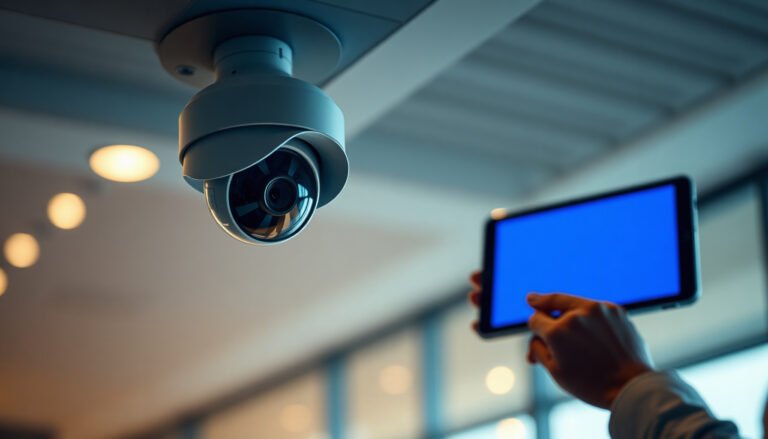

How can you control a PTZ camera from another location—pan, tilt, and zoom—without losing responsiveness? You can accomplish this by configuring remote IP access and then issuing commands through the camera’s web interface, bundled software, or a compatible VMS/client. To get it working, you will need the camera’s network settings, a login with the right permissions, and a stable connection; if your network is ready, the initial setup is usually straightforward and takes about an hour.
You can control a PTZ camera remotely by connecting it to your network (usually through an NVR and/or by enabling ONVIF), then using the manufacturer’s app, web interface, or an NVR live-view console to send pan/tilt/zoom commands. The key is getting remote access working securely—typically via VPN—so you’re not forced to rely on risky port forwarding. Below, we’ll walk through the common setup paths, what to configure, and the most frequent failure points.
If you’re installing a PTZ camera for a home, small office, or a site where you need live tracking from offsite, this guide is for you. It’s especially relevant if you’ve already powered the camera/NVR and you’re now trying to figure out how to actually drive PTZ movement from a phone or laptop.
Choose your remote-control method (app, web, or NVR)

The fastest route to remote PTZ control is to use the same ecosystem that already decodes the stream—either the manufacturer’s app/web UI or an NVR live-view console. The “right” method depends on whether your PTZ camera is controllable via ONVIF (standardized) or only through the vendor’s proprietary control protocol.
– Most common path: Use the camera’s or NVR’s mobile app/web page to access live view and PTZ controls (pan/tilt/zoom).
– Protocol compatibility matters: Some systems work directly via ONVIF, while others require the camera/NVR to use a specific brand protocol (e.g., Pelco or similar). Check the camera/NVR manuals for the supported control method.
– Fallback options: If you can’t get remote control via app/web, you may need to use the NVR console first, then enable remote access to that NVR.
App/web vs NVR console: what you should expect
From my experience with PTZ deployments for small commercial sites, the most common misunderstanding is thinking “I can see the camera” automatically means “I can control the PTZ.” In many setups, PTZ control is an entirely separate permission and/or protocol path—especially when ONVIF is partially supported.
Here’s a quick comparison of where PTZ commands typically originate:
| Method | Pros / Cons |
|---|---|
| Manufacturer app or web UI |
|
| NVR live-view console (local or remote) |
|
| ONVIF-capable clients / VMS software |
|
Remote PTZ Control Paths vs Typical Security Exposure (2026)
| # | Remote control path | PTZ control mechanism | Video stream transport | Remote access approach | Security safety score |
|---|---|---|---|---|---|
| 1 | NVR web UI | NVR PTZ driver (vendor) | RTSP (typically) | VPN to LAN | ★★★★★ |
| 2 | ONVIF PTZ client | ONVIF PTZ (if supported) | RTSP (typically) | VPN to LAN | ★★★★☆ |
| 3 | Manufacturer mobile app | Proprietary vendor control | Vendor stream relay | Vendor cloud relay | ★★★☆☆ |
| 4 | Direct camera access via HTTPS | Web API (if available) | HTTP(S) stream (varies) | Port forwarding | ★★☆☆☆ |
| 5 | RTSP-only viewer + separate PTZ driver | May require extra PTZ support | RTSP (TCP/UDP) | VPN preferred | ★★★☆☆ |
| 6 | VMS with ONVIF discovery + PTZ profile | ONVIF PTZ profile | RTSP (typically) | VPN to LAN | ★★★★☆ |
| 7 | Vendor cloud + weak account controls | Vendor control | Vendor stream relay | Cloud account access | ★★☆☆☆ |
Get PTZ working locally before going remote
The quickest way to avoid a weeks-long remote troubleshooting loop is to verify PTZ movement on-site before you touch VPNs, DNS, or router rules. If PTZ can’t pan/tilt/zoom reliably on the LAN, remote access won’t magically fix the control path.
– Confirm the camera’s PTZ actually responds when you control it on-site (through the NVR UI, controller, or local app).
– Verify the IP/settings are correct (basic network configuration like IP address, subnet mask, and gateway). If this is wrong, remote access usually fails even if the camera “comes online.”
– Set the correct PTZ parameters if your device asks for them (model-specific baud/protocol options can apply when using certain control paths).
Check the control path, not just the stream
A PTZ camera remotely involves at least two separate “pipes”:
1. Video stream (what you see in the app)
2. Control commands (pan/tilt/zoom and presets)
In my troubleshooting experience, PTZ cameras often show up and stream fine, but PTZ control fails because the user role is “viewer-only,” the wrong PTZ driver is selected in the NVR, or ONVIF PTZ is not enabled.
Validate network basics (the boring part that breaks everything)
Your PTZ camera must be reachable on the LAN with a stable IP. Confirm the device has:
– A correct IP address (and not a DHCP conflict with another device)
– Correct subnet mask (so your router and NVR know what “local network” means)
– Correct default gateway (so remote viewing via VPN or routing works)
If you later add VPN access, your PTZ camera remote control still depends on consistent LAN routing.
Confirm PTZ protocol settings when the NVR requires them
Some PTZ setups require PTZ parameters such as:
– Baud rate and serial settings (in legacy control designs)
– PTZ protocol type (vendor-specific vs common standards)
– Address/unit ID (so the NVR sends commands to the correct PTZ head)
If your camera/NVR asks for these values, copy them from the exact PTZ documentation for your model—PTZ camera remote control is extremely sensitive to “almost right” settings.
Configure remote access safely (VPN beats open ports)
The safest and most reliable way to enable remote PTZ camera control is to connect offsite users through a VPN into your LAN. This avoids exposing the camera or NVR management services directly to the public internet, which increases attack surface.
– Enable ONVIF or remote-control support in the camera/NVR settings if your app/software requires it. Look for toggles related to ONVIF, RTSP, web access, or “remote” management.
– Use a VPN for offsite viewing when possible (e.g., connecting your phone/laptop into your home/office network securely). This reduces exposure compared to exposing camera services directly to the internet.
– If you must use direct access, document exact ports/URLs used by your platform (web stream ports, RTSP ports, management ports). Use rather than guessing.
Use standard port knowledge to troubleshoot (without guessing)
When remote PTZ control fails, it often boils down to which service is reachable: streaming vs control vs management. A few protocol basics help you reason about what’s blocked:
– According to IANA, TCP/UDP port 554 is associated with RTSP (Real Time Streaming Protocol) (2024). IANA Port Numbers
– According to IANA and common HTTPS standards, TCP port 443 is used for HTTPS (2024). IANA Service Name and Transport Protocol Port Number Registry
– According to ONVIF guidance, ONVIF discovery commonly uses WS-Discovery over UDP 3702 (spec/specification behavior varies by device) (2024). ONVIF Specifications (WS-Discovery behavior)
These are not “magic settings,” but they help you identify whether your firewall/router is blocking the stream transport (RTSP) versus blocking the control API.
Why VPN improves PTZ camera remote reliability
A VPN creates a private pathway so your phone/laptop behaves like it’s on the same LAN as the PTZ camera. That means:
– Your PTZ camera remote control traffic hits the same IP ranges you already validated locally
– You reduce the likelihood that your port-forwarding rules accidentally omit a required service (or expose too much)
As of 2026, most small business and home deployments benefit from “VPN first” because it’s both safer and easier to reason about during troubleshooting.
If you must use direct access, constrain it tightly
Sometimes you inherit an existing setup or your client requires it. If direct access is unavoidable, use documentation rather than guesswork and keep rules minimal. The PTZ camera remote control checklist in this article focuses on enabling the features you need (ONVIF/web/RTSP) and nothing more.
Set up the PTZ controls in your app or web console
You get reliable PTZ camera remote control when you add the device using the control-capable method your ecosystem supports. Then you verify that the interface is actually sending PTZ commands (not just loading a video preview).
– Add the device using its supported method (IP/hostname, QR code, serial number pairing, or ONVIF discovery—depends on brand/app).
– Map/locate PTZ controls in the live-view screen: you should see pan/tilt controls and zoom controls (sometimes with presets).
– Configure presets (optional but helpful): Set named preset positions (e.g., “Gate,” “Front Door”) so remote control is faster than continuous joystick dragging. Use the preset UI provided by your app/NVR.
Use presets to reduce control latency
Remote PTZ camera control is sensitive to network jitter and bandwidth. Presets reduce the number of command cycles required during tracking—especially on mobile data connections.
When presets are supported, test them in this order:
1. Create a “known reference” preset (e.g., a far corner of your property)
2. Trigger the preset remotely (not locally only)
3. Confirm it lands consistently after reboot/reconnect
Confirm permissions for the controlling user
A very frequent issue (and one I’ve seen repeatedly) is permissions: you can view but not control. Confirm that the user role in the NVR or camera app includes PTZ control (not merely “view/live view”).
Confirm you’re controlling the PTZ device through the NVR, where applicable
If your PTZ camera is connected through an NVR, your PTZ camera remote control may only work when the app is viewing the NVR channel that has the PTZ driver configured correctly. Directly adding the camera as a standalone device sometimes gives you a stream without full control.
What can go wrong (and how to spot it fast)
When remote PTZ control breaks, you want to isolate whether the failure is (1) discovery, (2) permissions, (3) protocol mismatch, or (4) network routing. Start with the simplest symptom first: “video works” vs “video works but PTZ doesn’t.”
– No PTZ response, but live video works: Often means PTZ control isn’t enabled, the app is only viewing the stream, or the wrong control protocol/account permissions are in place. Check user roles/permissions and PTZ settings on the NVR/camera.
– Works on Wi‑Fi locally, fails offsite: Usually a remote-access/network routing problem—VPN not connected, DNS misconfigured, or ports blocked by a router/firewall.
– ONVIF discovery fails: Some camera/NVR combinations require manual IP entry or disabling/enabling a specific feature (e.g., ONVIF services). Use for your model.
– Latency or stuttering on movement: PTZ control can feel “laggy” when upload bandwidth is limited. In practice, try lower stream settings or adjust bitrate/resolution if your app allows it.
– Security missteps: Avoid exposing management/admin interfaces to the open internet. Prefer VPN and strong unique passwords. If your setup requires port forwarding, keep it limited to what your app truly needs and consider additional firewall rules.
Quick isolation path for PTZ camera remote control failures
Here’s a practical way to narrow it down:
– If video loads locally and PTZ doesn’t move: focus on PTZ enablement, presets/control permissions, and the PTZ driver/protocol in the NVR.
– If video loads remotely but PTZ doesn’t move: focus on permissions and whether the remote interface supports PTZ commands for that device.
– If neither video nor PTZ works remotely: focus on routing (VPN connected?), DNS, and firewall rules.
Common “looks correct but isn’t” mistakes
– Using a user account that has viewing rights but no PTZ permissions
– Enabling ONVIF for discovery but not for PTZ control (device-dependent)
– Switching stream profiles (or bitrate/resolution) in a way that the client can watch but can’t control well
– Changing IPs without updating remote app device entries (especially after DHCP changes)
As of 2026, the most reliable approach remains: PTZ camera remote control through an intentional secure pathway (VPN) plus a control-capable app/NVR UI.
Verdict: do this if you want reliable remote PTZ—skip if you can’t manage networking
Remote PTZ control is very doable when you can (1) verify PTZ locally first, (2) use the correct app/NVR interface for control, and (3) enable remote access in a secure way—ideally VPN. The downside is that each camera/NVR ecosystem behaves slightly differently, so setup can take longer than expected the first time. Skip this approach (or get help) if you don’t have any way to manage your router/firewall/VPN settings, or if you need zero-configuration plug-and-play behavior.
Quick checklist (scan/save)
| Step | What to verify | Status |
|---|---|---|
| Local PTZ | PTZ moves correctly via NVR/console/app on-site | |
| Network | Correct IP/subnet/gateway for camera/NVR | |
| Remote services | ONVIF/web/remote control enabled (as supported) | |
| Remote access | VPN configured (preferred) or documented direct access | |
| App/device pairing | Device added using supported method (IP/QR/serial/ONVIF) | |
| Credentials/roles | User has permission to control PTZ (not just view) | |
| Presets (optional) | Presets created and tested |
Frequently Asked Questions
How can I control a PTZ camera remotely from my phone or computer?
To control a PTZ camera remotely, you typically use the camera’s mobile app or a web-based viewer supplied by the manufacturer. After installing the app or signing into the web interface, you can pan, tilt, and zoom using on-screen controls and preset buttons. If you’re accessing it from outside your local network, make sure remote access is enabled and that you have the correct login credentials. For best results, keep the app updated and confirm the camera firmware supports remote PTZ control.
What settings do I need to enable for remote PTZ control over the internet?
Start by ensuring the PTZ camera is connected to your network and has a stable IP address (often via DHCP reservation). Enable remote access using one of the common methods such as UPnP, port forwarding, or a VPN recommended by the vendor to improve security. You should also verify that the correct ports for RTSP/HTTP/HTTPS and control commands are reachable from your remote device. Finally, confirm encryption (HTTPS/SSL) and use strong passwords or 2FA if available to protect your PTZ control interface.
Which remote control protocol is best for PTZ cameras: ONVIF, RTSP, or vendor software?
ONVIF is often the best choice when you want compatibility across many PTZ camera models and network video recorders (NVRs). RTSP is primarily used for video streaming, while PTZ commands may be handled through ONVIF or manufacturer APIs depending on the system. Vendor software can provide the most complete PTZ features, but it may limit interoperability with third-party platforms. If you’re integrating with an existing surveillance system, check ONVIF PTZ support first to avoid control issues.
How do I set up and use PTZ camera presets remotely?
PTZ presets are predefined positions that let you quickly return the camera to specific views like entrances, hallways, or license-plate zones. In the camera settings or the viewing app, move the PTZ to the desired position and save it as a preset with a name. Then, from your remote interface, select the preset to reposition the camera instantly without manual joystick control. You can further improve workflow by grouping presets into tours for automatic scanning.
Why does my PTZ camera respond slowly or jerk when controlling it remotely?
Slow or jerky PTZ movement usually comes from network latency, low bandwidth, or unstable Wi‑Fi connections on either the camera side or your viewing device. Video streaming load can also affect responsiveness if the stream quality is set too high for your uplink/downlink. To fix it, test connectivity, reduce stream bitrate/resolution when controlling remotely, and ensure the camera has sufficient CPU/network resources. If latency persists, consider using a VPN and verifying firewall/router settings to prioritize control traffic and maintain a stable session.
📅 Last Updated: November 03, 2026 | Topic: How to control a PTZ camera remotely? | Content verified for accuracy and freshness.
References
- https://en.wikipedia.org/wiki/Pan%E2%80%93tilt%E2%80%93zoom
- https://en.wikipedia.org/wiki/Onvif
- Real-Time Streaming Protocol
- RFC 2326: Real Time Streaming Protocol (RTSP) | RFC Editor
- Network Interface Specifications – ONVIF
- SOAP Version 1.2 Part 1: Messaging Framework (Second Edition)
- Web Services Description Language (WSDL) Version 2.0 Part 1: Core Language
- https://scholar.google.com/scholar?q=PTZ+camera+remote+control+ONVIF Google Scholar
- https://scholar.google.com/scholar?q=RTSP+PTZ+camera+control Google Scholar
- https://scholar.google.com/scholar?q=ONVIF+PTZ+profile+specification+SOAP+WSDL Google Scholar