
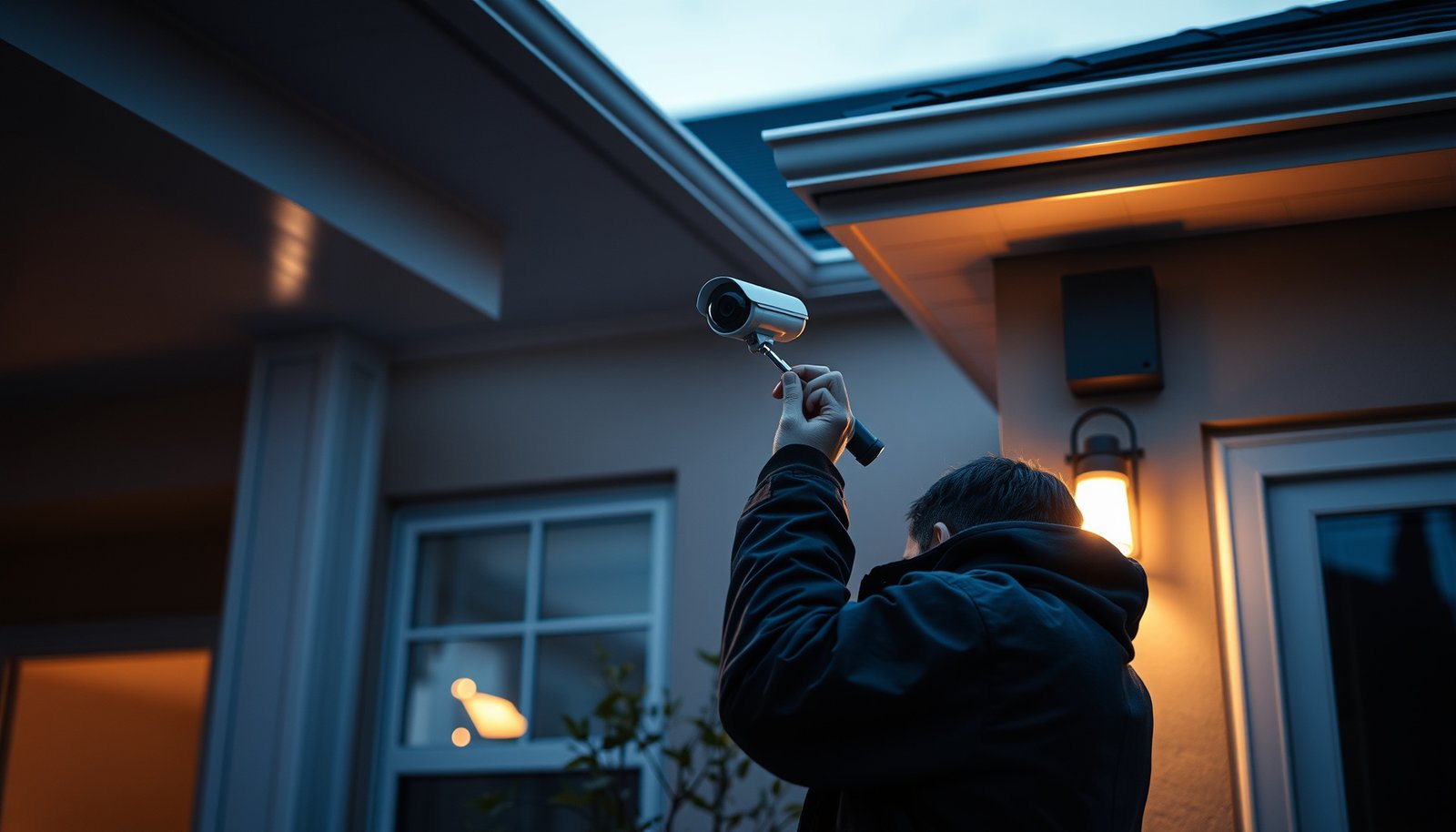

Set up house CCTV the right way with a clear step-by-step plan that takes you from choosing cameras and placement to wiring, app configuration, and testing. If you follow these instructions in order, you’ll avoid the most common failures—bad coverage, weak Wi‑Fi, improper power, and missed recordings. The article answers how to properly set up CCTV for a house so your system is installed correctly the first time.
Properly set up home CCTV by planning coverage first, installing cameras in the right locations with stable power/network, then configuring recording, alerts, and security settings. If you follow a checklist—placement → mounting/wiring → NVR/DVR setup → network/privacy hardening—you’ll avoid most common “it works but it’s useless” problems like missed faces, no recordings, or easy-to-hack access. This guide walks through a practical setup flow for wired, PoE, or wireless cameras so you can reliably record and view footage on a monitor and your phone.
This applies if you’re installing new cameras for home (wired or IP/wireless), using an NVR/DVR or app, and want them to reliably record and show footage on your phone or monitor.
Choose your CCTV type and coverage targets
Choosing the right CCTV type first prevents rework later, especially around networking and storage. For most houses, IP/PoE (NVR-based) is the most flexible option, while analog (DVR-based) can be simpler when you want fewer network variables.
IP (NVR/PoE) vs analog (DVR): pick the system you can support long-term
Home CCTV reliability depends on matching the system to your power and connectivity realities. PoE (Power over Ethernet) is usually the “cleanest” path for wired installations because a single Ethernet cable carries both network and power. Industry power limits matter here: According to IEEE 802.3af (PoE), maximum power at the power sourcing equipment (PSE) is 15.4 W (2003) IEEE Std 802.3af-2003, and According to IEEE 802.3at (PoE+), maximum power at the PSE is 30 W (2009) IEEE Std 802.3at-2009. If you’re considering higher-power features (PTZ, heaters, or IR-heavy cameras), PoE++ under IEEE 802.3bt can reach up to 100 W at the PSE (2018) IEEE Std 802.3bt-2018.
Define “must-identify” zones before you install anything
Your plan should treat some areas differently:
– Must-identify: front door approach, driveway where license plates might appear, side gate where people walk close to the house.
– Just-deter: back fence line or wide backyard corners where you mostly want presence detection.
From my experience helping homeowners troubleshoot “useless footage,” the failure usually isn’t the camera—it’s the coverage plan that didn’t prioritize faces or consistent angles.
IP/PoE home CCTV typically reduces installation mistakes by using one cable for power and data, but it requires correct NVR configuration and sufficient bandwidth.
Analog (DVR) systems can work without a complex network setup, but remote viewing and scalability are often more limited.
Your “must-identify” zones should be planned for face capture (angle + lighting) rather than just “covering” the property perimeter.
Wired vs wireless: when each option is the better fit
Use this comparison to decide what your installation can realistically sustain, especially after weather changes and router upgrades.
| Approach | Strengths | Tradeoffs | Best fit for home CCTV |
|---|---|---|---|
| PoE (wired IP) | Stable power/data; easier long-term reliability | Requires cable runs and switch/NVR planning | Most front-door + driveway camera builds |
| Wired IP over Ethernet (non-PoE) | Flexible power sourcing | You still need power runs | When power is already available near mounting points |
| Wireless IP | Faster initial install; fewer cables | Signal can degrade; batteries (if used) add maintenance | Temporary installs or hard-to-wire locations |
| Analog (coax + DVR) | Straightforward for basic recording | Less flexibility for modern networking features | If you’re replacing old analog systems |
VS: DVR/Analog vs NVR/IP for house CCTV
If you’re deciding between analog and IP, compare the two systems on the criteria that actually affect outcomes.
| Criteria | Analog (DVR) | IP (NVR/PoE) |
|---|---|---|
| Image detail for faces | Lower typical resolution | Higher typical resolution (depends on sensor) |
| Network setup | Often simpler locally | Requires IP/network basics |
| Remote viewing | Usually supported but often less flexible | Commonly robust via app/cloud/VPN (depends on model) |
| Storage efficiency | Less efficient compression options (model-dependent) | Modern codecs can be more storage-efficient (model-dependent) |
| Camera variety/scalability | Limited vs IP ecosystems | Easier to mix/add cameras |
| Troubleshooting | Coax/cabling issues can be harder to isolate | Network issues are diagnosable with logs/LEDs (model-dependent) |
| Cybersecurity attack surface | Still needs hardening | Usually more network-exposed; must secure accounts/ports |
| Motion/app analytics | Basic motion (model-dependent) | Often supports zones, smarter detection (model-dependent) |
| Installation complexity | Cable runs may be simpler if coax exists | PoE reduces runs complexity but adds switch/NVR planning |
| Integration with doorbells/sensors | Limited | More ecosystem support (model-dependent) |
| Long-term feature growth | Slower | Faster as apps/firmware evolve |
| Verdict | Choose if you want a “known-simple” DVR replacement | Choose for best flexibility and long-term growth in home CCTV |
Plan camera placement before mounting
Place cameras where you can actually capture faces and evidence consistently, not just where they “look like” they should cover. A few positioning decisions made now prevent weeks of retuning later.
Mount height and angle for usable detail
A common mistake in home CCTV is mounting too high or pointing too directly downward. Faces tend to wash out when people appear at the bottom of the frame, and overhead viewing can also hide facial detail if someone leans forward. Instead:
– Position for face capture during normal approach paths (walking pace, typical head height).
– Aim to reduce “straight down” angles and keep the subject centered when possible.
– Use overlap so one camera can cover the moment another camera misses (for example, the approach to the door and the doorway).
Avoid backlighting and glare
Backlighting is one of the fastest ways to get night footage that looks like a silhouette. Street lamps, headlights, bright porch lights, and reflective window surfaces can cause glare or bloom. Practical steps:
– Before final tightening, do a quick evening test: check for blown highlights around doors and windows.
– Angle slightly away from direct light sources so the lens isn’t seeing them head-on.
– If your camera supports WDR (wide dynamic range), set it appropriately, but don’t rely on WDR to fix bad placement.
For house CCTV, placement determines whether you capture faces—no configuration can fix a camera aimed for silhouettes.
Backlighting from headlights or bright windows can wash out night footage; changing the aim angle is often more effective than changing settings.
Camera overlap along walkways and gate paths reduces blind moments when one camera’s field of view transitions.
Plan for overlap and “approach paths”
Think in terms of motion paths: where will someone walk from sidewalk to door, or from driveway to garage? Your goal is to ensure someone is visible long enough for identification. For side gates, consider the camera angle that captures both the approach and the time they linger at a latch/lock.
Install cameras, power, and cabling (or wireless setup)
Install for stability first—solid power and reliable network are what keep home CCTV recording when conditions change. If you install “to pass the first test,” you’ll still risk failures during the next storm, router change, or firmware update.
Wired/PoE: design the “power + network” end point
For PoE IP home CCTV, plan where the NVR and switch will live (ventilation, proximity to power, and cable length). A few grounding principles:
– Use a PoE switch or PoE-capable NVR that matches the camera’s power needs.
– Confirm power budget per switch port and total system (PoE standards define maximums, but camera draw varies by IR use and features).
– Remember the Ethernet distance limitation for twisted-pair: According to IEEE 802.3 copper Ethernet requirements, the maximum segment length is typically 100 m (2002–2018-era Ethernet specifications) IEEE Std 802.3 (copper PHY/link length guidance). If you need longer runs, plan structured cabling, fiber, or approved extenders.
Wireless cameras: verify signal strength where the camera will sit
Wireless home CCTV installs often look perfect on day one but fail later when signal conditions shift. Do these steps:
– Conduct a signal test at the final mounting location (not just near a doorway).
– If the camera supports it, configure 2.4 GHz vs 5 GHz deliberately; many cameras are more reliable on the band they’re officially optimized for.
– Ensure you can power the camera consistently (battery maintenance or a nearby outlet).
Mounting and weather protection matters
For outdoor home CCTV:
– Use weather-rated junctions, gaskets, and sealant where appropriate.
– Keep cables secured along the route to prevent movement at wind/wear points.
– Re-check alignment after the weather exposure window if you can (tightening can shift alignment slightly).
In PoE-based house CCTV, the most common “no recording” problems usually trace back to power budgeting or switch/NVR port configuration, not camera optics.
For wireless home CCTV, a successful install test near the router does not guarantee stable performance at the final mounting position.
Outdoor cameras should be mounted with proper weatherproofing practices to prevent drift and moisture-related failures.
Storage + cabling reality check
Even with perfect placement, cables and storage settings can stop recording:
– If you’re using an NVR, ensure the drive type and capacity match the recording mode you want (continuous vs motion-based).
– Use stable routing for cables: secure, protected pathways reduce accidental cuts and intermittent faults.
Configure recording, viewing, and alerts
Configure recording before you obsess over the app experience. When schedules and motion zones are wrong, home CCTV can produce hours of blank storage or constant notifications.
Set NVR/DVR recording schedules intentionally
Start with the least ambiguous approach:
– If you need reliable evidence coverage, use scheduled recording (continuous in key zones, or motion with appropriate zones).
– If you want storage efficiency, motion recording is fine—but motion must be tuned to your environment.
A best-practice sequence is: set up live view → configure recording → validate storage → then fine-tune alerts.
Use motion zones to reduce false events
Motion detection is sensitive to:– moving trees/shadows,
– passing headlights,
– indoor light changes seen through windows.
Use motion zones so the camera watches the areas you care about, not the entire scene. If you have two cameras covering the same approach path, coordinate their zones so you don’t spam alerts from both.
Verify remote viewing on real networks
Remote access depends on how your system supports access and how your router handles connectivity. As of 2026, many home CCTV systems offer multiple remote methods (local LAN access, app relay services, or VPN). Still, you should test:– outside your home network (phone on cellular),
– after a router reboot,
– after changing Wi‑Fi (if wireless).
Good house CCTV alerting comes from correct recording schedules and well-defined motion zones, not from increasing sensitivity.
Remote access issues often relate to router changes or access method configuration rather than camera hardware.
Always validate playback and timestamps immediately after setup so you can trust home CCTV event evidence later.
Secure your CCTV so it can’t be easily accessed
Secure home CCTV like any other networked computer: strong credentials, timely updates, and controlled remote access. A camera that records perfectly is still a liability if it can be accessed by unauthorized users.
Lock down accounts immediately
Do this right after installation:
– Change default usernames/passwords for cameras, NVR/DVR, and any companion apps.
– Use strong passwords and do not reuse them.
NIST guidance emphasizes controlling access with appropriate authentication controls; follow NIST practices for password and authentication strength. NIST SP 800-63B (Digital Identity Guidelines)
Turn on 2FA and keep firmware updated
If your manufacturer supports 2FA, enable it for your accounts and remote access features. Firmware updates matter because they patch vulnerabilities:
– Update through the manufacturer’s documented update process.
– Re-check settings after firmware changes (some systems reset network/recording options).
Also: keep your router firmware updated and avoid risky remote exposure. For example, if you’re tempted to rely on open/public ports, stop and choose a safer method where possible (manufacturer-supported remote access or a properly configured VPN).
NIST guidance stresses strong authentication and access control for networked systems, which directly applies to home CCTV accounts and admin panels.
Firmware updates are a core mitigation step for internet-connected devices; treat camera/NVR updates as part of routine security hygiene.
Avoid relying on open/public ports for home CCTV remote access when a safer, manufacturer-supported method is available.
Practical hardening checklist (fast to do, big payoff)
– Disable unused services (UPnP if your access method doesn’t require it—follow router/vendor guidance).
– Restrict admin access to your trusted network where possible.
– Confirm the app is using secure connections (and review permissions).
– Back up critical config if your system supports it.
What can go wrong (and how to reduce it)
Most home CCTV failures happen at integration points—placement, schedules, storage, or network access—rather than in camera “hardware defects.” If you know the top causes, you can test systematically instead of troubleshooting randomly.
No useful video at night
If your night footage is dark or blurry, it’s usually:
– IR reflection (glare from nearby walls/windows),
– lens angle issues,
– or lights washing out the scene.
Fix: re-aim and test after dark, ideally with the same lighting conditions you’ll face most nights. If your camera has IR settings, verify they’re enabled as intended.
Recordings aren’t saving or playback fails
This is commonly a storage configuration mismatch:
– recording mode (continuous vs motion) doesn’t match what you think,
– retention settings are too low,
– or bitrate/resolution settings exceed your storage planning.
Fix: confirm the NVR/DVR recording mode, then check drive capacity and retention math using the manufacturer’s guidance.
False alerts or missed events
False alerts usually come from zones that are too broad or sensitivity too high. Missed events can come from zones that are too narrow or motion thresholds that are too strict. Also verify:
– correct time zone and device time,
– daylight saving settings,
– and any NTP (network time) configuration.
Remote access breaks intermittently
Intermittent access after router changes is a known class of problems:
– NAT behavior differences,
– port forwarding changes,
– app session/token issues,
– or DNS changes.
Fix: use a consistent remote access method and retest after network modifications.
In house CCTV setups, “no events” and “too many alerts” are usually caused by motion zone/schedule mismatches rather than camera failure.
If playback fails, verify recording settings and storage capacity/retention, then confirm timestamps and event-to-recording linkage.
Remote access reliability is affected by how your router routes traffic and how your CCTV system expects you to access it.
Verdict: do it yourself with a checklist—or hire help
DIY home CCTV is usually worth it if you can mount cameras safely, run cables (or configure PoE/network basics), and follow your manufacturer’s setup steps closely. If you’re uncomfortable with ladder work, home networking fundamentals, or router/security configuration, consider professional help—especially for multi-camera installs and any requirement to set up remote access securely.
Downsides to expect: DIY setups often need multiple placement tweaks, and storage/network issues can take troubleshooting time after the first install. Skip this DIY approach if you don’t feel comfortable securing the system (passwords, remote access, updates) or if you can’t test playback and recording after installation.
Quick scan checklist (save this)
– [ ] Coverage plan done (front/driveway/side gate/back yard)
– [ ] Camera locations chosen (clear faces, minimal glare/backlight)
– [ ] Power chosen correctly (wired/PoE vs wireless, signal checked)
– [ ] NVR/DVR/app configured (schedules, motion zones, playback)
– [ ] Remote viewing tested (outside home + on your phone)
– [ ] Security hardened (no default passwords, updates, 2FA if available)
– [ ] Night test completed (check IR glare and real detail)
PoE Power Options Used in Home IP CCTV (IEEE Standards)
| # | PoE standard (IEEE) | Max PSE power | Max PD power | Common home CCTV fit | Fit rating |
|---|---|---|---|---|---|
| 1 | 802.3af (PoE) | 15.4 W | 12.95 W | Budget fixed cameras (IR-light) | ★★★★☆ |
| 2 | 802.3at (PoE+) | 30.0 W | 25.5 W | More IR, some PTZ-ready | ★★★★★ |
| 3 | 802.3bt Type 3 | 60.0 W | 51.0 W | Heavier PTZ / analytics cameras | ★★★★☆ |
| 4 | 802.3bt Type 4 | 100.0 W | 71.0 W | High-power edge devices | ★★★☆☆ |
| 5 | PoE budgeting: conservative margin | Use PD max | + camera headroom | Prevents brownouts | ★★★★★ |
| 6 | Ethernet segment length | Up to 100 m | Per copper link | Avoids signal instability | ★★★★★ |
| 7 | Outdoor IR (power impact) | Varies | Check datasheet | Heavier at night | ★★☆☆☆ |
Sources
– IEEE Std 802.3af-2003, Power over Ethernet via MDI (PoE).
– IEEE Std 802.3at-2009, Power over Ethernet Plus (PoE+).
– IEEE Std 802.3bt-2018, Power over Ethernet (PoE++).
– NIST SP 800-63B, Digital Identity Guidelines: Authentication and Lifecycle Management.
– ONVIF Device Specifications (for interoperability concepts between compatible IP cameras/recorders):
– NIST cybersecurity guidance (general principles for passwords, updates, and securing networked devices):
– Router/firewall security guidance from your router manufacturer:
If you want home CCTV that’s genuinely useful, treat it like a system—not a gadget. Plan coverage for identification, install with stable power/network, configure recording and alerts with intent, and harden accounts and access pathways. When you do those steps in order, you get a setup that records the right moments and stays reliable months (and firmware updates) down the line.
Frequently Asked Questions
What is the best way to plan CCTV camera placement around my house?
Start by mapping common entry points like front doors, garage doors, side gates, and ground-floor windows, then place cameras to capture faces at likely approach distances. Mount cameras at a height that reduces tampering (often 8–10 ft, depending on model and local regulations) and angle them to cover doorways and walk paths rather than just wide yards. Use a quick smartphone walkthrough to check line of sight, glare from headlights, and whether trees or landscaping block views. Finally, ensure each camera has sufficient overlap so you can connect events across multiple angles.
How do I properly set up a CCTV system for my house step by step?
Begin with choosing compatible components: cameras (IP or analog), a recorder/NVR, storage (HDD size), and the required power method (PoE or power adapters). Install cameras first, then run the cables or configure wireless cameras, ensuring you have stable connectivity and strong Wi‑Fi signal strength where needed. Next, connect the system to your router, run the NVR/CCTV setup wizard, and set time/date, motion zones, and recording schedules. After that, test playback, adjust focus/zoom, verify night vision, and enable remote viewing with secure login credentials.
Which CCTV resolution and night vision specs should I choose for home security?
For most homes, 4MP–8MP IP cameras provide clear facial identification compared to lower-resolution models, especially when used with good lighting. Look for “full-color” or improved low-light performance for night visibility, and choose cameras with appropriate IR range for your property (short-range IR for close doors, longer for driveways). Also consider wide dynamic range (WDR) to reduce glare from streetlights and passing car headlights. If you need identification at distance, consider higher megapixels, a lens with suitable focal length, and placement that minimizes how far faces are from the camera.
Why do my CCTV cameras look blurry or won’t detect motion reliably, and how can I fix it?
Blurry footage is often caused by incorrect focus, dirty lenses, or condensation inside the housing—clean the lens and confirm the camera is firmly mounted and weather-sealed. Poor motion detection can happen when cameras face busy backgrounds like trees, flags, or repetitive reflections, so use privacy masks and motion zones to focus on doorways and walkways. Check exposure settings and enable WDR if glare is causing false triggers, and ensure the camera firmware is updated. For wired systems, verify PoE voltage/cable integrity; for wireless, improve signal strength or reposition the access point.
Best practices—how do I secure my CCTV system so it’s not vulnerable to hackers?
Use strong, unique passwords for the NVR/CCTV app and enable multi-factor authentication if available, and disable default credentials after installation. Keep firmware updated on cameras, NVR/NVR software, and your router, since security patches close known vulnerabilities. Prefer a wired Ethernet/PoE setup for reliability and reduce exposure on the network, or use WPA2/WPA3 encryption and place wireless cameras on a secure guest/IoT network. Finally, review port forwarding settings (or avoid them by using secure remote access tools), and routinely check logs and user access.
📅 Last Updated: October 27, 2026 | Topic: How do I properly set up CCTV for a house? | Content verified for accuracy and freshness.
References
- Closed-circuit television
- Network video recorder
- [Withdrawn] Surveillance camera code of practice – GOV.UK
- https://www.oaic.gov.au/privacy/guidance-and-advice/privacy-and-cctv/
- https://scholar.google.com/scholar?q=home+CCTV+system+setup+guide Google Scholar
- https://scholar.google.com/scholar?q=IP+camera+installation+network+configuration Google Scholar
- https://scholar.google.com/scholar?q=CCTV+privacy+legal+requirements+residential+property Google Scholar



