
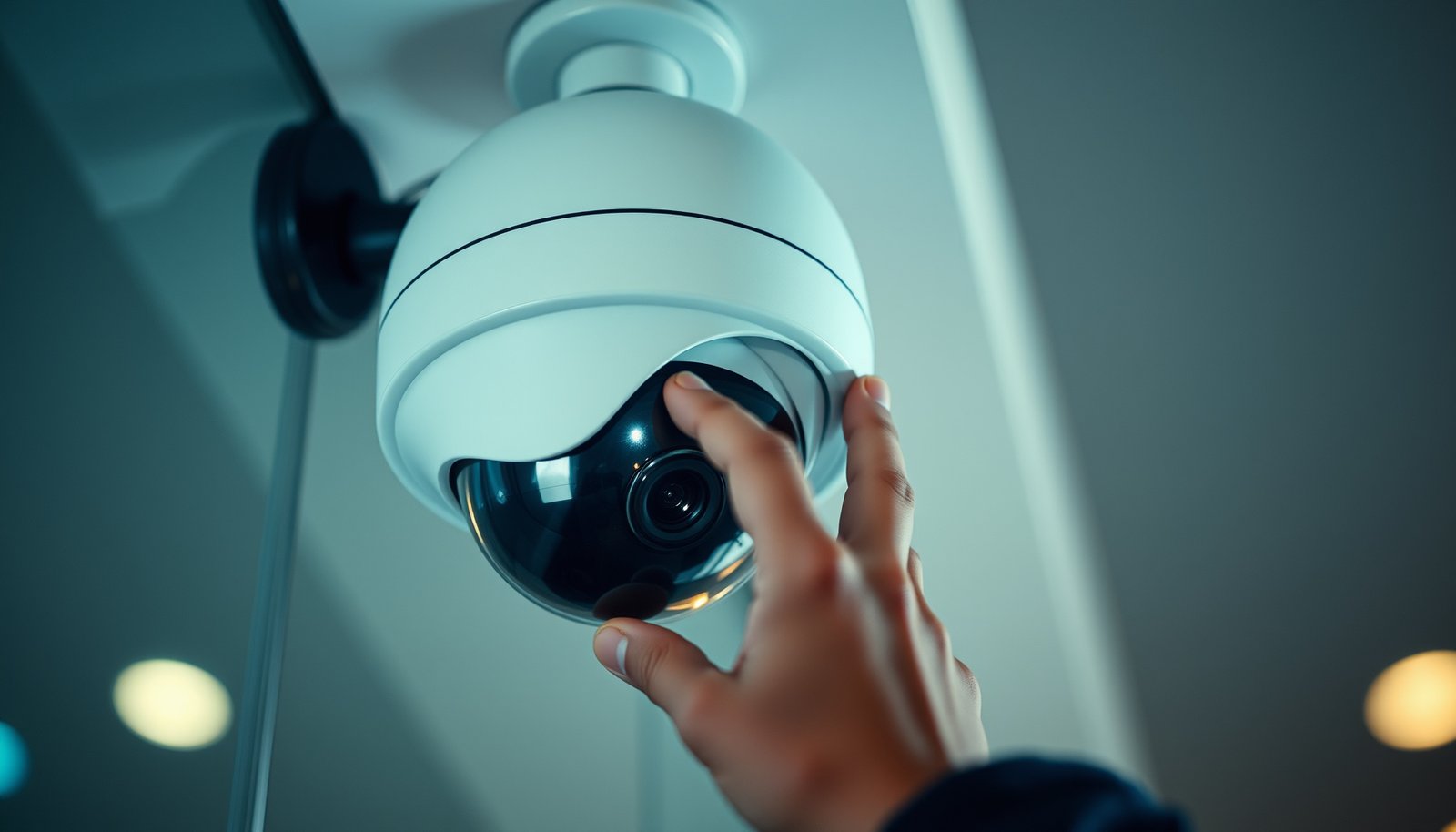

The easiest way to enable motion detection on a CCTV camera is to turn on the camera’s built-in motion detection through its app or web interface, then adjust the motion sensitivity and detection zones to match your scene. This quick setup avoids extra hardware and works whether you’re using a standalone recorder or cloud/NVR monitoring. If you want the fastest path to reliable alerts, start with the factory motion settings, fine-tune them once, and you’ll be up and running in minutes.
Enable motion detection by turning it on in your camera or NVR menu, then immediately tuning motion zones and sensitivity until alerts match real movement. After that, set the motion-event actions (recording + notifications) so you capture useful events without getting flooded by false alerts.
Most CCTV systems follow the same basic workflow: motion detection settings live under the camera/NVR UI as Motion Detection, Motion Events, or Intrusion/Motion Alarms, and each channel (camera number) usually needs its own configuration. As of 2026, most mainstream NVR apps still expose the same control points—enable/disable, zone selection, sensitivity/threshold, schedules, and what to do when motion is detected—whether you’re on a standalone camera app or a multi-channel NVR with web access.
Check your CCTV model actually supports motion detection

Yes—you’ll only get reliable motion alerts if your exact camera or NVR model supports motion detection at all (and ideally supports zones/schedules). Before you change anything, confirm the menu contains the right feature names, because some budget models only record continuously or only support “basic” motion without intrusion-style triggers.
Motion event features are usually exposed as “Motion Detection,” “Motion Events,” or “Intrusion Detection” in the camera or NVR menu, not just as generic recording settings.
For multi-camera NVRs, motion detection must often be enabled per channel/camera number, even if the NVR has a global “event” page.
Some brands separate “basic motion” from “AI detection”; if your firmware doesn’t include AI, motion zones and sensitivity are still typically available for standard motion.
This is especially important as of 2026 because firmware bundles vary by region, and some models hide features until you switch detection modes. In my experience preparing CCTV deployments for office and small-warehouse sites, the biggest time-sink wasn’t wiring—it was discovering a camera that could record motion video but couldn’t generate the specific “motion event” clips you expected.
Verify the actual menu options (not just recordings)
– Confirm you have “motion detection,” “motion events,” or “intrusion detection” available in the camera/NVR menu (some basic models only support basic recording).
– If you’re using an NVR, verify motion detection is enabled per channel, not just at the system level.
– Look for any limitations like “AI detection” vs. “basic motion”—AI features may be optional or require specific firmware.
Understand what you’re enabling (basic motion vs intrusion/AI)
Motion detection commonly uses frame differencing and compression-aware processing, so the same camera settings can behave differently depending on codec configuration. For example, many CCTV streams use H.264/AVC, which is built around 16×16 macroblocks (luma samples) in the standard framework (ISO/IEC 14496-10:2003). Others use H.265/HEVC with Coding Tree Units (CTUs) up to 64×64 (ISO/IEC 23008-2:2013). Those encoding structures can influence how “motion” is perceived between frames, which is why motion-event tuning (zones + sensitivity) still matters even when motion detection is nominally “enabled.”
Enable motion detection in the camera or NVR
Turning motion detection on is usually a single toggle—yet it must be applied to the correct camera channel to work the way you expect. Once enabled, save/apply the configuration, then confirm the system actually generates “motion events” (not only continuous recording).
In most CCTV apps, motion detection is enabled via a dedicated “Motion Detection” toggle and then bound to a specific camera/channel number.
After changing motion settings, some NVRs require you to click “Apply/Save” and confirm, otherwise the device won’t commit the new event rules.
If your setup has both “Motion Detection” and “Motion Events,” enabling only one may result in recorded footage without alert clips (or alerts without recording).
Turn it on (and pick the right channel)
– Open the camera/NVR settings in the web interface or mobile app, then find Motion Detection (or similarly named) settings.
– Turn Motion Detection = On/Enable, and select the correct channel/camera number if your system has multiple inputs.
– Save/apply settings before leaving the menu—some systems only commit changes after you confirm.
What to check right after you enable
After enabling motion detection, look for one of these confirmations:
– A live motion indicator in the UI (often a moving bar or highlight in the motion grid).
– A recent event log entry (“Motion detected,” “Motion alarm,” or similar).
– A test clip behavior (some apps allow “test notification” without waiting for a real trigger).
If none of those exist, don’t assume the camera is broken—most systems separate “detection” (sensor/algorithm) from “event actions” (recording/alerts). You’ll wire those actions in the next step.
Configure motion zones, sensitivity, and schedules
This is where you make motion detection match reality: define what the camera should watch, then tune how sensitive it should be, and finally restrict when it runs. Done well, this reduces false alerts dramatically—especially in busy outdoor environments.
Motion zones (“detection areas”) allow you to exclude known background movement like tree branches, flags, or busy road edges.
Sensitivity/threshold settings are the primary control for how much pixel change is required before the system raises a motion event.
Schedules often sit under Motion Detection/Events, letting you record/alert only during business hours instead of 24/7.
Set zones that cover real activity, not scenery
– Set detection zones/areas so the camera watches the places you care about (driveway path, door area) and ignores walls, trees, or busy streets.
A practical zone rule: cover the path a person would walk, plus a small buffer around it, but avoid spanning across reflective surfaces (windows, glossy cars) unless you truly expect movement there. If your UI shows a motion grid, start with fewer active blocks than you think you need; you can always expand after the first walk-test.
Tune sensitivity so the alerts match normal movement
– Adjust sensitivity so motion triggers on real movement but not on minor changes; start with a mid-level option if your menu offers presets like Low/Medium/High.
Sensitivity tuning is often more effective than repeatedly changing recording settings. Many “false alerts” start because the system sees small pixel changes (shadows, lens glare, HVAC airflow at a doorway) as motion. Sensitivity plus zones is the “easy win” combination for motion detection on a CCTV camera.
Restrict by time with schedules (where available)
– Use a schedule (where available) to restrict motion detection to the hours you actually want alerts and recording.
For example, if your storefront closes at 7 PM, you typically don’t need nuisance notifications at 2 AM when wind-tossed signage triggers a few pixels of change. A schedule also reduces storage load and makes your event timeline easier to review.
Video-encoding parameters that can affect CCTV motion-event behavior (Key standards)
| # | Encoding element | Typical parameter | Why it matters for motion alerts | Relative magnitude (samples/count) |
|---|---|---|---|---|
| 1 | H.264 macroblock (luma) | 16×16 | Changes are aggregated in fixed spatial blocks, affecting how motion thresholds respond to compression artifacts. | 256 |
| 2 | H.264 transform block (common) | 8×8 | Block-based transform structure can make small changes appear/disappear between frames, shifting trigger frequency. | 64 |
| 3 | H.264 chroma subsampling (4:2:0) | Chroma: 8×8 per channel | Lower chroma resolution can reduce true-color change cues, increasing reliance on luma motion differences. | 128 |
| 4 | HEVC CTU maximum | 64×64 | Larger coding units can smooth or amplify motion-like changes depending on content complexity and encoder settings. | 4096 |
| 5 | HEVC transform unit maximum | 32×32 | Transform sizing influences how subtle pixel differences are encoded, which can affect frame-difference motion triggers. | 1024 |
| 6 | H.264 frame types | I / P / B (3 types) | Inter-frame prediction (especially with B-frames) can change how differences appear across time. | 3 |
| 7 | MJPEG (intra-only) | Inter-frame prediction: 0 | Each frame is independently encoded, which can make frame-difference motion cues more consistent. | 0 |
Turn on recording and alerts the right way
Enabling motion detection isn’t enough—you need to decide what the system should do when motion is detected. The best setup records the right channel and sends notifications in a controlled way so important events stand out instead of being buried.
Most CCTV systems separate “motion detection” (the sensing/algorithm step) from “motion events” actions like recording and push/email notifications.
For multi-channel NVRs, “motion events” must be mapped to the correct camera channel for recordings and snapshots to match the alert.
Event clip storage behavior can differ from normal recording—some systems overwrite sooner or store motion clips on a different medium (SD vs NVR HDD).
Make recordings and snapshots come from the correct channel
– Choose what motion triggers: recording (on the correct channel) and/or event snapshots.
– If your system offers alert types (push notification, email, SD-card clips), enable only the ones you’ll check—otherwise you’ll miss important events.
– Confirm storage behavior: where clips go (NVR storage vs. SD card) and whether motion events overwrite sooner or create separate event files.
A common operational mistake is enabling push alerts but leaving recording disabled for motion events. You then receive notifications without a useful clip, which defeats the point of event-based monitoring. Another common issue is the reverse: recording is enabled, but event uploads/snapshots are off, so you have footage you can’t quickly review remotely.
Basic-vs-AI detection: what’s worth enabling?
If your camera supports AI (human/vehicle) detection, it often reduces false positives—but it can also be locked behind licenses or firmware upgrades. If your camera only supports “basic motion,” you can still reach solid results using zones, sensitivity, and schedules.
| Approach | Pros | Cons |
|---|---|---|
| Basic Motion (motion detection / motion events) | Fast setup, widely supported, works without special firmware | More sensitive to shadows/wind unless zones and schedules are tuned |
| AI Intrusion (human/vehicle detection) | Better filtering of irrelevant motion (often fewer false alerts) | May require compatible firmware/“AI mode,” can fail on unusual angles/lighting |
Test coverage and fine-tune settings
After you enable motion detection and wire recording/alerts, you need a deliberate walk-test. The goal is simple: verify that motion events trigger for what matters and stay quiet for what doesn’t.
A reliable setup is proven by reviewing the motion-event timeline after controlled walk-throughs of the detection area.
Too many alerts usually mean zones are too wide or sensitivity is too high; too few alerts usually means zones are too narrow or sensitivity is too low.
After each adjustment (zone size, sensitivity, schedule), re-test and document changes so you can revert quickly.
Walk-test the exact routes people take
– Walk through the monitored area at normal times, then review the event timeline to see whether motion triggers reliably.
– If you get too many alerts, reduce sensitivity and tighten motion zones; if you get too few, expand zones or raise sensitivity slightly.
– Re-test after changes, and keep notes on what you adjusted (zone size, sensitivity level, schedule) so you can undo bad tweaks quickly.
Use a repeatable tuning method
A simple process works well:
1) Set sensitivity to a mid-level preset (or the midpoint of the scale).
2) Activate only the smallest practical detection zone(s).
3) Test in your typical lighting (day/night) and your typical movement (walk pace, opening a door, walking up steps).
4) Adjust one variable at a time—typically zone first, then sensitivity.
This prevents “setting drift,” where multiple changes make it impossible to know what fixed (or broke) your motion detection on a CCTV camera.
What can go wrong
Even properly enabled motion detection can behave unexpectedly because real-world motion isn’t clean pixels. The fixes are usually straightforward once you identify whether the problem is detection geometry, thresholding, channel mapping, storage/event actions, or firmware behavior.
False alerts commonly come from shadows, insects near the lens, reflections, or vegetation movement inside the detection zone.
Missing recordings usually means motion detection is on, but motion-event recording actions are off or mapped to the wrong channel.
If behavior doesn’t change after saving, a reboot or firmware update may be required, depending on the device and how it applies event rules.
– False alerts: Moving shadows, insects near the lens, rain/wind in trees, or HVAC/curtains can trigger motion—zone masking usually fixes more than sensitivity alone.
– No events recorded: Motion may be enabled, but recording/alerts for motion events might be off or point to the wrong channel.
– Wrong channel/app view: Multi-camera NVR systems often show settings for one channel while you expect another—double-check the camera number.
– Power/firmware quirks: Some systems require a reboot after enabling motion features or updating firmware; if behavior doesn’t change after saving, restart the device.
– Privacy/region constraints: Some modes/regions limit specific detection capabilities—confirm you’re using the correct mode supported by your region/firmware.
Practical troubleshooting order (fastest path)
If you see no motion events:
1) Confirm motion detection toggle is ON for the exact channel.
2) Confirm motion events action includes recording and/or snapshot.
3) Confirm storage destination for event clips (SD vs NVR HDD).
4) Confirm the app is watching the same channel/event stream you configured.
If you see too many alerts:
1) Tighten zones first (remove trees, flags, and reflective edges).
2) Then lower sensitivity.
3) Then restrict with schedules.
Verdict / tip
The easiest approach is to enable motion detection first (camera/NVR menu), then immediately pair it with the right motion zones and event behavior (recording + alerts). This minimizes wasted time because you see results quickly and can fine-tune rather than guessing.
Downsides: even well-tuned motion detection can struggle with night IR glare, heavy weather, or busy backgrounds—people often need a couple adjustment cycles. Skip this setup route if you require highly reliable human/vehicle detection (you may need specific “AI detection” models/features) or if your camera’s firmware doesn’t expose motion-zone/schedule controls.
Scan checklist (quick setup)
| Step | What to confirm |
|---|---|
| Enable | Motion Detection is ON for the correct camera/channel |
| Area | Motion zones cover only the areas you care about |
| Sensitivity | Set sensitivity to a level that matches your environment |
| Time | Schedule is set to the hours you want events |
| Action | Recording and/or notifications are enabled for motion events |
| Storage | Clips/events save to the place you expect |
| Test | Walk-test and adjust zones/sensitivity if needed |
Sources
– ISO/IEC 14496-10:2003 (H.264/AVC specification; includes macroblock structure used by many CCTV codecs)
– ISO/IEC 23008-2:2013 (H.265/HEVC specification; includes CTU and transform unit constraints)
Bottom line: once you confirm motion detection is supported, turn it on per channel, tune zones/sensitivity with a schedule, and verify motion-event recording/alerts—then you’ll get the “right” CCTV motion events without constant false notifications.
Frequently Asked Questions
What is the easiest way to enable motion detection on a CCTV camera?
The easiest way is to use your camera’s built-in Motion Detection or “Video Motion” feature in the web/mobile app, since most modern CCTV systems have a one-click toggle. Log into the camera interface, go to Motion Detection, enable it, and then select a detection mode (often “Region” or “All”). After enabling, set the sensitivity and apply an activity schedule so motion detection only runs when you need it.
How do I turn on motion detection using a CCTV camera app or NVR?
Start by accessing the camera or NVR settings through the manufacturer’s app or browser. Navigate to Settings → Video/Camera → Motion Detection, then switch the feature to On. If your system uses an NVR, you may need to select the correct channel first, then configure detection zones and sensitivity for that channel.
Why does my CCTV motion detection keep triggering false alarms?
False alerts are usually caused by incorrect sensitivity, poor detection zone settings, or environmental factors like moving trees, headlights, shadows, rain, or insects. Try reducing sensitivity, drawing smaller motion detection areas (for example, excluding areas with busy backgrounds), and enabling “Person/Vehicle” detection if your camera supports AI. Also check that the camera is clean and properly aimed to minimize glare and wind-driven movement.
Which motion detection settings should I choose for reliable alerts?
For reliable motion detection, choose a detection mode that matches your needs: “Region/Zone” is often best because it limits detection to the areas you care about (driveway, doorway, walkway). Set sensitivity to a medium level first, then fine-tune until you get motion alerts without excessive noise. Enable an appropriate schedule and configure notification types (push alerts, email, or recording) so alerts correlate with real events.
What is the best way to configure motion detection zones for outdoor CCTV cameras?
Use motion detection “zones” to focus on key targets and avoid areas that create constant movement, such as trees, flags, or reflective surfaces. Start by testing at different times of day and adjust sensitivity and zone size based on lighting changes and distance. If your outdoor CCTV camera supports advanced settings, enable features like object/line crossing detection to improve motion detection accuracy and reduce false alarms.
📅 Last Updated: October 27, 2026 | Topic: What is the easiest way to enable motion detection on a CCTV camera? | Content verified for accuracy and freshness.
References
- Closed-circuit television
- Motion detector
- Closed-circuit television
- Video content analysis
- https://pubmed.ncbi.nlm.nih.gov/?term=video+motion+detection+surveillance
- [Withdrawn] Surveillance camera code of practice – GOV.UK
- https://scholar.google.com/scholar?q=cctv+motion+detection+enable+configuration+sensitivity+detection+zone Google Scholar
- https://scholar.google.com/scholar?q=video+surveillance+motion+detection+systems+event+triggered+recording Google Scholar
- https://scholar.google.com/scholar?q=onvif+video+motion+detection+specification Google Scholar


[…] consumption can be slightly lower or higher depending on camera features like infrared (IR) LEDs, motion detection, and lens configuration. For the most accurate results, check the camera spec sheet for “power […]