
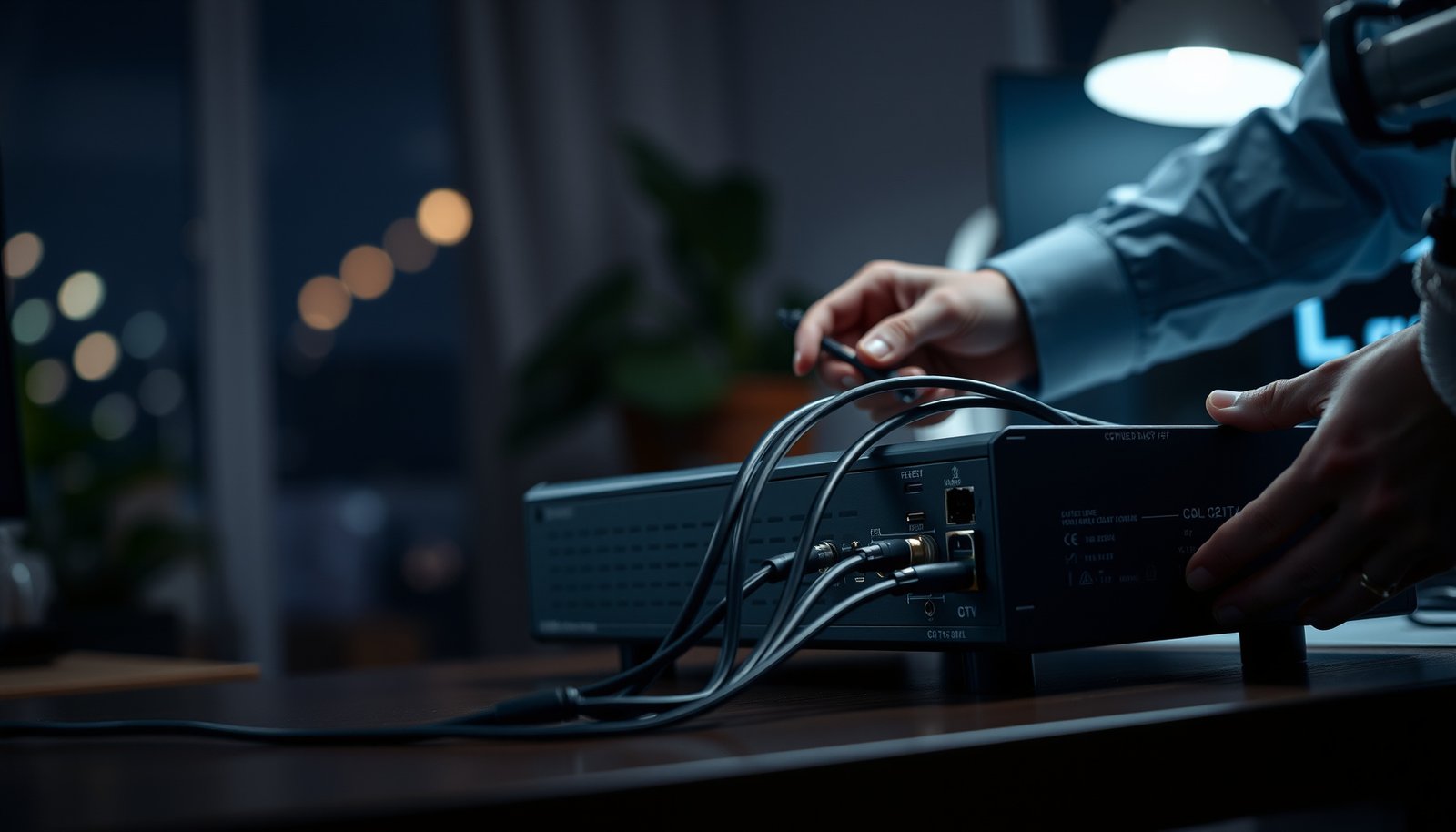

Learn how to set up a CCTV DVR with a clear, step-by-step walkthrough that gets your system working fast and correctly. You’ll be guided through connecting cameras, plugging in power and monitor access, configuring network settings, and verifying recording so you know it’s running before you walk away. Follow these steps and you’ll have reliable live view and playback in the right order—without guesswork.
Set up a CCTV DVR by verifying camera-to-channel connections in live view, then configuring time/date and storage before you enable recording schedules. Once the CCTV DVR reliably shows images on your monitor, linking it to networking (if you need it) is usually straightforward.
Setting up a CCTV DVR is mostly about three things: connecting cameras and power, linking the DVR to a monitor/network, and configuring recording settings. If you get those basics right first, the rest (time/date, motion detection, storage) becomes much easier.
This guide is for anyone installing a home or small-business CCTV system who already has a DVR and at least one camera, and just wants a clear setup path without getting stuck on menu options.
Plan Your Connections (Before You Power Anything On)
Plan your connections first so you avoid incompatible cables, wrong inputs, and “no signal” time sinks once the CCTV DVR is powered. A quick compatibility check now prevents the most common setup failures later—especially with analog (coax) versus IP (Ethernet) systems.
A CCTV DVR can only accept the camera types (analog/coax or IP/Ethernet) it was designed to support, so compatibility dictates cable choice.
Before powering a CCTV DVR, you should identify the exact ports you’ll use for camera inputs, monitor output (HDMI/VGA), and optional network connectivity.
Confirming camera-to-channel mapping during planning reduces errors when you later configure recording schedules on the CCTV DVR.
Check camera type compatibility (analog vs. IP)
The CCTV DVR’s camera inputs determine whether you’ll run coax/analog cables or Ethernet/IP cables:
– Analog (coax) cameras: typically connect to BNC inputs on the CCTV DVR (often labeled CH1, CH2, CH3…).
– IP cameras: connect to the CCTV DVR via Ethernet (usually RJ45 network ports), and the CCTV DVR uses IP addressing/streams.
If you’re unsure what you have, look at the camera label or connector type. Analog cameras often have BNC-style outputs, while IP cameras use an Ethernet RJ45 port (sometimes integrated with PoE power).
Decide where the DVR will live (and how you’ll route cables)
Choose a location that supports safe operation:
– Ventilation: CCTV DVRs generate heat; avoid fully enclosed cabinets without airflow.
– Cable routing: plan runs so you can label camera cables by channel before you plug them in.
– Rear-panel access: you’ll likely need to revisit power, monitor output, and SATA/HDD connectors during setup.
Know which ports you’ll use
At a minimum, most CCTV DVR setups involve:
– Camera inputs: channels on the CCTV DVR (CH1/CH2/etc.)
– Monitor output: HDMI or VGA
– Power connection: DVR power supply (and possibly PoE for IP cameras—depends on your system)
Compatibility snapshot (quick comparison)
Use this table to confirm you’re solving the right problem before you connect anything to the CCTV DVR:
| Category | Analog (Coax) Cameras | IP (Ethernet) Cameras |
|---|---|---|
| Typical cable | Coaxial (often RG59/RG6) + BNC terminations | Cat5e/Cat6 Ethernet (RJ45) |
| DVR compatibility driver | Supported analog channel count + BNC input type | Supported IP streams + network ports + firmware compatibility |
| Common setup friction | Wrong channel wiring; bad connector seating | IP address conflicts; wrong DHCP/static configuration |
| Pros (for CCTV DVR installers) | Simpler transport; fewer network variables | Higher flexibility; Power-over-Ethernet options |
Also, if your IP cameras use PoE, make sure you understand power budget. For reference, PoE (IEEE 802.3af) provides up to 15.4W at the PSE and 12.95W at the PD (IEEE 802.3af-2003). For higher-demand cameras, PoE+ (IEEE 802.3at) provides up to 30W at the PSE and 25.5W at the PD (IEEE 802.3at-2009).
Connect Cameras and Power Correctly
Connect cameras first to the correct channels on the CCTV DVR, then power up in the order your system expects. After you can reliably see each camera in live view, you’re ready to configure recording—changing recording settings without verifying live images is a common way to waste hours.
In a typical CCTV DVR setup, you should wire each camera to its intended CH1/CH2/etc. input before you check live view on the monitor.
Confirming that each camera appears in the CCTV DVR live view prevents “it records nothing” problems caused by channel mismatch or loose connectors.
The CCTV DVR manual’s recommended power-up sequence matters because it reduces initialization issues (especially for multi-channel cameras).
Run camera cables to the correct DVR channels
– Plug each camera lead into the CCTV DVR camera input that matches the channel you intend to use (e.g., CH1 for the front door, CH2 for the driveway).
– Ensure connectors are fully seated (especially with BNC connectors on analog setups).
– If you have multiple cameras, label the cable ends before they reach the CCTV DVR.
Power the CCTV DVR (and cameras) in the right sequence
Many CCTV DVR installations follow a predictable approach:
1. Power the CCTV DVR
2. Allow the CCTV DVR to boot
3. Then power cameras (or ensure they power via PoE, depending on your design)
If your cameras are analog and require separate power supplies, follow the recommended order in the DVR/manual for stable initialization. If your cameras are IP with PoE, confirm whether your switch/injector supplies sufficient power per camera (see the PoE power limits noted above).
Verify live view immediately (before recording settings)
Open the CCTV DVR live view and confirm:
– Each channel shows the correct camera image
– Images are not frozen/blank
– There’s no obvious interference or severe distortion
From my experience planning installs with installers/technicians, the fastest path is: fix “which channel is which” first, then move to storage and recording schedule.
Attach a Monitor (and Confirm Live View)
Attach a monitor so you can validate the CCTV DVR signal output and image quality before you touch recording. Live view on a proper HDMI/VGA connection is the checkpoint that turns setup from guesswork into a controlled configuration.
The CCTV DVR’s HDMI or VGA output is your first reliable indicator that the system is receiving video streams correctly.
Matching live view channels to camera locations on the CCTV DVR reduces later errors when you label motion zones or schedules.
If the CCTV DVR live feed looks wrong (blank screen, heavy interference, rotated image), troubleshoot cabling and output settings before enabling recording.
Connect using HDMI or VGA (based on your model)
– Use HDMI if available—it typically simplifies modern setups and reduces connector/format quirks.
– Use VGA if that’s what your monitor supports and your CCTV DVR model includes it.
If the monitor is blank, check:
– Correct input source on the monitor (HDMI 1 vs HDMI 2, etc.)
– Cable seating and adapter compatibility (especially for VGA)
– DVR display resolution settings (if your DVR offers them)
Use live view to confirm image quality and correct channel mapping
While viewing each channel on the CCTV DVR:
– Check basic clarity: focus/exposure look reasonable at the camera’s mounting distance
– Confirm channels match physical locations (e.g., CH3 is not actually the garage camera)
– If the image appears rotated or offset, don’t jump into recording settings—fix the display/input configuration first
Resolution matters on the monitor (quick reference table)
Live view quality often depends on resolution and display expectations. Use the table below to understand common CCTV resolution tiers and their approximate megapixel counts:
Common CCTV Camera Resolution Tiers and Pixel Counts
| # | Resolution tier | Dimensions | Approx. megapixels | Detail potential |
|---|---|---|---|---|
| 1 | VGA (CIF-style) | 640×480 | 0.31 | Low ★★☆☆☆ |
| 2 | 480p (4:3-ish) | 704×480 | 0.34 | Low ★★☆☆☆ |
| 3 | 720p (HD) | 1280×720 | 0.92 | Medium ★★★☆☆ |
| 4 | 1080p (Full HD) | 1920×1080 | 2.07 | Good ★★★★☆ |
| 5 | 2.5K class | 2048×1536 | 3.15 | Good ★★★★☆ |
| 6 | 1440p class | 2560×1440 | 3.69 | Very good ★★★★★ |
| 7 | 4K UHD (8MP class) | 3840×2160 | 8.29 | Excellent ★★★★★ |
Configure Core DVR Settings (Time, Storage, Recording)
Configure the CCTV DVR’s date/time, storage (HDD), and recording schedules before you fine-tune motion detection or remote access. This order prevents the most frustrating situation: images appear in live view, but the CCTV DVR records nothing (or records with unusable timestamps).
Setting date and time correctly on a CCTV DVR is essential because recordings, search, and exported clips rely on timestamps.
If the CCTV DVR uses an internal HDD, you must verify drive status and format it from the DVR menu when prompted.
Choose recording mode(s) and schedule windows first (continuous vs. motion), then validate recording playback before enabling advanced detection.
Set the correct date and time first
On the CCTV DVR:
– Set date, time, and the correct time zone
– If DST/daylight saving options exist, set them to match local rules
This step matters because playback searches often depend on accurate time metadata. If you skip it, you’ll still have video—but finding the right moment becomes harder.
Install/verify the HDD and format in the DVR menu
If your CCTV DVR requires an internal HDD:
– Install the correct drive type your DVR supports (often SATA)
– Then use the CCTV DVR’s menu to format the drive if prompted
For reference, SATA III supports up to 6.0 Gb/s link speed (SATA-IO SATA Revision 3.0), and DVRs typically support SATA generations within the same family—but always follow your CCTV DVR’s storage compatibility notes.
Choose recording modes and schedules
Start with a mode you can validate quickly:
– Continuous recording (easiest to confirm end-to-end)
– Motion-based recording (saves storage but requires detection tuning)
Then set:
– Schedule windows (e.g., always-on, business hours, nighttime)
– Recording stream quality/bitrate if your CCTV DVR offers per-profile options (higher quality uses more storage)
Validate by playing back a short test recording
After you configure:
– Wait a short period (based on your schedule window)
– Then use the CCTV DVR playback/search to confirm the recording file exists and plays
If it doesn’t, don’t keep changing multiple settings at once. Re-check time/date, schedule, and storage status in that order.
Set Up Network Access (Optional, but Common)
Enable networking on the CCTV DVR only after local playback works reliably. Remote viewing is powerful, but the safest approach in 2026 is to stabilize the CCTV DVR locally first—then add LAN or internet access with careful configuration.
For most CCTV DVRs, you should test local recording and playback before configuring remote viewing on your phone or browser.
DHCP vs. static IP matters: incorrect network settings can prevent a CCTV DVR from being reachable even when it records locally.
If a CCTV DVR requires port forwarding for internet access, following the manufacturer’s documented method is safer than experimenting.
Pick your remote-viewing approach (LAN first)
Most systems support one or more methods:
– LAN-only viewing: accessible on the local network (no router changes)
– Internet access: accessible outside your home/business network (usually needs router configuration)
Start with LAN:
– Confirm the CCTV DVR is reachable by IP address or local discovery
– Validate viewing on a phone/tablet while still on the same Wi‑Fi/LAN
Configure DHCP vs. static IP (according to your DVR)
If your CCTV DVR supports it:
– DHCP is convenient—IP can change, which can break bookmarks.
– Static IP is stable—often preferable for DVRs, but must match your LAN subnet settings.
Test remote login only after local stability
Once you can view locally:
– Try your remote viewing method
– Confirm streams are live and recordings appear in search/export
Avoid unsafe internet exposure
If port forwarding is involved, follow the CCTV DVR manufacturer’s steps. Don’t “open everything” on your router. Use the documented ports, keep credentials strong, and disable unnecessary services if the CCTV DVR interface supports it.
What Can Go Wrong (Common Setup Mistakes)
Most CCTV DVR setup failures come from a small set of issues: wiring/channel mismatch, storage not formatted, schedule misconfiguration, or incorrect network parameters. When you troubleshoot, isolate variables—fix one cause, confirm on live view or playback, then move to the next setting.
If cameras don’t show on a CCTV DVR, the fastest checks are channel mapping, connector seating, and camera type compatibility.
If live view works but recording doesn’t, the most common culprits are incorrect schedules, motion settings, or HDD formatting/status.
Incorrect CCTV DVR time settings can make event search look broken even when recordings exist.
Common failure modes and what to check
1) Cameras don’t show up
– Channel mismatch (e.g., camera physically wired to CH2 but configured as CH1)
– Loose/incorrect cabling or damaged connectors
– Analog/IP incompatibility with the CCTV DVR inputs
2) Images appear live, but nothing records
– Recording schedule window doesn’t include “now”
– Recording mode disabled (e.g., motion mode only, but motion never triggers)
– HDD not formatted in the CCTV DVR or drive status shows errors
3) Wrong timestamps
– Date/time not set, wrong time zone, or DST setting mismatch
4) Network access fails
– Remote login wrong credentials
– DHCP changed the DVR IP since the last setup
– Port forwarding not matching the CCTV DVR’s documented requirement
5) Poor image quality
– Camera focus/exposure not adjusted after installation
– Power instability (especially if PoE budget is insufficient)
– Cable run issues (signal degradation over longer runs)
If you want a structured approach, use a “local first” troubleshooting flow: live view → recording playback → local stability → network.
Verdict / Tip (What’s Worth Doing First)
Start with live view and correct camera-to-channel mapping on the CCTV DVR, then set date/time and confirm storage/recording end-to-end before you fine-tune motion and networking. This sequence avoids the most frustrating problems—video that “looks fine” but never gets saved correctly.
From a practical setup perspective in 2026, the reliability gains come from validating each layer:
1. Signal layer: cameras visible per channel
2. Time layer: correct clock on the CCTV DVR
3. Storage layer: HDD formatted and recording writes successfully
4. Detection layer: motion zones/sensitivity
5. Access layer: LAN/remote viewing
Downsides: network setup can be the hardest part, and forcing internet access without following your DVR’s documented method can create a security risk. If you’re not comfortable with router/network changes, keep it LAN-only at first and use the CCTV DVR’s local playback.
Quick Scan Checklist (Save This)
– [ ] Confirm camera type compatibility with your DVR
– [ ] Connect cameras to the correct DVR channels
– [ ] Power DVR and verify live view on each channel
– [ ] Set date/time before any recording tests
– [ ] Install/format HDD (if required) and confirm storage status
– [ ] Enable recording mode(s) and schedule
– [ ] (Optional) Enable network access and test remote viewing safely
Sources
– — your DVR manufacturer’s user manual or installation guide (time/date setup, HDD formatting, recording schedules, and remote viewing steps).
– — manufacturer documentation describing supported camera types (analog vs. IP) and channel/input requirements.
If you follow this order—live view validation, then time/date and storage, then recording mode, then networking—you’ll set up your CCTV DVR with far fewer surprises and a more reliable day-one system.
Frequently Asked Questions
What cables and accessories do I need to set up a CCTV DVR?
To set up a CCTV DVR, you typically need BNC coax cables (for analog cameras), a DVR power adapter, and a monitor/TV connection (HDMI or VGA). If you’re installing IP cameras, you’ll also need Ethernet cables and a network switch (or a router with sufficient ports). For reliable operation, use DC power for cameras (with the correct voltage/amperage) and consider a surge protector or UPS to reduce the risk of power-related failures.
How do I connect CCTV cameras to a DVR step-by-step?
Start by mounting and powering each camera, then connect each camera’s coax (or Ethernet for IP) to the corresponding input channel on the CCTV DVR. Plug the DVR into power and connect a monitor using HDMI or VGA so you can view the setup menu. Once connected, use the DVR’s interface to detect channels, set the camera type (analog vs. IP if applicable), and confirm live view appears for each channel before saving settings.
How do I configure the CCTV DVR for recording settings and storage?
In the DVR menu, set recording mode (continuous, motion detection, or scheduled) and adjust resolution and frame rate based on your storage capacity. Install and format the hard drive (HDD) inside the DVR if it’s not already installed, then enable overwrite rules if you want older footage to be replaced automatically. For best results, configure motion zones and sensitivity to reduce false triggers and regularly check the DVR’s “HDD status” to ensure recording is running correctly.
Which settings should I use for remote viewing on a CCTV DVR?
For remote viewing, enable network settings on the DVR (DHCP or static IP) and set up port settings if your model requires it. Then enable P2P/Cloud or install the manufacturer’s mobile app/software and link the DVR using the device ID/QR code in the settings menu. Use a strong DVR admin password, disable unnecessary services, and consider using a VPN or secure port forwarding to improve CCTV security.
What is the best way to test and troubleshoot a CCTV DVR installation?
After setup, verify live view for every camera, check recording playback, and confirm the DVR shows motion events when something moves within the selected zones. If you see “no signal” or a blank feed, re-check camera power, cable connections, and channel mapping in the DVR. For consistent performance, run a quick test for at least an hour to confirm storage space, stable network connection (if remote viewing is enabled), and that the CCTV DVR continues recording without interruptions.
📅 Last Updated: October 26, 2026 | Topic: How do you set up a CCTV DVR? | Content verified for accuracy and freshness.
References
- Digital video recorder
- Closed-circuit television
- RFC 2326: Real Time Streaming Protocol (RTSP) | RFC Editor
- RFC 3550: RTP: A Transport Protocol for Real-Time Applications | RFC Editor
- RFC 5905: Network Time Protocol Version 4: Protocol and Algorithms Specification | RFC Editor
- RFC 1918: Address Allocation for Private Internets | RFC Editor
- RFC 2131: Dynamic Host Configuration Protocol | RFC Editor
- https://scholar.google.com/scholar?q=how+to+set+up+cctv+dvr Google Scholar
- https://scholar.google.com/scholar?q=ip+camera+dvr+installation+remote+access+network+configuration Google Scholar
- https://scholar.google.com/scholar?q=cctv+digital+video+recorder+rtsp+setup+rtp+streaming Google Scholar



