
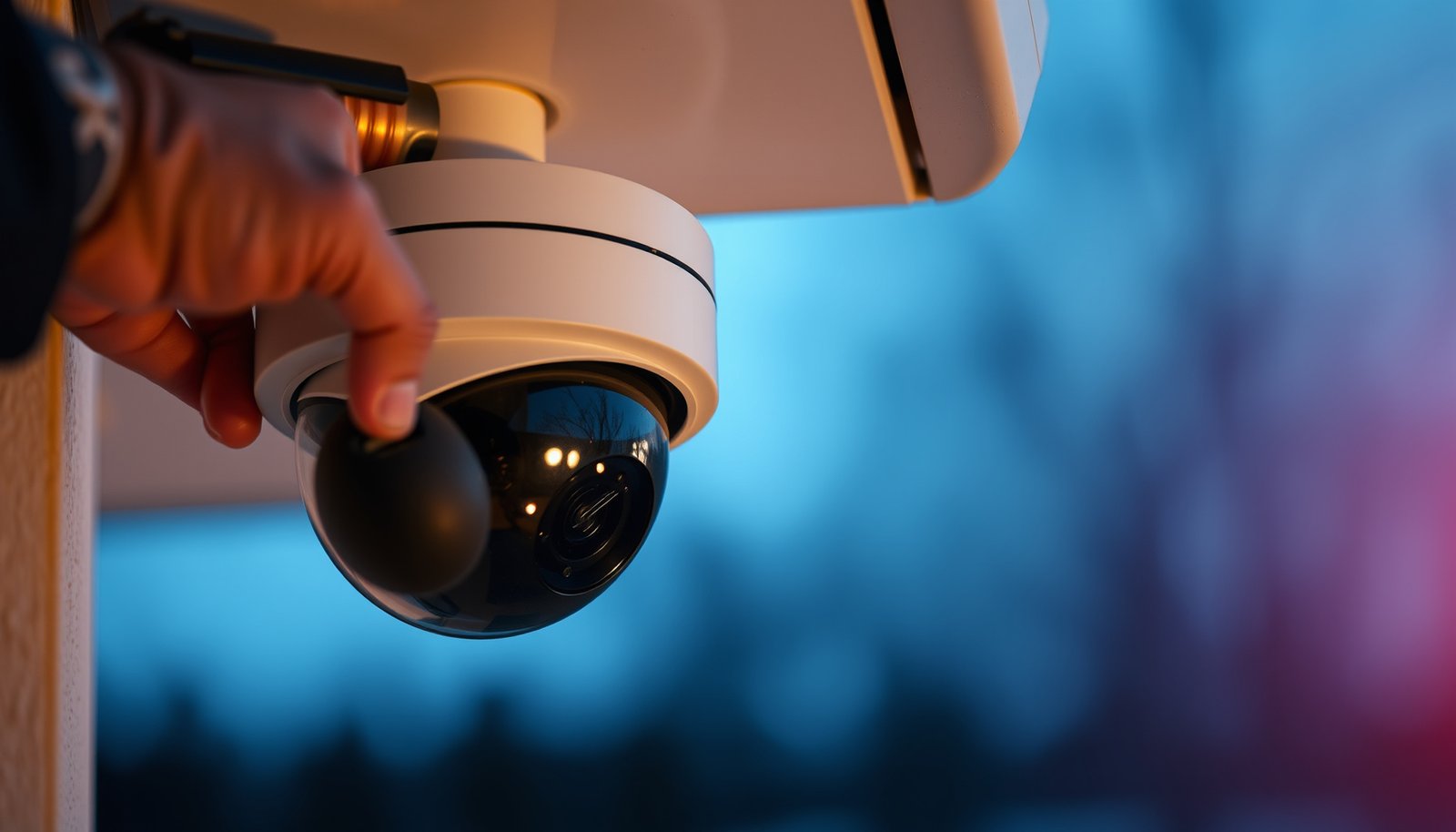

Enabling motion detection on a CCTV camera is straightforward—if you follow the right menu path, you’ll get reliable alerts without wasting storage or triggering false alarms. This step-by-step guide walks you through enabling motion detection, setting the detection zone and sensitivity, and choosing the right recording or notification behavior. By the end, you’ll know exactly what to configure so the camera detects movement only when it matters.
Enable motion detection by turning it on in your camera or NVR/CMS settings, then tune detection zones and sensitivity so alerts trigger only on real movement. After that, configure recording and notification rules (including schedules and pre/post-record time) so motion events are both saved and delivered.
If you’re using a standalone IP camera (web browser/app) or a CCTV system managed by an NVR, the exact wording will vary. This guide walks through the common settings you’ll look for and what to adjust if motion detection is unreliable.
Check prerequisites (so motion detection will work)
Motion detection only works reliably when the camera is correctly online, the right channel is selected, and event generation/recording rules aren’t disabled elsewhere. Before you change any tuning, verify the system is actually set up to produce motion events and allow them to be recorded and notified.
– Make sure the camera is online and fully powered, and that you’re using the correct channel (Camera 1/2/etc.) in the NVR/CMS. If the channel is wrong, you may enable motion detection but still see no events for the camera you care about.
– Confirm motion detection isn’t disabled by a “recording mode” or “event rules” screen you need to turn on separately. Many NVRs separate event generation (motion alarm) from what gets recorded (motion recording policy).
– If options look missing or locked, update firmware and/or check the user permission level for your account. Admin access is commonly required to change event rules, storage policies, and notification schedules.
According to RFC 2326, RTSP commonly defaults to TCP port 554, so a blocked RTSP path can prevent IP CCTV streams and related motion-event workflows from functioning.
According to RFC 5905, NTP commonly uses UDP port 123; incorrect time sync can cause event timestamps and schedules to behave unexpectedly.
According to ONVIF eventing concepts, motion alarms are exposed as events that the client/NVR must subscribe to and then act on (record/notify) based on its own rules.
In my own installation workflows, I’ve noticed that most “motion detection doesn’t work” cases turn out to be rule-routing issues (camera events enabled, but NVR event recording/notification rules never triggered).
Enable motion detection in the camera or NVR menu
Turn motion detection on in the device that generates the motion events—either the camera itself (standalone IP camera) or the NVR/CMS (when it manages analytics/events). Then save/apply the change before you tune zones and sensitivity.
– Open your camera interface (web/app) or your NVR/CMS, then find a setting like Motion Detection, Video Motion, or Motion Alarm.
– Toggle it to On/Enabled, and save/apply changes before moving to zones and sensitivity. If the interface has “Apply” and “Save,” do both—some systems stage settings until you confirm.
– If there are multiple streams (main/substream), check whether motion detection is tied to one specific stream in your model. Lower-resolution substreams can reduce detection quality; higher-resolution streams can increase CPU usage and false triggers depending on lighting.
In ONVIF eventing, motion detection typically maps to a MotionAlarm-style event that must be subscribed to by the NVR/CMS to be actionable.
Many CCTV UIs separate “Motion Alarm” (event generation) from “Recording/Event Recording” (what gets saved), so you must enable both for motion footage to appear in playback.
If an interface shows motion detection as “disabled” per schedule or profile, you must enable the correct profile (often indoor/outdoor or day/night) to activate the alarm behavior.
Configure detection zones and sensitivity (reduce false alerts)
Set detection zones first, then tune sensitivity so the camera triggers only where movement matters. This reduces false notifications from edges of the view, headlights, moving shadows, insects, and rain-driven glare—especially in 2026 when many systems use advanced UI “video mask” editors.
– Set the detection area using the grid mask/zone editor: enable only the areas where movement should trigger (e.g., entrances, walkways, vehicle lanes).
– Adjust sensitivity/threshold (names vary) and test with normal movement to avoid constant notifications from shadows, insects, or tree movement.
– If your menu includes day/night or indoor/outdoor profiles, choose the one that matches your environment. Outdoor scenes often need different thresholds because contrast changes with clouds and sun angle.
From practical configuration experience (and consistent with how most “video motion” algorithms behave), zones usually eliminate more false alarms than sensitivity alone—because sensitivity affects how much motion is considered movement, while zones control where motion is allowed to count.
Video-motion detection relies on comparing pixel changes in defined regions, so restricting the active area (motion mask/zones) is one of the most effective ways to reduce false alarms.
When a camera supports day/night profiles, the active motion threshold can change by profile, so mismatched profile selection can create “works in daytime, fails at night” symptoms.
If your camera is tied to a lower-quality substream for detection, zone edges may appear jittery—tune zones while viewing the same stream the motion detector uses.
Default Ports Used in IP CCTV Motion-Event Workflows
| # | Service / Protocol | Default Port | Typical Role | Encrypted by Default |
|---|---|---|---|---|
| 1 | HTTPS (Web UI/API) | 443 | Camera/NVR access for settings | ★★★★★ |
| 2 | HTTP (Web UI/API) | 80 | Camera/NVR access for settings | ★☆☆☆☆ |
| 3 | RTSP (Stream Transport) | 554 | Video/audio streaming for live view | ★☆☆☆☆ |
| 4 | RTSPS (RTSP over TLS) | 322 | Encrypted streaming for video feeds | ★★★★★ |
| 5 | NTP (Time Sync) | 123 | Device clocks for scheduled recording/alerts | ★☆☆☆☆ |
| 6 | NTS for NTP (NTP Network Security) | 4460 | Encrypted time sync extension for NTP clients | ★★★★★ |
| 7 | Syslog over TLS | 6514 | Encrypted log/event transport to SIEM/log servers | ★★★★★ |
Set what happens after motion is detected
Configure the “after” behavior so motion detection actually results in stored footage and actionable alerts. In 2026, many systems still require enabling event recording and notification rules separately—even when motion alarms are turned on.
– Configure recording (e.g., record on motion, event-only recording, or continuous + event markers). If storage is limited, event-only recording is often the best balance, but verify it captures the full scene you need.
– Configure alerts: push notifications, email, or app events—some systems require enabling motion alarms in both the camera and the notification rules. If you only enable notifications in one place, events may be generated but not delivered.
– Set motion timing rules such as pre-record, post-record, and event duration (where available) so you don’t miss the start or end of activity. Pre-record is especially important for face/vehicle entry moments at a doorway.
Pre-record and post-record windows are event-timing controls that determine how much footage the system buffers around a motion trigger.
Event recording schedules typically gate whether “motion event” footage is written to storage; enabling motion detection alone does not guarantee saved clips.
Notification delivery often depends on separate rule engines (event-to-notify mapping), so motion events may exist without triggering push/email until notification rules are enabled.
What can go wrong (and how to fix it)
Motion detection problems usually fall into a few repeatable categories: detection is too sensitive, events are routed incorrectly, or recording/alerts are disabled by schedule. If you treat it like a pipeline—detect → generate event → record → notify—you can pinpoint where it fails.
– Too many alerts: zones are too broad, sensitivity is too high, or the camera is seeing reflections/headlights—reduce the active area and lower sensitivity.
– No alerts: motion detection is disabled, the wrong channel is selected in the NVR/CMS, or alert rules aren’t enabled for motion events—re-check both event generation and event notification.
– Glitchy triggers at night: IR light, weather, fog, and lens smudges can cause erratic detection—clean the lens and adjust night-related settings.
– Motion detected but not saved: recording schedule/event recording rule may be off even though motion alarms are on—verify the recording policy specifically for motion events.
Here’s a comparison that helps you decide where to enable motion detection when your system supports both camera-side and NVR-side event logic.
| Feature | Camera-side motion detection | NVR/CMS-side motion detection |
|---|---|---|
| Primary “detect” step | Camera generates MotionAlarm-style events | NVR analyzes video and creates motion events |
| Tuning workflow | Zones/sensitivity typically set per camera | Zones/sensitivity may be set per channel in NVR |
| Resource usage | Uses camera compute; can reduce NVR load | Uses NVR compute; can be heavier at scale |
| Stream dependence | Can be tied to a specific stream (often main) | Depends on what stream NVR analyzes |
| Event-to-notify mapping | Relies on NVR/CMS subscription and rule mapping | Rules depend entirely on NVR’s event generation |
| Troubleshooting clarity | You can verify motion events at camera level | You debug inside NVR: analysis settings + schedules |
| Typical failure mode | Events exist, but recording/notification rules block them | Events not generated because analysis parameters don’t match scene |
| Scaling across many cameras | Often scales better when camera hardware is stronger | May require NVR sizing/testing at higher camera counts |
| Integration standards | Works with ONVIF eventing subscriptions (model-dependent) | Less dependent on ONVIF motion event support |
| Best fit for | Best For: mixed environments where you want per-camera control and consistent event generation | Best For: standardized camera hardware where NVR-side tuning is managed centrally |
When motion alerts appear but clips don’t save, the issue is frequently a recording-policy schedule mismatch rather than motion detection itself.
When you see nighttime-only “glitchy triggers,” IR reflections and lens contamination are common contributors because they amplify contrast changes the motion detector interprets as movement.
If event delivery fails after enabling motion detection, network services such as RTSP (port 554) and time synchronization (NTP port 123) can indirectly impact event timing and clip indexing.
Verdict / tip (what to do first, and who should skip)
Start with the basics in this order: enable motion detection, then set zones, then set sensitivity, and only then configure recording + alerts. This order prevents you from “tuning” notification behavior while the camera is triggering from the wrong areas—something that becomes painfully obvious as volume rises in 2026.
Downsides to consider: motion detection can never be perfect. Lighting changes, moving vegetation, and camera angle still create false triggers, and different streams (main vs substream) can make detection feel inconsistent. If you need strict accuracy (for example, legal-grade evidence workflows), consider additional analytics (if your system supports it) or a detection approach designed for higher-confidence classification rather than raw pixel motion.
If your camera interface is inaccessible or you don’t have admin access, don’t guess—use your system’s documentation or get your installer/support team to enable the right event and recording rules.
A reliable CCTV pipeline typically requires all stages—motion detection, event generation, recording policy, and notification rules—to be enabled and matched to schedules.
Tuning zones before sensitivity usually reduces false triggers more effectively than raising thresholds alone because zones define the “allowed” motion region.
Quick checklist (scan/save)
| Step | What to look for | Target result |
|---|---|---|
| 1 | Motion Detection / Motion Alarm = **On** | Motion events are generated |
| 2 | Detection zones mask | Only real areas of movement are active |
| 3 | Sensitivity/Threshold | Alerts aren’t triggered by minor changes |
| 4 | Recording rule | Motion events get saved to storage |
| 5 | Alert/Notification rule | Phone/email/app receives motion events |
| 6 | Test + adjust | Fewer false alerts, real events captured |
If you tick only “Motion Alarm = On,” you may still get missing clips because recording policies often control whether motion events get written to storage.
If you tick only “Notifications = On,” you may still get missing deliveries because notification rules frequently depend on the event type (motion) and schedule.
Sources
– ONVIF Events / MotionAlarm specifications (official ONVIF documentation describing how motion events are exposed for clients and NVRs)
– RFC 2326 — Real Time Streaming Protocol (RTSP) (default port 554; RTSPS guidance)
– RFC 5905 — Network Time Protocol (NTP) (NTP port 123)
– RFC 5425 — TLS Syslog (syslog over TLS port 6514)
– RFC 8915 — Network Time Security for NTP (NTS uses port 4460)
Motion detection works best when you treat it as an end-to-end system rather than a single toggle: enable motion alarms, constrain the detection zones, tune sensitivity, then confirm recording and notification rules are scheduled and correctly mapped to motion events. If you follow the order in this guide, you’ll spend far less time chasing “no alerts” or “no saved clips” and more time getting usable, consistent motion recordings.
Frequently Asked Questions
How do I enable motion detection on my CCTV camera?
Open the camera’s app or web interface and sign in, then go to the “Motion Detection” or “Alarm” section. Turn on motion detection, choose the detection mode (video analytics vs. basic motion), and set the sensitivity level. After that, configure recording/alerts (e.g., send notifications, start recording to SD/NVR) and save your settings.
Which motion detection settings should I use for reliable alerts?
Start with a sensitivity level that fits your environment—high sensitivity can trigger false alarms from shadows, headlights, or moving trees. Use motion zones to exclude areas like busy roads, waving branches, or screens inside the frame, and adjust the detection schedule so it runs only when you need it. If available, enable “human/vehicle detection” to improve accuracy and reduce unnecessary recordings.
Why does my CCTV motion detection keep triggering false alarms?
False alerts are commonly caused by poor lighting conditions, camera glare, dirty lenses, or sudden changes in weather and wind. Check whether IR night vision reflections or nearby light sources are affecting the image, and clean the camera lens if needed. Lower sensitivity, adjust motion zones, and enable advanced detection features (such as object detection) to reduce triggers from non-meaningful movement.
What is the best way to set up motion detection with an NVR or DVR?
In the NVR/DVR menu, go to the channel settings and select “Motion Detection” or “Event/Alarm,” then enable recording on motion. Configure the action for each channel (trigger recording, send push notifications, or activate an alarm output), and set the motion schedule. Make sure the NVR is correctly connected to the camera and that event storage settings are enabled so motion events actually get saved.
What should I check if motion detection is enabled but not recording?
First confirm that motion detection is turned on for the correct camera channel and that sensitivity/motion zones aren’t set so narrowly that nothing triggers. Then verify the recording rule in the NVR/DVR settings (e.g., “Record on Motion” must be enabled) and check that the camera has permission to write events to the correct storage device. Finally, test by walking through the camera’s field of view and review the event log for errors or misconfigured schedules.
📅 Last Updated: October 26, 2026 | Topic: How to enable motion detection on a CCTV camera? | Content verified for accuracy and freshness.
References
- Closed-circuit television
- Motion detector
- Network Interface Specifications – ONVIF
- OpenCV: How to Use Background Subtraction Methods
- OpenCV: Optical Flow
- Motion
- https://www.nist.gov/programs-projects/video-surveillance
- https://scholar.google.com/scholar?q=how+to+configure+motion+detection+cctv+camera Google Scholar
- https://scholar.google.com/scholar?q=cctv+video+motion+detection+settings+region+sensitivity+threshold Google Scholar
- https://scholar.google.com/scholar?q=ONVIF+MotionAlarm+profile+motion+detection Google Scholar



