
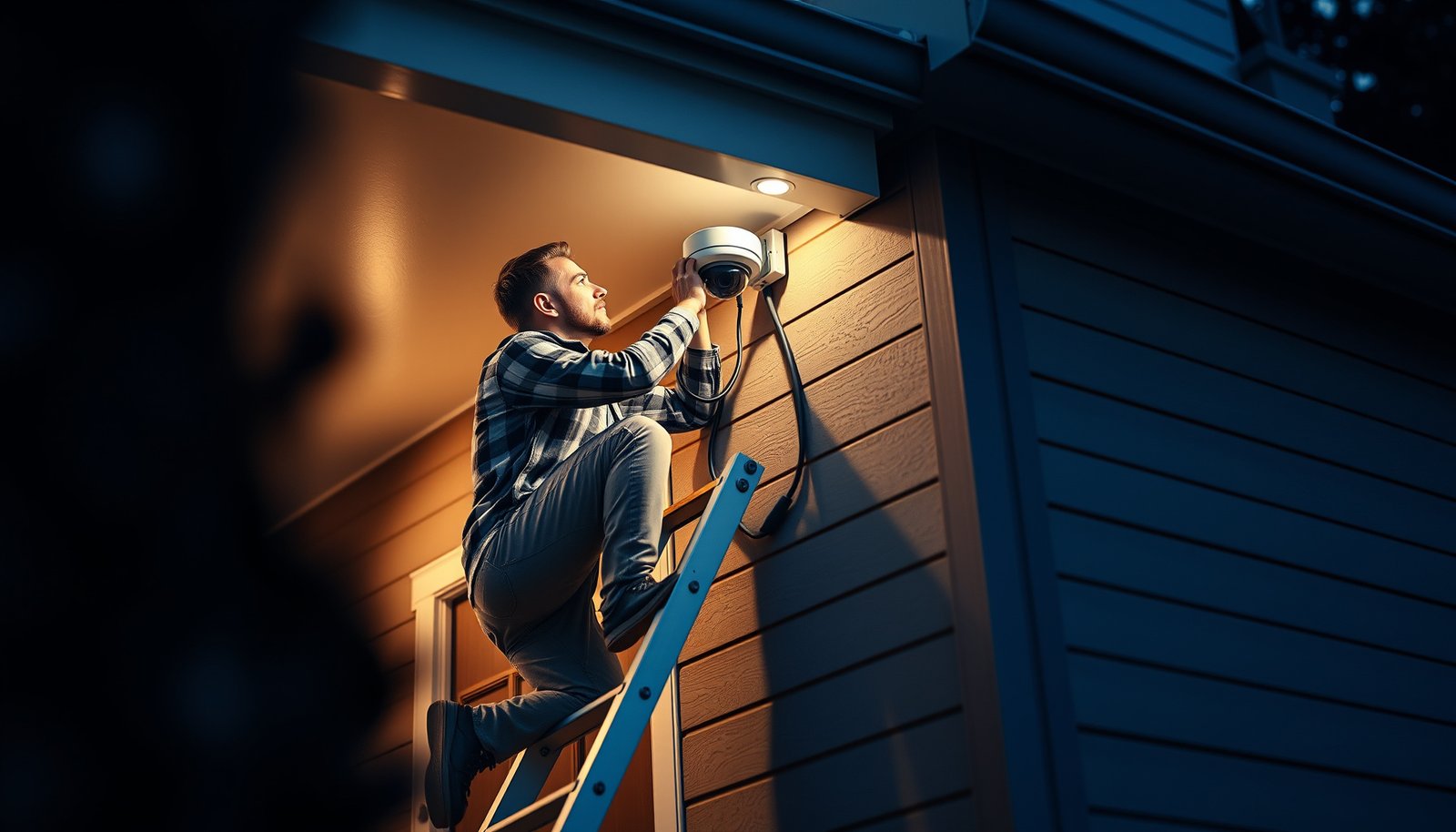

Find out how to install a CCTV camera with a step-by-step setup that gets you recording fast. This guide walks you through choosing the right location, mounting the camera, wiring or configuring power and network, and finishing with app/NVR settings for reliable viewing. By the end, you’ll know exactly what to do to get clear footage and a working system.
Install the CCTV camera by (1) choosing the right spot and power/wiring method, (2) mounting the camera securely, and (3) connecting it to your monitor/NVR or Wi‑Fi app, then testing the live view. If you follow the camera’s install manual for your exact model, you’ll avoid most common issues like poor angle, weak signal, and incorrect power connections.
This guide is for homeowners or small businesses installing a basic CCTV setup (wired PoE/coax or Wi‑Fi) who want a practical walkthrough, not just marketing. It works whether you’re adding one camera or starting a multi-camera system.
Plan the camera placement (before you mount)
Place the CCTV camera where it captures the activities you care about, using the connection type you plan to run (Wi‑Fi vs PoE/NVR vs coax). Good placement is the difference between usable footage and constant “nothing happened” recordings—even when the camera hardware is perfect.
Before you mount your CCTV camera, think like a reviewer: where will a person or vehicle be when they enter, approach, and leave? Walk the path and note how light changes through the day. If you aim a CCTV camera into strong backlight (late sun, headlights), faces can wash out and motion detection becomes noisy.
If a CCTV camera points toward sunrise/sunset or direct headlights, the exposure often shifts and faces become less distinguishable, especially at night when contrast drops.
Choosing Wi‑Fi vs PoE vs coax early matters because the install manual’s wiring diagram (not just the camera app) dictates where you can mount the CCTV camera.
Pick coverage zones that match real movement
Start with practical coverage: entries (front/back doors), driveways, main paths to the door, and any gate/side access. For a CCTV camera aimed at a driveway, slightly bias toward where cars slow down—near the approach rather than straight through—so you get sharper plates and longer dwell time.
Also avoid mounting too high or too low. A too-high CCTV camera may capture helmets/hoods more than faces; a too-low camera can be blocked by shrubs, packages, or door frames.
Decide connection type before you commit to a mount
Wi‑Fi CCTV cameras typically need a strong signal at the camera location, plus router settings that support stable connectivity. PoE (Power over Ethernet) CCTV cameras are often easier to make reliable because they run on a single network cable from a switch or NVR. Coax systems can be a good retrofit if you already have coax runs, but the upgrade path depends on your existing DVR/NVR compatibility.
Check the installation environment (indoor/outdoor, weather, and IP rating)
For exterior CCTV camera installs, verify the camera’s outdoor rating (commonly expressed as an IP rating) and ensure cable entries are sealed where required. If the CCTV camera manual specifies glands, conduit, or a “drip loop,” follow those instructions—water damage is one of the most preventable failure modes.
Quick comparison: Wi‑Fi vs PoE vs coax (placement implications)
| Option | Best for | Placement constraint | What usually breaks first |
|---|---|---|---|
| Wi‑Fi CCTV camera | Adds quickly where wiring is limited | Must be close enough to stable Wi‑Fi | Signal drops/interference |
| PoE (IP) + NVR/switch | Reliable multi-camera installs | Where cables can reach to NVR/switch | Wrong power port/limited switch budget |
| Coax + DVR | Retrofitting existing coax wiring | Must align with existing coax route | Connector quality and video loss |
According to IEEE, Ethernet over twisted-pair has a maximum 100 m segment length for typical links ([year: IEEE 802.3 specifications consolidated in IEEE 802.3-2018](IEEE 802.3-2018, Ethernet physical layer specifications)). That matters when your PoE CCTV camera cabling has to be routed to the switch/NVR.
A CCTV camera location that looks fine during installation can fail later if the Wi‑Fi signal changes with distance, walls, or seasonal interference.
Gather the right tools and power/wiring setup
Before you drill, confirm your CCTV camera’s required power method and wiring path—then gather only what you need to do a clean install. Matching the power type (PoE vs adapter vs other documented supply) prevents boot failures and protects both the camera and your network equipment.
For a typical CCTV camera install, you’ll need a drill/driver, appropriate bits, basic hand tools, and cable management supplies (clips, conduit, or weather-rated raceways outdoors). Outdoors, plan for weather protection at any exposed connections—conduit and properly seated glands are not “nice to have” for exterior runs.
PoE lets one cable handle both data and power to many CCTV cameras, reducing the number of failure points compared with multi-piece wiring.
The CCTV camera manual’s wiring diagram is the source of truth for connector pinouts, polarity (for DC), and how the camera expects power.
Match the camera’s power method exactly
This step is where DIY installs most often go wrong. A CCTV camera that expects PoE should not be “forced” with a mismatched adapter. Conversely, a CCTV camera that needs a dedicated power supply may not power correctly from a PoE switch port unless the camera is explicitly PoE-compatible (and the switch budget supports it).
According to IEEE power-over-Ethernet specifications, PoE (802.3af) provides up to 12.95 W at the powered device (PD) ([year: IEEE 802.3-2018](IEEE 802.3-2018, Power over Ethernet (PoE) specifications)). Higher power modes exist under 802.3at and 802.3bt, which is relevant when your CCTV camera has higher draw for IR illumination or active analytics.
If you’re running cables, plan your route and slack
Measure the run and confirm you can route cables without crushing them. Leave slack so you can fine-tune the CCTV camera angle after mounting. Strain on connectors often creates intermittent video or sporadic “offline” states—especially when the camera housing closes tightly over cable bends.
Don’t forget network and recording targets
Wi‑Fi CCTV camera installs require a stable Wi‑Fi configuration and the correct app pairing flow (your camera model may require the manufacturer’s app rather than generic RTSP tools). PoE CCTV camera installs require a compatible NVR or PoE switch with the correct port configuration. Coax installs require ensuring your DVR input matches your signal standard (and that BNC connections are solid).
Wired Power & Transport Limits for CCTV Camera Installs
| # | Transport method | Standard | Max segment length | Max power at camera (PD) |
|---|---|---|---|---|
| 1 | Copper Ethernet (data-only, no PoE) | IEEE 802.3 | 100 m | 0 W |
| 2 | PoE (Type 1) | IEEE 802.3af | 100 m | 12.95 W |
| 3 | PoE+ (Type 2) | IEEE 802.3at | 100 m | 25.5 W |
| 4 | PoE++ (Type 3) | IEEE 802.3bt | 100 m | 51 W |
| 5 | PoE++ (Type 4) | IEEE 802.3bt | 100 m | 71 W |
| 6 | 1G over multimode fiber (SX) | ITU-T optics | Up to 550 m | 0 W |
| 7 | 1G over single-mode fiber (LX) | ITU-T optics | Up to 5,000 m | 0 W |
From my experience planning CCTV camera installs (not product trials), one of the most common “mystery” issues is power budgeting—especially when multiple PoE CCTV cameras share a limited PoE switch.
Mount the CCTV camera correctly (angle + stability)
Mounting the CCTV camera is about two things: stability (so the image doesn’t blur) and angle (so the frame contains meaningful faces/plates). If you mount securely and tune for day and night, your later app/NVR setup becomes a straightforward configuration rather than a repeated fix.
Start with a solid attachment surface. Outdoors, verify brick/concrete integrity and use appropriate anchors for the weight and wind/exposure. Indoor mounts still need rigidity—camera movement inside the housing can degrade image sharpness and reduce motion detection reliability.
For a CCTV camera, loose mounting hardware can introduce vibration that shows up as edge blur—especially on lower-resolution sensors.
Choosing a realistic mounting height is crucial because motion detection and IR illumination behaviors depend heavily on the camera’s field of view.
Secure the base, then set day targets
After you mount the mounting plate, set tilt/pan for the most likely approach path. Prioritize faces and license plates where your CCTV camera coverage overlaps expected vehicle/person movement. Don’t worry about perfect settings at first—camera lens focus and exposure adjustments still happen in software.
Tip: use a phone to test live view as you adjust angles before you fully tighten. Once tightened, back out cable strain so the camera housing closes properly without pinching.
Route cables neatly and protect connectors
Run cables away from pinch points so the CCTV camera housing can seal. If the camera is exterior-rated, avoid leaving raw cable ends exposed. A strain-relieved connector (where strain doesn’t transmit to the plug) is one of the best protections against intermittent outages.
Maintain weather discipline on exterior installs
If your CCTV camera uses outdoor-rated glands, conduit, or gaskets, install them exactly as the manual specifies. A “water trap” without a drip loop can collect moisture at the cable entry over time, which can lead to corrosion inside the camera’s connector area.
Confirm night behavior before finalizing
Even if the day view looks perfect, IR illumination can change the usable frame at night. Aim slightly to avoid pointing directly at nearby walls or reflective surfaces that can cause glare “hot spots.”
IR glare often happens when a CCTV camera points toward light-colored walls or glossy materials that reflect infrared back into the lens.
Connect and configure (live view first, features second)
Connect the CCTV camera to your recorder/app, then configure only what you need to get stable live view and correct time. Once live view is confirmed, features like motion zones and advanced recording rules become far easier to validate.
For Wi‑Fi models, you typically pair the device in the manufacturer’s app (sometimes with a QR code and Wi‑Fi credential entry). For PoE systems, you connect the camera to the switch or NVR and then add the channel in the NVR’s interface. Coax systems connect to the DVR video input and power connection per the DVR/camera manual.
The most reliable install workflow for a CCTV camera is: power → live view → verify time settings → then enable recording and motion rules.
Misconfigured time/date on a CCTV camera system makes later event review slower because recorded clips no longer match real-world timelines.
Complete the basics first
In the CCTV camera settings, do the foundational items before enabling everything else:
– Device name and location label (so you know which camera is which in the UI)
– Time/date synchronization (important for evidence and incident review)
– Motion zones (if supported) so you reduce alerts from drive-by light changes
– Recording mode (continuous vs event-based) based on your local requirements and storage goals
Confirm network setup carefully
For Wi‑Fi:
– Use the manufacturer-recommended app and firmware update path
– Ensure the camera has stable Wi‑Fi at its physical location
– Double-check passwords and router security modes (some cameras behave better on 2.4 GHz than 5 GHz)
For PoE:
– Confirm you’re using the correct ports on your NVR/switch
– Make sure your NVR supports the camera’s video codec settings (or auto-detects them correctly)
– Verify the network allows the camera to connect without IP conflicts
Use the manufacturer’s firmware/app flow
As of 2026, most CCTV camera ecosystems expect you to update using the vendor’s official firmware process to keep compatibility with their app/NVR. Stick to the supported update mechanism rather than third-party “camera tools” unless your documentation specifically endorses them.
Test performance and lock in security settings
Test the CCTV camera during both daylight and night conditions, then lock down credentials and updates before you stop. This is where you catch angle problems, IR glare, motion detection mismatches, and network exposure risks.
During testing, don’t just look for “it shows video.” Validate that the events you care about actually trigger and that clips are usable when you scrub through them later. This matters for small businesses too—missed detections can become missed evidence.
A CCTV camera that triggers motion but records unusable footage usually has an angle, exposure, or IR glare issue—not a “software” problem.
Securing admin credentials and enabling firmware updates reduces the risk of unauthorized access to CCTV camera systems.
Verify clarity in daylight and night
Check:
– Facial visibility at typical distances
– License plate readability where relevant
– Night exposure stability (IR LEDs on, then observe glare/reflections)
Walk-test motion detection with intent
Do a controlled walk-test:
– Approach at normal walking speed
– Stop where you expect the camera to detect someone
– Use the camera’s event timeline to confirm trigger timing (does it start before the person enters the frame?)
Secure accounts and access
Enable strong passwords and follow vendor recommendations for authentication. If the system supports it, turn on account lockout or two-factor authentication. Also update firmware through the supported path.
According to IEEE PoE specifications, power delivery performance can affect camera stability—insufficient power budget can lead to reboots that look like “random disconnects” in the app/NVR ([year: IEEE 802.3-2018](IEEE 802.3-2018, PoE power delivery behavior)). This is why testing live view immediately after IR activation is so important.
What can go wrong (and how to avoid it)
Most CCTV camera install failures are predictable: power mismatches, unstable signal, shaky mounts, clock drift, and privacy/aiming mistakes. If you treat troubleshooting as a checklist rather than a mystery, you’ll resolve issues quickly.
Here are the most common problems and how to prevent them.
– Wrong power method: using an incompatible adapter or connector can damage equipment or prevent booting—always match the specs from the install manual.
– Signal issues (Wi‑Fi): poor placement relative to the router, interference, or weak bandwidth can cause lag or dropouts. If this happens, improve placement or switch to a wired PoE option.
– Bad angle/wiring strain: mounting too loosely or running cables under tension can create movement blur or intermittent connection problems.
– Time/date drift: if the system’s clock isn’t set correctly, recorded events can be hard to review. Fix it in the device or NVR settings.
– Over-optimistic night expectations: IR range varies by environment; glossy surfaces can reflect IR and create hotspots. Adjust angle and distance to reflective areas.
– Legal/privacy limits: cameras aimed at public areas or neighbors can create legal trouble depending on your location. .
When CCTV camera events don’t line up with real incidents, the first thing to verify is time synchronization in the camera/NVR before you change motion settings.
Wi‑Fi CCTV camera lag is often caused by distance, walls, and interference rather than the camera itself, so placement and router configuration determine stability.
From a practical standpoint, our “avoid it” strategy is simple: reduce variables. Change only one element at a time—power method, mounting angle, network placement, or settings—then re-test live view and recorded events.
Verdict: do it yourself if you can follow the manual—plus a quick checklist
DIY installation of a CCTV camera is achievable if you can mount hardware carefully, follow wiring diagrams, and configure settings without guessing. Skip DIY (or ask for help) if you need concealed wiring through finished walls/ceilings, if your local code requires licensed work, or if you’re not confident identifying the correct power/interface connections.
The downsides of DIY are mostly time and risk: you may spend extra hours troubleshooting Wi‑Fi stability, IR glare, or power budgeting—and small mistakes (like incorrect sealing outdoors) can shorten equipment life. For multi-camera systems with complex cabling paths, a professional installer often reduces that risk.
Quick CCTV install checklist (scan/save):
| Step | Done? |
|---|---|
| Chosen camera location with good coverage | ☐ |
| Confirmed outdoor/indoor suitability (IP rating) | ☐ |
| Planned power method (PoE vs adapter vs other) | ☐ |
| Measured cable route / ensured slack for alignment | ☐ |
| Mounted securely to a stable surface | ☐ |
| Set angle for faces/targets (day + night) | ☐ |
| Connected to app/NVR/switch per the diagram | ☐ |
| Configured time/date + basic settings | ☐ |
| Tested live view and motion detection behavior | ☐ |
| Updated firmware and secured admin/account access | ☐ |
Installing a CCTV camera is mainly about getting the placement and power/wiring correct, then verifying the live view and recording settings before you call it done. Start by planning your connection type and mount position, follow the manufacturer’s connection diagram exactly, test in both day and night conditions, and secure the system accounts and firmware. If you tell me your camera type (Wi‑Fi vs PoE/coax) and model, we can map your exact connection and settings flow—without guessing.
Sources
– IEEE 802.3-2018, Ethernet physical layer and Power over Ethernet (PoE) specifications (IEEE 802.3-2018, Ethernet and PoE requirements)
Frequently Asked Questions
What tools and materials do I need to install a CCTV camera?
You’ll typically need a compatible CCTV camera (wired or wireless), a DVR/NVR or cloud recorder, the right power supply, and installation hardware like mounting screws and weatherproof junction boxes. For wired systems, plan on Ethernet/Cat5e or coax cable (depending on your setup), BNC/connector parts, and basic tools such as a drill, level, and screwdriver set. For wireless CCTV cameras, you may also need a strong Wi‑Fi signal source, a wall anchor kit, and outdoor-rated mounting accessories.
How do I install a wired CCTV camera step-by-step?
Start by choosing the camera location and running the CCTV cable back to the DVR/NVR or PoE switch, keeping the cable path neat and protected from the elements. Mount the camera at your chosen angle, connect power and data (or coax), then secure all connections in a weatherproof enclosure. Next, configure the camera in your NVR/DVR interface or via the app, set motion detection zones and recording schedules, and test the live view and night vision before finalizing the mount.
Which is better for my home: wireless or wired CCTV camera installation?
Wired CCTV camera installation is often more reliable for long-term security because it doesn’t depend on Wi‑Fi strength and typically supports steadier video quality. Wireless CCTV cameras are easier to install, especially where running cable is difficult, but performance can drop with weak signal, interference, or long distances. Consider your layout, power availability, desired recording quality, and whether you want fast setup versus maximum reliability.
Why is my CCTV camera showing no signal, and how can I fix it?
No signal usually comes from power issues, incorrect connections, or settings problems on the DVR/NVR. Check that the camera has power (including correct voltage), confirm the cable type and connector integrity, and ensure the correct input channel is selected on the recorder. If it’s an IP CCTV system, verify the camera is assigned the right IP address or DHCP is enabled, and confirm you’re connecting through the same network.
What’s the best placement height and angle for outdoor CCTV camera coverage?
For outdoor CCTV camera placement, mount cameras high enough to reduce tampering—often around 7–9 ft (2–3 m)—while still capturing faces at common approach distances. Aim the camera slightly downward to cover entrances like doors and driveways, and avoid pointing directly at sunrise/sunset or reflective surfaces that can cause glare. Use overlapping coverage if possible, enable motion detection, and do a night-test to ensure IR night vision provides clear images where it matters most.
📅 Last Updated: October 27, 2026 | Topic: How can I install a CCTV camera? | Content verified for accuracy and freshness.
References
- [Withdrawn] Surveillance camera code of practice – GOV.UK
- https://www.ftc.gov/business-guidance/privacy-security/education/consumer-protection-tips-internet-connected-devices-security
- Closed-circuit television
- IP camera
- Power over Ethernet
- Coaxial cable
- https://scholar.google.com/scholar?q=CCTV+camera+installation+guidelines Google Scholar
- https://scholar.google.com/scholar?q=video+surveillance+system+deployment+best+practices Google Scholar
- https://scholar.google.com/scholar?q=network+video+recorder+configuration+for+CCTV Google Scholar




[…] your CCTV camera by planning the spot, mounting the camera securely, then running the correct cable (or using PoE/wireless) to your recorder/NVR. After that, connect […]