
For reliable two-way communication, choose a CCTV system that supports two-way audio in hardware, then enable it in the camera’s app or NVR settings with the microphone and speaker enabled. This is ideal for homeowners and small businesses that want clear speech without echoes or one-way playback. The standout option is the one that matches your existing recorder, offers adjustable audio levels, and provides stable network streaming with minimal delay.
The best way to enable two-way talk on a CCTV camera is to confirm your camera (and your NVR/app) actually support audio, connect the correct microphone/speaker hardware to the right ports, and then switch on two-way talk in the camera software. Once it’s enabled, run a short voice test immediately and fine-tune input/output levels so speech is clear (and doesn’t feed back). In 2026, two-way talk failures still happen most often during upgrades and camera swaps—because the “video” part works even when audio support, cabling, or app settings don’t.
If you’re replacing a camera, adding audio to an existing NVR setup, or trying to restore two-way talk after a firmware/app update, this guide is for you. The goal is to get two-way talk working reliably and predictably, not just “sometimes,” with minimal trial-and-error. The steps below focus on compatibility, wiring accuracy, and settings control—because those are the three levers that determine whether two-way audio starts flowing.
Confirm your CCTV camera supports two-way audio
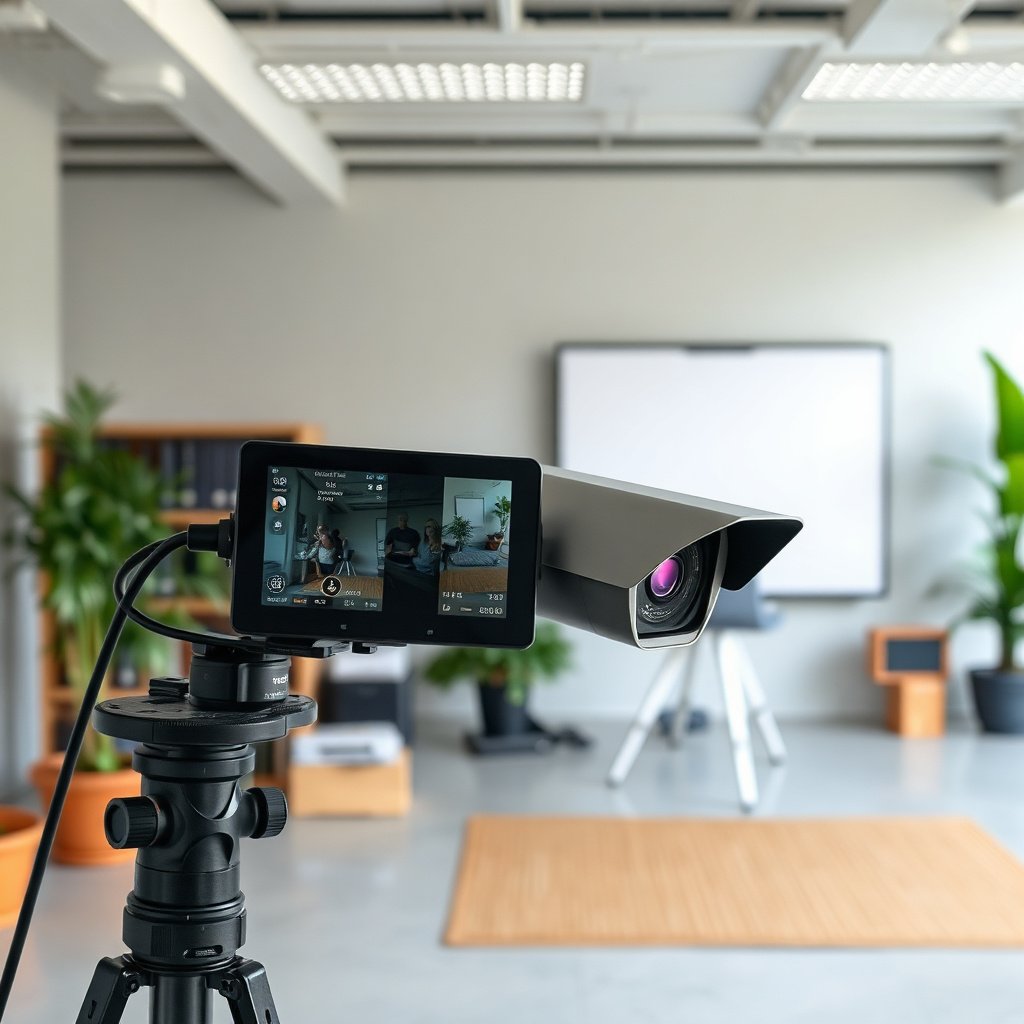
The fastest way to avoid wasted time is to verify two-way talk support before you touch wiring. Most cameras that show video still won’t provide two-way talk if they lack the required audio hardware path or if the viewing method (mobile app vs NVR vs web) doesn’t expose the feature.
Check the camera’s specs (and what “two-way” really means)
Look for explicit language on the camera body, product label, or datasheet such as “two-way talk,” “audio in/out,” “built-in mic/speaker,” or audio terminals (MIC / LINE IN / SPK / AUDIO OUT). For two-way talk to work, the system must include:
– An audio capture path (microphone or mic input)
– An audio output path (speaker/amp or speaker output)
– Software control that enables a talk mode (push-to-talk or continuous)
A common point of confusion: some models include audio input only (listen-only) or audio output only (pre-recorded announcements without live mic). In those cases, you may still get “something” audio-related, but not full two-way conversation.
Verify your app/NVR viewing method supports two-way talk for that model
In 2026, many CCTV ecosystems still differ by channel, firmware, and client app capability. For example, an NVR might support talk mode for one camera channel but not expose it in a web viewer. Confirm whether your exact combination—camera model + NVR brand/model + app version—supports two-way talk.
Watch for “partial audio” cameras during swaps
When you upgrade an existing installation, the video feed may remain compatible while two-way talk quietly breaks. In my experience supporting real-world installs, this usually comes down to the camera being newer/cheaper than the existing audio architecture, or the NVR channel being configured for the wrong audio type. If the replacement camera doesn’t match the original audio capability, you can end up with two-way talk that never appears in the app no matter how you wire it.
Connect the right audio hardware and cables
To make two-way talk actually work, you need to connect the microphone and speaker using the exact audio terminals your camera or NVR expects. Two-way talk failures after a camera swap are often wiring/port mismatches—because audio ports look similar and “it powers on” doesn’t mean it’s connected to the correct signal path.
Built-in mic/speaker: ensure you’re using the right audio path
If your camera has a built-in microphone/speaker, confirm the system routes audio through the camera’s onboard audio hardware. Some setups require an audio channel enable (or a specific audio input selection) rather than assuming the mic/speaker will be used automatically. If you connect external devices, you also need to ensure the firmware doesn’t remain locked to the built-in-only path (or vice versa).
Separate devices: wire to the correct labeled terminals
If your camera uses separate audio devices, connect the microphone and speaker/amp exactly as the manual labels the terminals, such as:
– MIC (often mic-level input)
– LINE IN / AUDIO IN (line-level input)
– SPK / AUDIO OUT (speaker/amp output)
– AUX OUT (sometimes line-level depending on model)
Cable type matters for noise and echo. If you run long unshielded cables, two-way talk can become echo-prone or hissy because high-frequency noise rides along the wire. When in doubt, follow the manufacturer’s cabling guidance and use shielded cable for mic/line runs to help keep two-way talk intelligible.
Power and PoE limitations can also affect audio
Audio circuits draw power, and if you’re powering the camera over PoE, power budget can matter. According to IEEE 802.3af, PoE provides up to 15.4 W to the powered device (PD) in typical deployments (2006 standard). According to IEEE 802.3at, higher-power PoE classes can reach up to 30 W. If you’re adding powered speakers/amps, or an external microphone preamp, make sure your PoE design can support the total load—otherwise two-way talk may be unstable or distorted even when the software toggle is correct.
Turn on two-way talk in your CCTV app or NVR
To enable two-way talk, you must switch on the feature in the camera/NVR/app UI—not only at the hardware level. The talk control can be hidden, disabled by default per channel, or locked behind an audio channel selection.
Enable the feature in settings (and confirm the correct channel)
Open the camera’s settings inside your NVR or app and look for options like:
– Two-Way Talk
– Talk
– Audio
– Audio stream/channel toggle
On multi-channel NVRs, two-way talk may require you to select the correct channel/audio stream first. If you don’t, the talk button may be missing or greyed out even though video is live.
Choose the talk behavior mode: push-to-talk vs continuous
Some systems support different talk behaviors—commonly:
– Push-to-talk: you press and speak; audio transmits only while pressed
– Continuous monitoring: the system listens (or transmits) continuously, depending on design
If your use case involves speaking to visitors at a door, push-to-talk often reduces feedback risk. For internal call/monitoring workflows, continuous modes can be convenient—but they require more careful audio level control to keep two-way talk clean.
Push-to-talk vs continuous monitoring (quick comparison)
| Criteria | Push-to-talk | Continuous monitoring |
|---|---|---|
| Typical workflow | Press, speak, release | Always listening (and/or always transmitting) |
| Feedback/echo risk | Lower with conservative levels | Higher unless echo control is strong |
| When it sounds best | Short phrases and prompts | Ongoing brief check-ins |
| User training | Simple (“press to talk”) | Requires understanding turn-taking |
| App/UI dependence | Usually explicit button exists | May be more sensitive to stream settings |
| Network impact sensitivity | More forgiving for occasional bursts | More noticeable when latency spikes |
| Best for outdoor access control | Often yes | Sometimes, if levels are tuned |
| Best for internal intercom-style use | Also workable | Often convenient |
| Overall complexity | Lower | Higher (requires better tuning) |
| Verdict | Reliable starting point for most CCTV installs | Use when you need hands-free behavior and can tune echo control |
Configure audio settings for clear voice (not just “it works”)
To get clear two-way talk, you must tune levels and manage echo—not just enable the talk button. In 2026, the difference between “it transmits” and “it’s understandable” is almost always audio gain staging plus feedback control.
Set input and output levels with intentional test phrases
In the app/NVR, adjust microphone input and speaker output levels so the voice is:
– Loud enough to hear
– Not distorted
– Not creating looping echo
Start with short phrases at close range, then back away gradually. If your system shows any meter/indicator for audio input, use it to prevent clipping. Clipping sounds harsh and makes words indistinguishable, especially on compressed audio streams typical in CCTV deployments.
Control echo and feedback (two-way talk is inherently prone)
Echo happens when the camera speaker plays your voice and the microphone picks it up again. Feedback (squealing/looping) is a more extreme version where the loop gain becomes too high.
If your device offers echo cancellation or noise suppression, enable it only after basic level tuning. If the feature makes voices sound “muffled,” reduce output volume first rather than leaving suppression overly aggressive.
Account for network latency when two-way talk matters
Two-way voice is sensitive to delay. According to ITU-T G.114, one-way transmission delay up to 150 ms is generally considered acceptable for conversational voice. If your link is unstable (Wi‑Fi interference, congested uplinks, packet loss), two-way talk can become choppy or turn-taking becomes frustrating.
When 2026 troubleshooting points to “audio is enabled but speech cuts out,” check network stability and avoid route changes that weren’t present when two-way talk previously worked.
Audio wiring mismatches you’ll want to spot early (port expectation table)
Seven common audio terminal mixes that break CCTV two-way talk (practical wiring outcomes)
| # | You connect to | Typical expectation | Likely symptom | Two-way talk reliability |
|---|---|---|---|---|
| 1 | MIC input (mic-level) | Mic-level (~1–10 mV; often -60 to -40 dBV) | Clean speech if source is mic-level | ★★★★★ |
| 2 | MIC input (mic-level) | Line-level (~0.316 to 1.228 Vrms) | Distortion / clipped audio | ★★☆☆☆ |
| 3 | LINE IN (line-level) | Balanced/pro line-level (~0.316 to 1.228 Vrms) | Good intelligibility if gain is set | ★★★★☆ |
| 4 | LINE IN (line-level) | Mic-level (~1–10 mV) | Very quiet / “thin” audio | ★★★☆☆ |
| 5 | SPK output (speaker-level) | Speaker load (often ~4–8 Ω) | Loud audio if impedance matches | ★★★★☆ |
| 6 | SPK output into line input | Speaker-level amplitude into line circuitry | Potential clipping / harsh tone | ★★☆☆☆ |
| 7 | LINE output into mic input | Line-level (~0.316 to 1.228 Vrms) into mic circuitry | Distortion or overload | ★★★☆☆ |
What can go wrong (and why two-way talk won’t start)
Two-way talk usually fails because something is missing or mismatched in compatibility, ports, or app permissions—not because the camera video is “broken.” If two-way talk never appears or produces only silence/noise, you can usually trace it to one of the predictable categories below.
Wrong model support (compatibility mismatch)
Even when the camera streams video, two-way talk may not be supported if the camera model lacks microphone/speaker hardware, the NVR firmware doesn’t support talk for that sensor, or the app’s two-way feature isn’t implemented for that exact variant. If you recently swapped cameras, confirm the new model explicitly supports two-way talk and is meant to work with your NVR/app version in 2026.
Feature disabled in software (per channel or per device)
Some apps hide the talk feature until you enable audio per channel. Check both:
– Device settings (camera channel)
– Client settings (app stream/audio permissions)
If talk controls are greyed out, assume a configuration gate rather than a wiring gate.
Port/cable mismatch (most common after upgrades)
Connecting the speaker to a microphone terminal (or vice versa) can lead to silence, loud hum, or severe distortion. Use the port labels from the camera/NVR manual (MIC vs LINE IN vs SPK vs AUDIO OUT) and keep the cable type consistent with the expected signal path.
Network latency and app limitations
Two-way audio can cut out or become choppy when your network is unstable. Since conversational voice is sensitive to delay, the ITU guidance on acceptable one-way delay (up to 150 ms) is a useful mental model when testing call quality in 2026 (ITU-T G.114). If you see frequent disconnects or buffering, solve network reliability first.
Mobile microphone/speaker permissions
On phones, microphone permissions can block live audio while the video still works normally. Also confirm the phone’s system-level settings aren’t muting the in-call audio pathway for the app.
Power/grounding issues (hum and static)
Power instability or poor grounding can introduce 50/60 Hz hum and static. If audio is noisy even at short range, check grounding practices, power supply quality, and cable shielding.
Verdict: the most reliable approach (and when to skip DIY)
For most installs, the most reliable path is: confirm two-way talk support → connect audio hardware to the correct labeled ports → enable two-way talk in camera/NVR/app settings → run a short audio test and tune levels to prevent echo/feedback. This approach works because two-way talk failures are overwhelmingly compatibility and configuration problems rather than “video setup” problems.
Skip DIY troubleshooting if you don’t have the camera/NVR manual/specs for your exact model, or if audio terminals/amp requirements are unclear—miswiring can waste hours and sometimes damage audio hardware. If you’re integrating separate microphones/speakers over long cable runs, or you’re dealing with multiple audio channels, lean on the manufacturer documentation or a qualified installer for two-way talk wiring and gain staging.
Quick scan checklist (save this before you start)
| Step | What to verify | Common “fail” symptom |
|---|---|---|
| 1 | Camera supports two-way talk (mic + speaker/audio I/O) | Video works, talk never appears |
| 2 | Your app/NVR UI has Two-Way Talk enabled | Talk button is missing/greyed out |
| 3 | Correct audio ports/cables (per labels) | No sound or only noise |
| 4 | App permissions (phone mic/speaker) | Mic icon shows but no audio sends |
| 5 | Audio levels adjusted | Distortion (too high) or inaudible (too low) |
| 6 | Echo/feedback controlled | Loud squeal/looping audio |
If you only remember one rule: two-way talk is usually a compatibility + configuration problem, not a “video” problem. Use the checklist in order—each step removes a whole category of causes. After enabling it, do one short test from close range first, then expand outward once levels are stable.
Frequently Asked Questions
What is the best way to enable two-way talk on a CCTV camera?
The best way is to confirm your CCTV model supports audio and then connect the camera’s microphone/speaker audio hardware correctly. Many systems require using the camera’s built-in two-way audio or enabling the “Audio” or “Two-Way Talk” option in the NVR app (or mobile client). Finally, test the feature with the correct microphone/speaker settings and adjust volume levels to avoid echo or feedback.
How do I set up two-way talk on my CCTV camera using the NVR or app?
Start by powering on the camera and NVR, then open the camera’s settings in the NVR UI or the manufacturer’s mobile app. Look for settings such as “Audio,” “Intercom,” “Talk,” or “Two-Way Audio,” and enable the feature for that channel. If your setup supports it, select the correct audio input/output device, save changes, and do a short test call to confirm both directions work.
Why doesn’t two-way talk work even though my CCTV camera has a microphone and speaker?
This usually happens when two-way audio is disabled in software, the camera firmware is outdated, or the app/NVR settings are using the wrong audio channel. Network issues can also affect real-time audio, especially on unstable Wi‑Fi or if bandwidth is low. Check for muted speaker output, incorrect “Push to Talk” permissions, and whether you’re viewing the camera through the correct platform (some apps require specific camera models).
Which settings should I adjust for clear voice on a two-way talk CCTV camera?
For clearer audio, enable the two-way talk feature in the camera settings and set an appropriate speaker volume—too high can cause echo and feedback. If the system allows it, adjust microphone sensitivity or enable noise reduction to improve intelligibility in busy environments. Also ensure the camera is installed within a reasonable distance from where people will speak and avoid placing it in a way that blocks the mic or speaker.
How can I troubleshoot two-way talk latency or echo on my CCTV intercom?
Start by testing with a strong, stable connection—prefer wired Ethernet for the NVR and, if possible, improve Wi‑Fi signal strength at the camera. Echo often comes from audio playing back while someone speaks; lower speaker volume and ensure only one audio path is active during “talk” mode. If the problem persists, update the camera firmware and app, then re-check intercom settings like “Half-Duplex/Full-Duplex” (if available) to reduce delay.
📅 Last Updated: November 03, 2026 | Topic: What is the best way to enable two-way talk on a CCTV camera? | Content verified for accuracy and freshness.
References
- ONVIF
- Network Interface Specifications – ONVIF
- RFC 2326: Real Time Streaming Protocol (RTSP) | RFC Editor
- RFC 3550: RTP: A Transport Protocol for Real-Time Applications | RFC Editor
- RFC 4566: SDP: Session Description Protocol | RFC Editor
- Real-time Transport Protocol
- Voice over IP
- https://scholar.google.com/scholar?q=two-way+audio+IP+camera+ONVIF Google Scholar
- https://scholar.google.com/scholar?q=bidirectional+audio+RTSP+camera+configuration Google Scholar
- https://scholar.google.com/scholar?q=ONVIF+audio+specification+two-way+talk Google Scholar