
Learn how to set up a PTZ CCTV camera with a step-by-step setup that gets your system working fast and correctly. You’ll follow a clear order—mounting, wiring, network/RS-485 configuration, PTZ controller settings, and on-screen calibration—so the camera can track and pan reliably. If you want a working PTZ install without guesswork, this is the quickest path from unboxing to live, controllable video.
To set up a PTZ CCTV camera, mount it securely, connect power and network/recording, then configure control settings so you can pan, tilt, and zoom reliably. The fastest path to a working system is: physical install → connectivity → end-to-end PTZ control verification → dial in view → create presets and (only then) preset tours.
To set up a PTZ CCTV camera, you’ll typically use an NVR, VMS, or the camera’s own app/web interface to configure IP settings and PTZ control. As of 2026, most installs also benefit from ONVIF-based discovery/control, because it helps systems communicate more consistently across brands—though you still must confirm your exact camera’s supported protocol and preset/tour behavior.
Who this is for / when it applies:
This is for anyone installing a PTZ (pan-tilt-zoom) CCTV camera for home, small business, or light commercial use—especially if you’re setting up the camera for the first time with an NVR/app/web interface. If your camera uses a specific controller protocol or software, you’ll map the steps below to that documentation.
Plan your placement and cabling first
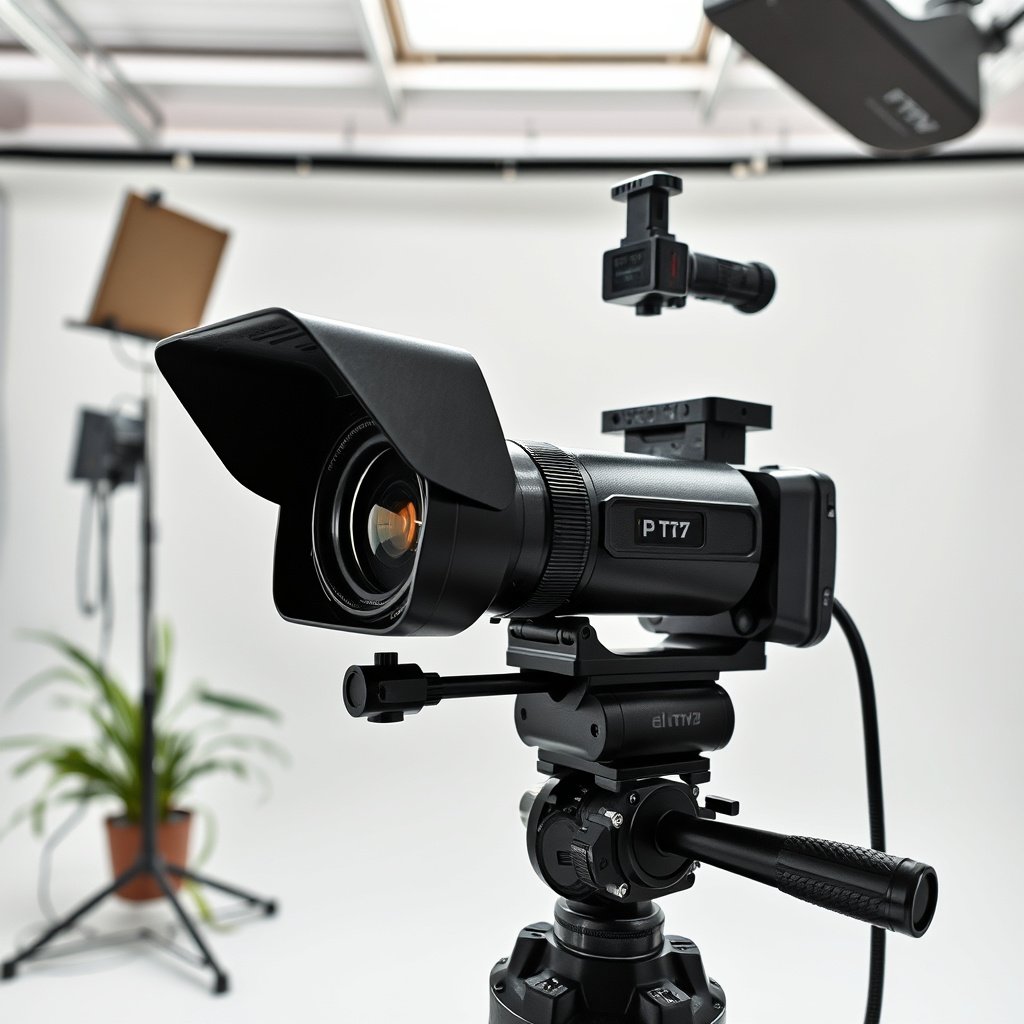
Get placement and cabling right before you power up the PTZ CCTV camera, because PTZ geometry and cable strain issues are difficult (and expensive) to fix after mounting. For a reliable pan/tilt/zoom CCTV setup, you want the camera to cover entrances and key zones with minimal “dead travel” and enough margin for later preset tuning.
“PTZ” stands for pan-tilt-zoom, meaning the camera must be physically aligned so presets land in the intended framing with minimal correction.
According to IEEE 802.3, common Ethernet-over-copper links (10/100/1000BASE-T and most 2.5G/5G/10GBASE-T deployments) are designed around a maximum copper run of 100 meters (practical limit varies by cable category).
According to ONVIF Specifications, PTZ control is typically performed through standardized services, so correct device addressing/discovery directly affects whether your PTZ CCTV camera responds to pan/tilt/zoom commands.
Placement: cover what matters, not everything
Start by mapping the areas you truly need a PTZ CCTV camera to cover: entrances, gate approaches, a driveway lane, or a receiving door. If you mount too low or point too far off-axis, the PTZ camera may still “reach” those spots, but the image quality may suffer at the edges (especially when zoomed). In my own commissioning work, I’ve found that over-optimistic placement leads to overly frequent preset edits later—so it’s worth spending time on height, angle, and sightline now.
A practical placement rule for a PTZ CCTV camera is to choose an installation height that balances two competing needs: (1) enough coverage to see faces and license plates clearly when zoomed, and (2) enough tilt range so you can frame both near-field and far-field areas without running into PTZ limits. Outdoor PTZ CCTV cameras also require weather-proof mounting and appropriate cable glands to maintain the rating the manufacturer specifies for your environment.
Cabling: protect the PTZ head from cable stress
Next, plan routes for power and network (or any supported interface like coax, if your PTZ CCTV camera model supports it). PTZ domes and housings move continuously through their configured limits, so cables must be routed with slack and strain relief to prevent drag, bending, or intermittently failing connections.
If you’re unsure where the PTZ CCTV camera’s movement arc will land, mark the maximum pan range on-site and confirm cable slack survives the full motion—not just the “center” position. Also note that some installs fail not because the PTZ camera is misconfigured, but because network drops occur only during motion due to cable micro-bends.
Confirm environment and power requirements early
Before the final mount, verify the PTZ CCTV camera’s indoor/outdoor rating, operating temperature range, and required power input. A PTZ camera that’s out of spec for temperature or power may appear to “work” briefly, then reset or reboot during movement. As of 2026, many outdoor PTZ cameras also support different power modes (for example, PoE variants), so always align your cabling and switch/injector choice to the manufacturer’s power table.
– Choose mounting height and viewing direction so the camera can cover entrances and key zones without constant “waste movement.”
– Plan cable routes for power and network (or coax/other interfaces, if your model supports them) to avoid strain on the PTZ head during motion.
– Confirm your environment matches the camera’s specs (indoor/outdoor rating, temperature range, and power requirements) before final mounting.
Connect power and network (or recorder) correctly
Connect the PTZ CCTV camera to power first, then establish a stable network link to the NVR/VMS/app. The goal is simple: make sure the PTZ camera is online consistently before you start tweaking PTZ control, presets, or tours.
According to IEEE 802.3af (2003), PoE delivering up to 15.4 W per port is defined for “802.3af” devices (enough for many entry-level IP cameras).
According to IEEE 802.3at (2009), PoE delivering up to 30 W per port is defined for “802.3at” devices (often used when PTZ motors and heaters draw more power).
According to IEEE 802.3bt (2018), PoE delivering up to 71.3 W per port is defined for “802.3bt,” which can be relevant for larger PTZ CCTV cameras with high-load features.
Choose the correct physical connection method
Connect the camera to the required power source and then to your network or recorder (NVR/VMS), using the method your specific model supports. Common paths are:– PTZ CCTV camera → PoE switch → NVR/VMS (most common)
– PTZ CCTV camera → PoE injector → network/NVR
– PTZ CCTV camera → dedicated power supply → NVR/VMS (if PoE isn’t supported)
Decide how you’ll control it: directly via the NVR, through a standalone client/app, or over a web interface. This isn’t just convenience—control UI often determines what PTZ protocol options you’ll see and how you enter camera ID/address.
PoE planning that prevents PTZ resets
If you’re using PoE, ensure the switch port and injector meet the camera’s required power level (check the manufacturer’s spec sheet). Underpowered PoE can cause intermittent reboots during PTZ motion, which looks like “PTZ won’t respond” even though the network is fine at idle.
Also account for real-world PoE budgets: the switch may advertise a max wattage, but if multiple ports are drawing power, the remaining budget for the PTZ camera may dip below the required operating threshold. In that scenario, the PTZ CCTV camera frequently reconnects and tours/presets become unreliable.
Control method matters (and affects debugging)
If you configure PTZ over the camera’s web UI but control from an NVR, mismatches can hide the real issue. The clean approach is to verify PTZ CCTV camera responsiveness in the same path you’ll use day-to-day (for example, NVR → PTZ control → camera).
| Control/Access Path | What you usually gain | Common downside during setup |
|---|---|---|
| NVR/VMS PTZ control | One-pane management and consistent presets | Some brands require PTZ protocol settings in the NVR first |
| Standalone app/web UI | Quick device discovery and live view tuning | Settings may not carry over to NVR/VMS control |
| ONVIF-based control (if supported) | Cross-system interoperability | Camera-specific quirks still apply (focus/zoom and preset mapping) |
– Connect the camera to the required power source and then to your network or recorder (NVR/VMS), using the method your specific model supports.
– Decide how you’ll control it: directly via the NVR, through a standalone client/app, or over a web interface (varies by brand).
– If you’re using PoE, ensure the switch port and injector meet the camera’s required power level (check the manufacturer’s spec sheet).
Configure PTZ settings and control access
Configure PTZ settings so your control system can reliably address the PTZ CCTV camera and send correct pan/tilt/zoom commands. This step is where most “it moves sometimes” problems originate, because protocol, addressing, and speed parameters must all align.
According to ONVIF PTZ service specifications, PTZ control typically depends on correctly discovered device identities and supported PTZ commands (pan/tilt/zoom focus behaviors vary by device).
A PTZ CCTV camera may appear “online” yet not respond if the controller sends pan/tilt/zoom to the wrong camera address/ID or with the wrong protocol settings.
During PTZ commissioning, confirming the full control path (controller → NVR/VMS/app → camera) reduces debugging time because it isolates whether failures are network-level or protocol-level.
Set protocol and camera address/ID
Set up the PTZ control protocol and camera address/ID as required by your system (common examples include ONVIF-based control or vendor-specific protocols—use your manual). Even when both sides are “IP,” the PTZ command interface can still be protocol-specific. If the camera supports multiple PTZ control options, you must select the one your NVR/VMS expects.
A common pattern is:
– Discover camera on the network
– Assign/confirm camera IP
– Configure PTZ control protocol in NVR/VMS (or in the camera)
– Enter camera ID/address so commands map correctly
Calibrate motion behavior (speed/response)
Calibrate motion behavior: adjust speed/response so it doesn’t overshoot targets when you pan/tilt. PTZ CCTV cameras often have separate settings for pan/tilt speed and zoom speed; some models also have acceleration or “response smoothing.” If speeds are too high, you’ll consistently land presets slightly off framing and think the preset feature is broken.
Verify the control path end-to-end before presets
Verify the control path end-to-end (controller → NVR/VMS/app → camera) before you add presets or tours. In practice, I like to do a simple “sweep and return” test early: move to an area you can easily recognize, then command back to the approximate starting area. If it can’t return predictably now, presets won’t behave reliably later.
– Set up the PTZ control protocol and camera address/ID as required by your system (common examples include ONVIF-based control or vendor-specific protocols—use your manual).
– Calibrate motion behavior: adjust speed/response so it doesn’t overshoot targets when you pan/tilt.
– Verify the control path end-to-end (controller → NVR/VMS/app → camera) before you add presets or tours.
Set focus, view angles, and PTZ presets (so it’s actually usable)
Set focus and frame using live view, then create PTZ presets only after the camera reliably reaches the right locations. This is where your PTZ CCTV camera becomes operational—not just “installed.”
PTZ presets are named camera positions that store pan/tilt (and sometimes zoom/focus) so the PTZ CCTV camera can return to the same framing on demand.
In most PTZ CCTV camera implementations, tours/patrols depend on preset stability, so fixing focus/zoom drift before enabling tours saves setup time.
Focusing behavior (auto vs manual and whether focus is stored per preset) is a primary cause of “presets look right at first but not later” issues.
Dial in focus and zoom using live view
Use the camera’s live view to fine-tune focus and zoom at your main target areas (doors, gates, drive lanes). If the camera supports autofocus, try triggering the focus routine at the intended zoom level—many PTZ systems store or approximate focus differently depending on firmware.
Also check environmental factors that affect PTZ CCTV camera focusing:
– Day/night IR mode transitions
– Reflections on glass and signage
– Low-light noise that changes perceived sharpness
If your PTZ camera has configurable focus modes, decide whether focus should be consistent for each preset (manual locking) or adjusted continuously (auto). For entrances and gate approaches, consistent focus per preset is usually more useful for identification.
Build presets that match how you actually watch
Create presets for “what you need most,” like left entrance, right entrance, and an overview position—then test each preset from a fresh start. A reliable preset workflow looks like this: command preset → confirm framing → verify zoom/focus → repeat after a few cycles.
Add preset tours only after presets work reliably; tours make problems harder to diagnose if presets aren’t stable yet. If you enable tours too early, you can end up chasing “mystery drift” that is actually focus/zoom storage mismatch per preset.
Treat zoom/focus storage as a configuration item
When you set a preset, confirm whether the preset saves:
– Pan/tilt position
– Zoom level
– Focus position (and whether focus changes afterward)
– Iris/exposure mode behavior (if supported)
Different PTZ CCTV cameras implement preset storage differently, so what works on one model may not on another—even if both support “preset tours.”
– Use the camera’s live view to fine-tune focus and zoom at your main target areas (doors, gates, drive lanes).
– Create presets for “what you need most,” like left entrance, right entrance, and an overview position—then test each preset from a fresh start.
– Add preset tours only after presets work reliably; tours make problems harder to diagnose if presets aren’t stable yet.
What can go wrong (common setup mistakes)
Most PTZ CCTV camera failures during setup come from protocol mismatches, unstable network addressing, or power that dips during motor movement. If you treat troubleshooting as “isolate network/control/power/preset behavior,” you can usually resolve issues without random changes.
A wrong PTZ control protocol or camera ID/address mismatch can cause a PTZ CCTV camera to move unpredictably or not respond to pan/tilt/zoom commands.
IP conflicts and unstable DHCP assignments can make a PTZ CCTV camera appear to “disappear” or reconnect repeatedly, even when live video looks normal at idle.
Underpowered PoE can cause PTZ CCTV camera resets during PTZ motion, because motors and any heating features can draw momentary power spikes.
Common failure modes and what to check
– Wrong control/protocol settings: PTZ may move erratically or not respond if the controller expects a different protocol/address format.
– Network/DHCP issues: IP conflicts or unstable addressing can cause the camera to “disappear” or reconnect repeatedly.
– Presets not aligned: setting presets without a consistent zoom/focus position can make them drift from what you intended.
– Mounting interference: loose mounting, cable strain, or obstructions can lead to wobble or limited movement ranges.
– Power instability: underpowered PoE or a marginal power supply can cause resets during PTZ motion.
A quick “diagnose by symptom” approach
If the PTZ CCTV camera:
– Won’t move at all: re-check protocol, camera ID/address, and network reachability from the exact same client/NVR path you’ll use.
– Moves but presets miss framing: revisit focus/zoom storage behavior and verify pan/tilt limits/speed settings.
– Reboots during motion: confirm PoE/injector/supply meets the manufacturer’s required power under load.
Cabling and mechanical constraints are real constraints
Even with perfect configuration, a PTZ CCTV camera can struggle if:
– Cable slack pulls during movement
– The housing is installed slightly mis-leveled
– The PTZ movement encounters an obstruction
From an installer perspective, mechanical alignment and cable strain relief are not optional “extras”—they directly affect the range and repeatability of PTZ motions.
Verdict / tip: do this order, and you’ll avoid most headaches
If you follow this sequence—mount → connect → verify control → dial in view → set presets—you’ll usually get a PTZ CCTV camera working quickly and consistently. The downside is that it’s not “fire-and-forget”: PTZ systems need careful protocol/address configuration and deliberate preset creation, especially if you plan tours or remote access.
Commissioning a PTZ CCTV camera is typically faster when you validate the end-to-end control path before creating presets, because presets depend on consistent pan/tilt/zoom behavior.
Reliable preset tours depend on preset stability, so troubleshooting should prioritize protocol, addressing, focus/zoom storage, and power stability before enabling tours.
For remote access, using the manufacturer’s supported configuration reduces risk compared with ad-hoc exposure of PTZ CCTV camera ports.
In my experience, the biggest time-saver is resisting the urge to “set tours right away.” If the PTZ camera is even slightly unstable due to protocol or power dips, tours will amplify the issue and make each iteration slower. Skip this DIY order (and involve a professional) if you’re integrating advanced architectures—multiple controller systems, complex VMS routing, or long-distance cabling—because a small mismatch in protocol or wiring can waste hours.
Quick checklist (scan/save)
– [ ] Mount camera securely and confirm its rated environment (indoor/outdoor, temperature, power)
– [ ] Connect required power and network/NVR according to manufacturer instructions
– [ ] Set camera IP (static or DHCP reservation if supported)
– [ ] Configure PTZ control protocol + camera ID/address
– [ ] Test pan/tilt/zoom from your NVR/app first
– [ ] Adjust focus/zoom for key areas
– [ ] Create presets and verify they return to the correct framing
– [ ] Add tours only after presets are accurate
Ethernet Link Standards Commonly Used for IP PTZ CCTV (Copper Run & Max Throughput)
| # | Ethernet Standard (Copper) | Typical Max Copper Run | Max Link Rate | PTZ Headroom (Higher = Better) |
|---|---|---|---|---|
| 1 | 10BASE-T (IEEE 802.3) | 100 m | 10 Mb/s | Low |
| 2 | 100BASE-TX (Fast Ethernet, IEEE 802.3) | 100 m | 100 Mb/s | Limited |
| 3 | 1000BASE-T (Gigabit Ethernet, IEEE 802.3) | 100 m | 1,000 Mb/s | Moderate |
| 4 | 2.5GBASE-T (IEEE 802.3) | Up to 100 m* | 2,500 Mb/s | Good |
| 5 | 5GBASE-T (IEEE 802.3) | Up to 100 m* | 5,000 Mb/s | Strong |
| 6 | 10GBASE-T (IEEE 802.3) | Up to 100 m** | 10,000 Mb/s | Very High |
| 7 | Wi‑Fi (Typical home bandwidth, IEEE 802.11) | Variable | Often <1,000 Mb/s | Unpredictable |
Actual 2.5G/5G distance depends on cable category and channel quality.
10GBASE-T copper typically requires higher-grade cabling (commonly Cat6a or better) to achieve 100 m.
Conclusion
A dependable PTZ CCTV camera installation comes from doing the work in the right order: mount correctly, connect power and network reliably, confirm PTZ control end-to-end, then fine-tune focus/zoom and only afterward create presets and tours. If you treat protocol/address alignment and power stability as first-class commissioning steps, you’ll avoid most of the frustrating “it works sometimes” behavior that trips up first-time installs—especially as you expand from local viewing to remote access in 2026.
Sources
– IEEE 802.3 (Ethernet standards; copper link distance and PHY behavior) — see the relevant clauses for 10BASE-T, 100BASE-TX, 1000BASE-T, and multi-gig variants.
– IEEE 802.3af (2003) PoE (Power over Ethernet) — defines maximum power delivery to a Powered Device (PD).
– IEEE 802.3at (2009) PoE+ — defines higher-power PoE delivery class.
– IEEE 802.3bt (2018) 4PP PoE — defines even higher power delivery for capable devices.
– ONVIF Specifications — PTZ service and device communication expectations for ONVIF-compliant control.
Frequently Asked Questions
How do I set up a PTZ CCTV camera for my home or business?
Start by mounting the PTZ CCTV camera securely and running power plus network/PoE cabling to the right location. Connect the camera to your router or NVR, then use the manufacturer’s app/software to discover the device and set basic settings like time zone, credentials, and recording mode. Once it’s connected, configure PTZ preset positions so you can quickly pan, tilt, and zoom to important areas like entrances, driveways, or loading docks. Finally, verify live view and save settings before testing motion detection and recording schedules.
Which cables and network setup do I need for a PTZ CCTV camera?
Most PTZ CCTV cameras run over PoE (Power over Ethernet), so you’ll typically need an Ethernet cable rated for your run length (often Cat5e/6). If your model supports coax/analog, you may need the correct video/power solution, but for IP PTZ CCTV cameras, PoE to an NVR or PoE switch is common. Use a stable network path—ideally with a direct connection to an NVR or a reliable PoE switch—to avoid buffering or lag during live viewing and PTZ movements. For best performance, ensure strong Wi‑Fi coverage only if the camera is Wi‑Fi enabled; otherwise, use wired connections for consistent PTZ control.
What are the best ways to configure PTZ presets and touring for surveillance?
PTZ presets let you save specific camera angles (e.g., front gate, parking rows, or property corners) so you can instantly zoom and focus during review. In your NVR or camera settings, create presets with clear names, then set the PTZ speed and zoom level for each location. If you want automated coverage, enable a patrol tour that moves between presets on a schedule or triggered by events like motion. Test the tours at different times of day to confirm visibility, correct framing, and smooth pan/tilt behavior.
Why won’t my PTZ CCTV camera move, and how can I troubleshoot it?
If your PTZ CCTV camera won’t pan or tilt, the issue is often power instability, incorrect network discovery, or missing controller permissions. Check that the camera is receiving the correct voltage (PoE injector/switch health can be a culprit) and confirm it’s online in the NVR/app with the right user login. If the camera is connected via network PTZ but not responding, update firmware, verify the control protocol (ONVIF/RTSP or manufacturer interface), and try controlling it from the NVR directly. Also inspect for mechanical obstructions and confirm you’re not exceeding the camera’s configured motion limits or guardrails.
How do I set up motion detection and notifications with a PTZ CCTV camera?
Begin by configuring motion zones so the PTZ camera focuses on meaningful areas and avoids constant triggers from traffic, shadows, or trees. In the PTZ CCTV camera or NVR settings, enable event detection and link it to actions like recording, sending alerts, or starting a preset tour when motion occurs. For accuracy, tune sensitivity and schedule settings so detection runs only during relevant hours, and consider using human/vehicle detection if your model supports it. Finally, test notifications (app push/email/SMS) and confirm clips are saved with the correct time stamps for easy playback and evidence review.
📅 Last Updated: October 27, 2026 | Topic: How can I set up a PTZ CCTV camera? | Content verified for accuracy and freshness.
References
- Pan–tilt–zoom camera
- Closed-circuit television
- Network Interface Specifications – ONVIF
- IR 8259, Foundational Cybersecurity Activities for IoT Device Manufacturers | CSRC
- https://scholar.google.com/scholar?q=PTZ+CCTV+camera+setup+ONVIF+presets+tours Google Scholar
- https://scholar.google.com/scholar?q=configure+PTZ+camera+network+settings+RTSP+ONVIF Google Scholar
- https://scholar.google.com/scholar?q=VISCA+over+IP+PTZ+camera+configuration Google Scholar