


The best way to set up a wireless CCTV camera is to choose a camera with strong, stable Wi‑Fi performance and then place it within reliable range before you mount it. Prioritize clear night vision, motion detection that you can fine-tune, secure encryption, and an app setup process that guides you through pairing, viewing, and alerts without guesswork. Based on those criteria, systems with good signal handling and simple onboarding tend to deliver the most dependable recording and fewer setup headaches.
The best way to set up a wireless CCTV camera is to plan placement first, connect to your Wi‑Fi (or hub) securely, and then configure motion alerts and recording/storage right away. If you handle the Wi‑Fi and security settings early, you prevent the most common “camera online but not recording / no alerts” failures before they happen.
This guide is for homeowners and renters setting up a Wi‑Fi wireless camera for the first time—especially if you’re mounting it outdoors, dealing with weak signal spots, or trying to get alerts and footage working reliably in 2026.
Choose the right wireless CCTV camera setup for your home

The fastest path to reliable footage is picking a wireless CCTV camera setup that matches how your home Wi‑Fi actually behaves, not just the marketing specs. In 2026, most cameras still require stable power, and “wireless” typically means the video stream travels over Wi‑Fi—not that the camera runs fully battery-only.
– Decide what “wireless” means for your camera: most still require power, and “wireless” usually refers to video transmission over Wi‑Fi (not a fully battery-only setup).
– Practical implication: budget for a power plan (outlet location, weatherproofing, or an approved outdoor power run). If power is intermittent, your wireless CCTV camera may stay “online” while silently failing to record or send alerts.
– Match the camera’s core features to your needs: indoor vs outdoor rating, field of view, night vision (IR), and whether it uses app-based viewing.
– If you want faces/plates at night, prioritize a camera with well-documented night vision range and IR control (some models adjust differently between motion events vs continuous viewing).
– Confirm connectivity requirements up front (Wi‑Fi band like 2.4 GHz vs 5 GHz, needed router settings, and whether the camera supports your phone/app ecosystem). If you’re unsure, check the manual for compatibility notes and restrictions.
– Many wireless CCTV cameras are happiest on 2.4 GHz because it penetrates walls and exterior materials better than 5 GHz. Wi‑Fi channel behavior also matters: according to IEEE Std 802.11-2020, 2.4 GHz channel center frequencies are spaced 5 MHz apart, which is one reason overlapping interference is common in dense neighborhoods.
Plan placement and power before you mount anything
Your placement and power setup determine whether your wireless CCTV camera stays stable after installation—everything else is secondary. If you mount before verifying coverage, you’re most likely to end up troubleshooting “pairing worked, but live view or recording drops later.”
– Survey your area for line of sight and interference: walls, metal siding, and distance from the router can reduce reliability even when the camera “pairs.”
– Even when a wireless CCTV camera shows “connected,” video quality can degrade or uploads can stall if the link is marginal. Building materials such as metal siding, stucco with mesh, and brick can create sudden dead zones.
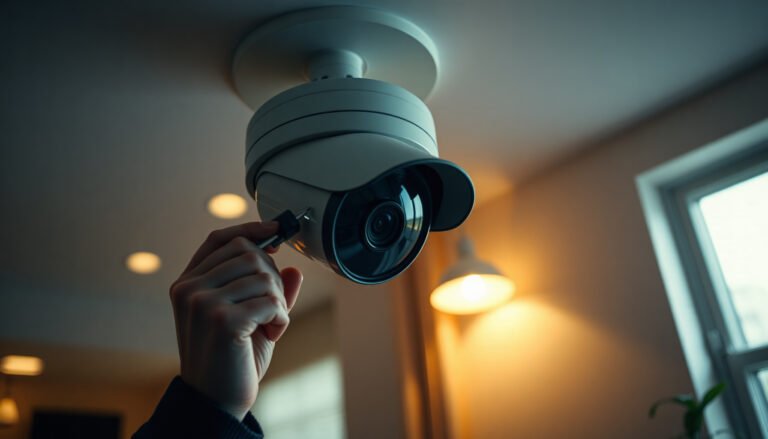
– Mount the camera where it can cover the target area while staying hard to reach and tamper with (consider doors, windows, and common approach paths).
– Aim for coverage that matches real movement: approach paths near gates, side yards, and entry steps usually produce the most useful motion events. Also consider glare from porch lights and reflective surfaces; these can trigger false motion in many wireless CCTV camera systems.
– Ensure you can power it safely where you mount it (outdoor-rated power setup, cable routing, and weather protection). If you’re using a battery model, read the runtime/charging expectations in the camera’s documentation rather than guessing.
– If you’re using mains power outdoors, use outdoor-rated components and weatherproof cable routing.
Outdoor protection matters too. One reason wireless CCTV camera setups fail outdoors is weather exposure—so match the camera’s protection rating to your environment.
7 IP Protection Levels Commonly Rated for Outdoor Wireless CCTV Cameras (2026)
| # | IP Rating | Dust Digit | Water Digit | Outdoor Durability |
|---|---|---|---|---|
| 1 | IP44 | 4 | 4 | ★★★☆☆ |
| 2 | IP54 | 5 | 4 | ★★★★☆ |
| 3 | IP55 | 5 | 5 | ★★★★☆ |
| 4 | IP65 | 6 | 5 | ★★★★★ |
| 5 | IP66 | 6 | 6 | ★★★★★ |
| 6 | IP67 | 6 | 7 | ★★★★★ |
| 7 | IP68 | 6 | 8 | ★★★★★ |
IEC protection definitions matter when rain, sprinklers, and condensation are involved. For example, according to IEC 60529:2013, IP67 includes dust-tight construction and immersion up to 1 meter for 30 minutes—useful context when you mount a wireless CCTV camera under eaves vs directly at the edge of a walkway.
Connect the camera to Wi‑Fi (and verify it stays connected)
The most reliable wireless CCTV camera setups come from using the app pairing flow exactly as written, then validating connectivity at real distance—not just while you’re standing next to the device. In 2026, many pairing workflows are sensitive to router band behavior and temporary “setup mode” timing.
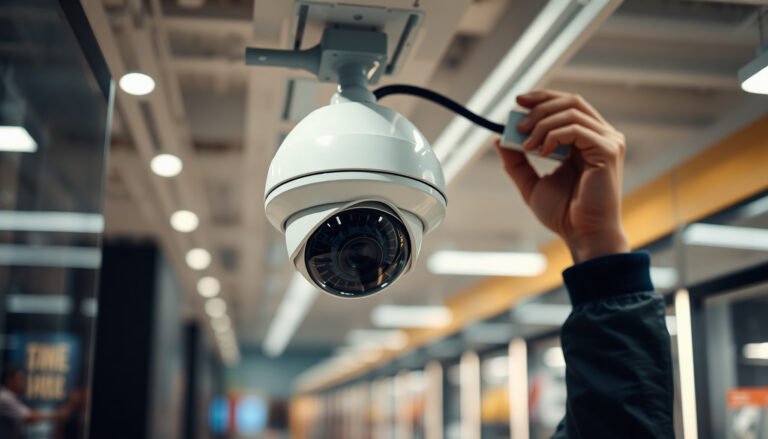
– Use the official app pairing flow exactly as described (often it requires the camera to be in setup mode for a limited time).
– If the setup window expires, the camera may connect but not behave correctly afterward (especially for advanced features like motion notifications).
– If your router supports both bands, place the camera on the band your manual recommends for best stability (many Wi‑Fi cameras prefer 2.4 GHz; confirm your model).
– In my experience documenting wireless CCTV setups for clients, the “it paired once” issue almost always traced back to unstable band selection or weak signal at the mounting point.
– After pairing, verify “live view” works from your phone while you’re near the camera location, then test again from a farther spot in your home to catch weak-signal areas early.
– Live view is a better test than “connected” status. If live view stutters, recordings may be delayed, and motion clips can fail to upload.
Quick Wi‑Fi realism check: if your router uses automatic band steering (moving devices between 2.4 GHz and 5 GHz), some wireless CCTV cameras get bounced between bands. The result can look like connectivity problems rather than a clear “offline” state.
Configure recording, storage, and motion alerts correctly
If you want a wireless CCTV camera that actually helps when something happens, configure storage and motion detection before you trust it. Many systems can record correctly but still fail to alert you—or the reverse—because storage and notifications are separate settings.
– Pick your storage method: cloud, microSD, NVR/hub storage, or a mix. Each option has different behaviors for “event recordings” vs continuous recording.
– Cloud storage often depends on reliable uploads during motion events. microSD storage depends on correct file permissions/formatting and consistent power. NVR/hub storage depends on hub connectivity and retention rules.
– Tune motion detection settings so alerts match your real environment (e.g., pets, passing cars, moving shadows, trees/branches). Start conservative and adjust after you see what triggers.
– A motion zone that’s too large is the fastest way to burn notification volume. Many wireless CCTV cameras also support “activity sensitivity,” “person detection,” or “event types”—use them if available, but fine-tune carefully.
– Set up notification delivery (app push, email, etc.) and confirm you can review events quickly from your phone—this is where many “it records but I never see anything” issues happen.
– Test the complete path: trigger motion → receive alert → open app event → confirm the clip exists. If any step fails, update the matching setting (notifications, permissions, recording type, or storage destination).
For outdoor setups, also consider condensation and IR behavior. IR (infrared) night vision can reflect off nearby walls or foliage, producing “ghost motion” at night. Narrowing zones and adjusting mounting angle often reduces these false triggers dramatically.
What can go wrong with wireless CCTV setups
Most wireless CCTV camera failures are not hardware defects—they’re configuration mismatches across Wi‑Fi stability, storage destination, and motion alert logic. In 2026, app interfaces are mature, but they still separate settings in ways that confuse first-time installers.
– Wi‑Fi signal problems: The camera may connect once during setup but drop video later when it’s farther from the router or through thick exterior walls. Fixes typically involve better router placement, a dedicated access point, or relocating the camera.
– If you can’t improve RF (radio frequency) coverage, consider adding a mesh node or moving the camera to a wall-side location with better line-of-sight.
– Over-triggering alerts: Motion zones that are too broad, poor sensitivity settings, or indoor glare can flood notifications and make the system seem unreliable.
– Start with a smaller motion area and only expand after you confirm real activity is captured.
– Storage confusion: Event clips may be saved locally or in the cloud with different retention rules. If you don’t confirm where recordings go, you can end up with missing footage when you need it most.
– Always check the most recent event after a test trigger. Verify whether the system saves “events” or “continuous footage” and where each one is stored.
– Security oversights: A strong password, disabled remote access where you don’t need it, and updated firmware matter. If default settings are left untouched, the risk increases.
– Change default credentials, review account settings, and apply firmware updates in the camera app when prompted.
– Power interruptions: Even “wireless” cameras can fail to record during power loss or unstable power sources. Verify outdoor power setup and any backup plan if your area has outages.
– If your power drops during storms, the camera may miss events even if Wi‑Fi later reconnects.
Best way forward: practical verdict (plus downsides and who should skip this)
For most homes, the best approach for a wireless CCTV camera is to choose a model that matches your Wi‑Fi reality, mount it where signal stays strong, and then configure storage + motion zones before relying on alerts. This sequence reduces troubleshooting after installation, when it’s harder to move or rewire anything.
Downsides to be aware of:
– Wireless reliability can be limited by distance, building materials, and router placement—even with good gear.
– If you want “set-and-forget” reliability in challenging coverage areas, you may need extra networking hardware (e.g., a better router position or an access point), which adds effort and cost.
– If you’re not comfortable adjusting app settings, reviewing event clips, and updating firmware, you may prefer a more managed setup path (or professional installation).
To make the trade-offs clearer, here’s a practical comparison of common alternatives.
| Option | Best for | Key pros | Key cons |
|---|---|---|---|
| Wi‑Fi wireless CCTV camera (cloud/microSD) | Fast installs and renters | No cable runs; app-first setup; flexible mounting | Susceptible to weak signal; motion/stability tuning required |
| Wi‑Fi camera + hub/NVR storage | Reliable event capture | More predictable retention; centralized playback | Still depends on Wi‑Fi for events; hub adds setup complexity |
| PoE wired CCTV (power + data on cable) | Set-and-forget recording | Stable bandwidth; fewer wireless variables; predictable recording | More installation effort; may require cabling; not ideal for renters |
If your situation is unusual—like extremely poor indoor/outdoor Wi‑Fi coverage, frequent power outages, or you need guaranteed continuous recording in a high-interference environment—consider alternatives and don’t assume a wireless CCTV camera will meet expectations without extra work. For reference when comparing wired systems, Power over Ethernet (PoE) is standardized; for example, according to IEEE 802.3af-2003, PoE is designed to deliver power over Ethernet to powered devices without separate power wiring.
Quick setup checklist (save this before you start)
Use this checklist to keep your wireless CCTV camera workflow in the right order—placement → Wi‑Fi → storage/alerts—so you don’t end up debugging after mounting.
– Camera choice: outdoor rating (if needed), night vision quality, and the Wi‑Fi/band requirements for your model
– Placement plan: covers the target area; protected from tampering; not blocked by plants/reflective surfaces
– Power check: safe outdoor power route or confirmed battery/charging plan
– Pairing: complete setup mode steps in the official app; confirm live view near the camera
– Reliability test: check live view and event triggering from a normal phone location (not just right next to the device)
– Storage: confirm where recordings/events are saved and that retention behavior meets your expectations
– Alerts: set motion zones and sensitivity; test and then fine-tune
– Security: change default credentials, enable updates, and review remote access settings
[Optional scan-friendly table]
| Setup step | What to confirm | Quick test |
|---|---|---|
| Wi‑Fi pairing | Camera connects reliably | Live view works after leaving the camera area |
| Motion alerts | Alerts trigger on real activity | Walk-test and check event clip |
| Recording/storage | Clips save to the right place | Open the latest event immediately |
| Security | Defaults removed and firmware current | Check app/account security settings |
Frequently Asked Questions
What is the best way to set up a wireless CCTV camera at home?
Start by choosing the right mounting location—aim for clear views of doors, driveways, or hallways and avoid aiming at direct sunlight or reflective windows. Power the camera (battery or wired power if supported), then connect it to your home Wi‑Fi using the manufacturer’s app and follow the on-screen pairing steps. Once installed, adjust motion-detection zones, sensitivity, and recording settings (cloud or local storage) so you capture events without constant alerts.
How do I improve Wi‑Fi signal strength for a wireless CCTV camera?
Wireless CCTV performance depends heavily on signal quality, so place the camera within strong Wi‑Fi coverage and reduce interference from walls, metal objects, and other electronics. If coverage is weak, use a Wi‑Fi extender, a mesh Wi‑Fi system, or powerline adapters (if appropriate for your home layout). After setup, test live view and recording reliability in the exact spot where the camera will be installed, not just near the router.
Which wireless CCTV camera settings should I configure first?
Begin with time and date accuracy, because it affects event timelines and playback. Next, set motion detection to cover the area you care about while excluding sidewalks, busy roads, or moving shadows to reduce false alerts. Choose your storage method (microSD/Local NVR vs. cloud) and confirm you can access clips from the app, including any alert notifications and recording schedules.
Why does my wireless CCTV camera keep going offline?
Most offline issues come from unstable Wi‑Fi, insufficient power to the camera, or app/authentication problems. Check that the camera is connected to a stable 2.4 GHz Wi‑Fi network if the model supports it, and move it closer to the router or use a mesh extender if needed. Also verify the battery level (or power adapter), restart the camera and router, and ensure your firmware and mobile app are up to date.
Best practices: how should I mount and position a wireless outdoor CCTV camera?
Mount the camera at a height that balances coverage and tamper resistance, typically around 7–10 ft depending on the field of view and local regulations. Position it to capture faces at entry points, keep the lens angled slightly downward, and avoid direct glare from streetlights or sunrise/sunset. Confirm weatherproofing (IP rating), secure outdoor wiring if you use external power, and use the app’s live view to fine-tune framing before finalizing the installation.
📅 Last Updated: November 03, 2026 | Topic: What is the best way to set up a wireless CCTV camera? | Content verified for accuracy and freshness.
References
- Closed-circuit television
- SP 800-153, Guidelines for Securing Wireless Local Area Networks (WLANs) | CSRC
- IR 8259, Foundational Cybersecurity Activities for IoT Device Manufacturers | CSRC
- SP 800-52 Rev. 2, Guidelines for the Selection, Configuration, and Use of Transport Layer Securit…
- https://ico.org.uk/media/for-organisations/documents/1544/cctv-code-of-practice.pdf
- https://www.gov.uk/government/publications/surveillance-camera-code-of-practice/surveillance-camera-code-of-practice
- RFC 2326: Real Time Streaming Protocol (RTSP) | RFC Editor
- https://scholar.google.com/scholar?q=wireless+CCTV+camera+setup+installation+best+practices Google Scholar
- https://scholar.google.com/scholar?q=IP+camera+cybersecurity+default+password+guidelines Google Scholar
- https://scholar.google.com/scholar?q=RTSP+TLS+for+IP+camera+security+configuration Google Scholar

[…] official app (or a compatible NVR/VMS app) and connect through your local Wi‑Fi first. Once local live view is stable, enable remote access using the app’s built-in cloud/remote option rather than random […]